If you’re like me and enjoy getting birthday wishes on Facebook, then making sure your birthday notifications are turned on is actually pretty important. I didn’t realize this at first, but depending on my privacy settings, my birthday wasn’t even visible to others-so no one knew when to send wishes.
There are a couple of common reasons why birthday notifications might not show up for your friends. In my case, it usually comes down to one of these:
- I accidentally hid my birthday from my profile
- I entered the wrong date without noticing
- Or I recently updated it and had to wait a few days before making changes again
The good thing is, all of these issues are easy to fix once you know where to look.
Enable Birthday Notification in Facebook App
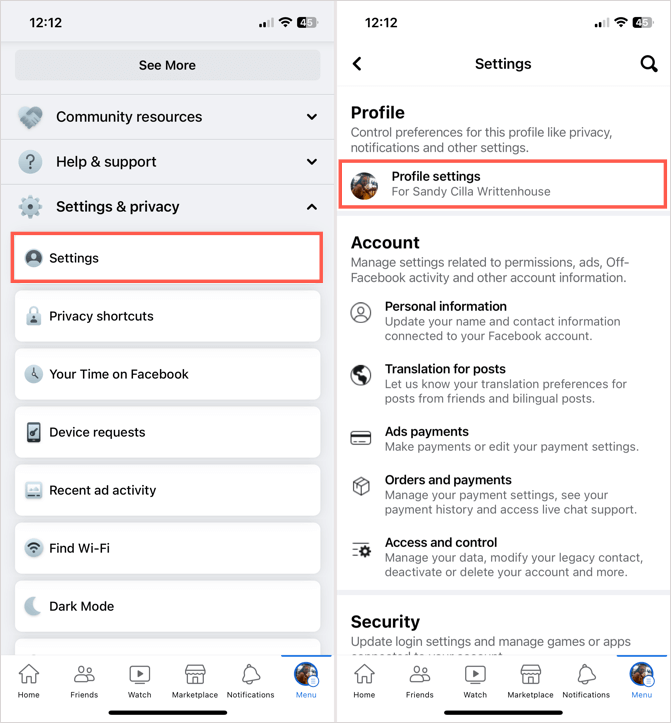
1. To make your birthday public on Facebook, open the “Menu” of the application and, in the “Settings” tab, select “Profile Settings”. On the next screen, choose the “Privacy” option to proceed.
2. Now, click on “Manage your profile” and in the “Basic Information” section, tap on the “Edit” command on the right. To change the day, month and year, click on each one. Select the privacy icon on the right, then choose “Public” or “Friends” to make the information visible.
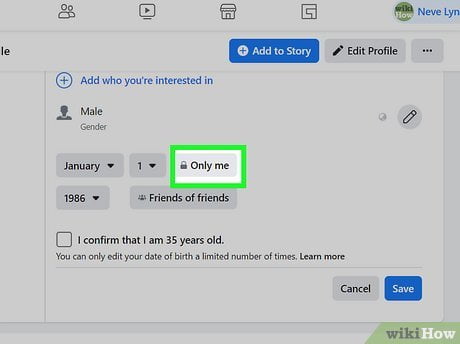
After that, just save your preferences via the command at the bottom of the screen. It is important to note that when you choose the “Public” mode, any user of the social network will see your birthday. With the option “Friends”, only profiles added to your account will have access. Either way, notifications reach your friends exclusively.
You might have noticed that the day and month of your birth have separate privacy settings, while the year of birth has its own setting. To ensure your friends receive accurate birthday notifications, make sure all this information is visible.
By adjusting the privacy settings for your birth date, you can ensure that your friends are able to see and receive notifications for your birthday. This way, everyone can celebrate and send their wishes on your special day.
Enable Facebook Birthday Notification on PC
- Go to Facebook in my browser
- Click my profile picture in the top-right corner
- Select Settings & Privacy → Settings
- Click Notifications from the left sidebar
- Find and open Birthdays
- Turn on the notification options I want
How to check a friend’s birthday notification in the app
Now, if you’re not getting birthday notifications from your friends, the other way around. The option is almost hidden among the complicated menu of the social network and, for this reason, many users cannot find it.
1. Return to the “Settings” screen, located in the “Menu” of the application;
2. In “Profile Settings”, locate the “Notifications” section and choose “Notification Settings”;
3. From the options, select “Birthday” and, to enable notifications, click on the button next to the command “Allow notifications on Facebook”.
Once this is done, you can customise how messages will arrive in your account (by email, push or SMS). There is also a way to enable notifications for past and future birthdays. If you want to disable all notifications for some reason, just retrace your steps and click the feature button. It should be grey in colour.