
Windows allows you to create different types of user accounts to control what people can do on a computer. The two most common account types are Standard User and Administrator.
Although both accounts let you sign in, open applications, browse the internet, and work with personal files, they have different levels of access to system settings and administrative tasks.
Understanding the difference between a Standard User and an Administrator in Windows can help you protect your computer, manage permissions, and choose the right account for everyday use. In this guide, you will learn how these accounts work, what each account can do, how they differ in terms of security, and how to change an account type in Windows 10 and Windows 11.
What Is a Standard User in Windows?
A Standard User is an account designed for everyday computer activities without unrestricted access to system-wide settings. Standard users can perform common tasks such as browsing the internet, using applications, creating documents, playing games, and managing files in locations where they have permission.
However, Windows restricts certain actions that could affect the entire computer or other users. For example, a Standard User generally cannot install software for all users, change important system-wide settings, or modify protected Windows files without administrator authorisation. Standard accounts are useful for:
- Every day computer use.
- Schoolwork and office tasks.
- Browsing the internet and checking email.
- Sharing a computer with family members.
- Limiting the impact of accidental or unauthorised system changes.
A Standard User is generally the better choice for everyday activities because it limits access to sensitive system settings.What Is an Administrator in Windows?
An Administrator is an account with the ability to perform system-wide management tasks and approve changes that require elevated privileges. Administrators can manage user accounts, install many types of software, change security settings, configure system-wide options, and troubleshoot Windows problems.
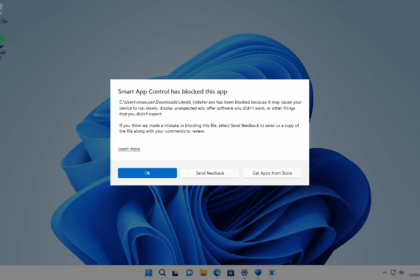
However, administrator access does not mean every application automatically runs with full privileges. Windows uses User Account Control (UAC) to request approval when an application or action needs elevation.
Administrator accounts are useful for:
- Installing and removing software that requires administrative permissions.Creating, modifying, and managing user accounts.
- Changing system-wide settings.
- Managing device drivers and certain hardware configurations.
- Troubleshooting Windows and performing maintenance.
- Configuring security policies and other protected settings.
An Administrator has more control over the computer, but that additional access also increases the potential impact of mistakes or malicious software.
Standard User vs Administrator
The main difference is the level of permission each account has to make changes to Windows.
| Feature | Standard User | Administrator |
|---|---|---|
| Open applications | Yes | Yes |
| Browse the internet | Yes | Yes |
| Create and edit personal files | Yes | Yes |
| Change personal settings | Yes, within permitted areas | Yes |
| Install software for all users | Usually requires administrator approval | Can approve or perform many installations |
| Install device drivers | Usually requires elevation | Can approve or perform supported installations |
| Create and manage user accounts | Limited | Yes, subject to Windows policies |
| Change system-wide settings | Restricted in many areas | Broad access |
| Modify protected Windows files | Restricted | Possible with appropriate privileges |
| Approve UAC elevation requests | May require administrator credentials | Can approve eligible elevation requests |
| Overall system access | Limited | Elevated administrative capabilities |
Exact permissions depend on Windows policies, the location being accessed, and the action being performed. Some installations and settings changes may be available to Standard Users without elevation.
What Can a Standard User Do in Windows?
A Standard User can complete most everyday tasks without needing administrative access.
1. Use Installed Applications
Standard users can open supported applications, browse the web, use office software, watch videos, and play games.
They do not need administrator privileges simply to use software that is already installed and accessible to them.
2. Create and Manage Personal Files
Standard users can create, rename, edit, and delete files in folders they have permission to access, such as their own Documents, Downloads, and Desktop folders.
They generally cannot change protected files owned by Windows or other users without additional authorisation.
3. Change Personal Settings
Standard users can change many settings related to their own experience, including desktop backgrounds, personal preferences, and certain application settings. Some changes that affect the entire computer may require administrator approval.
4. Install Certain Applications
Not every software installation requires an administrator account. Some applications can be installed only for the current user, often within the user’s profile.
Other installations require system-wide access and therefore need administrator approval.
5. Use the Internet and Communicate
Standard users can browse websites, use email, attend online meetings, and access other permitted internet services.
Having a Standard User account does not automatically make internet activity safe, but limiting system permissions can reduce the potential impact of some security incidents.
What Can an Administrator Do in Windows?
An Administrator can perform many tasks that are restricted for Standard Users.
1. Install and Remove System-Wide Software
Administrators can approve many installations that modify protected system locations or make applications available to all users. Some software can still be installed without administrator privileges, depending on the installer and application.
2. Manage User Accounts
Administrators can create accounts, change account types, and manage other users on the computer, subject to organisational policies and Windows security restrictions. This is particularly useful on shared computers and family PCs.
3. Change System-Wide Settings
Administrators can manage many settings that affect the whole computer, such as certain network configurations, system services, security options, and device settings. Some advanced changes may require additional authorization or specific privileges.
4. Install Drivers and Manage Devices
Many device-driver installations and hardware configuration changes require administrative approval. An Administrator can authorize these operations when supported by Windows and the relevant device software.
5. Troubleshoot Windows Problems
Administrators can perform many advanced troubleshooting tasks, such as managing services, reviewing system logs, running elevated command-line tools, and repairing certain system components. Some repairs also require specific permissions, recovery tools, or additional security approvals.
Which Account Is More Secure?
For everyday use, a Standard User account is generally safer than routinely using an Administrator account. A Standard User has fewer permissions to change protected parts of Windows. This can help limit the damage caused by accidental changes or some malicious applications running with the user’s permissions.
For example, if a program attempts to modify a protected system setting, Windows may require administrator authorization before allowing the change. An Administrator can authorize more powerful operations, so approving an untrusted program can have more serious consequences.
However, a Standard User account is not a complete security solution. Malware can still access files and resources available to that user, steal information, or exploit security vulnerabilities. For better protection:
- Use a Standard User account for daily activities when practical.
- Keep Windows and applications updated.
- Use reputable security software.
- Approve UAC prompts only when you understand the requested action.
- Avoid running unknown programs with elevated privileges.
- Use strong passwords or other supported sign-in protections.
What Is User Account Control (UAC)?
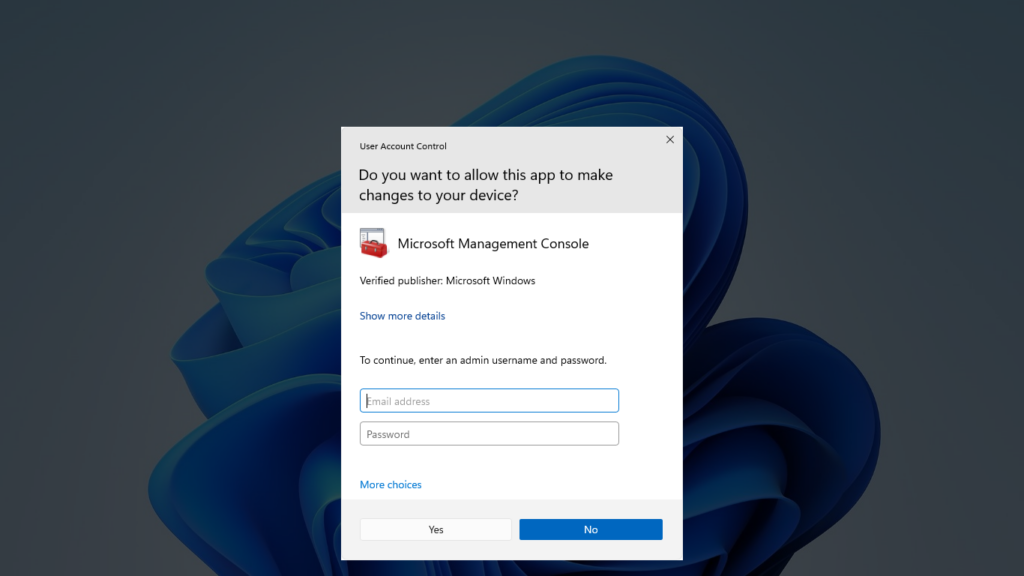
User Account Control, commonly called UAC, is a Windows security feature that helps prevent unauthorised changes to the computer.
When an application attempts to perform an action that requires administrative privileges, Windows may display a prompt requesting approval or administrator credentials.
The experience depends on the current account and the system’s security configuration.
- Standard User: An administrative action may require credentials from an Administrator account.
- Administrator: An elevation prompt may ask the user to approve the action.
- Managed computer: Organisational policies may restrict or control elevation requests.
UAC helps ensure that administrative actions require authorisation. It does not guarantee that every program requesting elevation is safe.
Always verify the application and the action before approving a UAC prompt.
How to Check Whether Your Windows Account Is Standard or Administrator
You can check your account type in Windows 10 or Windows 11 by going to Settings.
- Press Windows + I to open Settings.
- Select Accounts.
- Open your info.
- Look below your account name and details for the account designation, if displayed.
Windows may show Administrator for an administrator account. If the designation is not displayed, use the account-management method below.
Check Account Types Through Control Panel
- Open Start and search for Control Panel.
- Select User Accounts.
- Click User Accounts again if necessary.
- Review the account information displayed on the page.
Depending on your Windows configuration, you may see whether the current account is a Standard User or Administrator. You can also select Manage another account if you have the necessary permissions to view other accounts.
How to Change a Standard User to an Administrator
If you have the required administrative permissions, you can change a Standard User account to an Administrator account through Settings.
- Sign in using an account that has permission to manage user accounts.
- Press Windows + I.
- Select Accounts.
- Open Other users. In some configurations, this may be referred to as Family & Other Users.
- Select the account you want to change.
- Click Change account type.
- Select Administrator from the account type list.
- Click OK to save the change.
The account will have administrator membership after the change takes effect.
Only grant Administrator access to people who genuinely need it and can be trusted to manage the computer responsibly.
How to Change an Administrator to a Standard User
You can also reduce an account’s permissions when administrative access is no longer necessary
- Sign in with another account that has the required administrative permissions.
- Press Windows + I.
- Select Accounts.
- Open Other users or Family & other users.
- Select the account you want to modify.
- Click Change account type.
- Choose Standard User.
- Click OK.
The account will no longer have administrator membership.
Before making this change, ensure that at least one other usable account retains the necessary administrative access. Otherwise, managing system-wide settings later may become difficult.
Can a Standard User Run a Program as Administrator?
Yes. A Standard User can sometimes run a program with administrator privileges by using the Run as administrator option and providing the required administrator credentials.
To try it:
- Open Start and search for the application.
- Right-click the application.
- Select Run as administrator.
- If prompted, enter the credentials for an authorized Administrator account.
- Approve the request if appropriate.
If the account lacks administrative credentials and Windows requires them, the user cannot legitimately elevate the application without authorization.
This is useful when a Standard User needs to perform an occasional administrative task without changing the account’s permanent type.
Should You Use a Standard User or Administrator Account?
The right choice depends on how you use your computer.
| Situation | Recommended Approach |
|---|---|
| Everyday browsing, email, and office work | Standard User |
| A child’s or guest’s account | Standard User |
| Shared family computer | Standard accounts for everyday use |
| Installing system-wide software | Administrator approval when required |
| Managing devices and Windows settings | Administrator access when needed |
| Advanced troubleshooting | Administrator access for tasks that require it |
| Work or school computer | Follow the organization’s account policy |
For most home users, a good approach is to use a Standard User account for routine activities and keep a separate Administrator account available for maintenance. If your work requires frequent administrative tasks, you can use an Administrator account while still reviewing elevation prompts carefully and avoiding unnecessary elevated applications.