How to Adjust Computer Screen Brightness: 4 Easy Ways

By
Rohit Kumar
Author
Rohit is a certified Microsoft Windows expert with a passion for simplifying technology. With years of hands-on experience and a knack for problem-solving, He is dedicated...
When you purchase through links on our site, we may earn an affiliate commission.

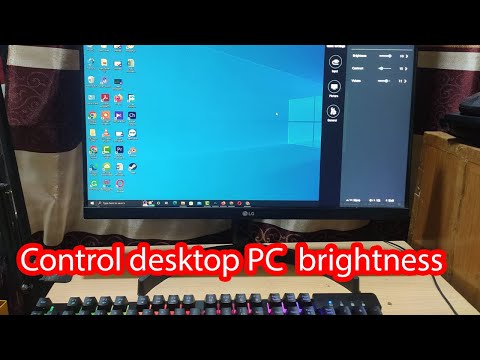
A screen that is too dark can make it difficult to read, while excessive brightness can make your eyes feel uncomfortable. Adjusting your computer’s screen brightness is a simple way to make the display easier to use in different lighting conditions.

Changing the brightness can also help conserve battery power on laptops, especially when you’re working away from a power outlet. Windows provides several ways to adjust the display, from keyboard shortcuts to system settings.

Here are four easy methods to change your computer’s screen brightness.

How to Adjust Screen Brightness Using the Keyboard

The quickest way to adjust brightness on many laptops is to use the dedicated brightness keys on the keyboard.

  1. Look for keys marked with a sun or brightness icon. These are commonly located among the function keys.
  2. Press the brightness key to increase or decrease the screen brightness. On some laptops, you may need to hold Fn while pressing the brightness key.
  3. Depending on the computer model, the brightness controls may be assigned to keys such as F1 and F2 or F11 and F12.
  4. A brightness indicator should appear on the screen as you make the adjustment.

Windows Brightness Icon

Keyboard shortcuts vary between laptop manufacturers, so check your device’s keyboard layout if the brightness keys are not immediately obvious.

laptop-keys brightness shortcut

How to Adjust Screen Brightness Through the Action Center

Windows 10 also lets you change brightness from the Action Center, making it convenient when you do not want to use the keyboard.

  1. Click the Action Center icon next to the date and time on the Windows taskbar.
  2. Find the brightness control below the quick settings icons.
  3. Move the slider to the left to reduce brightness, or to the right to increase it.

windows-11-action-center

This method is particularly useful when you need to make a quick adjustment while working.

How to Adjust Screen Brightness Through Windows Settings

You can also control your display brightness through Windows Settings.

  1. Open the Start menu and select Settings.
  2. Choose System.
  3. Select Display from the left-hand menu.
  4. Find the Brightness and color section.
  5. Move the brightness slider until the display reaches a comfortable level.

Change Brightness Level Windows Setting

The exact options may vary depending on your Windows version and computer hardware.

How to Automatically Reduce Brightness When Using Battery Saver

Laptop users can reduce power consumption by allowing Windows to lower the screen brightness when Battery Saver is active.

  1. Open the Start menu and go to Settings.
  2. Select System.
  3. Open the Battery section.
  4. Enable the option to lower screen brightness while using Battery Saver, if available.

Once enabled, Windows can automatically reduce display brightness when the laptop enters Battery Saver mode.

Which Method Should You Use?

Each method is useful in a different situation:

MethodBest for
Keyboard shortcutQuick brightness adjustments
Action CenterFast changes without using the keyboard
Windows SettingsPrecise manual control
Battery SaverAutomatically reducing brightness to save power

Adjusting your computer’s screen brightness takes only a few seconds, and Windows offers several ways to do so. Keyboard shortcuts are usually the fastest option, while Windows Settings provides more direct control. On laptops, enabling brightness reduction with Battery Saver can also help extend battery life.

Choose the method that works best for your setup and adjust the display whenever your surroundings or viewing conditions change.

Author
Follow:
Rohit is a certified Microsoft Windows expert with a passion for simplifying technology. With years of hands-on experience and a knack for problem-solving, He is dedicated to helping individuals and businesses make the most of their Windows systems. Whether it's troubleshooting, optimization, or sharing expert insights,