Smartphones have become an essential part of everyday life. We use them for communication, navigation, banking, work, entertainment, and storing personal information. But when a phone gets misplaced, left behind, or stolen, finding it can quickly become stressful. Losing an Android phone can also put your private data at risk if you do not take the right precautions.
The good news is that Android offers several ways to locate a missing device, secure it remotely, and protect your information. Depending on your phone’s settings and whether it can connect to the internet, you may be able to view its location, make it ring, lock it, or erase its data.
In this guide, we’ll cover how to prepare your Android phone before it goes missing, which built-in tracking services may be available, and how to use Google’s Find My Device service to locate a lost phone or tablet.
- Sony devices: My Xperia
- Redmi: I cloud
- Le Tv: My LeEco App
- Gionee: Track Service
- Samsung: Find My Mobile Service
- Stock Android: Find My Mobile
These are some popular companies that provide their own locate-a-device service using GPS and cell phone tracking. Most of these use the phone’s GPS tracking feature. Now,
What about other devices? How to locate them?
How to Use Google Find My Device to Locate Your Android Phone
If your Android phone doesn’t have a manufacturer-specific tracking feature, or you can’t find it in your settings, you can use Google’s Find My Device service, formerly known as Android Device Manager.
Most Android users sign in with a Google account to access services such as the Play Store and synchronise their data. By using the same account linked to your missing phone, you can access Google’s device-finding tools and check its location when the necessary settings and connectivity are available.
To get started, install the official Find My Device app from Google Play, if available, or visit the Google Find My Device website. Sign in with the Google account associated with your missing device, then follow the on-screen instructions to view its location and recovery options.
You can also search for “Google Find My Device” to find the official service. Remember to enable the device-finding feature before your phone goes missing, as setting it up in advance gives you the best chance of locating it.
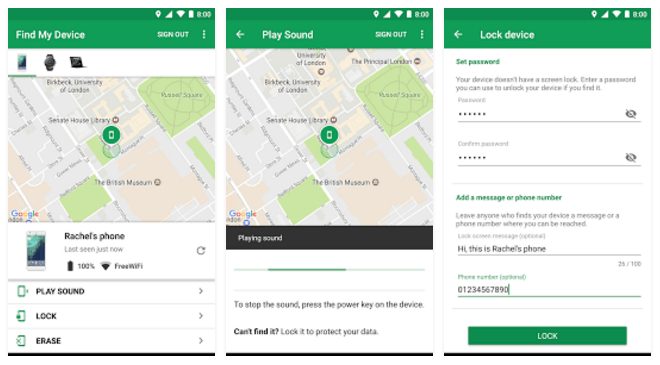
Find My Device, also known as Google Phone Locator, is the new and improved version of Android Device Manager. It can help you to locate a lost Android device and keep your information safe and sound by erasing the data remotely. It works with almost all devices running Android 4.0 and later. Our devices use Google accounts, and the information is in sync, so we suggest you use this app instead of the system ones.
How To Use Find My Device
- Install the Find My Device app from the Google Play Store.
- Select the account from which you logged in to your Device.
- Enter the account password.
- Allow Find My Device to access the device’s location.
- Now the app will show the current location of the device, battery percentage, and Options like:
- Play Sound – Starts playing a loud ringtone of the device.
- Lock and Erase – To Lock or Erase the device, select this Option
- Now, your last location will be added to Google Location History whenever you’re connected to the internet, which was previously known as Android Device Manager location history. Also, Can use the app to locate or lock the device from Other Devices.
This will enable your mobile device to connect to Google servers and log your last location history. You can also use this feature to lock your device without touching it. This will ensure that you can monitor and half-control your device online without even touching it.
How to locate and lock the Device Remotely using the Find My Device
Now, what to do when you lost or someone steals your device. The first question comes. How to find my lost phone?
How can I find my phone location? This is where Find My Device will help you to locate your device. If your device is still connected to the internet somewhere it will try to communicate with it, else it will show the last location of the device which was logged when it was connected to the internet. If your mobile is nearby and you forget where you kept it, you can use the option to play the sound on your phone. but to do all we need to have access to mobile or how to do it from another device. To do it through the app. Download the app on your friend’s mobile or any android device you have and follow the steps below.
- Open the app.
- Now Select Sign In as Guest.
- Enter Your Account Details.
- After you log in to the device. The last location will be visible on the Map. Also, an option to block and delete your Device.
If you have any confidential or office document data which you wish to delete, you can use the erase option to do so, or lock the device.
Note: The Map shows the last location where your device was connected to the internet. The actions performed only work when the device is connected to the internet again.
5. To avoid the disconnection issue, keep your Device connected to the internet by limiting the usage in standby mode.
How to lock and erase the device without using the app.
A problem arises when we don’t have another device to install the app on. Here I how to find phone computer using the App Website. This is simple and straightforward, and the features are the same as the app. You can lock and erase it from the desktop. Let’s check out how to access it from the web browser.
- Go to Android Find.
- Log in to your account. [Account that was used to log in to the app]
- And your Done. Similar to the image below. The device’s location and other options will be shown.
Though this app is limited, you can only locate, lock and erase the device. So let’s look at alternative phone locators with extra features, including Find My Mobile.
Alternative Phone locators and Alarm Apps
1. Lookout Security & Antivirus
Lookout Security & Antivirus is a free/paid all-in-one security app that comes with features like Wi-Fi Protection, System Advisor, Identity Theft Protection, Identity Restoration & Insurance, and Find My Phone. With these features, you will be safe from Wi-Fi attacks, get regular system advice from the app, and, most importantly, Identity Theft Protection.
Identity Theft Protection enables you to monitor personal and business information, including social media watch, so you can check whether your data is at risk, and, at last, use find my phone features.
The process for enabling Find My Phone features is similar to the apps above; you just need to configure the app.
2. AMC Security – Clean & Boost
Advanced Mobile Care from IObit is actually a cleaner & booster, but it also comes with an Anti-Theft feature, which is why I added it to the list. This app is popular and trusted by over 20,000,000 users. It offers various features, excluding clean & boost.
The app’s anti-theft feature helps you lock and set an alarm on your lost device immediately. Once you have set up your device with this app, you may lose it after some time. You can lock your device instantly by sending an SMS with the message ‘alarm#’ and your password from any other device.
If this method fails, you can still locate and wipe your device by using the app on another device. To do so, go to Anti-Theft>Tap on locate wipe data>Enter the number or ID of the lost phone.
3. Family Locator – GPS Tracker
Family Locator lets you create your own groups, called “Circles,” for teammates— whoever matters most — and chat with them in Family Locator. You can track stolen phones or lost phones, even the iPhone with a family locator.
Features:
- Real-Time Location Data
- Find Friends and Family.
4. Avast Antivirus
Avast is not actually a phone locator app, but it can be useful. It offers an Anti-Theft feature that locks the device if the SIM card is changed or removed.
These are the best methods for protecting and finding your lost device. Excluding these, if any of these do not work, you can either file a complaint or ask your SIM operator to lock your SIM card.
To do this, you need to work a bit, but it’s the best method instead of getting the device misused. If you have the company-provided device, you can ask your company to block it. That’s all.