If you prefer Google over Apple’s voice assistant, you may want to replace Siri with Google Assistant on your iPhone. Google can help you search the web, get directions, ask questions, check information, and perform other everyday tasks using your voice.
However, you cannot completely replace Siri with Google Assistant for every iPhone feature, unlike with some default apps. You can install Google Assistant, use Google’s voice search features, create convenient shortcuts, and configure supported iPhone controls for quicker access.
In this guide, you’ll learn how to set up Google Assistant on iPhone, access it faster, create a Siri Shortcut, and understand the limitations.
Can You Replace Siri with Google Assistant on iPhone?
No, not completely in the traditional setup. Siri is integrated into iOS and handles system-level functions, including certain device settings, Apple services, and requests initiated through Siri’s normal activation methods.
Google Assistant, when available for your device and region, works through Google’s app rather than automatically taking over every function assigned to Siri.
You can still make Google easier to access by:
- Installing the Google Assistant app if it’s available for your device and region.
- Using Google Search’s voice-search feature.
- Adding Google widgets or shortcuts to your Lock Screen or Control Center.
- Assigning a supported Google action to your iPhone’s Action Button.
- Creating a Shortcut that opens a supported Google feature.
The best approach is to keep Siri available for iPhone-specific tasks and use Google for voice searches, directions, and questions when you prefer Google’s services.
How to Set Up Google Assistant on iPhone
Before changing your iPhone’s settings, check whether the Google Assistant app is available in your region. Google also offers voice-search features through its Google app.
Install the Google Assistant App
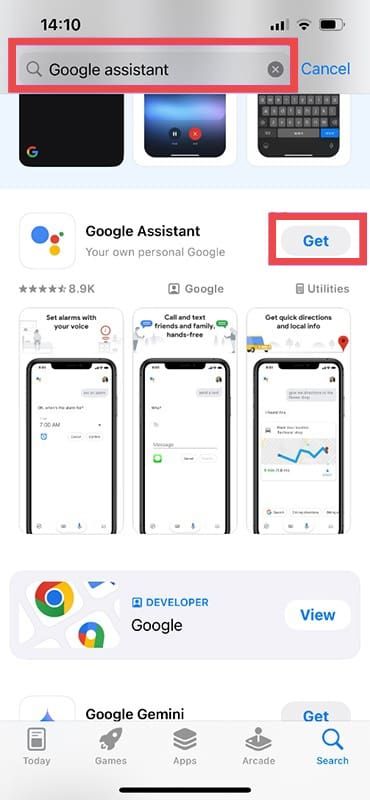
- Open the App Store on your iPhone.
- Search for Google Assistant.
- If the app is available, open its App Store listing and install it.
- Launch the app after installation.
- Sign in to your Google Account if prompted.
- Allow microphone access when you want to issue voice commands.
- Follow any remaining setup instructions displayed in the app.
If you cannot find Google Assistant in the App Store, check whether Google’s current assistant offering is available for your iPhone and region. You can also install the Google app to access voice search.
Use Google Assistant to Ask Questions
Once the app is ready, open it and tap the microphone icon. Depending on the app version, you may also be able to start speaking with a supported wake phrase while the app is open.
Try commands such as:
- “What’s the weather like today?”
- “Find coffee shops near me.”
- “Give me directions to the nearest petrol station.”
- “Search for easy dinner recipes.”
- “What’s the capital of Japan?”
You can also type a question if you don’t want to speak aloud.
Keep in mind that Google’s app-based voice activation is not the same as having Google continuously listen for a wake phrase throughout iOS. Do not assume that saying “Hey Google” anywhere on your iPhone will automatically launch the assistant.
How to Access Google Faster on iPhone
You don’t have to open the Google app manually every time. Depending on your iOS version and the Google app installed, you can place a shortcut in a convenient location.
Add Google Voice Search to the Lock Screen
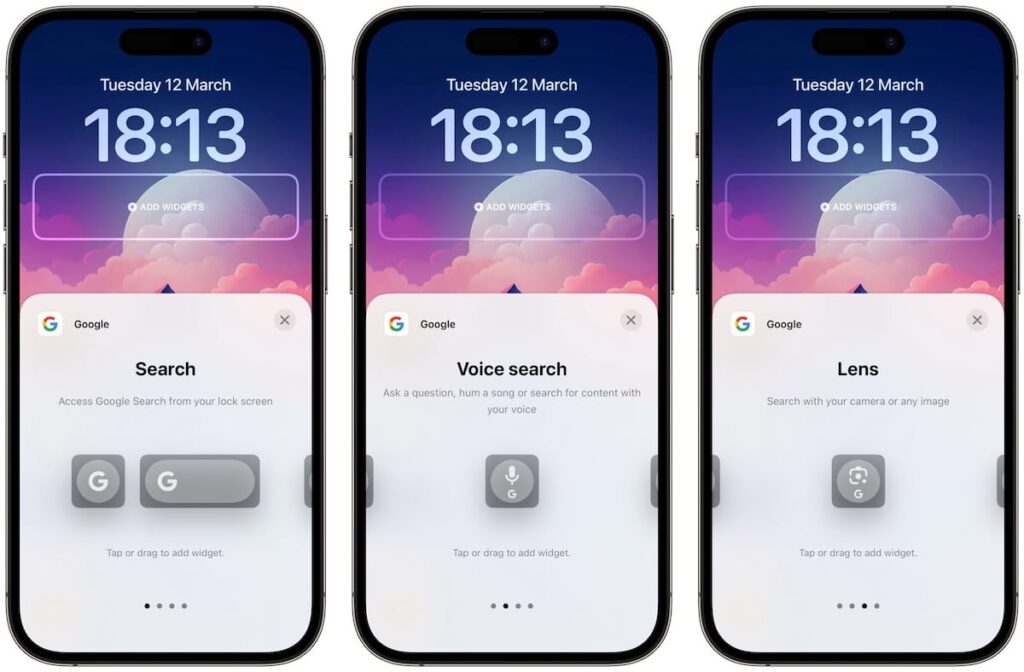
On supported iPhones running iOS 16 or later, you can add Google widgets to the Lock Screen.
- Unlock your iPhone, but remain on the Lock Screen.
- Touch and hold the Lock Screen until the customisation option appears.
- Tap Customize, then select Lock Screen.
- Tap the widget area below the clock.
- Find Google in the widget gallery.
- Choose an available widget, such as Voice Search, if it appears.
- Add the widget and tap Done.
You can now access the selected Google feature directly from your Lock Screen.
The exact widgets available depend on the installed Google app and your iOS version.
Add Google to Control Center
On supported iPhones running iOS 18 or later, you can add compatible Google controls to Control Center.
- Swipe down from the top-right corner of your screen to open Control Center.
- Enter customization mode using the available add-control option.
- Tap Add a Control.
- Search for Google or browse the available controls.
- Select a Google feature that you want to access quickly.
- Position the control where you prefer and finish customizing Control Center.
The available controls may include Google Search features such as Lens or AI Mode rather than the full Google Assistant. Choose the specific action you want to use.
Assign Google to the Action Button
If you have an iPhone 15 Pro or a later compatible model with an Action Button, you may be able to assign a Google feature to it.
- Open Settings on your iPhone.
- Tap Action Button.
- Swipe through the available actions until you find Shortcut.
- Tap the shortcut selection option.
- Search for Google in the available shortcuts.
- Select a supported action, such as Voice Search, if available.
- Return to Settings to save your selection.
Press and hold the Action Button to launch the assigned feature.
Important: This method launches the selected Google action; it does not necessarily activate the full Google Assistant or replace Siri throughout iOS.
How to Use Shortcuts to Open Google Instead of Siri
Apple’s Shortcuts app lets you create a quick action that opens an app or performs a supported task. This can make Google easier to reach when you don’t want to search for its icon.
Create a Shortcut for Google
- Open the Shortcuts app on your iPhone.
- Tap the plus (+) button to create a new shortcut.
- Tap Add Action.
- Search for an action such as Open App.
- Select the action and choose the Google app or Google Assistant app installed on your device.
- Give the shortcut a clear name, such as Open Google.
- Tap Done to save it.
You can run this shortcut from the Shortcuts app or add it to your Home Screen for quicker access.
If the installed Google app offers its own specific shortcut actions, you may be able to select one of those instead of simply opening the app.
Can You Activate Google Assistant by Saying “Hey Siri”?
You can sometimes use Siri to launch a shortcut, which gives you a convenient way to open a Google app.
For example, if you created a shortcut called “Open Google,” you can say:
“Hey Siri, Open Google.”
Siri recognises the shortcut name and runs it. If the shortcut opens the Google app, you can then use its available voice features.
However, this is a workaround, not a complete replacement. Siri still handles the initial voice request, and the shortcut may open the app without immediately starting a conversation.
How to Turn Off Siri and Use Google Instead
If you no longer want Siri to respond to voice commands, you can turn off its listening and button-activation features. You can then open Google manually or through a shortcut.
Follow these steps:
- Open Settings on your iPhone.
- Find Siri or Apple Intelligence & Siri, depending on your iOS version.
- Open the settings for Talk to Siri or Talk & Type to Siri.
- Select the option to turn off voice activation, if available.
- Return to the Siri settings.
- Turn off the option for activating Siri with the side button, if shown.
The available labels may vary by iOS version.
Turning Siri off does not automatically make Google the default assistant. It simply disables the Siri activation methods you selected.
If you want to use Siri again, return to the same settings and enable the desired options.
Google Assistant vs. Siri on iPhone
Both assistants can help with everyday questions, but they work differently on Apple’s platform.
| Feature | Google Assistant or Google Voice features | Siri |
|---|---|---|
| Voice searches | Available through supported Google features | Available |
| General questions | Supported, depending on the Google app | Supported |
| Google services | Convenient for Google Search and compatible with Google apps | Can open or interact with supported apps |
| iPhone system controls | Limited by app and iOS integration | Integrated with supported iOS functions |
| Lock Screen access | Supported Google widgets may be available | Built-in iOS activation options |
| Side-button activation | Not a universal replacement for Siri | Supported on compatible iPhones |
| Custom shortcuts | Supported through compatible app actions | Integrated with Apple’s Shortcuts app |
The main difference is integration. Siri provides built-in access to supported iPhone features, while Google offers convenient access to its search and other services.
Your preferred option depends on whether you mainly want better web searches or deeper control over your iPhone.
What to Do If Google Assistant Is Not Working on iPhone
If Google Assistant or Google’s voice-search feature does not work as expected, try these solutions.
Check Microphone Permissions
Open Settings and find the privacy controls for your installed Google app. Make sure microphone access is enabled if the app needs it for voice input.
You can also check the app’s permissions in Settings.
Check Your Internet Connection
Google’s online assistant and search features generally require an internet connection. Switch between Wi-Fi and mobile data to determine whether your connection is causing the problem.
Update the App
Open the App Store, search for the Google app you use, and install any available update. An outdated version may have different features or compatibility issues.
Check Your Language Settings
Google Assistant availability depends on supported languages and regions. If voice interaction is missing, confirm that the app and device language are supported.
Use a Shortcut Instead
If voice activation does not work as expected, create a shortcut to open the Google app. This provides a reliable way to reach Google without relying on a wake phrase that may not be supported on your iPhone.
You can use Google instead of Siri for many searches and everyday questions on your iPhone, but replacing Siri completely is generally not possible through the standard settings.
Start by installing the Google Assistant app if available, or use the Google app’s voice-search feature. Then add a Lock Screen widget, a Control Center control, or a shortcut to make Google easier to access.