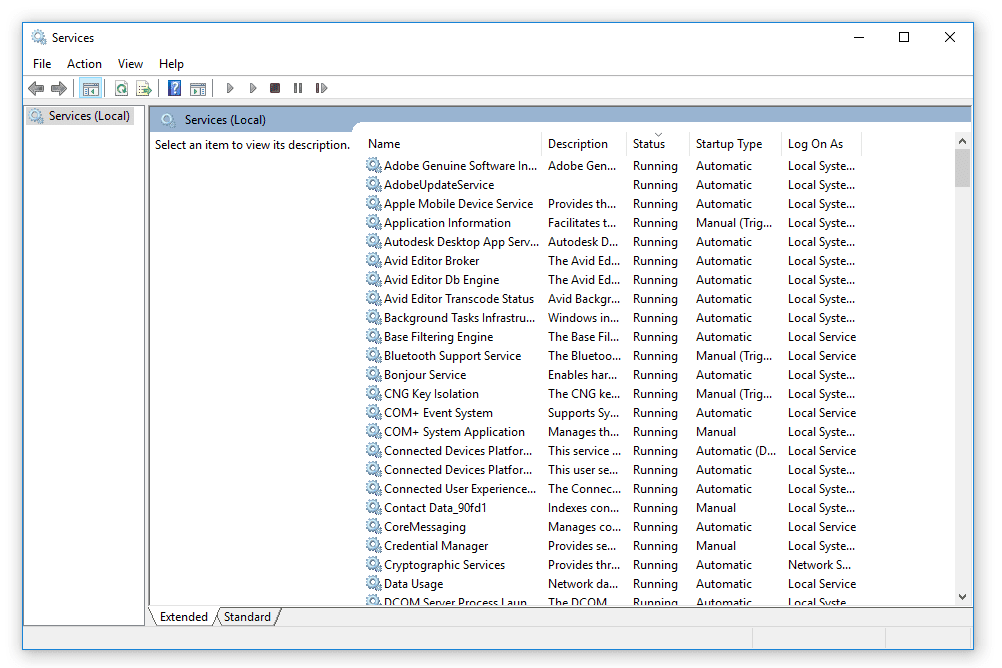
Windows services are background programs that support the OS and installed applications. They run silently on both client and server editions of Windows, performing essential tasks behind the scenes.
Each service has its own settings you can adjust. Below, I’ll show how to manage those settings centrally using Group Policy.
Group Policy enables administrators to apply rules and configurations to multiple machines simultaneously. Using it, you can control a service’s startup behaviour (Automatic, Manual, Disabled) and set permissions for which accounts can start, stop, or configure the service.
Managing services through Group Policy is a practical, scalable way to keep service configurations consistent across an organisation’s Windows devices.
If you’d like, I can now walk you through the Group Policy options step-by-step and provide example GPOs and PowerShell snippets. Which would you prefer – a concise procedure or a detailed walkthrough with screenshots and scripts?
Configure Windows services via GPO
Configuring Windows services through Group Policy offers a major advantage over manual setup – it allows you to apply consistent settings across multiple computers automatically. This saves time and ensures a uniform configuration without requiring adjustments to each device individually.
For example, you can use Group Policy to disable unneeded services on a Windows Server right after installation, or to set certain services on Windows 10 to Manual, so they only run when required.
To access these options, open Computer Configuration → Settings → Control Panel Settings in the Group Policy Management Console. From there, select Services. This section allows you to edit existing service configurations or create new entries to define how each service behaves across all targeted machines.
Would you like me to extend this section with a step-by-step setup guide (including how to link the policy to an OU and test it)?
Automatically disable Windows services.
I will demonstrate how to disable the Remote Registry service using Group Policy.
First, create a new entry in the Group Policy for managing services. Right-click the “+” button to open the “New Service Properties” window.
Set the value to “Disabled” and select “Remote Registry” from the service name drop-down. If your desired service is not listed, you can manually enter its exact name from the Services management console.
That’s the key step. The “Service Action” dropdown allows you to choose what happens when this group policy is applied, such as immediately stopping the service.
In this example, I selected “Stop Service” to stop the Remote Registry when the disabling group policy is applied to target computers.
With just a few clicks, you can disable services across multiple machines using Group Policy. The same method configures other service behaviours, such as start mode or permissions.
Additional setting options for Windows services
The Recovery tab determines how Windows reacts when a service encounters an error. Here, you can specify actions such as automatically restarting the service after a failure or running a custom script or program if the service cannot start properly. These settings help maintain system stability by reducing downtime from unexpected service crashes.
The Common tab, found in all Group Policy objects, controls the scope and targeting of the policy. You can define which user accounts, computers, or groups the policy applies to and set the user context in which it runs.
In short, Recovery settings focus on service reliability and fault tolerance, while Common settings manage who or what the policy affects. Combined, they give administrators precise control over how services behave and which devices receive the configuration.