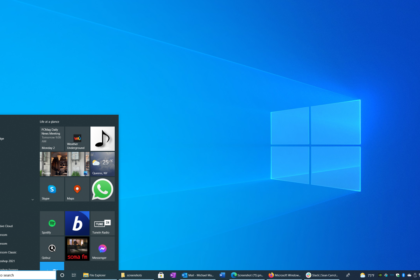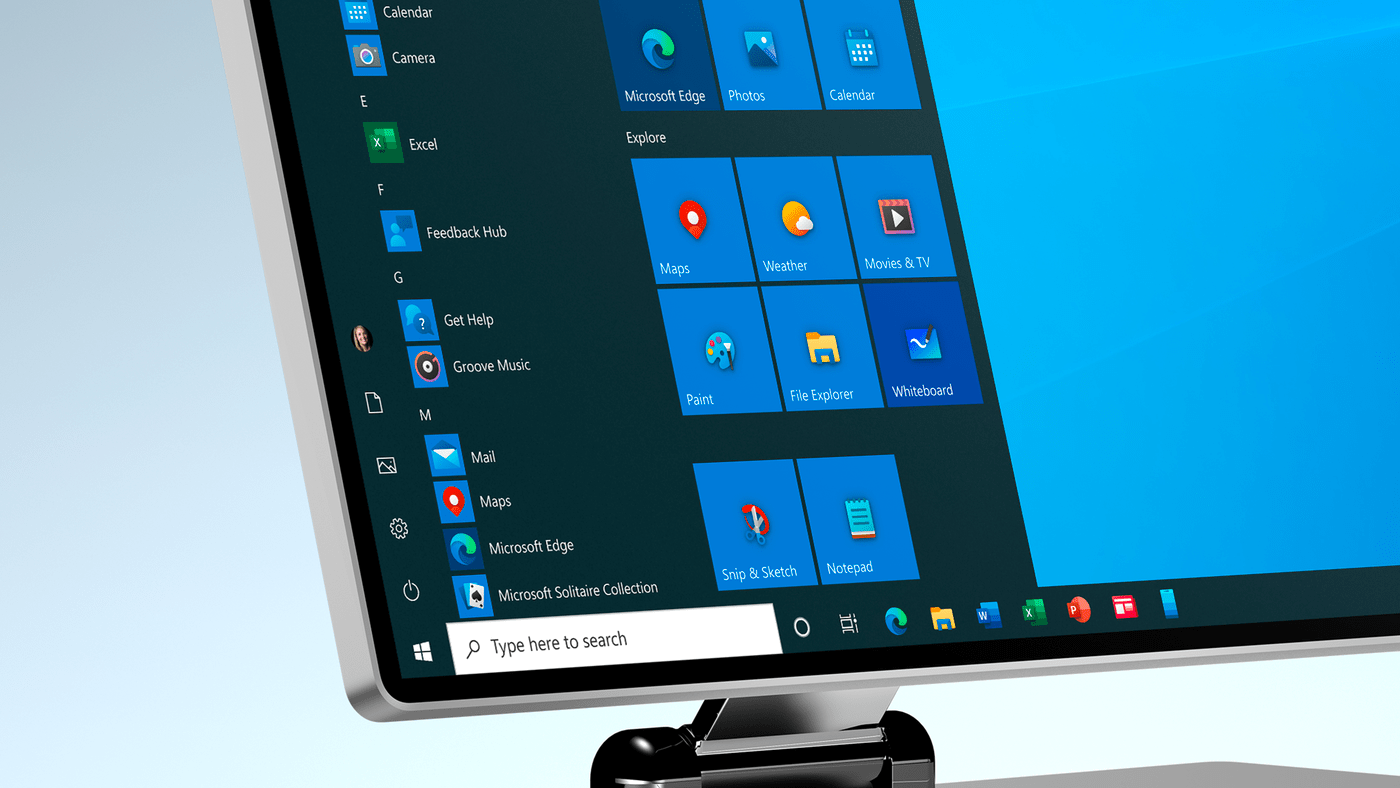
Developed by Microsoft, Windows 10 is an operating system that has several functions for its users, one of which is the desktop. It’s where you can store all your folders, documents, and program shortcuts to access them quickly.
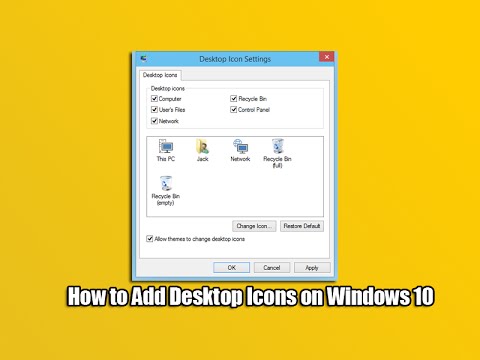
In addition, Windows also offers some options for extra icons such as “Recycle Bin,” “User Files,” and “My Computer,” among others. If you want to add or remove any of these icons on your desktop, know that this procedure is quick and practical. Check out the step-by-step below!
How to Add Icons on the Windows 10 Desktop
1: click with the right button of the mouse in any free place on the desktop and, in the menu that opens then, click on “Personalize”;
2: When redirected to the “Settings” tab, select the “Themes” item in the left side menu;
3: then click on “Desktop icon settings”;
4: in the opened window, select which icons you want to add to the Windows 10 desktop and click “OK”;
5: done that, these icons will be added and will be accessible on the desktop.
Ready! You can now place or remove icons on the Windows 10 desktop.