

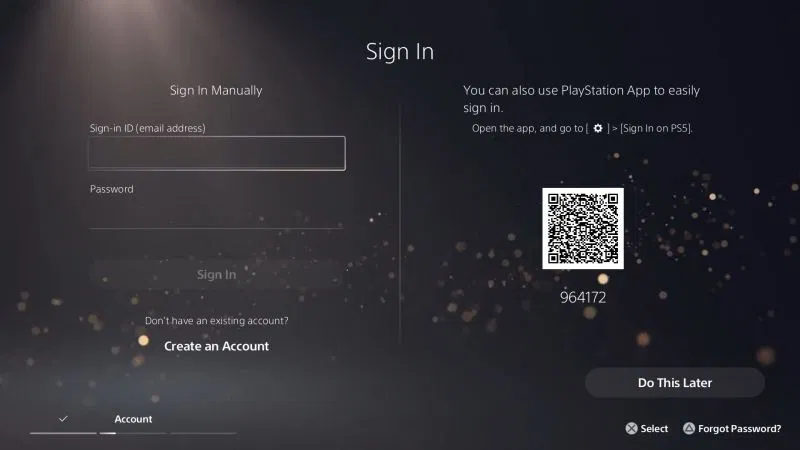
Logging in to PlayStation Network (PSN) on a PS4 or PS5 gives you access to online multiplayer, the PlayStation Store, cloud saves, friends, messaging, and other PlayStation services. The process is straightforward once the console is connected to the internet and a PlayStation account is available.
Whether you are setting up a new console or simply need to sign in again, this guide explains how to log in to PlayStation Network on PS4 or PS5 step by step.
What You Need to Log in to PlayStation Network
Before signing in, make sure you have the following:
- A PS4 or PS5 console
- A stable internet connection
- A PlayStation account
- The email address associated with your account
- Your PlayStation account password
- Access to your phone or authenticator app if two-step verification is enabled
If you do not have a PlayStation account yet, you can create one directly from your console.
You do not need a separate PSN username and password if you already have a PlayStation account. Your PlayStation account is used to access PlayStation Network services.
How to Log in to PlayStation Network on PS5
Signing in to PSN on a PS5 can be done during the initial console setup or later through the Settings menu.
- First, make sure your PS5 has an internet connection.
- Go to: Settings → Network → Settings → Set Up Internet Connection
- Select your Wi-Fi network and enter the password if necessary.
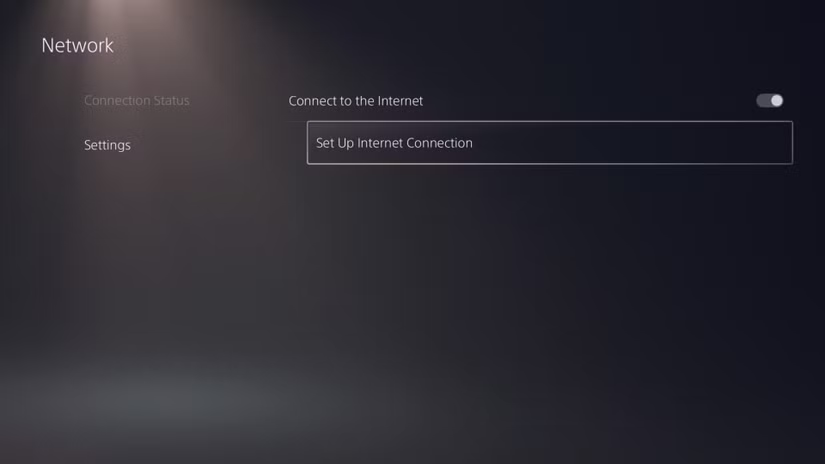
If you are using an Ethernet cable, connect it to the PS5 and configure the wired connection through the same Network settings.
- From the PS5 home screen, select your profile picture in the upper-right corner.
- Choose: Switch User → Add User → Get Started
You can then select the option to sign in to PlayStation Network. If the console already has an unsigned user profile, you may also see a Sign In option directly.
- Enter the email address associated with your PlayStation account.
- Select Next and enter your password.
If two-step verification is enabled, you may also be asked to enter the verification code sent to your phone or generated through your authenticator app.
- Follow any remaining instructions shown on the screen.
- Once successful, your PS5 should display your PlayStation account profile.
You can now access features such as:
- PlayStation Store
- Online multiplayer
- Friends
- Messages
- Cloud storage
- PlayStation Plus features
- Your digital game library
If you see your account name and avatar on the PS5 home screen, you are successfully signed in.
How to Log in to PlayStation Network on PS4
The PS4 uses a slightly different interface, but the basic sign-in process is similar.
- From the PS4 home screen, go to: Settings → Network → Set Up Internet Connection
- Choose either:
- Use Wi-Fi
- Use a LAN Cable
- Follow the instructions to connect your console to the internet.
- You can test the connection by selecting: Settings → Network → Test Internet Connection
- From the PS4 home screen, open: Settings → Account Management
- Select: Sign In
- Enter the email address associated with your PlayStation account.
- Select Next, then enter your password. If you have two-step verification enabled, enter the verification code when prompted.
- After your credentials are accepted, the PS4 will sign you into PlayStation Network. Your profile should now be available on the console.
You can use PSN to access the PlayStation Store, online gaming, friends, messages, and other supported features.
How to Sign In to PSN Using a QR Code
On supported PlayStation sign-in screens, you may be given an option to use your phone to complete the login process. This can be convenient if you do not want to manually type your email address and password using the controller.
When a QR code option appears:
- Open your phone’s camera.
- Scan the QR code displayed on the PlayStation.
- Follow the instructions on your phone.
- Confirm the sign-in if requested.
- Return to the console and wait for the account to be signed in.
QR code sign-in availability may depend on the console, software version, and current PlayStation sign-in options.
How to Create a PlayStation Network Account
If you do not already have a PlayStation account, you can create one during the console setup process. On a PS5, select the option to create an account when you reach the sign-in screen.
- On a PS4, go to: Settings → Account Management → Sign In → New to PlayStation Network? Create an Account
You will generally need to provide information such as:
- Email address
- Date of birth
- Country or region
- Password
- Online ID
- Other requested account information
Follow the instructions displayed on the screen to complete account creation.
Choose an email address that you can access because it may be required for account verification and account recovery.
What to Do If You Forgot Your PSN Password
If you cannot remember your PlayStation account password, you do not need to create a new account. Instead, use the password-reset option on the PlayStation sign-in screen. You can also use the official PlayStation account recovery process.
After resetting your password, return to your PS4 or PS5 and sign in using the updated credentials.
If you are unable to access the email address associated with your account, account recovery may require additional verification.
Avoid repeatedly entering incorrect passwords, especially if you are unsure of your credentials. Use the official account recovery process instead.
PSN Sign-In Requires Two-Step Verification
If two-step verification is enabled on your PlayStation account, entering your password alone may not be enough. After entering your account password, you may need to provide a verification code.
Depending on your account’s security settings, this may involve an authenticator app or another supported verification method. Two-step verification provides an additional layer of account security, particularly if someone obtains your password.
If you are having trouble receiving a verification code, check that your phone or authenticator app is working correctly and that you are using the current code.
How to Check Whether PSN Is Working
Sometimes the problem is not your account or console. PlayStation Network services can occasionally experience outages or maintenance.
If you cannot sign in, check the official PlayStation Network service status page to see if there is a known issue.
You can also test your internet connection from your console.
- On PS4: Settings → Network → Test Internet Connection
- On PS5: Settings → Network → Connection Status → Test Internet Connection
If the internet test fails, the problem may be related to your Wi-Fi, router, DNS settings, or internet service provider rather than your PSN account.
Why Can’t I Log in to PlayStation Network?
Several issues can prevent a successful PSN login.
1. Incorrect Email Address or Password
The most common cause is entering incorrect account credentials. Double-check your email address and password. Remember that passwords are case-sensitive.
2. Internet Connection Problems
A weak or disconnected internet connection can prevent your console from connecting to PSN. Try restarting your router and testing the connection again. If possible, connect the console using an Ethernet cable to determine whether Wi-Fi is causing the problem.
3. PlayStation Network Service Outage
If PSN services are experiencing an outage, you may be unable to sign in even when your internet connection is working correctly. Check PlayStation’s official service status page before changing settings on your console.
4. Outdated System Software
Make sure your PS4 or PS5 is running the current system software. Go to the console’s system software update section and check for available updates.
5. Two-Step Verification Problems
If you have two-step verification enabled and cannot access your verification method, you may need to request account recovery. Do not share verification codes with other people.
6. Temporary Account or Network Issues
Sometimes a sign-in problem is temporary. Try signing out, restarting the console, and signing in again after a few minutes.
How to Automatically Log in on PS5
If you are the primary person using your PS5, automatic login can make accessing your account more convenient.
Open:
Settings → Users and Accounts → Login Settings
Look for the option labelled “Log In to PS5 Automatically” and enable it.
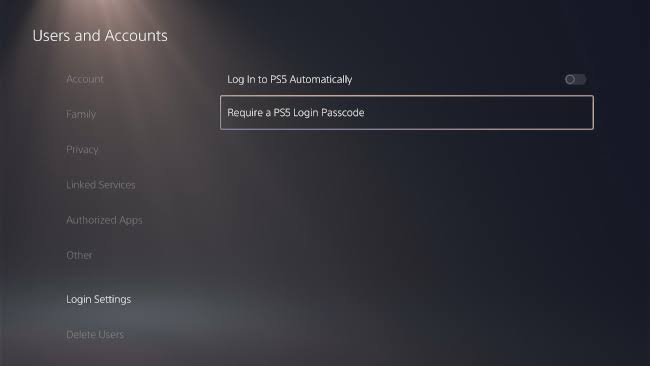
The exact options available may vary depending on the console’s software version and account configuration. Automatic login is convenient, but it should generally be used only when you trust the people who have physical access to your console.
How to Sign Out of PSN on PS5
To sign out of your account on a PS5, go to your profile menu and select the option to log out. You can also access account-related settings through:
Settings → Users and Accounts
Signing out can be useful if you share the console with other people or are preparing to sell or give away the PS5. Before selling or transferring ownership of a console, make sure you properly remove your personal information and reset the system.
How to Sign Out of PSN on PS4
On PS4, go to:
Settings → Account Management → Sign Out
The console will sign your PlayStation account out of the current user session. If you are using a shared PS4, signing out after gaming can help prevent another person from accessing your account.
Can You Use the Same PlayStation Account on PS4 and PS5?
Yes. A PlayStation account can be used on both PS4 and PS5. You can sign in to your account on a compatible PS4 or PS5 using the same account credentials.
This allows supported account information, purchases, friends, trophies, and other account-related data to be associated with the same PlayStation account. However, the availability of specific games, saves, features, and services can vary between PS4 and PS5.
Can You Play Online After Signing in to PSN?
Signing in to PSN connects your console to PlayStation’s online services, but some online multiplayer features may require an active PlayStation Plus subscription.
Free-to-play games generally have different online multiplayer requirements.
If you are unable to play an online game after signing in, check the requirements for that particular game and your PlayStation subscription.
Tips for Keeping Your PlayStation Account Secure
Your PlayStation account may contain digital purchases, personal information, and payment details, so account security is important.
Follow these practices:
- Use a strong, unique password.
- Enable two-step verification.
- Never share your password.
- Never share verification codes.
- Avoid signing into your account on consoles you do not trust.
- Sign out when using someone else’s console.
- Keep your email account secure.
- Use official PlayStation account-recovery methods if you lose access.
Never give your PlayStation password or verification code to someone claiming they need it to fix your account.
Common PSN Login Problems
| Problem | What to Try |
|---|---|
| Wrong password | Reset your PlayStation account password |
| No internet | Restart router and test the console connection |
| PSN unavailable | Check PlayStation Network service status |
| Verification code not working | Check your two-step verification method |
| Console won’t connect | Restart the console and network equipment |
| Login keeps failing | Check account details and system software |
| Shared console | Sign out after using your account |
| New console | Update system software and complete account setup |
How do I log in to PlayStation Network on PS4?
Go to Settings → Account Management → Sign In, then enter the email address and password associated with your PlayStation account. Complete two-step verification if requested.
How do I log in to PSN on PS5?
On PS5, open the profile menu or account settings, select the sign-in option, and enter your PlayStation account credentials. Follow any additional security prompts.
Is PlayStation Network free to use?
Creating a PlayStation account and accessing many PSN features is free. However, some features, particularly online multiplayer for paid games, may require a PlayStation Plus subscription.
Why won’t my PS4 or PS5 let me sign in?
Check your email address and password, internet connection, system software, two-step verification, and the current PlayStation Network service status.
Can I use my PS4 PSN account on PS5?
Yes. You can sign in to a PS5 using the same PlayStation account that you use on a PS4.
Can I log in to PSN without a password?
Depending on the current sign-in options available on your console, you may be able to use an alternative sign-in method such as a QR code. Otherwise, you will generally need your account credentials.












 on a PS4 or PS5 gives you access to online multiplayer, the PlayStation Store, cloud saves,)