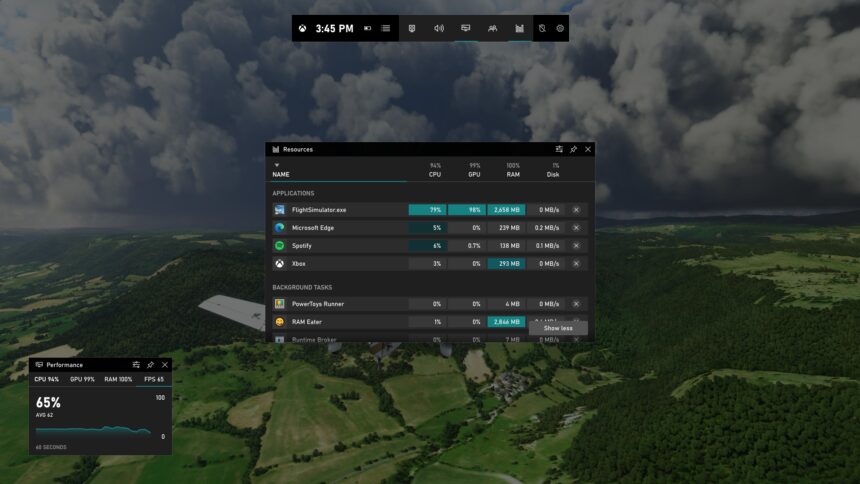
Windows 11 comes with several built-in tools designed to enhance gaming and productivity, and one of the most useful among them is Xbox Game Bar. Xbox Game Bar is an overlay feature developed by Microsoft that allows users to record gameplay, capture screenshots, monitor system performance, chat with friends, control audio, and access Xbox social features-all without leaving the game or app they are using.
Although it is primarily designed for gamers, Xbox Game Bar can also be useful for non-gamers who want to record their screen, monitor CPU and GPU usage, or quickly capture screenshots. Many users, however, are unsure how to open it or what to do if it does not open properly.
This article explains all the methods for opening the Xbox Game Bar in Windows 11, along with helpful tips and troubleshooting steps.
What Is Xbox Game Bar?
Xbox Game Bar is a customizable overlay that works on top of games and most desktop applications. It includes several widgets, such as:
- Screen recording and screenshot tools
- Performance monitoring (CPU, GPU, RAM, FPS)
- Audio controls
- Xbox chat and social features
- Spotify and other supported apps
It is enabled by default in Windows 11, but it can be turned off or restricted depending on system settings.
Open Xbox Game Bar Using Keyboard Shortcut
The fastest and most common way to open the Xbox Game Bar is by using a keyboard shortcut.
- Ensure you are logged in to Windows 11.
- Press Windows key + G on your keyboard.
- The Xbox Game Bar overlay should appear on your screen.
Notes:
- This shortcut works in games, desktop apps, and even on the Windows desktop.
- If nothing happens, the Game Bar may be disabled in Settings.
Open Xbox Game Bar from the Start Menu
If you prefer using the mouse or want to open it manually, you can access Xbox Game Bar from the Start menu.
- Click the Start button or press the Windows key.
- Type Xbox Game Bar in the search bar.
- Click Xbox Game Bar from the search results.
When to use this method:
- If the keyboard shortcut is not working
- If you want to confirm that the app is installed on your system
Open Xbox Game Bar Using an Xbox Controller
If you are using an Xbox controller with your PC, you can open Xbox Game Bar directly from the controller.
- Connect your Xbox controller to your PC via USB or Bluetooth.
- Press the Xbox button (the large button in the center of the controller).
- Xbox Game Bar will open automatically.
This method is ideal for:
- PC gamers using controllers
- Playing games in full-screen mode
Open Xbox Game Bar While Playing a Game
Xbox Game Bar works especially well when launched during gameplay.
- Launch any game on your Windows 11 PC.
- Once the game is running, press Windows key + G.
- The Game Bar overlay will appear without minimizing your game.
Tip:
- You can pin widgets like Performance or Capture so they remain visible while gaming.
Enable Xbox Game Bar in Windows 11 Settings
If the Xbox Game Bar does not open using any method, it may be disabled. You need to enable it from the Settings menu.
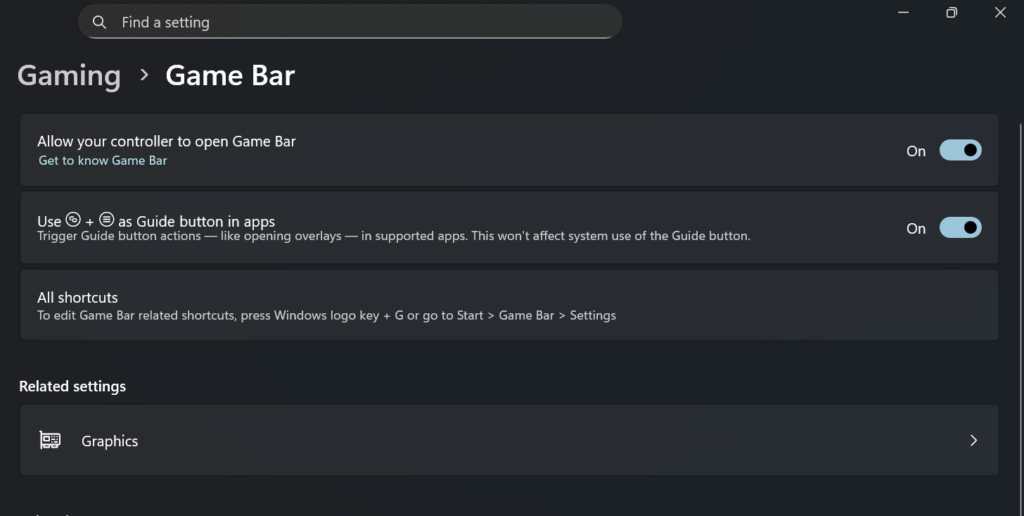
- Press Windows key + I to open Settings.
- Go to Gaming.
- Click Xbox Game Bar.
- Turn on the toggle that says
“Open Xbox Game Bar using this button on a controller”
and make sure Game Bar is enabled. - Close Settings and try pressing Windows key + G again.
Reinstall Xbox Game Bar (If It’s Missing or Not Working)
Sometimes Xbox Game Bar may not open because the app is corrupted or missing.
Steps to reinstall:
- Open Microsoft Store.
- Search for Xbox Game Bar.
- Click Install or Update.
- Restart your PC after installation.
- Try opening the Game Bar by pressing the Windows key + G.
Common Uses of Xbox Game Bar
Once opened, you can use Xbox Game Bar for several tasks:
- Record screen or gameplay: Click the Capture widget and press Record
- Take screenshots: Use the camera icon
- Monitor performance: Enable CPU, GPU, RAM, and FPS widgets
- Control audio: Adjust app and system volume
- Chat and social features: Connect with Xbox friends
Xbox Game Bar Troubleshooting Tips
If the Xbox Game Bar still does not open:
- Ensure Windows 11 is fully updated
- Check that Background apps are enabled
- Disable third-party screen recording software temporarily
- Make sure your keyboard shortcut is not reassigned
Xbox Game Bar is a powerful and versatile feature in Windows 11 that goes beyond gaming. Whether you want to record gameplay, capture your screen, monitor system performance, or manage audio, knowing how to open Xbox Game Bar is essential.
You can open it using the Windows + G shortcut, Start menu, Xbox controller, or directly while gaming. If it does not open, enabling it in Settings or reinstalling the app usually resolves the issue. With the right setup, Xbox Game Bar can significantly enhance your Windows 11 experience.