Microsoft is kicking off 2026 with a set of targeted updates to Microsoft Teams that focus less on headline features and more on everyday usability. Rather than reinventing meetings, the changes aim to reduce friction when users are working in parallel-especially those on laptops or single-monitor setups.
The updates, which began rolling out in January, address three long-standing pain points: keeping meetings visible while multitasking, finding shared resources without digging through chat history, and making screen sharing on macOS feel more native.
Teams can now stay “always on top” on Windows
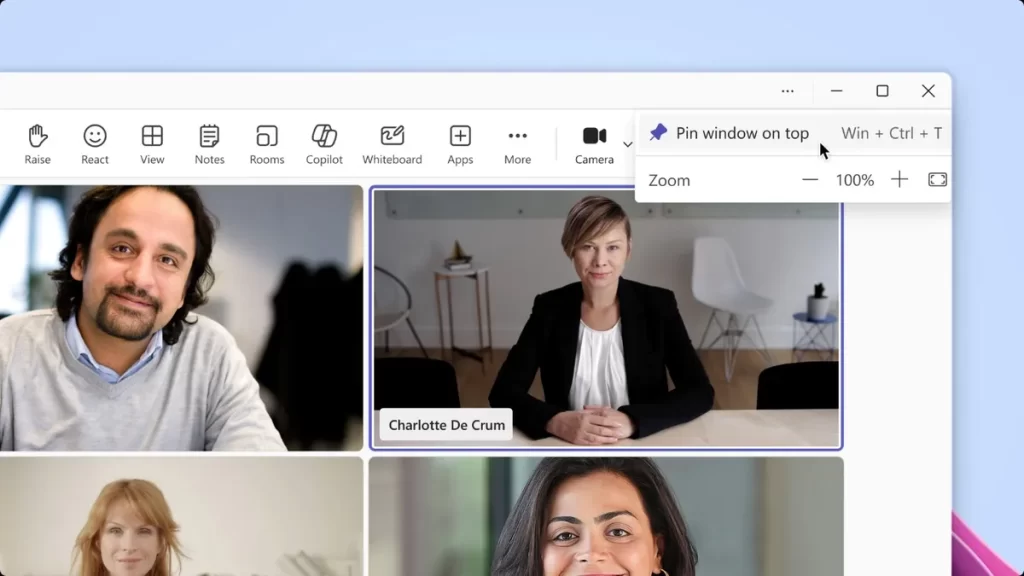
One of the most immediately noticeable changes is the ability to keep a Teams window permanently in the foreground on Windows. Users can now pin meetings so they remain visible while switching between apps like PowerPoint, a browser, or note-taking tools.
As noted by Windows Central, the feature is particularly useful for people working on a single screen, eliminating the constant need to Alt-Tab back to a meeting window. Previously, users relied on third-party utilities or workarounds to achieve similar behaviour.
Files and links are unified under a new “Shared” tab
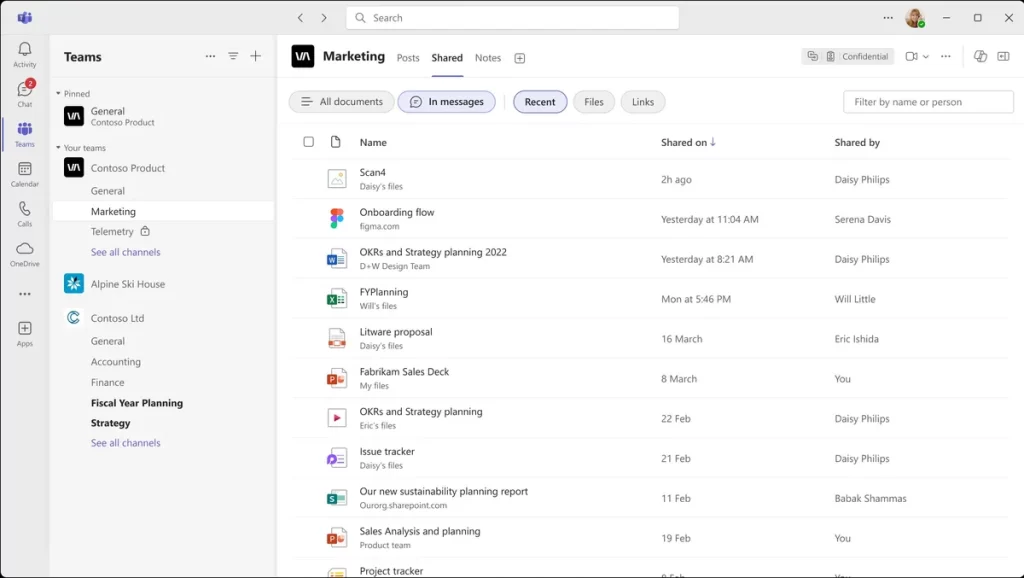
Microsoft is also reworking how shared content is organised inside Teams. The existing “Files” tab is being replaced with a broader “Shared” view that combines documents and links from chats and channels.
By placing files and URLs in a single, sortable feed-organised by date-Teams reduces one of its most common frustrations: locating a resource that was shared weeks or months earlier. The change is designed to reduce repeated requests and manual searching, making Teams a more reliable repository than a cluttered message archive.
macOS gets native screen sharing controls
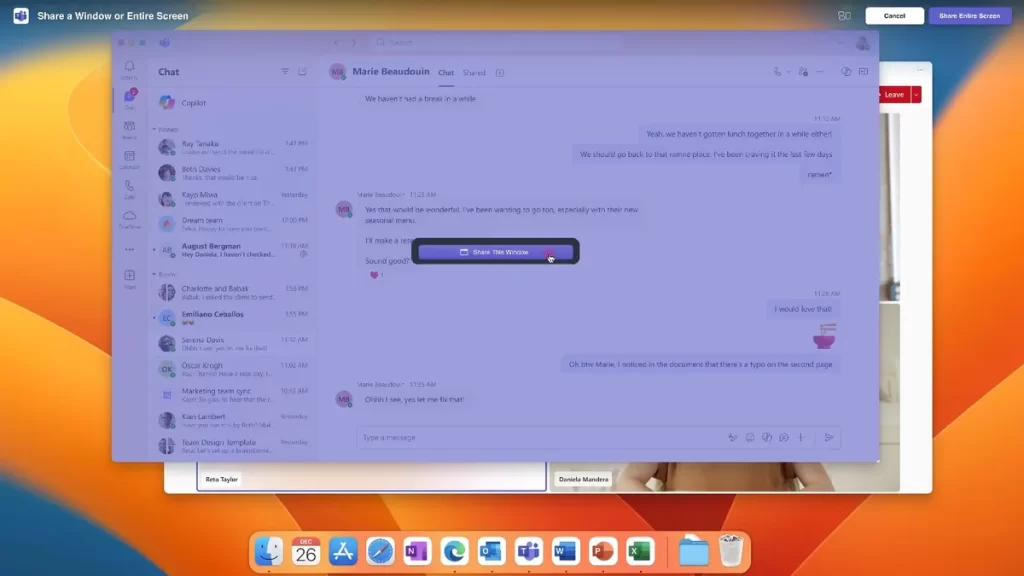
On macOS, Teams is introducing an optional screen-sharing mode that uses the system’s native app and window picker. This brings the experience closer to other Mac-native applications, improving visual consistency and privacy.
The trade-off is functionality. When using the macOS-native selector, users lose certain features, such as giving or taking remote control during a session. Microsoft has kept the existing Teams sharing method available, allowing users to choose between deeper integration or fuller collaboration tools.
What’s next: voice profiles and Copilot integration
Beyond multitasking, Microsoft is also laying the groundwork for more automated meeting experiences. In a recent update on the Teams blog tied to ISE 2026, the company confirmed plans to roll out Express voice enrollment in March. The feature will make it easier for users to register voice profiles that power speaker recognition, voice isolation, and improved meeting summaries through Microsoft 365 Copilot.
While none of these changes are dramatic on their own, together they signal a shift in focus. Instead of trying to make meetings more exciting, Microsoft appears intent on making them less disruptive-quietly smoothing over the small annoyances that define daily work in Teams.