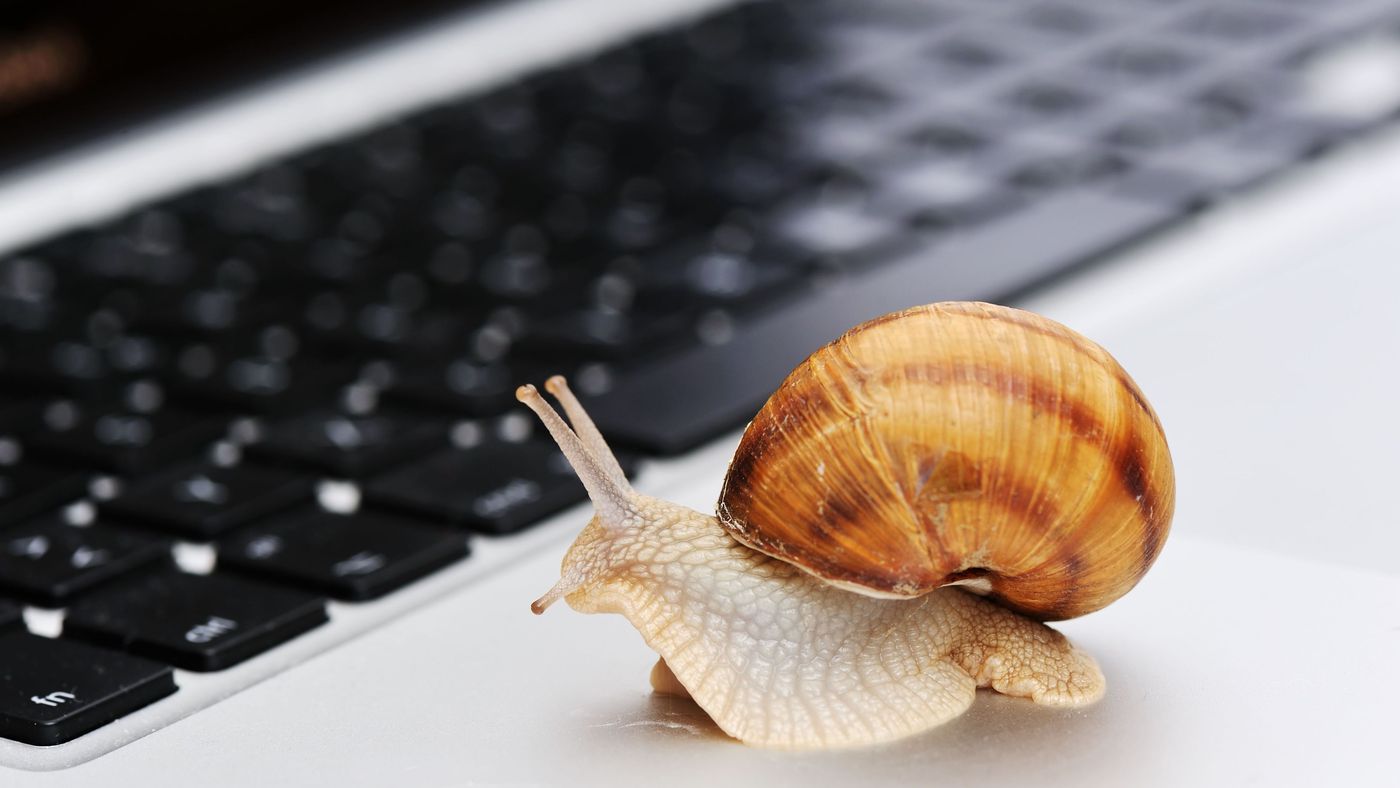
It’s a story most of us know well: you bring home a brand-new laptop, switch it on, and everything feels instant. It boots in seconds, programs open the moment you click them, and the whole machine runs like it’s eager to impress. Then months-or a few years-pass, and that early speed fades until your once-fast computer starts behaving like it’s powered by a crank handle.
Everyone eventually goes through this. And to be fair, some slowdown is unavoidable. Time affects electronics just as it does everything else, and computers simply won’t run at peak performance forever. However, in many cases, you can delay that decline or mitigate its impact.
No matter how careful you are, a computer will eventually struggle to keep up. Any fixes you apply are temporary at best. Sooner or later, you’ll have to replace parts-or the whole system.
That’s because tech evolves at a relentless pace. New hardware and software arrive constantly, each bringing heavier features and higher demands. Want an example? Compare a game from four years ago with a new one. Even optimised settings won’t save you if the latest title needs resources your machine can barely provide.
So while maintenance helps, there will come a point where upgrades are necessary. The upside is that good habits can postpone that expense.
1. Your storage is full
This is one of the simplest and most common reasons behind a slow PC. Every file you save adds another “path” your system keeps track of. Over time, these paths stack up, and the drive takes longer to organize and retrieve information.
How to improve it
Think of it the same way you handle a phone with no storage left:
- Empty the recycle bin
- Delete files and programs you don’t use
- Move bulky data to an external drive or cloud storage (Google Drive, Dropbox, etc.)
Freeing up space gives the drive room to breathe and process faster.
2. Your drive is simply worn out
Sometimes the slowdown isn’t about clutter-it’s the drive itself ageing. Traditional hard disks use spinning platters and a physical read arm. As the years go by, those parts wear down and start running at a reduced speed, which in turn drags everything else down.
Fix? Not really.
Mechanical wear has no repair. The smart move is to replace the drive.
And instead of installing another hard drive, upgrading to an SSD is the best upgrade most people can make. It stores data like flash memory rather than spinning parts, making it both faster and more durable.
3. You’re running out of memory
RAM is where your computer keeps data it needs right now. Most mid-range machines today ship with 8 GB, which is enough for typical everyday use-but not much more.
Multiple browser tabs, heavy apps like Photoshop, and background tools like Steam or cloud sync services all consume RAM quickly.
How to improve it
- Close tabs you don’t need
- Shut down background apps in Task Manager
- Disable startup programs you never use
- Add more RAM if your motherboard allows it
If your PC still lags, it may simply be under-equipped for your workload-or the memory modules are aging.
4. You might have malware
Even a powerful computer can crawl if something malicious is running in the background. Cryptomining malware is especially brutal, hijacking your CPU and GPU to mine digital coins without your knowledge.
How to fix it
Install a reputable antivirus and run a full system scan. Let it check everything.
5. Or your antivirus might be the problem
Some security suites are so aggressive in their real-time scanning that they slow down the entire machine.
How to manage it
Turn off real-time scanning during offline activities, like playing single-player games or working in apps that don’t require internet access. Just remember to switch it back on afterwards.
6. System updates can weigh your machine down
Even updates designed to improve security and stability tend to use more resources over time. As features grow, older hardware strains to keep up.
Fix? Not really.
Skipping updates can leave you vulnerable and even break certain apps. Staying updated is still the safer choice, even if it comes at a slight performance cost.
7. Windows quirks
Windows stores a lot of temporary data to make navigation faster, but it doesn’t automatically clean much of it up. Over time, this buildup affects performance.
How to improve it
- Schedule regular disk defragmentation (HDD only)
- Clean the registry and temporary files
Or try a lighter operating system, such as Linux. If you prefer macOS, an Apple device is also an option, although it is pricier.
“I’ve tried everything, and nothing works.”
If none of the common fixes help, the cause might be external:
- Dust inside the machine
- Overheating due to poor airflow
- Static buildup in the environment
- Fans clogged with debris
A thorough cleaning can sometimes restore performance.
And if even that doesn’t help, then formatting the computer may give you a fresh start. However, if the improvement is minimal, it may be time to review your budget and consider purchasing a new system.