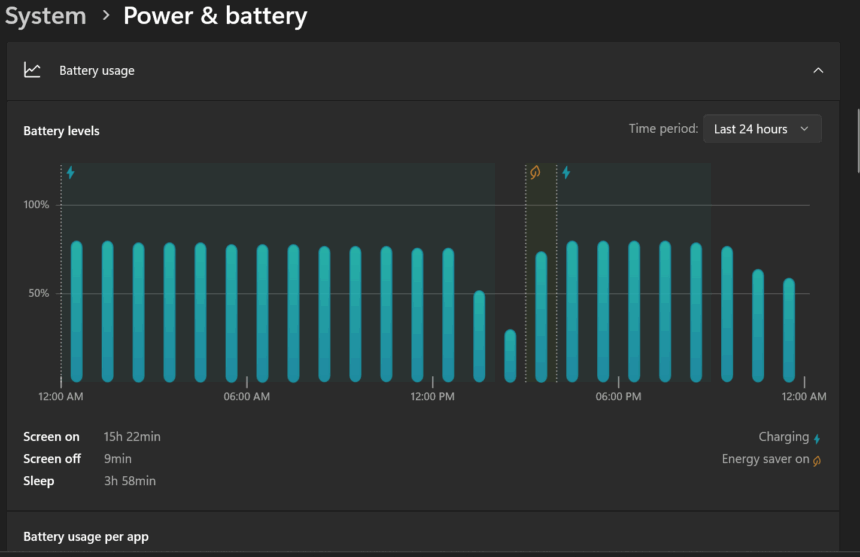
Laptop batteries naturally wear down over time. Each charge cycle, long usage sessions, heat, and other environmental factors can slowly reduce how long your battery lasts. Thankfully, Windows includes several built-in tools to help you monitor the condition of your battery.
If you’re not sure how to check your battery’s health in Windows, don’t worry—we’ve got you covered. In this guide, we’ll walk you through the different ways to check your battery status and share a few simple but effective tips to keep it in good shape for as long as possible.
How to Check the Battery Status in Windows?
As we’ve touched on, your laptop’s battery naturally degrades over time. Every charge cycle, every unplugged session, and even temperature fluctuations all take their toll. Eventually, you’ll notice it—your battery doesn’t last as long as it used to.
If you’re starting to notice your battery drain faster, or you’re simply curious about its condition, the good news is that Windows provides a few easy ways to check its health. Let’s take a look at how to do that.
How to get a battery status report?
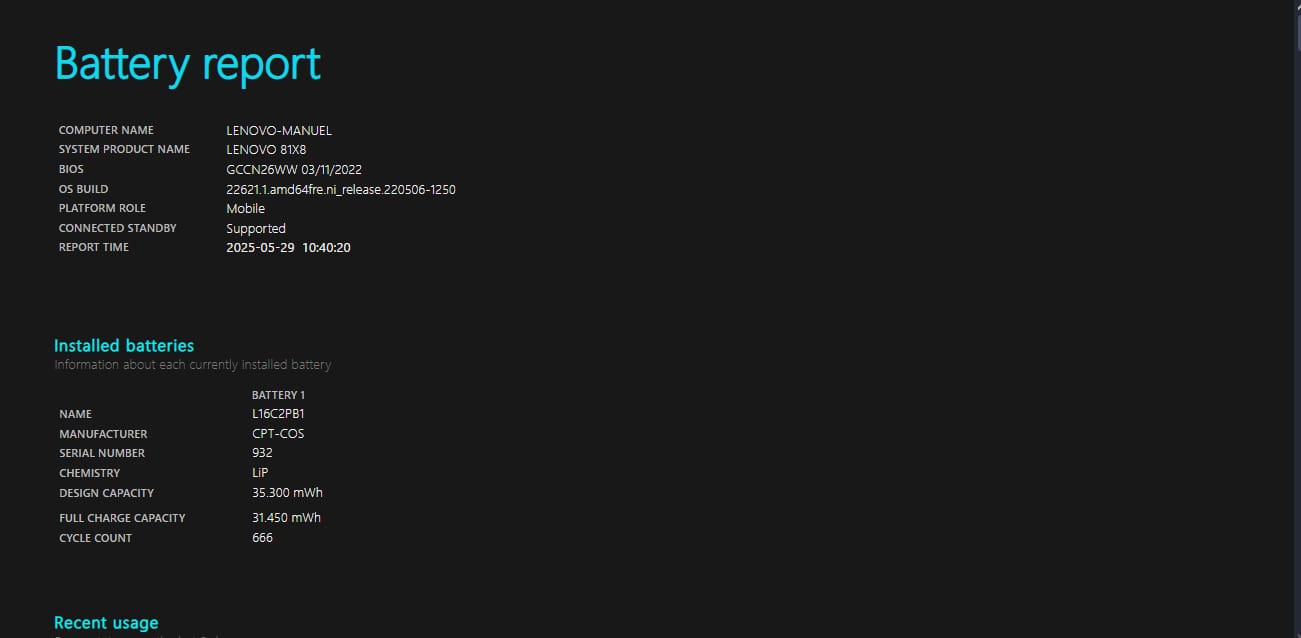
To begin, you should be aware that Windows includes a built-in tool that enables you to generate a detailed battery report. This report provides key information, including the number of charge cycles, your battery’s original capacity, its current capacity, and more, making it easy to assess the wear on your battery.
Here’s how to create and view that report:
- Right-click on the Start button and choose either Windows PowerShell (Admin) or Command Prompt (Admin).
- Type the following command and press Enter:
powercfg /batteryreport- Once the command finishes running, you’ll see a message saying the report has been saved. You can now close the PowerShell or CMD window.
- Navigate to the following location on your PC:
C:\Windows\System32\battery-report.htmlDouble-click the file to open it in your web browser.- Inside the report, you’ll find detailed statistics, including the number of charge cycles, your battery’s design capacity compared to its current full charge capacity, and a history of usage and performance. This will help you understand how your battery is aging over time.
How to check the battery status through the BIOS/UEFI?
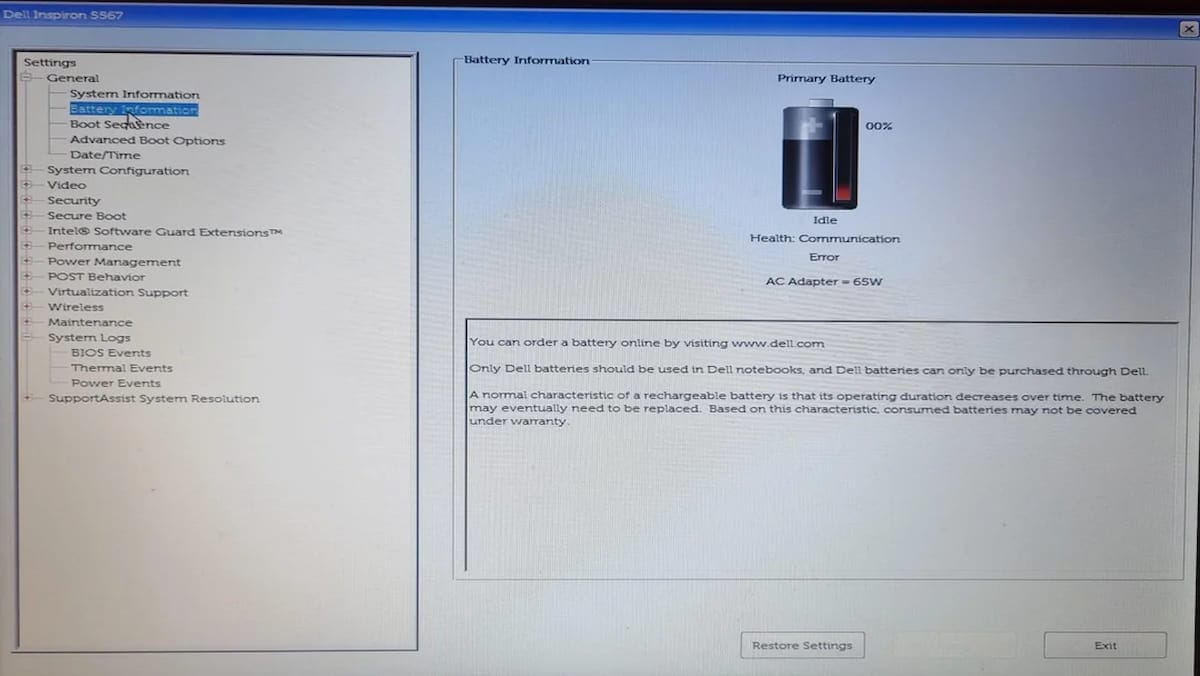
Another way to check your laptop’s battery health, aside from the Windows battery report, is through the BIOS or UEFI settings. Many manufacturers include detailed battery information in this area. Here’s how you can access it:
Steps to Check Battery Health via BIOS/UEFI:
- Begin by restarting your computer.
- As the laptop starts up, repeatedly press the key that opens the BIOS or UEFI interface.
- This key varies depending on the brand—common options include F2, F10, F12, or Esc. If you’re unsure, a quick online search with your laptop model will help.
- Once inside the BIOS or UEFI, use your keyboard to navigate through the tabs. Look for a section labeled Battery Information, Battery Health, or something similar.
- In that section, you’ll often find details like battery condition, charge capacity, and possibly wear level—depending on what your laptop manufacturer provides.
This method is particularly useful if you want a hardware-level battery check, without relying on software or tools inside Windows. Keep in mind that not all laptops show detailed battery health in the BIOS, but it’s definitely worth checking.
How to check the battery status through manufacturer applications?

It’s also worth mentioning that many laptop manufacturers, such as Acer, Lenovo, HP, and Dell, include their own built-in tools in Windows to help users check the health of their devices.
These tools are designed to provide detailed system diagnostics, including battery health, and can even offer maintenance tips to help you take better care of your laptop over time.
Depending on your laptop brand, here are some examples of tools you might have:
- Acer – Acer Care Center
- Lenovo – Lenovo Vantage
- HP – HP Support Assistant
- Dell – Dell Power Manager
You can usually find these programs pre-installed, or you can download them from your manufacturer’s official support website. They’re especially useful for checking the status of the battery and other hardware components at a glance.
Tips for taking care of battery health in Windows
Now that you know how to check your laptop’s battery health in Windows, it’s just as important to learn how to take care of it properly.
After all, if you want to avoid turning your laptop into a desktop replacement — constantly plugged in and shutting off the moment it’s unplugged — there are a few simple habits you should adopt to keep the battery in good shape:
Keep proper temperature control

One of the biggest threats to your laptop’s battery is extreme heat or cold. While it’s essential to avoid overheating, exposing your device to extremely low temperatures is also undesirable.
To help keep things running smoothly, avoid using your laptop on soft surfaces like beds or couches, which can block ventilation and trap heat. If you often use your laptop for long periods, investing in a cooling pad can be a smart move—it helps maintain airflow and reduces strain on the internal components.
It’s also a good habit to clean the internal fans periodically. Dust buildup can cause them to work less efficiently, leading to higher internal temperatures.
In short, avoid leaving your laptop in places like a hot car, direct sunlight, or freezing environments. Keep it well-ventilated and ensure the cooling system remains in good working condition. These small efforts can make a big difference in keeping your battery—and the whole system—healthy.
Avoid Letting Your Laptop Battery Hit Zero
Allowing your laptop battery to drain all the way to 0% might not cause immediate damage, but if it becomes a habit, it can accelerate wear and reduce the battery’s overall health over time.
Many experts—and some manufacturers—recommend keeping your battery level between 20% and 80% whenever possible. Charging all the way to 100% and then letting it run down to empty completes a full charge cycle, and each cycle slightly reduces the battery’s long-term capacity.
Some laptops now come with built-in battery protection features. These tools help manage charging by capping it at 80%, or by switching to power from the outlet once the battery is full, instead of continuously cycling the battery. If your laptop supports this kind of smart charging, enabling it can go a long way in preserving battery life.
Optimise Energy configuration in Windows
If you’re looking to extend your laptop’s battery life, there are a few simple habits that can make a big difference. Beyond the general care tips we’ve already covered, you can also reduce battery drain by managing which apps run in the background.
Head over to your Windows Settings, then open the Apps section. From there, you can choose which programs are allowed to run in the background and which ones aren’t necessary. Disabling background activity for non-essential apps helps prevent unnecessary power use.
Additionally, consider turning on Battery Saver mode. This feature reduces power consumption by lowering system performance and limiting background activity, allowing you to get more time between charges, especially when you’re on the go.