Driver Signature Enforcement, also known as Driver Signing, is a crucial security mechanism integrated into the Windows operating system. Its main role is to protect your computer by ensuring that only trusted and verified drivers are allowed to run at the system level.
In Windows, drivers operate with very high privileges because they communicate directly with hardware components such as graphics cards, network adapters, storage devices, and peripherals. If a malicious or poorly written driver is installed, it can compromise system stability, cause crashes, expose sensitive data, or even allow malware to gain deep control over the operating system. Driver Signature Enforcement helps prevent these risks.
When a driver is digitally signed, it means the driver’s publisher has verified its identity using a trusted digital certificate, and the driver has not been altered since it was signed. Windows checks this signature before allowing the driver to be installed or loaded. If the signature is missing, invalid, or has been tampered with, Windows will block the driver by default.
This feature is especially important in modern versions of Windows, where security is a priority. It helps defend against rootkits, kernel-level malware, and other advanced threats that attempt to hide by embedding themselves as system drivers. By enforcing signature checks, Windows creates a barrier that makes it much harder for such threats to operate unnoticed.
While Driver Signature Enforcement improves safety, it can sometimes affect users who rely on older hardware, custom drivers, or experimental software. In those cases, unsigned drivers may fail to install unless the user temporarily disables the feature. However, doing so lowers system security and should only be done when absolutely necessary and from a trusted source.
Why disable Driver Signature Enforcement?
Driver Signature Enforcement is a built-in safety feature in Windows that’s meant to stop the installation of drivers that could be harmful. However, it can sometimes cause issues when using older or custom hardware.
Normally, Windows only allows drivers with a digital signature, such as an approval stamp, to run on your computer. This is to keep your computer safe. Therefore, drivers that lack this signature won’t work on your 32-bit or 64-bit Windows.
However, there’s a way to temporarily disable this safety feature and install unsigned drivers. This helps ensure your devices work properly. Here’s how you can do it:
How to enable/disable Driver Signature Enforcement
Before you begin, remember that disabling driver signature enforcement can expose your system to security risks. After installing the necessary software, you can return to the instructions below to re-enable the feature and ensure proper system protection.
Through advanced boot options
- No Windows, click the Start menu.
- Press the Shift key and choose the “Restart” option.
- When accessing the advanced startup options, select the “Troubleshooting” option.
- Select “Advanced Options”;
- Click on “Startup Settings”;
- Click the “Restart” button to enter the “Startup Settings” screen.
- Press the 7 (seven) key on the keyboard to activate the “Disable driver signature enforcement” option.
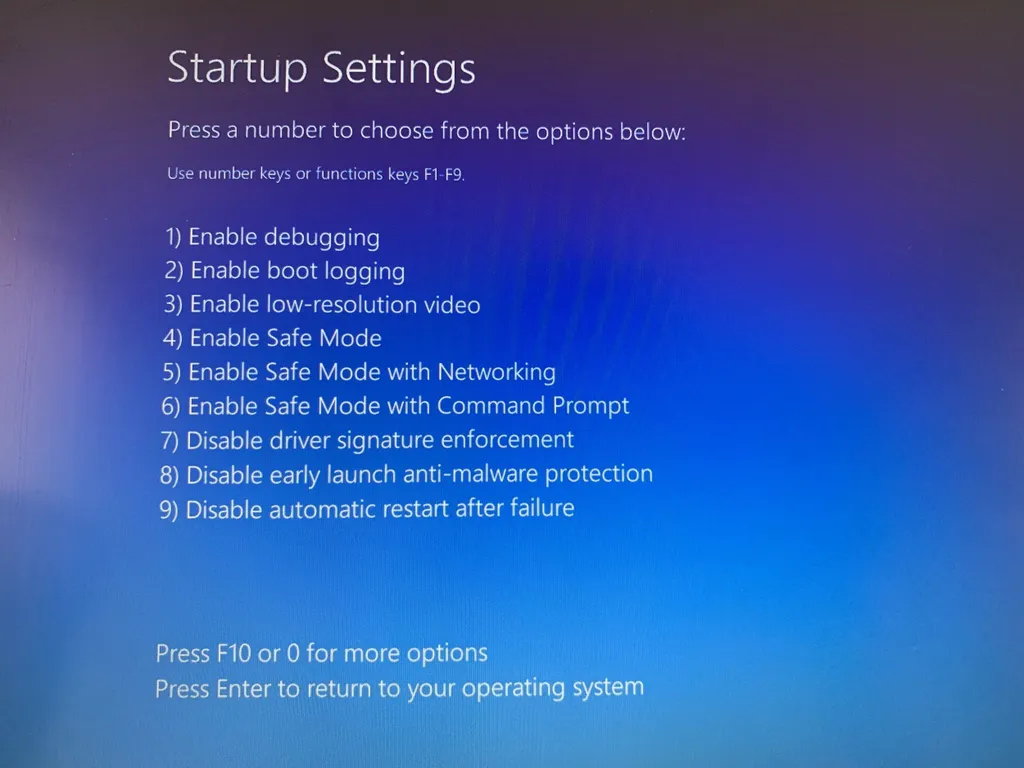
Finally, your PC will restart with driver signature enforcement disabled, allowing unsigned drivers to install.
Keep in mind that this change may expose your system to security risks. After installing the necessary drivers, you can return to the instructions above to re-enable driver signature enforcement and ensure adequate system protection.
By Command Prompt
- Click on the Start menu.
- Search for “Command Prompt”;
- Right-click on Command Prompt and select “Run as administrator”;
- Enter the command bcdedit.exe /set nointegritychecks on and press Enter.
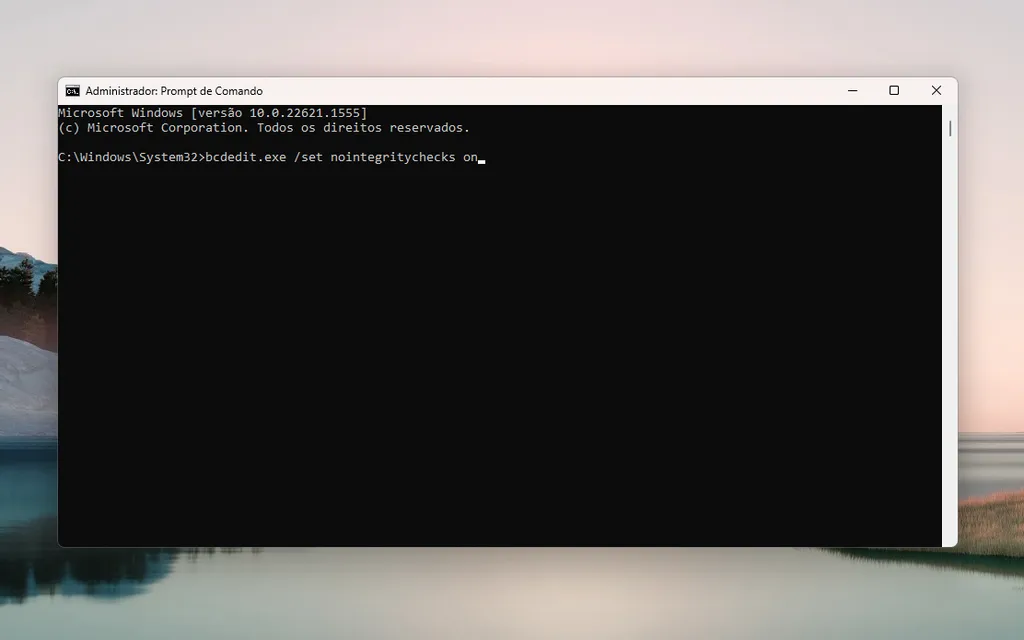
To turn driver signature enforcement back on via Command Prompt, type bcdedit.exe /set nointegritychecks and press the Enter key.
What are Drivers?
Windows drivers act as intermediaries between the operating system and hardware, allowing the computer to recognise, control, and interact with connected devices.
For example, installing a specific driver is necessary to ensure the printer works correctly and receives print commands.