Wondering how to hide your Facebook friends list from other people? While Facebook makes your friends list visible by default, you can change that setting in just a few taps and keep it private if you prefer.
The process is quick and simple on Facebook, whether you’re using the app on Android or iOS or accessing It through a web browser. The steps are nearly identical across platforms, so you don’t need to worry about major differences between Android and iPhone.
In just a few seconds, you can choose who gets to see your friends list-everyone, only your friends, or just you-giving you more control over your privacy without digging through complicated menus.
Hide Your Friends List on Facebook
On Android/iPhone
- Start by opening the main menu on Facebook. On Android, tap the three-line icon at the top of the screen.
- On iPhone, tap the Menu tab located on the opposite side.
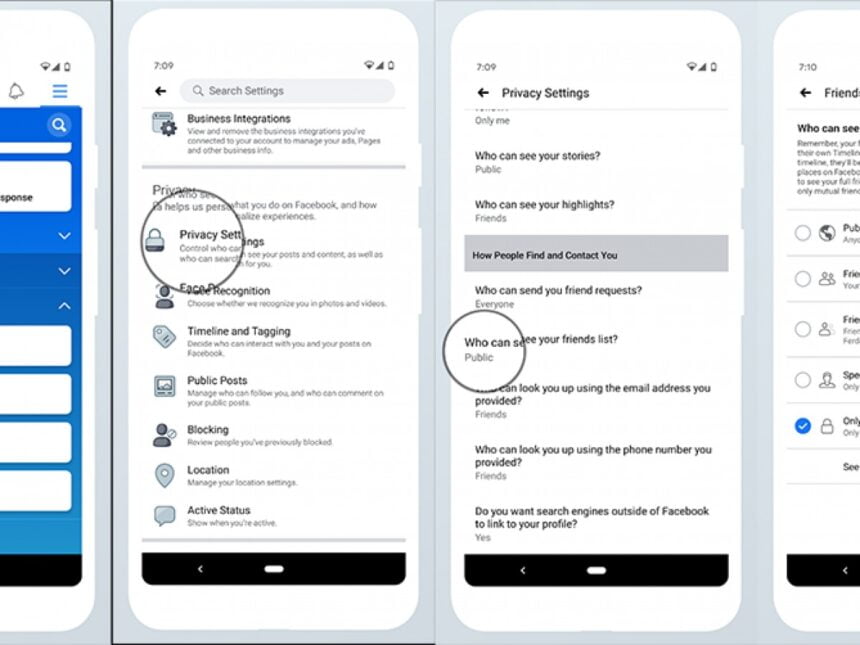
- From there, open Settings & Privacy, then tap Settings.
- Next, go to Profile Settings and select Profile Privacy.
- Scroll down until you find the Your Activity section.
- Tap on Who can see your friends list? and choose the option that fits your preference.
- You can set it to Only me to keep your friends list completely private, or select Specific friends to allow only certain people to see it.
How to Hide Friends on Facebook from PC
If you usually use social networks on a computer, you’ll be glad to know that you can also hide your friends list on Facebook through the web version. While the layout is a bit different from the mobile app, the steps are just as simple and closely resemble what you’ve already seen.
- Go to your profile and click on the Friends tab. On the right side of the Find Friends button, you’ll see a three-dot icon. Click it, then select Edit Privacy.
- A new window will open on the screen. Look for the Friends list privacy option and choose either Only me to keep it completely private, or Specific friends to share it with selected people.
If you ever change your mind, you can update this setting whenever you want. The process remains the same-just access Facebook using your preferred device (mobile app, web app, or PC) and follow the corresponding steps to adjust your privacy preferences again.
- Recover a Facebook Account Without Email or Password
- Download Videos From Facebook
- View Facebook Stories Anonymously