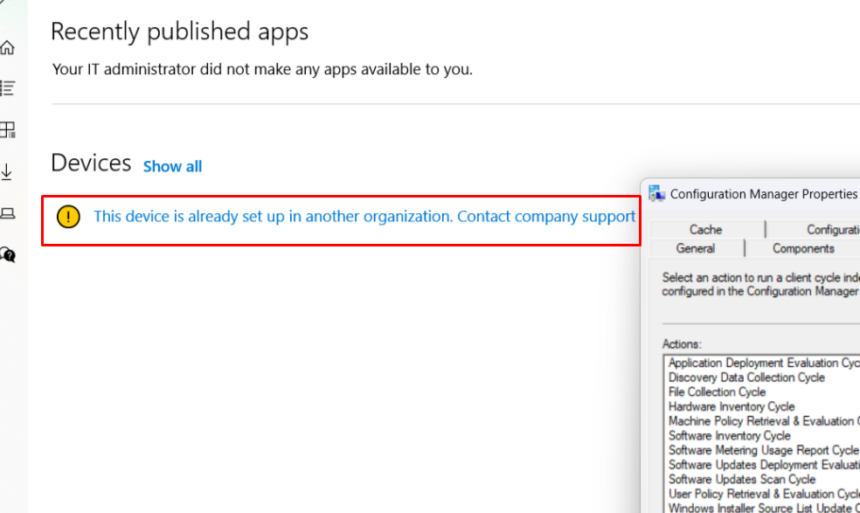
When you try to enroll a Windows 11 computer in Microsoft Intune or connect a work or school account, you may encounter the error “This device is already set up in another organization. Contact company support for help.”
This message usually means that Windows believes the device is already registered with or managed by another organization. It can also occur when a previous enrollment was not completely removed, another user registered the computer, or old enrollment information remains after a reset or account change.
Fortunately, you may be able to resolve the issue without reinstalling Windows. In this guide, you’ll learn how to troubleshoot the error in Company Portal and during Microsoft Entra ID or Intune enrollment.
Important: If this is a company-owned computer, contact your IT administrator before removing its management connection or changing its enrollment records. These actions can interrupt access to work resources or violate your organization’s device-management policies.
Why Does Windows Say the Device Is Already Set Up in Another Organization?
The error can appear for several reasons:
- Previous organization enrollment: The computer was previously managed by another company or school.
- Existing work or school account: A different user has already connected the device to an organizational account.
- Incomplete unenrollment: The previous Intune or Microsoft Entra ID registration was not fully removed.
- Leftover enrollment information: Old device management records or certificates may remain on the computer.
- Previous device reset or image cloning: The device retains enrollment information from an earlier setup or a cloned Windows installation.
- Stale cloud records: The device still appears in the previous organization’s Intune or Microsoft Entra admin center.
The right fix depends on which situation applies. Start with the work or school account connection and check the organization’s device records before modifying the Windows registry.
1. Disconnect the Previous Work or School Account
The first solution is to check whether Windows still has a work or school account connected to the computer.
Only disconnect an account if you own or administer the device and have confirmed that removing the connection is appropriate. On a managed company computer, ask your IT administrator first.
- Press Windows + I to open Settings.
- Select Accounts.
- Open Access work or school.
- Review the accounts listed on the page.
- If an obsolete account from a previous organisation is connected, select it.
- Click Disconnect, if the option is available.
- Confirm the action and restart your computer if prompted.
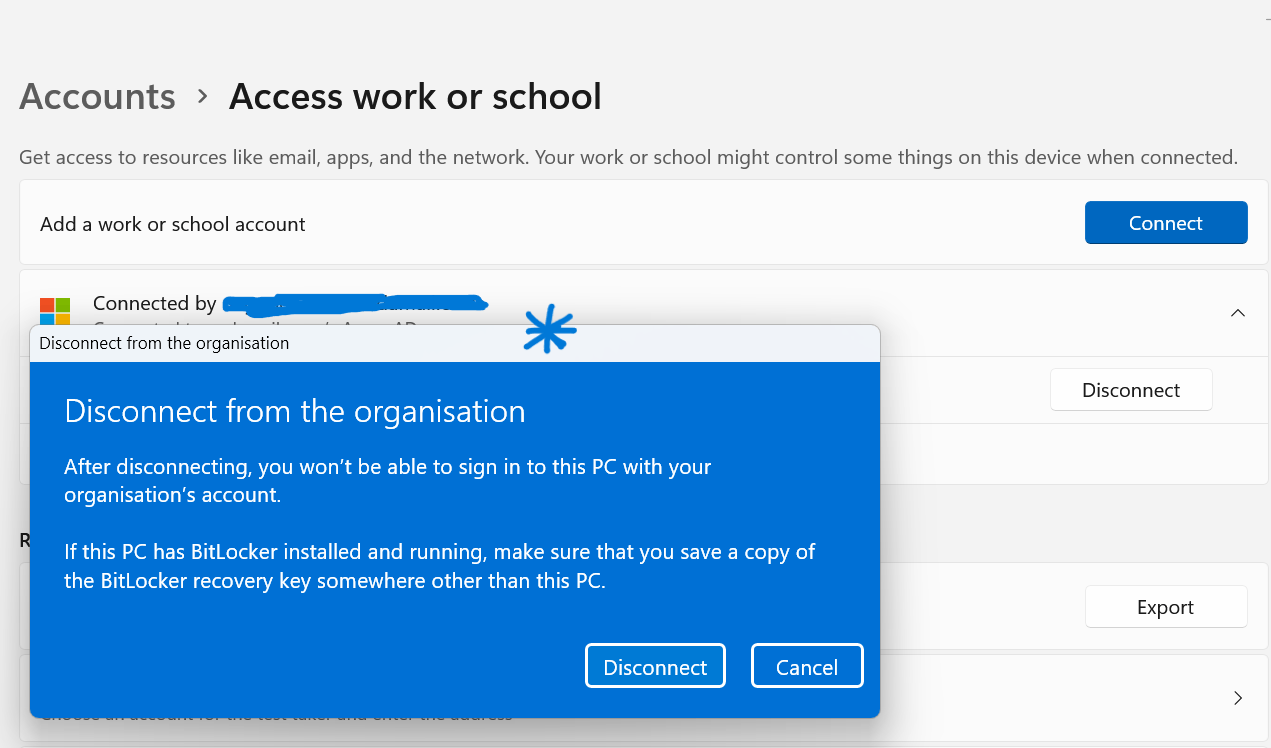
After restarting, return to Settings > Accounts > Access work or school and check whether the old connection has been removed.
Now try connecting the correct work or school account again.
If the error persists, continue to the next method.
2. Remove the Device’s Old Record from Microsoft Intune and Entra ID
Disconnecting an account in Windows may not remove the corresponding device record from the organization’s cloud directory. If the computer is still listed in a previous organization’s management system, an administrator may need to clean up that record.
This method requires appropriate administrative access to the relevant organization.
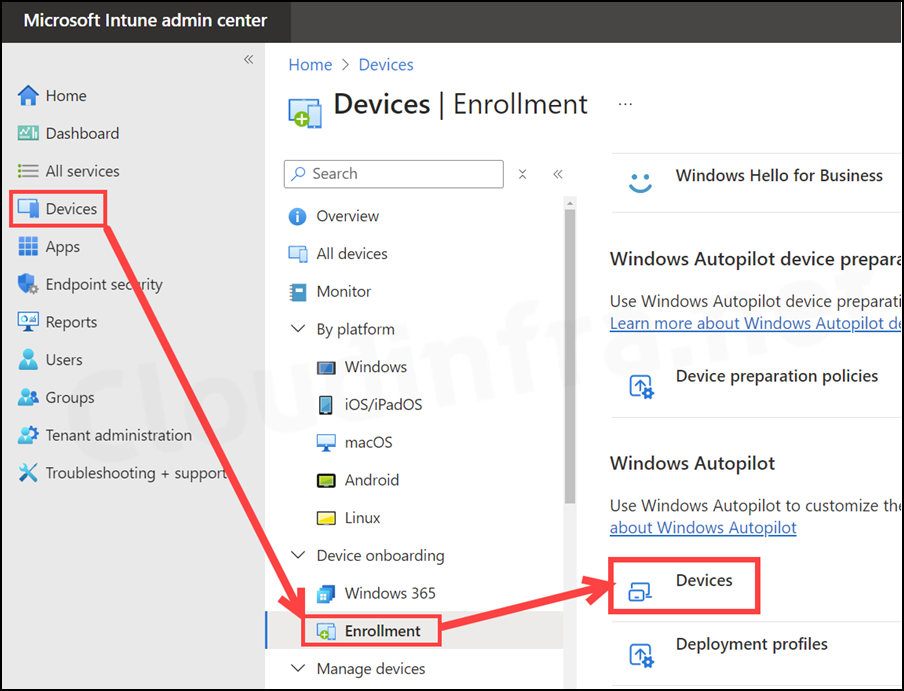
Check the Microsoft Intune Admin Center
- Sign in to the Microsoft Intune admin center with an authorized administrator account.
- Navigate to Devices and open the Windows device list.
- Search for the affected computer by its device name or another available identifier.
- Check whether the record belongs to the previous enrollment.
- If the device is confirmed to be an obsolete record and removal is authorized, follow your organization’s device-retirement or deletion procedure.
Do not delete a device record simply because its name looks familiar. Verify that it is the correct computer and that removing it will not disrupt active management.
Check Microsoft Entra ID
- Open the Microsoft Entra admin center.
- Navigate to Devices > All devices.
- Search for the affected computer.
- Review the device record and its ownership or registration details.
- Ask the appropriate administrator to remove an obsolete record if necessary.
The Intune record and Microsoft Entra device record serve different purposes. Depending on how the device was registered, both may need attention.
Once the authorized cleanup is complete, restart the computer and try enrollment again.
3. Remove Stale Windows Enrollment Registry Entries
If the account connection has been removed and the appropriate cloud records have been checked, leftover enrollment information may still be causing the error.
Editing the registry is an advanced troubleshooting step. Incorrect registry changes can damage Windows or disrupt device management. Back up the registry first, and do not perform this method on a company-managed device without approval from IT.
Open Registry Editor
- Press Windows + R.
- Type
regeditand press Enter. - Approve the User Account Control prompt if requested.
- Navigate to the following location:
HKEY_LOCAL_MACHINE\SOFTWARE\Microsoft\Enrollments
Before making changes, select the Enrollments key and use File > Export to save a backup of that key.
Identify the Previous Enrollment Entries
Under the Enrollments key, you may find several subkeys with long GUID-style names.
These entries can contain information related to device enrollment. Do not assume that every GUID entry is obsolete or safe to delete.
If your administrator or a verified troubleshooting procedure has confirmed which entries belong to the failed or previous enrollment, remove only the specifically identified stale entries.
The source procedure for this error describes removing GUID-named enrollment subkeys while retaining these entries:
ContextOwnershipStatusValidNodePaths
Because enrollment structures vary between Windows installations, do not blindly delete every GUID-named key. If you cannot confidently identify the obsolete entries, stop and ask your administrator or use Microsoft’s supported troubleshooting guidance.
After the approved cleanup, close Registry Editor and restart Windows.
Try connecting the correct work or school account again.
4. Run the dsregcmd /leave Command
Windows includes the dsregcmd command-line tool for working with Microsoft Entra device registration. In some situations, leaving the current registration state and then enrolling again may help.
However, this command can change the device’s organizational registration state. It is not a universal fix for Intune enrollment errors, and it should not be run casually on a company-owned or domain-managed computer.
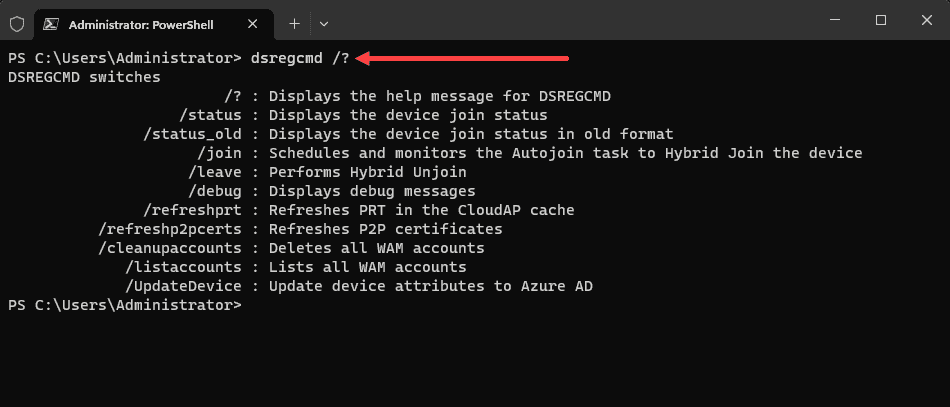
If you own or administer the device and your IT team has confirmed that this action is appropriate:
- Open Start and search for Command Prompt.
- Select Run as administrator.
- Enter the following command:
dsregcmd /leave - Press Enter and allow the command to finish.
- Restart the computer.
- Follow your organization’s approved enrollment procedure to register the device again.
If the computer is joined to a domain, managed by an organization, or used to access company resources, consult your IT administrator before running the command. Removing a registration can affect organizational access and sign-in behavior.
If the problem persists, review the enrollment error details instead of repeatedly running the same command.
5. Check for a Previous User’s Enrollment
Sometimes the error appears because another Windows user has already connected the computer to a work or school account.
Microsoft documents a related Intune enrollment error, 8018000A, which can occur when another user has already enrolled or joined the device.
If you suspect this situation:
- Check whether another Windows user account is still present on the computer.
- If you have authorization, sign in to the user account associated with the previous enrollment.
- Open Settings > Accounts > Access work or school.
- Review the organizational connection and follow your administrator’s instructions for removing the old connection.
- Sign out and return to the account that should enroll the computer.
- Attempt enrollment again.
Do not delete another user’s Windows profile merely to resolve this issue. The profile may contain important files or an active organizational connection.
If the previous user is unavailable, an administrator may need to remove the old registration and confirm that the computer is eligible for enrollment by the new user.
6. Reset the Company Portal App
If the device is no longer associated with the previous organization but Company Portal continues to display the same error, resetting the app may help with local application data.
This method will not remove a conflicting cloud device record or automatically resolve a genuine ownership restriction.
- Press Windows + I to open Settings.
- Select Apps.
- Open Installed apps.
- Find Company Portal.
- Select its three-dot menu and choose Advanced options, if available.
- Select Repair first, if the option is present.
- If the error persists, consider selecting Reset.
- Open the Company Portal and sign in with the correct work or school account.
Resetting the Company Portal may clear local app data or sign-in information. You may need to sign in again.
If the device is still registered with another organisation, contact the relevant administrator instead of repeatedly resetting the app.
7. Review the Intune Enrollment Error Logs
If the earlier methods don’t resolve the problem, Windows event logs can help identify the cause.
- Press Windows + R.
- Enter
eventvwr.mscand press Enter. - Expand Applications and Services Logs.
- Navigate to Microsoft > Windows > DeviceManagement-Enterprise-Diagnostics-Provider.
- Open the available enrollment-related logs.
- Look for errors recorded when the enrollment failed.
One event you may encounter is Event 95, which can report an enrollment conflict involving an existing enrollment.
Record the error code, timestamp, and relevant message. Share these details with your IT administrator or use them to identify the appropriate Microsoft troubleshooting procedure.
Avoid deleting certificates, registry entries, or device records based solely on a generic error message. The specific error code can help distinguish a stale registration from a device-management policy or ownership problem.
8. Reset Windows Only as a Last Resort
A Windows reset may be considered when the computer is legitimately yours, the old registration has been resolved, and other troubleshooting methods have failed.
However, resetting Windows does not guarantee that the device can enroll in a different organization. Some corporate provisioning and device ownership records exist outside the local Windows installation and may remain after a reset.
Before resetting:
- Back up important personal files.
- Confirm that you can reinstall the necessary applications.
- Make sure you have the required Windows sign-in and recovery information.
- Ask the previous or current organization to release the device if it is still associated with their management system.
- Confirm that the device is eligible for enrollment in the intended organization.
If the computer belongs to a former employer or school, the organization may need to release it from its device-management or provisioning system before a new enrollment can succeed.
Frequently Asked Questions
What does “This device is already set up in another organization” mean?
It usually means that Windows or the enrollment service detects an existing organizational registration or management relationship. It can also indicate an incomplete previous enrollment or leftover device-registration data.
Can I fix this error without reinstalling Windows?
Yes. Start by reviewing the Access work or school connections, confirming the device’s Intune and Microsoft Entra records, and retrying enrollment. Registry changes or a Windows reset should be considered only when appropriate and after safer options have been investigated.
Is it safe to delete the GUID keys under the Enrollments registry key?
Not automatically. Some entries may belong to active enrollment configurations. Back up the registry and identify the specific obsolete entries before making changes. If the computer is managed by your employer or school, ask IT to handle this procedure.
Will dsregcmd /leave fix the enrollment error?
It may help in certain registration-related situations, but it is not a universal solution. The command changes the local Microsoft Entra registration state and can affect organizational access. Use it only when appropriate for the device and approved by its administrator.
Why does the error appear after resetting a computer?
A reset can remove local data without necessarily releasing all cloud-side device records or organizational provisioning associations. The previous organization may need to remove or release the device from its management system before enrollment can proceed.