
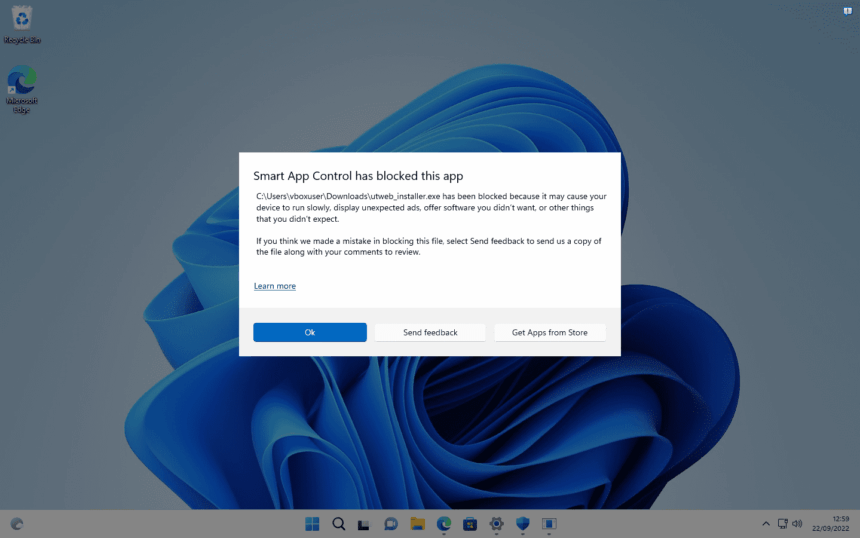
Smart App Control is a security feature in Windows 11 designed to help protect your computer from potentially dangerous or untrusted applications. It can block apps that Microsoft considers malicious or potentially unwanted before they run on your device.
For many users, Smart App Control provides an additional layer of protection without requiring them to manually check every application. However, there may be situations where you need to understand its settings, check whether it is active, or turn it off.
This guide explains how to enable or disable Smart App Control in Windows 11, how the feature works, and what you should know before changing its status.
What Is Smart App Control in Windows 11?
Smart App Control is a Windows 11 security feature that helps prevent potentially harmful, untrusted, or malicious applications from running.
It uses Microsoft’s security intelligence and application reputation technology to assess whether an application should be allowed to run.
When Smart App Control is active, it can help protect your PC against applications that may pose a security risk.
Smart App Control is designed to work in the background, so you generally do not need to manually approve every trusted application.
How to Check Smart App Control Status
Before making any changes, you can check whether Smart App Control is currently enabled.
- Open the Start menu.
- Search for Windows Security.
- Open Windows Security.
- Select App & browser control.
- Look for Smart App Control.
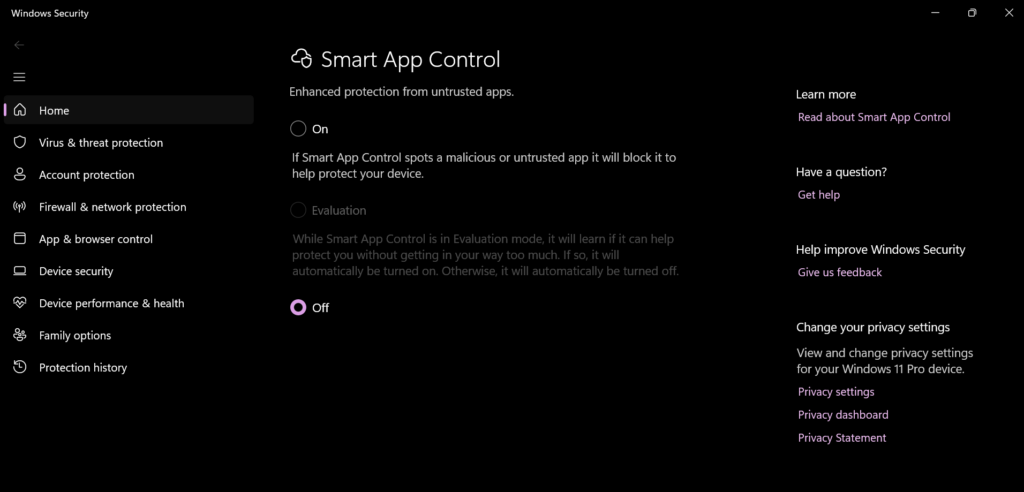
Depending on your system, you may see a status such as:
- On
- Evaluation
- Off
The status tells you how Smart App Control is currently operating on your Windows 11 PC.
How to Enable Smart App Control in Windows 11
If Smart App Control is available and compatible with your Windows installation, you can manage it through Windows Security.
1. Open Windows Security.
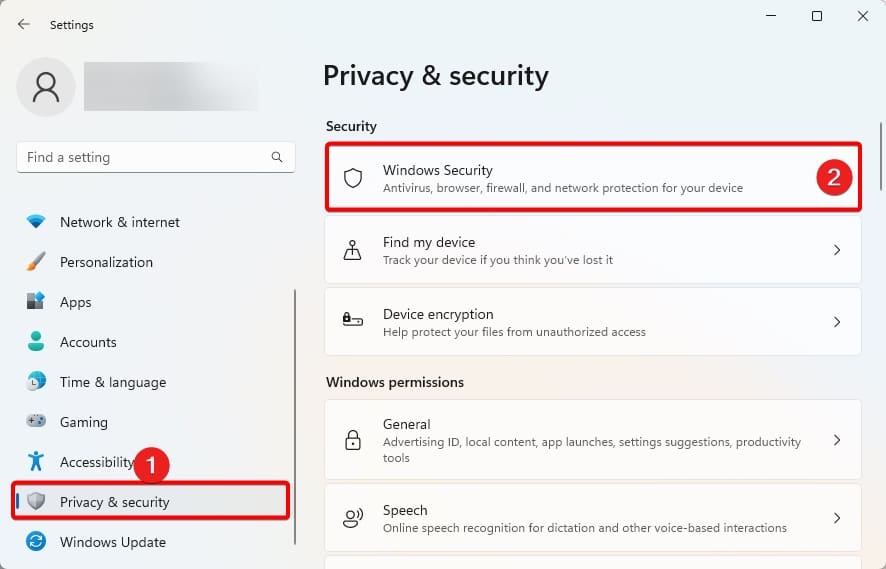
2. Open App & Browser Control. This section contains several Windows security features related to applications and online protection.
Find the Smart App Control section and select the available settings or information option.
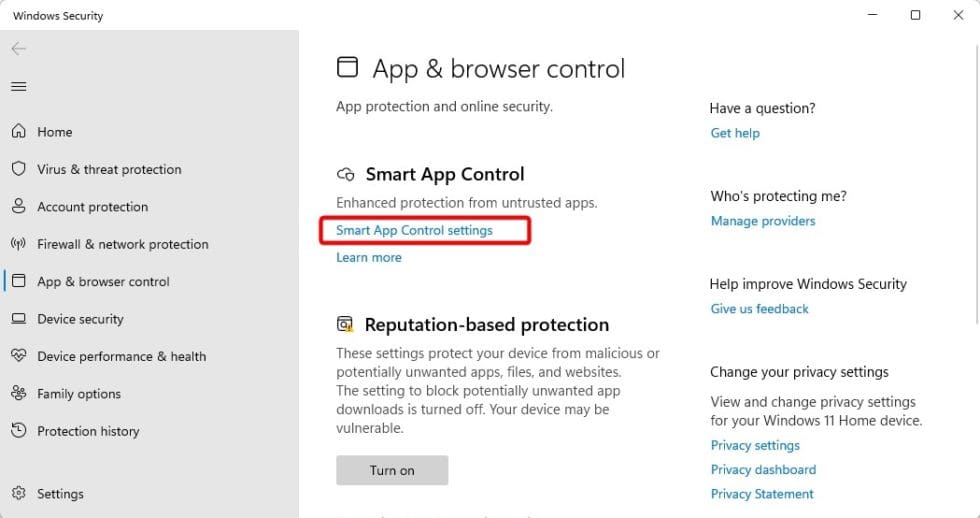
If Windows allows you to enable the feature, follow the instructions on the screen. After changing the setting, check the Smart App Control status again to confirm that it is active.
The option may not be available on every Windows 11 installation.
How to Disable Smart App Control in Windows 11
If Smart App Control is interfering with an application you trust, you may want to disable it.
To check the setting:
- Open Windows Security.
- Select App & browser control.
- Find Smart App Control.
- Open the Smart App Control settings.
- Select Off if the option is available.
- Confirm the change if Windows asks you to do so.
Once disabled, Smart App Control will no longer provide its application-blocking protection.
Before turning it off, make sure you understand why the application is being blocked and verify that the application comes from a trustworthy source.
Can You Turn Smart App Control Back On?
This is an important consideration before disabling Smart App Control.
On supported Windows 11 systems, Smart App Control has specific requirements and operating modes. In some situations, simply switching it off does not allow you to switch it back on immediately.
If Windows does not provide an option to turn Smart App Control back on, you may need to reset or reinstall Windows to restore the ability to enable Smart App Control.
Because of this, do not disable Smart App Control casually if you want to continue using its protection.
Smart App Control Modes
Smart App Control can operate in different states.
On
When Smart App Control is On, Windows actively evaluates applications and can block apps that do not meet its security requirements.
Evaluation
In Evaluation mode, Windows can assess how Smart App Control would work on your device before making a final decision about enabling the protection.
This can help Windows determine whether the feature is appropriate for your system.
Off
When Smart App Control is Off, the feature is no longer actively protecting your PC from applications in the same way.
If an app was previously blocked by Smart App Control, disabling the feature may allow it to run, but you should only do this if you trust the application.
What Should You Do If Smart App Control Blocks a Safe App?
If you believe a trusted application has been blocked incorrectly, avoid downloading a random replacement or disabling multiple security features immediately.
Instead:
- Verify that you downloaded the program from the developer’s official website.
- Check whether the developer provides a newer version.
- Install available Windows updates.
- Scan the downloaded file with Windows Security.
- Check whether the application has a digitally signed version.
- Consider contacting the software developer if the issue continues.
Using a legitimate, updated version of the application is generally safer than disabling Windows security features simply to run an unknown file.
Smart App Control vs. Microsoft Defender SmartScreen
Smart App Control and Microsoft Defender SmartScreen are related Windows security technologies, but they are not exactly the same feature.
- Microsoft Defender SmartScreen helps protect users from potentially dangerous websites, downloads, and applications.
- Smart App Control is designed specifically to help determine whether applications should be allowed to run.
Both contribute to Windows security, but they serve different purposes.
Does Smart App Control Replace Antivirus Software?
No.
Smart App Control is not a complete replacement for antivirus protection. Windows 11 also includes Microsoft Defender Antivirus, which provides protection against malware and other threats.
Smart App Control adds another layer of protection focused on applications. For stronger security, keep Windows and your security components up to date rather than relying on a single feature.
Why Can’t I Find Smart App Control?
Not every Windows 11 computer will show Smart App Control.
If you cannot find the feature under Windows Security → App & browser control, possible reasons include:
- Your Windows version does not support it.
- Your device does not meet the required conditions.
- The feature is unavailable in your current configuration.
- Windows needs to be updated.
- Smart App Control has already been disabled.
- Your device is managed by an organization.
If this is a work or school computer, security settings may be controlled by an administrator.
Smart App Control Is Greyed Out
If the Smart App Control option appears unavailable or cannot be changed, do not immediately modify Windows system files or security policies.
First check:
- Your Windows 11 version.
- Whether Windows is fully updated.
- Whether the PC is managed by an organisation.
- Whether another security policy controls the setting.
- Whether Smart App Control has previously been disabled.
A managed computer may have security settings that cannot be changed by a standard user.
Is It Safe to Disable Smart App Control?
Disabling Smart App Control reduces one layer of application protection. Whether that is appropriate depends on why you want to disable it.
For example, an advanced user may need to run specialised software that is repeatedly blocked. Even then, the application should be verified before changing security settings.
For most users, leaving Smart App Control enabled is the safer choice when it works correctly and is compatible with their software.
Open Windows Security → App & browser control → Smart App Control and check whether Windows provides an option to enable it. Availability depends on your Windows installation and system configuration.
Open Windows Security, go to App & browser control, open Smart App Control, and select Off if the option is available.
Not necessarily. Depending on your system state, Windows may not provide a direct way to re-enable Smart App Control after it has been turned off.
Windows may block an application because it cannot establish sufficient trust in the program or because the app has characteristics that could represent a security risk.
For most users, keeping it enabled is preferable. If you need to disable it because a trusted application is being blocked, verify the application’s source and security first.
No. Smart App Control is an application protection feature, while Microsoft Defender Antivirus is Microsoft’s built-in antivirus and malware protection component.