
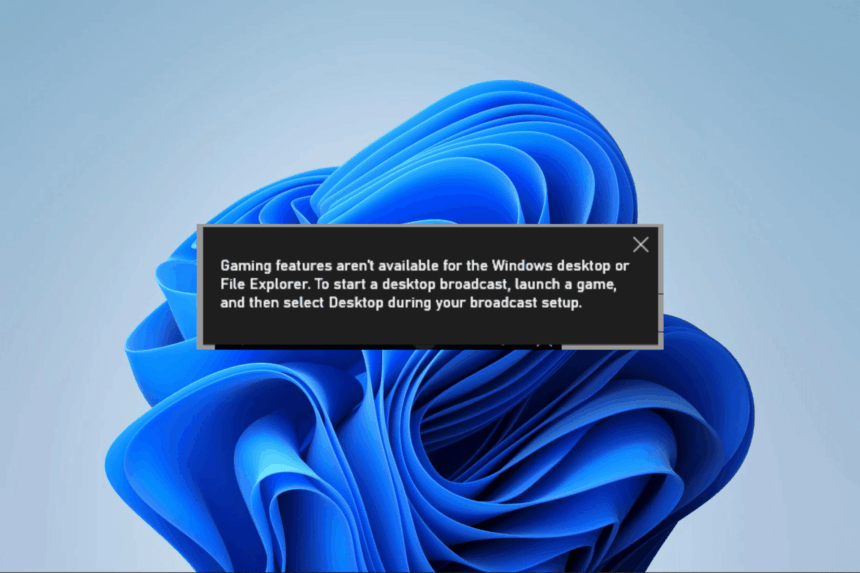
The “Gaming features aren’t available for Windows desktop” message can appear when you try to use Xbox Game Bar while the Windows desktop is active. Although it may look like a Windows error, it does not always mean that something is wrong with your computer.
In most cases, the message appears because Xbox Game Bar is designed mainly for recording games and supported applications, not for recording the Windows desktop itself.
If you want to record your desktop, an application window, or a specific area of your screen, Windows 11 offers other tools better suited to the task. You can use Snipping Tool for selected screen recordings, or Clipchamp for more flexible screen-recording options.
This guide explains what the message means, why it appears, and the proper ways to record your screen in Windows 11.
What Does “Gaming Features Aren’t Available for Windows Desktop” Mean?
The message usually appears when you open Xbox Game Bar while the Windows desktop is selected and attempt to use a gaming feature such as screen recording.
Xbox Game Bar is primarily intended for games and supported applications. It is not a general-purpose tool for recording everything displayed on the Windows desktop.
For example, you may see the message if you:
- Press Windows + G while viewing the desktop
- Try to start a Game Bar recording without a supported application open
- Attempt to record certain unsupported windows
- Try to use Game Bar as a general desktop recorder
The message does not necessarily mean that Xbox Game Bar is broken.
If Game Bar works correctly when you open a supported game or application, your computer may be working normally.
Why Does This Message Appear?
There are several reasons you might see this message.
The most common reason is that the Windows desktop itself is not a supported recording target for Xbox Game Bar.
Other possibilities include:
- Xbox Game Bar is disabled.
- You are trying to record an unsupported window.
- Game Bar is experiencing an application problem.
- Windows or Game Bar needs an update.
- Your computer is running a Windows edition with media-related limitations.
- Your organization has restricted gaming or recording features.
Before trying complicated troubleshooting, determine what you actually want to record.
If you want to record a game, use Xbox Game Bar. If you want to record the desktop, use a screen-recording tool designed for that purpose.
Can Xbox Game Bar Record the Windows Desktop?
Xbox Game Bar is designed primarily for recording games and supported applications.
If you are sitting on the Windows desktop and press Windows + G, you may receive the message that gaming features are not available for the Windows desktop.
This is generally a limitation of the feature rather than a problem that requires reinstalling Windows.
Do not try to force Xbox Game Bar to become a full desktop recorder when Windows already provides other recording options.
Best Way to Record the Windows Desktop
If your goal is to record what is happening on the Windows desktop, Snipping Tool is one of the easiest built-in options in Windows 11. It allows you to select a part of the screen and record it as a video.
How to Record Your Screen With Snipping Tool
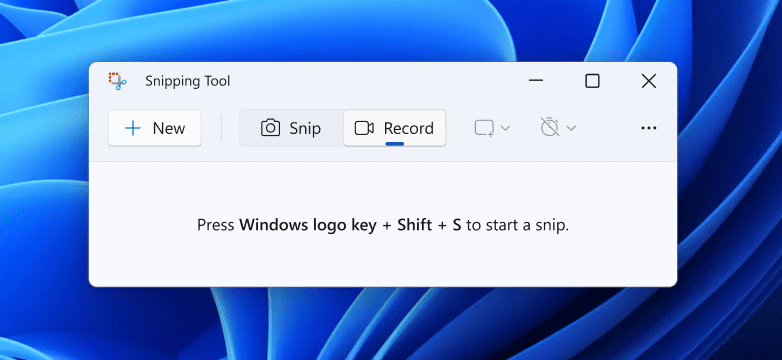
- Open the Start menu.
- Search for Snipping Tool.
- Open the application.
- Select the Record option.
- Choose New.
- Select the area of the screen you want to record.
- Select Start.
- Perform the actions you want to capture.
- Select Stop when you are finished.
- Save the recording.
You can also open the screen-recording interface with:
Windows + Shift + R
This method is useful for recording tutorials, software demonstrations, troubleshooting steps, and selected areas of the Windows desktop.
Use Snipping Tool to Record an App
Snipping Tool is also useful for recording a specific application.
For example, you can record:
- Microsoft Word
- File Explorer
- Settings
- A browser window
- A software application
- A portion of a larger screen
Simply select the area containing the application before starting the recording.
This is often easier than trying to use Xbox Game Bar for an application that Game Bar does not recognize.
Use Clipchamp to Record the Screen
If you need more flexibility, Microsoft Clipchamp can be used for screen recording.
Clipchamp can provide options for recording:
- An entire screen
- A particular window
- A browser tab
This makes it useful when you want to create a longer tutorial, presentation, demonstration, or instructional video.
How to Record Your Screen With Clipchamp
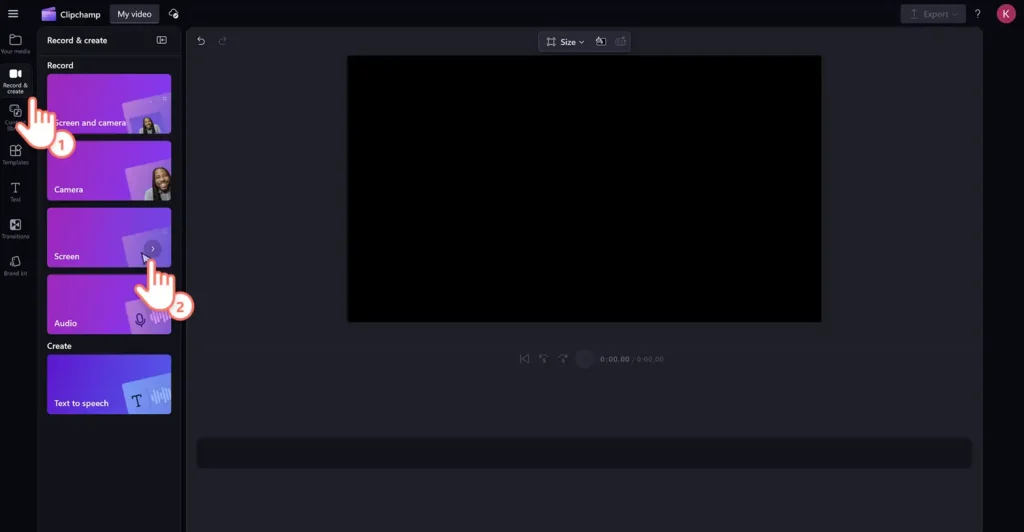
- Open Clipchamp.
- Start a new project or open the screen-recording feature.
- Select the screen-recording option.
- Choose the screen, window, or browser tab you want to capture.
- Select the microphone option to record your voice.
- Start the recording.
- Stop the recording when finished.
- Review the video.
- Save or export it.
Clipchamp is a better option than Xbox Game Bar when you need broader desktop-recording capabilities.
How to Record a Game With Xbox Game Bar
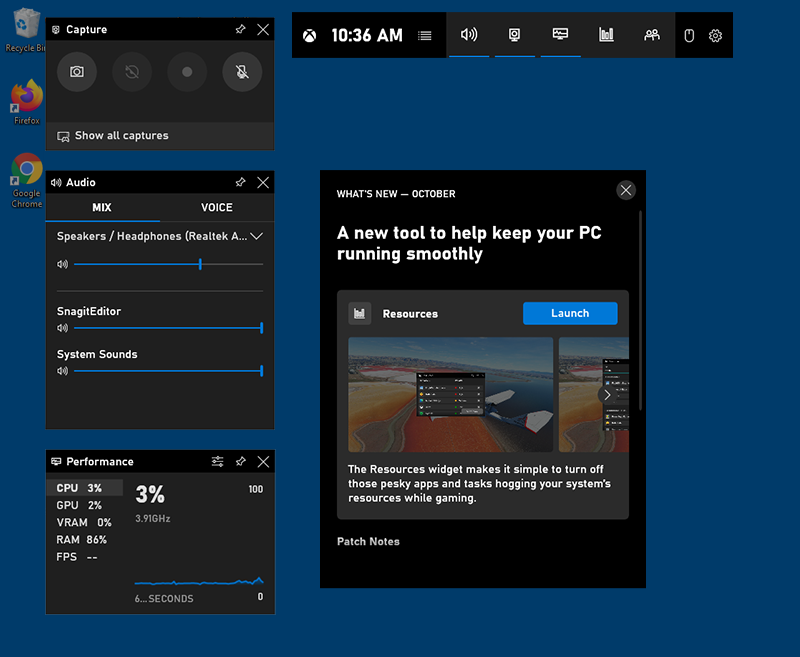
If you actually want to record gameplay, the Xbox Game Bar is still useful. Follow these steps:
- Open the game.
- Make sure the game is the active window.
- Press Windows + G.
- Open the Capture widget.
- Start the recording.
- Play the game.
- Stop the recording when you are finished.
Tip: If you still want to Record Screen other than Gaming Using Gamebar, then keep the Steam Client Running in the background. This will allow you to record the Desktop without running any game
You can also use the Game Bar recording shortcut when supported.
If Game Bar works correctly in-game but not on the Windows desktop, that usually indicates the original issue is related to the recording context rather than a broken Game Bar installation.
How to Check if Xbox Game Bar Is Enabled
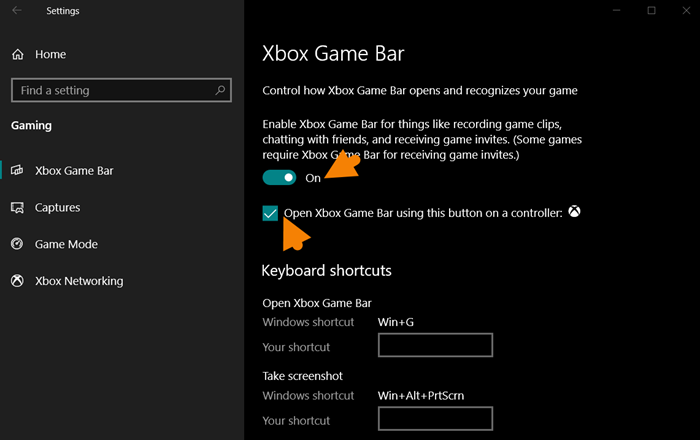
If the Xbox Game Bar does not open even when you are inside a game, check its Windows settings.
- Open Settings.
- Select Gaming.
- Open the Xbox Game Bar settings.
- Make sure the feature is enabled.
- Open your game again.
- Press Windows + G.
The exact appearance of the settings can vary depending on your Windows 11 version.
Repair Xbox Game Bar
If the Xbox Game Bar is supposed to work with your game or application but does not, you can try repairing the application.
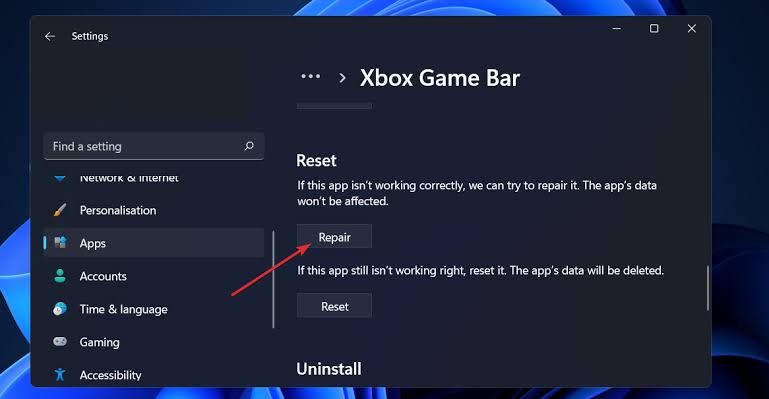
- Open Settings.
- Select Apps.
- Select Installed apps.
- Find Xbox Game Bar.
- Open its additional options.
- Select Advanced options.
- Choose Repair, if available.
Windows will attempt to repair the application without completely resetting it.
After the repair finishes, restart Game Bar and test it again.
Reset Xbox Game Bar
If repairing Game Bar does not resolve the issue, you can try resetting it.
Go to:
Settings → Apps → Installed apps → Xbox Game Bar → Advanced options
Select Reset if the option is available.
Resetting the application can clear its stored data and restore its settings.
Try Repair first, because resetting an application is a more substantial troubleshooting step.
Update Windows 11
If Game Bar is malfunctioning inside supported applications, make sure Windows is up to date.
- Open Settings.
- Select Windows Update.
- Select Check for updates.
- Install available updates.
- Restart your computer.
After the restart, open your game or application and test Game Bar again.
Keeping Windows updated can also help ensure that built-in applications and related components are functioning properly.
Update Apps Through Microsoft Store
If Xbox Game Bar or another Microsoft application is behaving unexpectedly, check the Microsoft Store for available application updates.
Open the Microsoft Store and look for available updates.
After updating the relevant applications, restart Windows and test the recording feature again.
What if the Snipping Tool Does Not Have a Record Option?
If you are using Windows 11 but cannot find the Record option in Snipping Tool, first check that Windows is fully updated.
You should also make sure you are using a supported version of Snipping Tool.
If the application itself is not working correctly, you can try repairing or resetting it through its application settings.
If the recording feature remains unavailable, check your Windows edition, as some editions have additional media-related requirements.
Windows 11 N and Screen Recording
Windows 11 N editions differ from standard Windows editions by excluding certain media technologies. If you use a Windows 11 N edition, some media-related features may not work normally until the required media components are installed.
This can affect certain recording and multimedia functions.
To check your Windows edition:
- Open Settings.
- Select System.
- Select About.
- Look under Windows specifications.
- Check the edition listed there.
If your edition includes N, media-related limitations may be relevant to the problem.
Check Whether Your PC Is Managed by an Organisation
If you are using a work or school computer, your administrator may restrict gaming and screen-recording features.
For example, an organization can restrict:
- Xbox Game Bar
- Screen recording
- Microsoft Store applications
- Gaming-related services
- Certain Windows settings
If a setting is unavailable or keeps changing back, contact your organization’s administrator.
Avoid changing Windows policies on a managed computer unless your administrator has instructed you to do so.
Do You Need to Reinstall Windows?
Usually, no.
If the only problem is that Xbox Game Bar displays “Gaming features aren’t available for Windows desktop” when you are on the desktop, reinstalling Windows is unnecessary.
The correct solution depends on your goal:
- Recording a game: Use Xbox Game Bar.
- Recording part of the screen: Use Snipping Tool.
- Recording the entire screen: Use Clipchamp.
- Recording an application: Use Snipping Tool or Clipchamp.
- Game Bar failing inside a supported game: Troubleshoot or repair Game Bar.
Choosing the appropriate tool is much more effective than reinstalling Windows.
Why does Windows say “Gaming features aren’t available for Windows desktop”?
The message usually appears because Xbox Game Bar is being used while the Windows desktop is active. Game Bar is designed primarily for games and supported applications.
How can I record my Windows 11 desktop?
Use Snipping Tool to record a selected area of the screen or Clipchamp when you need to record an entire screen, window, or browser tab.
Can Xbox Game Bar record the desktop?
Xbox Game Bar is primarily intended for recording games and supported applications. If you receive the desktop message, use Snipping Tool or Clipchamp instead.
What is the shortcut to record the screen in Windows 11?
You can press Windows + Shift + R to open Snipping Tool’s screen-recording interface on supported Windows 11 installations.
How do I fix Xbox Game Bar when it doesn’t work?
If Game Bar fails inside a supported game or application, check that it is enabled, install Windows updates, and try repairing the Xbox Game Bar application.
Should I reset Xbox Game Bar?
Reset it only if Game Bar is genuinely malfunctioning after you have tried simpler solutions such as checking its settings, updating Windows, and repairing the application.
Why does Game Bar work in a game but not on the desktop?
This can be normal. Game Bar is designed around games and supported applications, while the Windows desktop is not its general-purpose recording target.