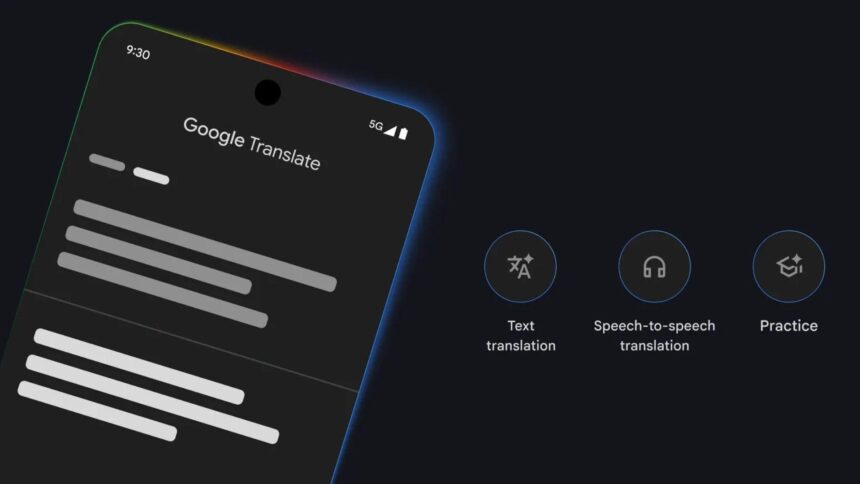
Google Translate is one of the most accessible tools available for breaking down language barriers, whether you’re travelling, studying a new language, or trying to understand content written in a foreign script. Google’s translation service offers multiple ways to translate text, speech, and images, making it far more versatile than many people realise.
For users on Android and iOS, the Google Translate app is the most complete and convenient option. It supports typed text, spoken input, real-time conversations, handwriting, and even translations directly from your camera. While owners of newer Google Pixel phones get access to some exclusive features, the core tools are available on almost any modern smartphone.
Below is a detailed look at how Google Translate works, its reliability, and how to utilise its most useful features.
Does Google Translate work well?
Google Translate has undergone significant improvements over the years, particularly with the integration of modern AI and machine learning models. While it was once known for awkward, literal translations, it now focuses on understanding meaning and context, rather than translating word for word.
That said, accuracy can still vary depending on the language pair. A well-known 2019 UCLA study that tested translations of medical instructions found a 94% accuracy rate for English-to-Spanish translations, but only 55% accuracy for English-to-Armenian translations. This highlights an important point: some languages are better supported than others.
Since that study, Google has expanded its language support and improved its translation models. For everyday tasks-like reading menus, translating directions, or understanding short phrases-Google Translate is more than reliable enough. However, for nuanced materials such as literature, legal documents, or medical texts, a professional human translator remains the safer option.
Where can you use Google Translate?
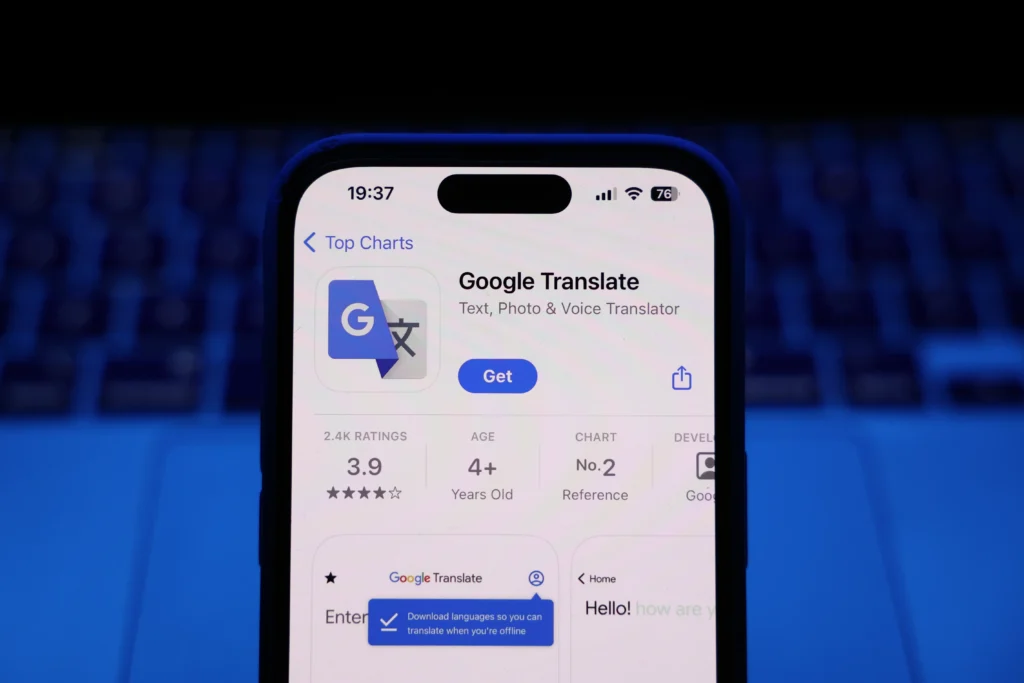
Google Translate is available across multiple platforms:
- Mobile app on Android (often preinstalled) and iOS (iPhone and iPad)
- Web version via any browser
- Chrome extension, which translates entire web pages automatically
The mobile app offers the widest range of features, though some require an active internet connection. Offline translation is supported, but only for downloaded languages and with limited functionality.
Regardless of the platform, Google Translate offers multiple translation methods to suit various situations.
How to translate conversations in real time
One of Google Translate’s most powerful features is real-time conversation mode, which effectively turns your phone into a live interpreter.
How to use conversation mode:
- Open Google Translate
- Tap the Conversation button in the lower-left corner
- Select the source language (on the left)
- Select the target language (on the right)
- Tap the microphone icon under the Gemini AI symbol for automatic detection
- Or use the individual microphones for manual language selection
As each person speaks, the translated text appears on screen, and you can choose to play the translated audio aloud. This feature is especially useful for travel, casual conversations, or customer service interactions.
Tip: For offline conversations, download the required language packs in advance.
How to translate text and speech
Text translation is the most basic-and fastest-method for using Google Translate.
Steps:
- Open Google Translate
- Choose the source language (left)
- Choose the target language (right)
- Type your text or tap the microphone to speak
- Use the speaker icon to hear the translation or copy it to your clipboard
This method is most effective for single words, short phrases, or quick checks when learning a new language.
How to translate images with your camera
Using Google Lens, Google Translate can read and translate text directly from images. This is ideal for signs, menus, labels, and printed documents.
- Open Google Translate
- Tap the Camera icon
- Select the source and target languages
- Choose:
- Instant live translation through your camera
- Import to translate text from a saved image
The translated text appears overlaid on the image, making it easy to read without needing to switch apps.
How to use Google Translate offline
If you’re travelling without reliable internet access, offline translation can be a lifesaver.
How to download a language for offline use:
- Open Google Translate
- Tap the language bar at the bottom
- Find the language you want
- Tap the Download icon next to it
Offline mode supports fewer languages and features, but it’s still useful for basic translations.
How to translate handwriting
Google Translate also supports handwritten input, which is useful for characters you can’t easily type.
Steps:
- Open Google Translate
- Tap Enter text
- Tap the handwriting icon
- Write using your finger or a stylus
This feature works especially well for languages like Chinese, Japanese, and Korean.
How to Save Phrases for later
If you regularly use certain translations, you can save them for quick access.
Steps:
- Translate a phrase
- Tap the star icon
- Access saved phrases from the star menu on the home screen
Saved phrases sync across devices when you’re signed into your Google account.
Live Translate on Google Pixel phones
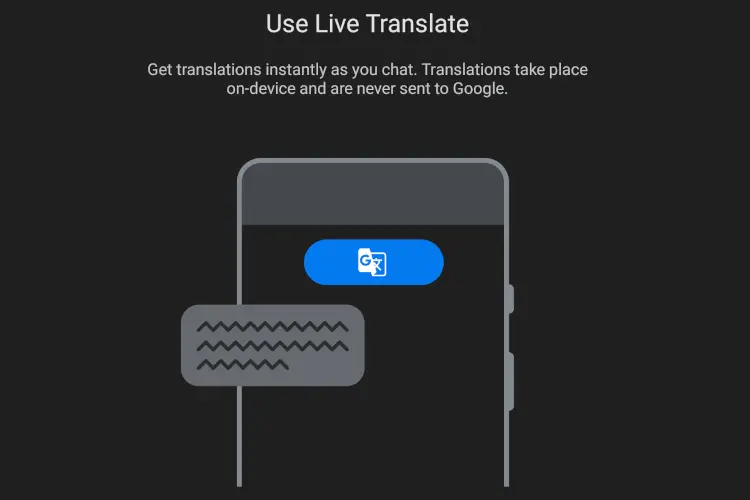
Pixel phones offer Live Translate, which automatically detects and translates languages in real time across apps like Messages, video playback, and supported chats.
How to enable Live Translate:
- Open Settings
- Go to System
- Tap Live Translate
- Turn it on and add supported languages
When foreign text or speech is detected, a pop-up appears offering instant translation.
Voice Translate on newer Pixel phones
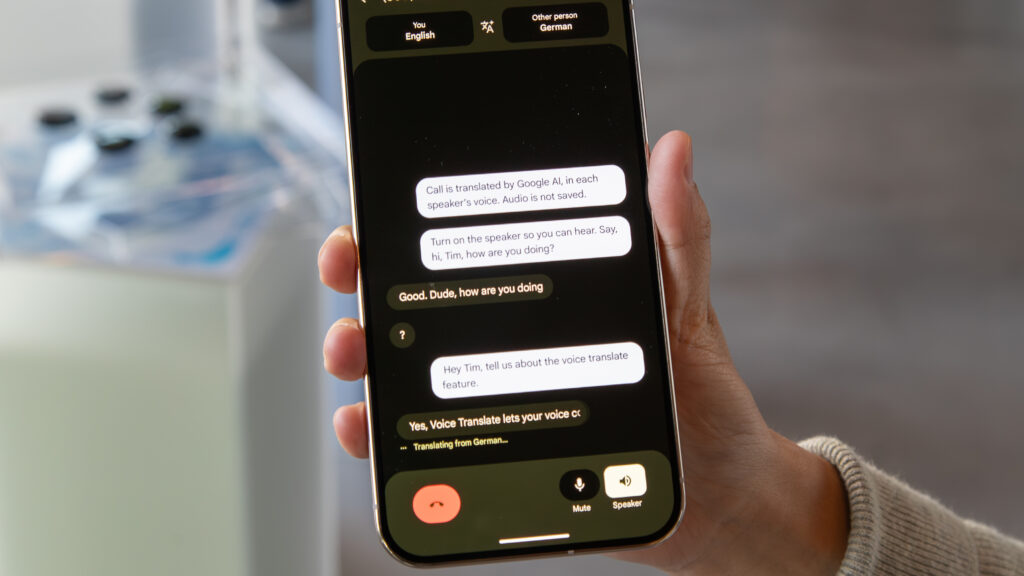
On the latest Pixel devices, Voice Translate enables real-time translation during phone calls. This feature runs on-device, powered by Gemini Nano and Tensor chips, meaning:
- No internet connection is required
- Audio stays private and isn’t sent to the cloud
- Translations appear as on-screen transcripts during calls
Google Translate has grown from a basic dictionary tool into a powerful, multi-purpose language assistant. While it isn’t perfect-especially for complex or nuanced material-it excels at everyday communication, travel assistance, and quick understanding across languages.
Used correctly, it can dramatically reduce friction when navigating a multilingual world, whether you’re reading a menu, chatting with someone abroad, or watching content in another language.
- Translate a Web Page in any browser
- Samsung’s Galaxy AI Popular Apps
- Translate the Lyrics of Your Favourite Song on Spotify