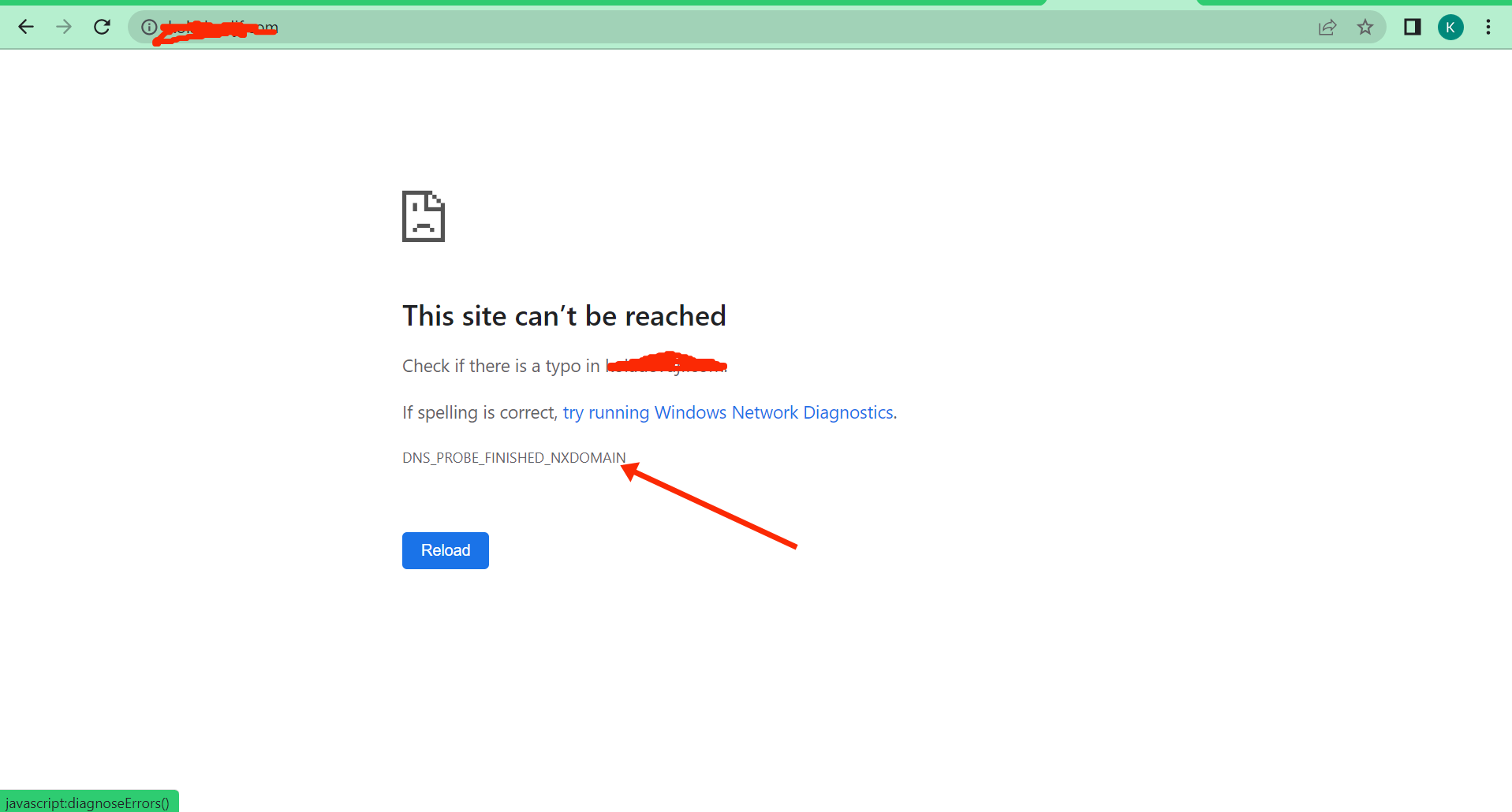
The DNS_PROBE_FINISHED_NXDOMAIN error is a fairly common issue that users encounter when browsing the web, especially in Google Chrome. While it often appears when a web address is typed incorrectly, it can also point to deeper problems related to your internet connection, DNS configuration, or the website’s domain itself.
What is the DNS_PROBE_FINISHED_NXDOMAIN error?
This error occurs when your browser is unable to locate the domain name you’re trying to access. DNS, or Domain Name System, acts like the internet’s address book. Its job is to translate easy-to-read website addresses (such as example.com) into numerical IP addresses that computers use to communicate with each other.
When this translation fails-either because the domain doesn’t exist, can’t be reached, or your system can’t resolve it-the browser cannot load the page. As a result, Chrome displays the DNS_PROBE_FINISHED_NXDOMAIN message, indicating that the domain lookup failed.
Why does this error happen?
There are several possible reasons for this issue, including:
- A mistyped URL or incorrect domain name
- Problems with your internet connection
- Issues with your DNS server or DNS cache
- A domain that has expired, been removed, or is temporarily unavailable
- Network or firewall settings that block DNS requests
It’s also worth noting that this problem is not exclusive to Google Chrome. Other browsers may display similar errors under different names, and some apps may simply report that they can’t connect to the server without showing a specific DNS-related code.
Fix Chrome Dns Error: Dns_probe_finished_nxdomain
1. Make sure the address is correct
Often, the error can be resolved by typing the website address correctly. Some small typos can cause the domain problem and display the message in Chrome.
Before moving on to advanced network settings, confirm the URL or search for the website name on Google to access it.
2. Clear DNS cache
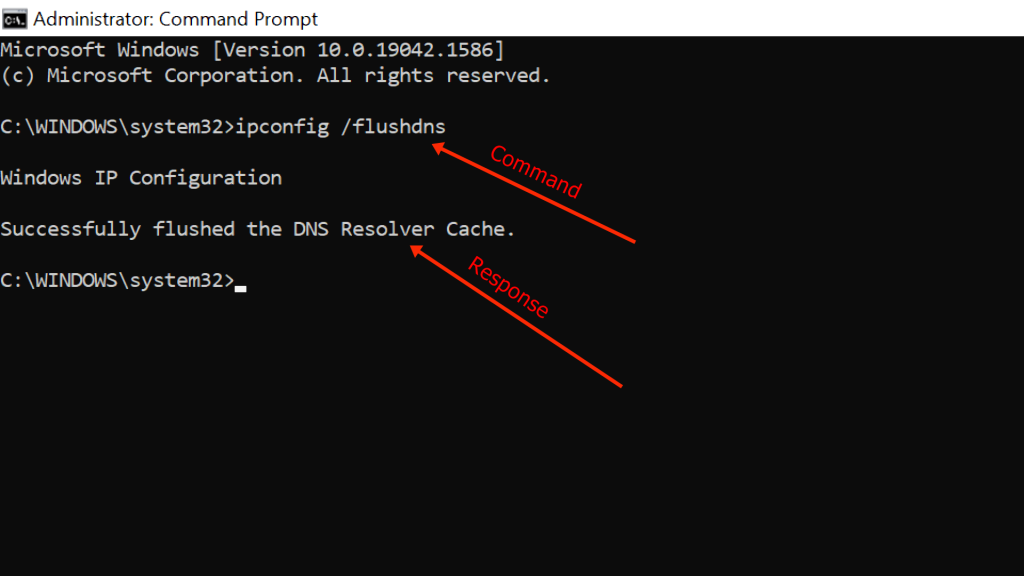
If the problem persists, it is worth cleaning the local DNS cache. Some temporary files on your computer may be causing errors when locating and loading pages, especially when addresses are outdated. For this procedure, follow the steps:
- On Windows, search for Command Prompt and run the program as an administrator.
- At the prompt, type “ipconfig/flushdns” without the quotes and press “Enter”;
- Wait for the command to complete and try to access the page again in Chrome.
3. Change your DNS server
If you use the standard DNS server provided by your internet provider, it is worth exploring alternatives: these options can cause slowdowns, return outdated domain names, and even contain security holes. Google’s public DNS is a popular choice because it can resolve these errors and improve page load speed.
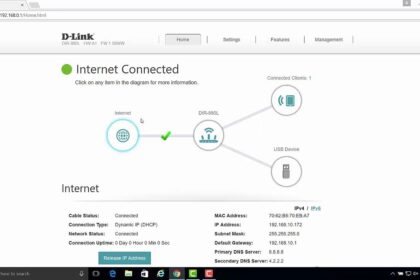
Open your device’s network settings or your router’s settings to change the DNS server. Detailed explanations can be found in this article.
4. Disable VPN and antivirus services
A firewall or VPN can interfere with browser operation and page loading, causing a domain error. To check whether this is the source of the problem, disable VPN, antivirus, or proxy services, then try opening the page again without the DNS_PROBE_FINISHED_NXDOMAIN error.
5. Restore Chrome to the Default settings
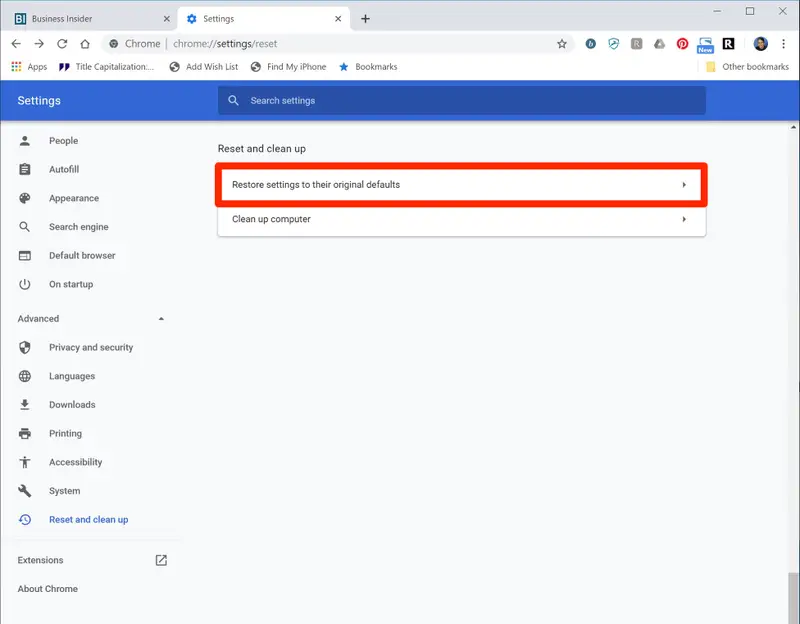
Nothing solved? In that case, restoring Chrome to its default configuration is worth removing any tweaks that might have generated the error. Open browser settings, click “Restore and clear,” and select “Restore settings to original defaults”.
6. Confirm that there is no problem with the domain
Finally, there are still situations where the problem is not local but an error related to the website’s domain. It may be outdated, have been recently updated, or have an internal problem.
Sites like whatsmydns.net let you run this query. Enter the website address into the search and check whether the current domain matches the IP address.