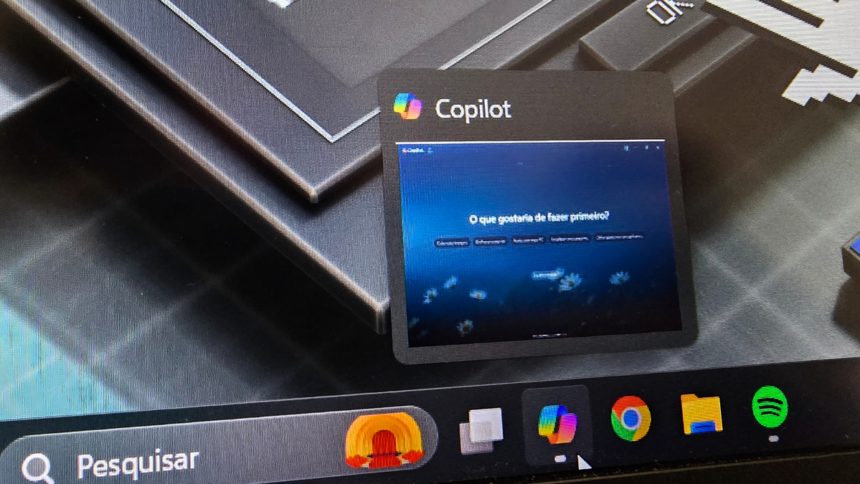
The Microsoft Copilot built into Windows 11 has sparked mixed reactions. While some users find it useful, others prefer not to have it running on their system—especially since it comes pre-installed. To address this, Microsoft has introduced a way to completely remove Copilot in certain environments.
This option is currently available through a specific update in the Windows Insider program, giving administrators more control over system features.
What’s New in This Update
With build 26220.7535, Microsoft added a new policy called “Remove Microsoft Copilot app.” This feature is designed mainly for:
- Business environments
- Educational institutions
- Managed devices with administrative control
It allows system administrators to fully remove Copilot from Windows instead of just hiding or disabling it.
Important Requirements Before You Start
This method does not work for all users. It is limited to specific setups. Before attempting it, make sure the following conditions are met:
- You are using Enterprise, Pro, or Education editions of Windows
- You have administrator access to the system
- The Copilot app was not manually installed by the user
- The app has not been used in the last 28 days
- Copilot is not set to launch automatically at startup
Tip:
If Copilot opens when your PC starts, disable it first:
- Open Task Manager
- Go to the Startup tab
- Turn off Copilot
How to Disable or Remove Copilot (Admin Method)
If your system supports this feature, follow these steps:
- Open the Start menu and search for “Edit Group Policy”
- Click to open the Group Policy Editor
- Navigate to:
- User Configuration
- Administrative Templates
- Windows AI
- Find and select “Remove Microsoft Copilot app”
- Enable this option
- Apply the changes and restart your computer
Once completed, Copilot will be removed from the system interface.
What About Personal Computers?
For regular users with Home editions, this full removal option is not available. However, you can still reduce Copilot’s presence by:
- Disabling it from startup
- Turning off Copilot features in apps like Microsoft Edge
- Avoiding interaction with the assistant
These steps won’t remove it completely, but they can prevent it from interfering with your daily use.
Why Some Users Want to Remove Copilot
There are a few common reasons:
- Preference for a cleaner, simpler interface
- Reduced background processes and improved performance
- Privacy concerns related to AI features
- No need for AI assistance in daily tasks
Microsoft’s addition of a dedicated removal policy gives administrators more flexibility in managing Windows environments. While the option is limited to certain versions and setups, it’s a useful step for organisations that want full control over their systems.
For everyday users, complete removal may not yet be possible, but disabling Copilot’s activity can still help create a more streamlined experience.