Have you ever replied to an email in Microsoft Outlook only to discover that the original attachment is missing from your response? If you regularly exchange documents, spreadsheets, or other files through email, this behaviour can be confusing, especially when you need to reference the same file across multiple versions.
In most cases, this is normal Outlook behaviour rather than a problem with your account or settings. When you reply to an email, Outlook does not automatically include the original attachments in your response. It assumes that the people involved in the conversation can access the files from the original message.
However, there are situations where you may need to send the same attachment again or locate a file that seems to have disappeared from an email thread.
The good news is that you can usually resolve the issue by forwarding the original message, locating the email with the attachment, adjusting Outlook settings, or attaching the file manually.
Here are four ways to fix the Outlook attachment issue, along with additional troubleshooting steps if the problem persists.
Why Does Outlook Remove Attachments When Replying?
Microsoft Outlook normally excludes the original attachments when you reply to an email. This is intentional behaviour, not necessarily a software error.
When you reply, Outlook creates a response to the existing conversation rather than sending the original message again. The original sender and other recipients can refer to the earlier email if they need to access its attachments.
For example, suppose someone sends you a Word document and asks for feedback. When you click Reply, Outlook includes the message history but generally excludes the original Word document from your response.
If you need to send the document back, you must attach it manually or use another method that preserves the original attachment.
There is also an important distinction between an attachment missing from a reply and an attachment being blocked by Outlook. Outlook can restrict access to certain potentially unsafe file types, including some executable files. This security restriction is separate from the normal behavior of excluding attachments from replies.
Microsoft explains these restrictions in its support documentation on blocked attachments in Outlook.
If the attachment is missing only from your reply, try the following fixes.
1. Forward the Original Email Instead of Replying
One of the easiest ways to resend an attachment is to forward the original email rather than reply to it.
Unlike a standard reply, forwarding an email generally preserves its original attachments. This allows you to resend the file without having to browse your computer to locate it.
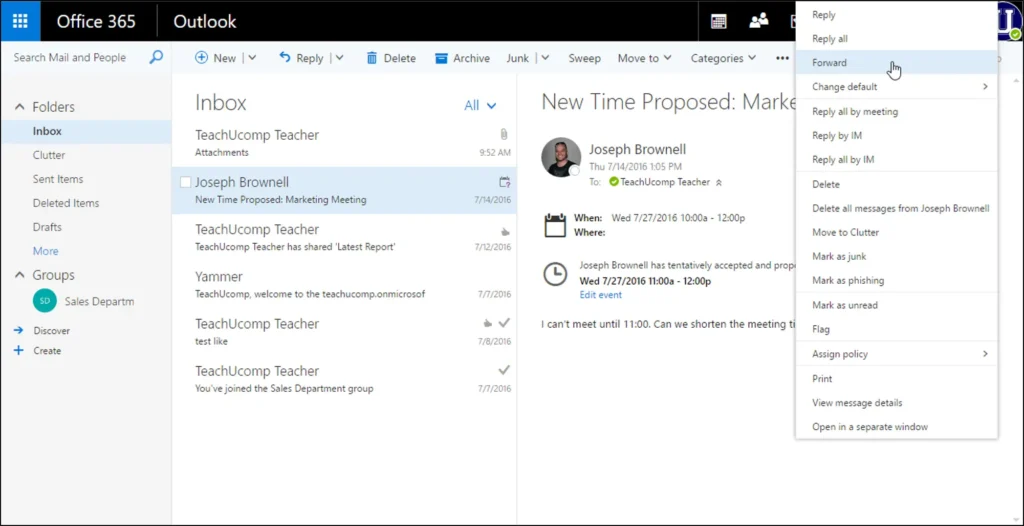
How to Forward an Email With Attachments in Outlook
- Open Outlook and locate the original email containing the attachment.
- Open the message.
- Click Forward.
- Enter the recipient’s email address. You can send it back to the original sender if necessary.
- Add your response or any additional instructions.
- Check that the attachment appears in the message.
- Click Send.
This method is useful when you need to resend a document, image, spreadsheet, or another file that was included in the original message.
Keep in mind that forwarding creates a new outgoing message rather than a standard reply. Depending on your Outlook settings, the forwarded email may not appear in the same conversation thread as the original message.
2. Turn Off Conversation View to Find the Missing Attachment
Sometimes, an attachment has not disappeared at all. It may simply be attached to an earlier email within the same conversation.
Outlook’s Conversation View groups related messages together. When a conversation contains multiple replies, it can be difficult to identify the exact message that originally included the file.
This is particularly common in long email threads where people exchange several messages without reattaching the document.
Turning off conversation grouping can make it easier to locate the original email and its attachment.
Turn Off Conversation View in New Outlook
The steps may vary slightly depending on your version of Outlook.
- Open Outlook.
- Click Settings.
- Navigate to Mail and then the Reading pane, or the relevant message organisation settings available in your version.
- Look for the message organisation or conversation display options.
- Select Do not group messages or the equivalent option, if available.
Return to your inbox and locate the original message. The individual emails should be easier to identify when they are no longer grouped into conversations.
Turn Off Conversation View in Classic Outlook
If you use the classic desktop version of Outlook, follow these steps:
- Open Outlook.
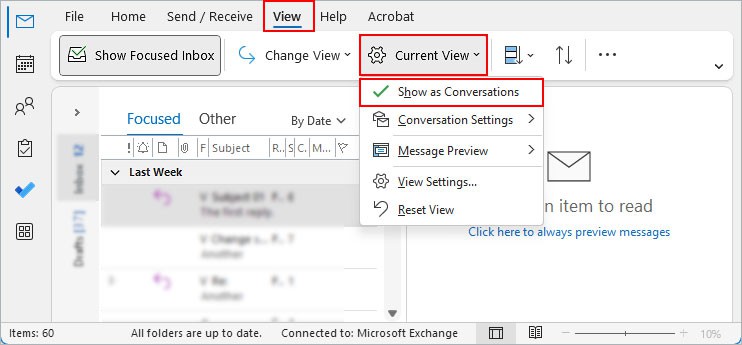
- Select the View tab.
- Locate the Show as Conversations option.
- Turn it off.
- If prompted, choose whether to apply the change to the current folder or all mailboxes.
You can now browse individual messages and find the email that contains the attachment.
This fix is particularly helpful when the attachment appears to be missing from a long email conversation but is still available in the original message.
3. Check Outlook’s Reply and Forward Settings
If you frequently need to resend attachments, you may want to review Outlook’s reply and forwarding options.
However, there is an important limitation: Outlook’s standard reply settings generally do not include an option to automatically include all original attachments in every reply. The available options vary between classic Outlook, new Outlook, and Outlook on the web.
In classic Outlook, the relevant settings are available under Mail options.
How to Check Reply Settings in Classic Outlook
- Open Outlook.
- Click File.
- Select Options.
- Open the Mail tab.
- Scroll to the Replies and forwards section.
- Review the available options and confirm that your preferred reply and forwarding behavior is selected.
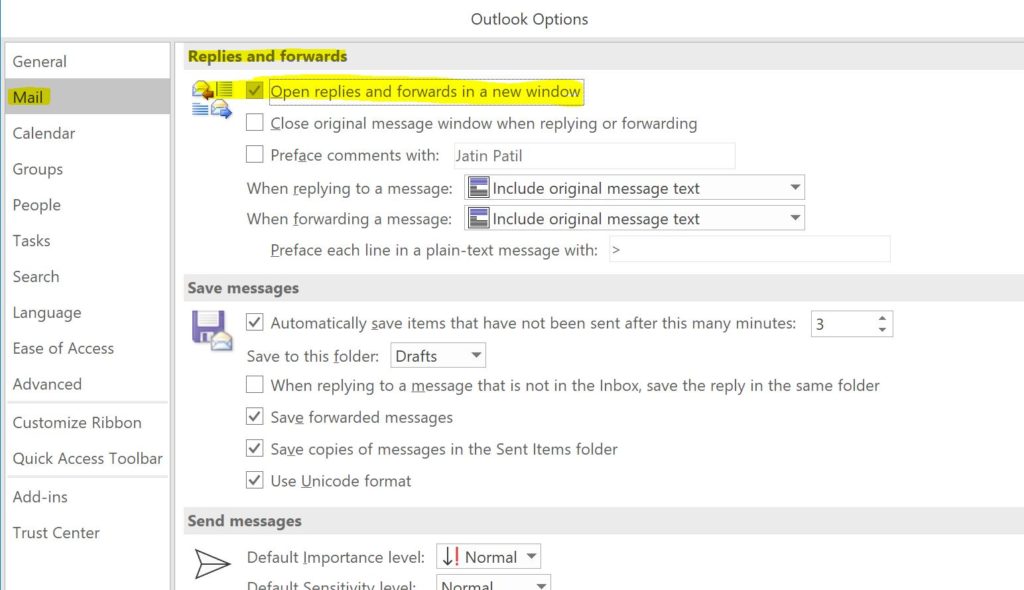
These settings primarily control how Outlook handles replies and forwarded messages, including whether the original message is included. They should not be confused with a setting that automatically reattaches every original file to a reply.
If you use new Outlook or Outlook on the web, the available settings may be different. Check the options in your version rather than assuming that the classic Outlook settings are also available.
If Outlook continues to exclude attachments from replies, forwarding the original email or manually attaching the file is the more reliable solution.
4. Manually Attach the Original File to Your Reply
If you need to ensure the recipient receives the correct version of the document, manually attaching the file is often the best approach.
This is especially useful when working with updated reports, spreadsheets, project documents, or files that have been revised several times during an email conversation.
How to Attach a File to an Outlook Reply
- Open the email you want to reply to.
- Click Reply or Reply All, depending on who needs to receive your response.
- In the message editor, select Attach File or the attachment option.
- Browse your computer or select the appropriate file from the available locations.
- Choose the correct version of the document.
- Confirm that the attachment appears in your reply.
- Complete your message and click Send.
Before sending, double-check the file name and version. This helps prevent recipients from receiving an outdated document or the wrong attachment.
Outlook may handle duplicate attachments differently depending on the application and message format. Do not assume that it will automatically remove duplicate files or always display a warning.
If the original attachment is no longer available on your computer, open the original email and download the file before attaching it to your reply.
Additional Troubleshooting Steps
If none of the four fixes resolves the problem, the issue may involve Outlook itself, its local data files, or an attachment security restriction.
Try the following steps before creating a new Outlook account or making major changes to your installation.
1. Check Whether Outlook Has Blocked the Attachment
If you can see an attachment but cannot open or download it, Outlook may have restricted access because of the file type or a security policy.
Check Microsoft’s guidance on blocked attachments in Outlook to understand which restrictions may apply.
Avoid disabling antivirus software or Windows security protections to access an unknown attachment. If you need a restricted file for legitimate work, ask the sender to provide it through an approved, secure method.
2. Update Outlook and Microsoft Office
An outdated application can sometimes cause unexpected behaviour. Check whether Outlook and your Microsoft Office installation have available updates. Install the updates and restart the application before testing the attachment again.
If you use new Outlook, make sure the application is updated through the appropriate Microsoft update channel or your operating system’s app store.
3. Repair Microsoft Office
If Outlook is behaving incorrectly beyond the normal attachment behaviour, repairing Office may help resolve problems with the application installation.
On Windows, the process generally involves the following steps:
- Open Settings.
- Select Apps and then Installed apps.
- Find Microsoft 365 or your Microsoft Office installation.
- Open the available modification options.
- Choose Quick Repair first, if available.
- Follow the instructions and restart Outlook.
If Quick Repair does not help, an Online Repair may be available. It can take longer and may require an internet connection.
Repairing Office is more appropriate when Outlook has broader problems, such as crashes or malfunctioning features. It is unlikely to change the standard behavior of excluding attachments from replies.
4. Repair Your Outlook Data File
If you use classic Outlook with a local PST data file and suspect that the file is corrupted, Microsoft’s Inbox Repair Tool, also known as SCANPST.EXE, may help.
The tool checks and attempts to repair certain problems with Outlook data files.
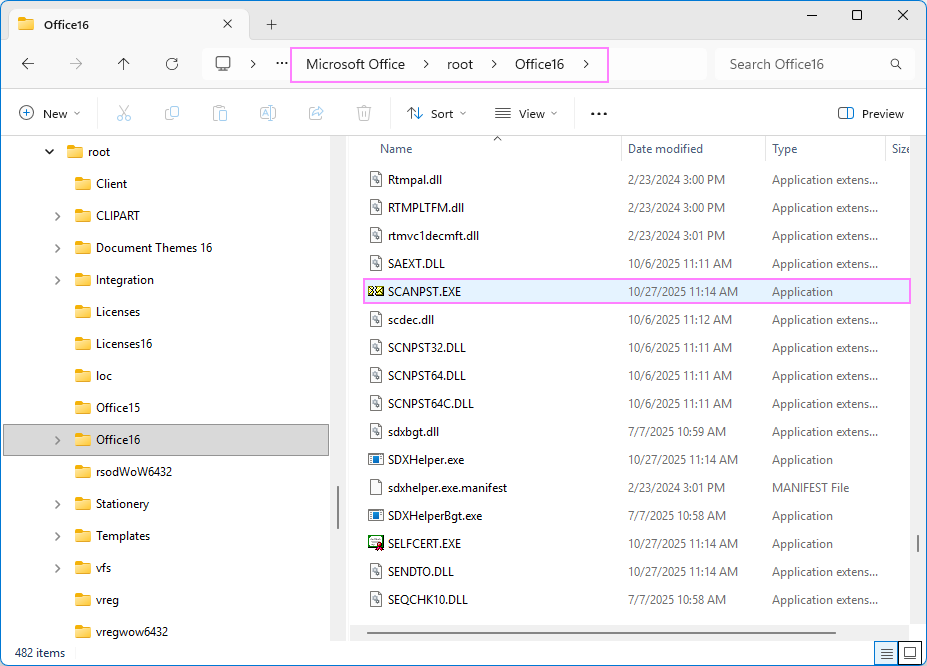
The file’s location depends on your Office version, installation type, and Windows configuration. On some installations, you may find it under a Microsoft Office folder such as:
C:\Program Files\Microsoft Office\root\Office16
Do not assume that this exact path applies to every computer. Search your Office installation folder if the file is not there.
Before repairing a data file, back it up where possible and follow Microsoft’s instructions. The Inbox Repair Tool is intended for certain PST file problems and is not a general fix for missing attachments in replies. It also does not repair every Outlook data format.
5. Test Outlook With Another Message
Send yourself a test email containing a small, ordinary attachment, such as a text document or PDF. Open the message and click Reply. Check whether the attachment is included in the response.
If it is missing, remember that this is the expected behavior for standard Outlook replies. Try forwarding the message instead, or attach the file manually.
If the attachment is missing even from the original message, or Outlook cannot open it, investigate that separate problem before making changes to your account or installation.
Creating a new Outlook account should not be your first troubleshooting step. It is generally unnecessary when the application is simply following its standard reply behavior.
Why does Outlook remove attachments when I reply to an email?
Outlook normally excludes the original attachments from replies because the original message remains part of the email conversation. If you need to resend a file, forward the original message or attach the file manually.
How do I reply to an email and keep the attachment in Outlook?
The most reliable option is to open the original message, forward it, and add your response. Alternatively, start a reply and attach the original file manually.
Does Outlook have a setting to include attachments in every reply?
Standard Outlook reply settings do not generally offer an option to automatically include all original attachments in every reply. Available options vary by Outlook version, so check your application’s settings before making changes.
Why can I see an attachment in the original email but not in the reply?
This is usually normal behavior. Outlook does not automatically copy the original attachments into a reply. Open the original message to access the file, or forward the message to send the attachment again.
Can Conversation View hide an email attachment?
Conversation View groups related messages together, which can make it harder to locate the message containing an attachment. Turning off conversation grouping can help you find the original email more easily.
Why won’t Outlook let me open an attachment?
Outlook may restrict certain file types because they can pose a security risk. Other possible causes include application issues, file corruption, or organizational security policies. Check Microsoft’s attachment security guidance before attempting to access a restricted file.
Should I reinstall Outlook if attachments are missing from replies?
Not usually. Missing attachments in standard replies are expected behavior, so reinstalling Outlook is unlikely to help. Try forwarding the original message, finding the attachment in the conversation, or attaching the file manually first.