

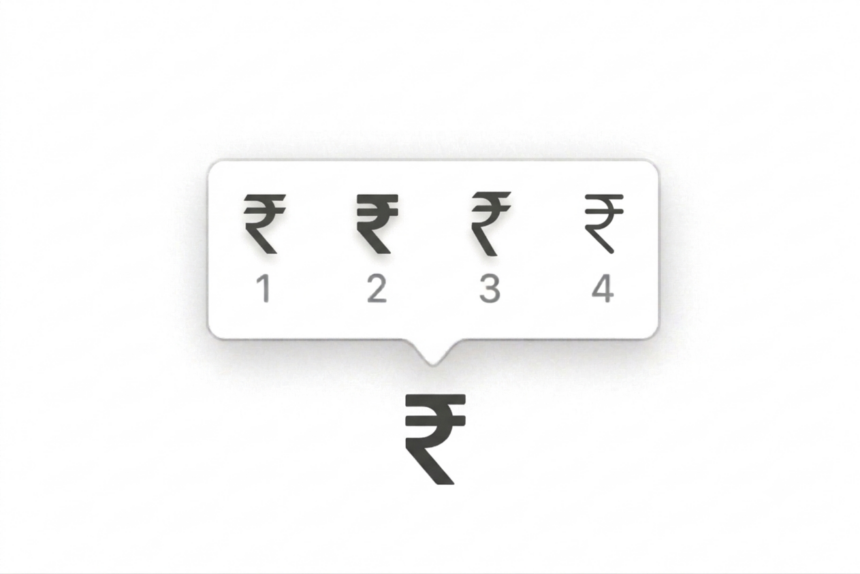
The Indian Rupee symbol (₹) is commonly used in invoices, spreadsheets, financial reports, documents, and online messages. However, the symbol does not appear on every keyboard by default, so you may need a keyboard shortcut or a special-character tool to insert it.
The good news is that you can type the rupee symbol on Windows and Mac, insert it in Google Docs, or display it in Microsoft Excel using a few simple methods.
Indian Rupee symbol: ₹
Unicode: U+20B9
If you need the symbol immediately, copy it from above and paste it wherever you want.
Type the Rupee Symbol on Windows
Windows offers several ways to enter the rupee symbol. The best method depends on your keyboard layout and the application you’re using.
1. Use the Windows Symbol Picker
This method is useful when you don’t want to change your keyboard layout.
- Open the application where you want to type the symbol.
- Place your cursor in the text field.
- Press Windows + . (period).
- Open the symbols section of the panel.
- Search for the rupee symbol if a search field is available, or browse the currency symbols.
- Select ₹ to insert it.
The symbol picker is a convenient option in Windows 11 and Windows 10, although its available symbols and search behavior may vary by version.
2. Use the English (India) Keyboard Layout
If you frequently type Indian currency values, you can add the English (India) keyboard layout.
- Press Windows + I to open Settings.
- Go to Time & language > Language & region.
- Add English (India) if it isn’t already available.
- Open the language or keyboard options and select the English (India) keyboard.
- Switch to the layout using the language indicator on the taskbar or Windows + Space.
- Try pressing AltGr + 4. On compatible layouts, Ctrl+Alt+4 may also work.
The exact shortcut depends on the active keyboard layout. If it doesn’t produce ₹, use the symbol picker or Character Map instead.
3. Use Character Map
Character Map lets you select and copy special characters, including ₹ when supported by the chosen font.
- Press Windows + R.
- Type
charmapand press Enter. - Select a font that supports the rupee symbol.
- Find ₹ in the character grid.
- Select the symbol and click Select.
- Click Copy.
- Paste the symbol into your document, email, or spreadsheet.
This method is particularly helpful if you use a keyboard layout that doesn’t have a dedicated rupee shortcut.
How to Type the Rupee Symbol on a Mac
On macOS, the most dependable method is to use Character Viewer. A dedicated keyboard shortcut may depend on the selected input source.
1. Use Character Viewer
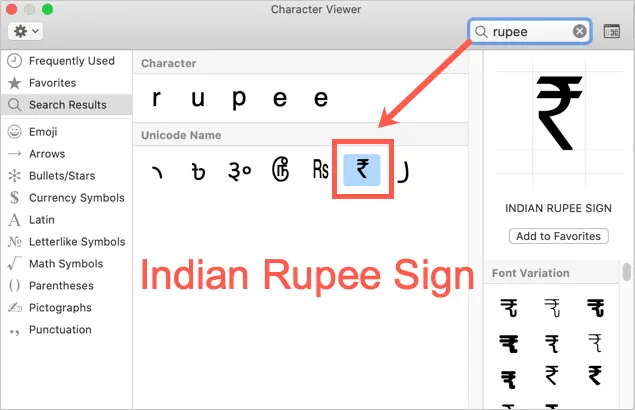
- Open the document or application where you want the symbol.
- Press Control + Command + Space.
- Search for the Indian Rupee Sign or rupee.
- Double-click ₹ to insert it.
If the keyboard shortcut doesn’t open Character Viewer on your Mac, look for Emoji & Symbols in the Edit menu of a supported application.
2. Use an Indian Keyboard Layout
You can also add an Indian keyboard input source through macOS settings.
- Open System Settings.
- Select Keyboard.
- Find the input-source settings and add a suitable Indian layout.
- Switch to that input source from the menu bar or keyboard input menu.
- Check the keyboard layout viewer to identify the key combination for the ₹ key.
Don’t assume that Option + 4 works on every Mac. The shortcut depends on the active layout and macOS version.
How to Type the Rupee Symbol in Google Docs
Google Docs provides a built-in tool for inserting special characters.
Use Special Characters
- Open your document in Google Docs.
- Place the cursor where you want the symbol.
- Click Insert > Special characters.
- Search for rupee or Indian Rupee Sign.
- Click ₹ in the results.
Google Docs inserts the symbol at the cursor position.
Copy and Paste the Symbol
If you don’t want to use the special-character menu, copy this symbol:
₹
Then open Google Docs, click where you want it, and press Ctrl+V on Windows or Command+V on Mac.
This is often the fastest method when you only need the symbol occasionally.
How to Type the Rupee Symbol in Microsoft Excel
Microsoft Excel supports the rupee symbol in cells, formulas, and currency formatting. You can insert the character directly or format numeric values as Indian rupees.
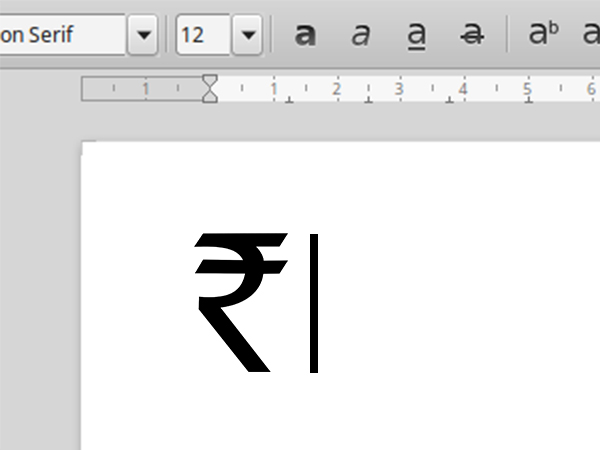
1. Copy and Paste the Rupee Symbol
- Copy ₹ from this article.
- Open your Excel worksheet.
- Select a cell.
- Paste the symbol.
You can also enter it as part of a text value, such as ₹500 or ₹1,250.
Keep in mind that a cell containing the symbol as text may not behave like a numeric cell in calculations. For financial calculations, it’s usually better to store the number separately and apply currency formatting.
2. Use the UNICHAR Formula
Excel can return the rupee symbol from its Unicode decimal value.
Enter this formula in a cell:
=UNICHAR(8377)
Press Enter, and Excel should display ₹.
You can combine the symbol with a number for a text label:
=UNICHAR(8377)&" "&A1
If cell A1 contains 500, the formula displays ₹ 500. The result is text, so use numeric currency formatting instead when you need the value to remain suitable for calculations.
3. Format Numbers as Indian Rupees
If you want Excel to display a range of numbers as currency, use cell formatting rather than typing the symbol into each cell.
- Select the cells containing your amounts.
- Press Ctrl + 1 to open Format Cells.
- Select the Number tab.
- Choose Currency or Accounting.
- Look for an Indian rupee symbol or an appropriate Indian locale in the available options.
- Choose the desired number of decimal places and the negative-number format.
- Click OK.
The available currency symbols and locale options depend on your Excel version and regional settings.
If the rupee symbol isn’t listed, you can try a custom number format such as:
₹#,##0.00
For example, a numeric value of 1250.5 can display as ₹1,250.50. The underlying cell value remains numeric.
How to Type the Rupee Symbol in Microsoft Word
If you use Microsoft Word, you can insert ₹ with a Unicode conversion shortcut.
- Place the cursor where you want the symbol.
- Type
20B9. - Immediately press Alt + X.
- Word converts the hexadecimal code into ₹.
If Word converts the wrong text, make sure the cursor is positioned immediately after 20B9 before pressing Alt + X.
This shortcut is specific to compatible Microsoft Office applications; it isn’t a universal Windows shortcut.
What to Do If the Rupee Symbol Appears as a Box or Question Mark
If ₹ appears as a square, blank space, or question mark, try the following solutions.
- Change the font: Choose a font that supports the Indian Rupee character, such as a current version of Calibri, Arial, or Nirmala UI.
- Update the application: Older software may not handle the symbol correctly.
- Use Unicode: The Indian Rupee sign is U+20B9, with decimal value 8377.
- Copy and paste the symbol: Copy ₹ from a reliable source and paste it into the application.
- Check the keyboard layout: On Windows or Mac, verify that the intended input source is active before using a layout-specific shortcut.
The symbol was introduced in 2010, so very old fonts and applications may not display it correctly.









 is commonly used in invoices, spreadsheets, financial reports, documents, and online messages.)