
Email symbols are commonly used in emails, documents, websites, contact details, and social media posts. The most recognisable symbols include the at sign (@), the envelope (✉), the incoming email emoji (📨), the e-mail emoji (📧), and the envelope with arrow (📩).
However, these symbols are entered differently depending on your device and keyboard layout. Some use standard keyboard keys, while others require an emoji picker, a special-character menu, or copy-and-paste.
In this guide, I’ll guide you on how to type email symbols on Windows, Mac, Android, iPhone, Microsoft Word, Google Docs, and other applications.
Email Symbols and Their Meanings
Here are some popular email-related symbols you can copy and use.
| Symbol | Name | Common use |
|---|---|---|
| @ | At sign | Email addresses and mentions |
| ✉ | Envelope | Email links and contact information |
| 📧 | E-mail emoji | Email messages and notifications |
| 📩 | Envelope with arrow | Incoming or received email |
| 📨 | Incoming envelope | New or incoming messages |
| 📤 | Outbox tray | Sent or outgoing messages |
| 📥 | Inbox tray | Inbox or received messages |
| 💌 | Love letter | Personal or romantic messages |
You can copy any of these symbols directly from the table and paste it into your document, message, or website.
How to Type the @ Symbol on Windows
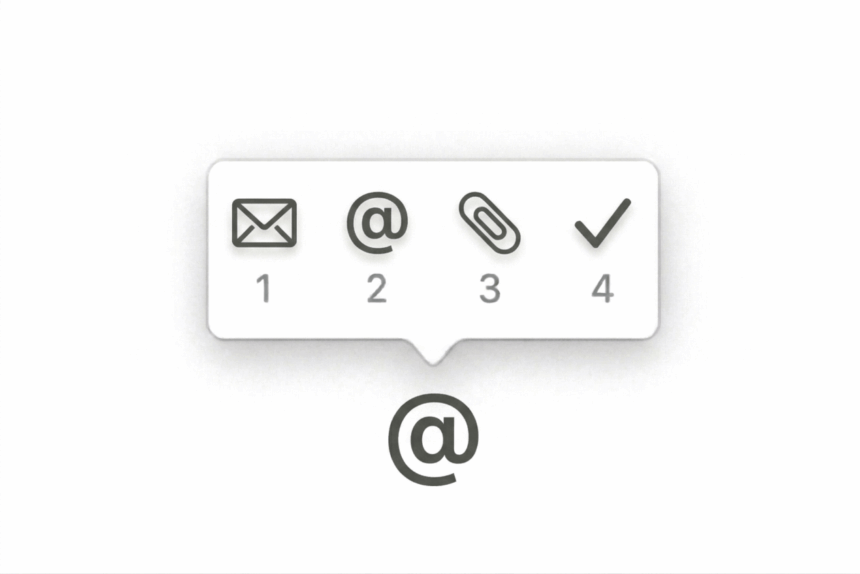
The at sign (@) is the most important symbol used in email addresses, such as [email protected].
1. Use the Keyboard Shortcut
On many US English keyboards, press:
Shift + 2
On some UK and international keyboard layouts, the shortcut is different. For example, an English (UK) layout commonly uses Shift + ‘ for the @ symbol.
If the shortcut doesn’t work, check the keyboard layout selected in Windows.
2. Check Your Keyboard Layout
- Press Windows + Space to view available keyboard layouts.
- Select the layout that matches your physical keyboard.
- Open a text editor and test the appropriate key combination.
- If necessary, open Settings > Time & language > Language & region to manage your keyboard layouts.
The correct shortcut depends on the active input layout, not just the physical keyboard.
How to Type Email Symbols on Windows
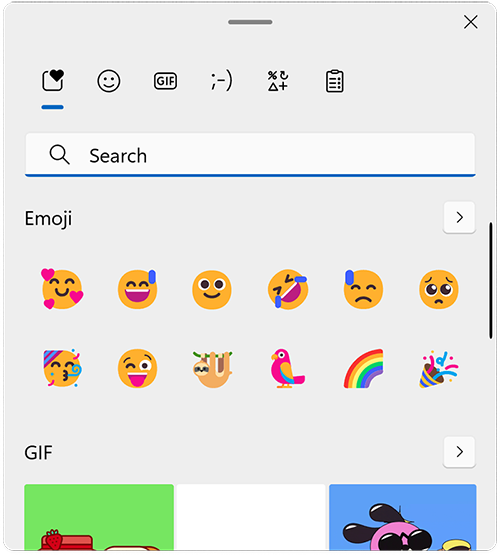
Windows includes an emoji and symbol picker that lets you insert envelope symbols without memorising keyboard shortcuts.
Use the Emoji Picker
- Open the application where you want to insert the symbol.
- Place the cursor in the text field.
- Press Windows + . (period).
- Open the emoji panel.
- Search for terms such as envelope, email, or letter.
- Select the symbol you want to insert.
You can use this method to insert symbols such as 📧, 📩, 📨, 📤, and 📥 when they are available in the picker.
Copy and Paste Email Symbols
If you only need a symbol occasionally, copying it is the easiest method.
- Envelope: ✉
- At sign: @
- E-mail: 📧
- Envelope with arrow: 📩
- Incoming envelope: 📨
Select the symbol, copy it with Ctrl + C, and paste it using Ctrl + V.
How to Type Email Symbols on a Mac
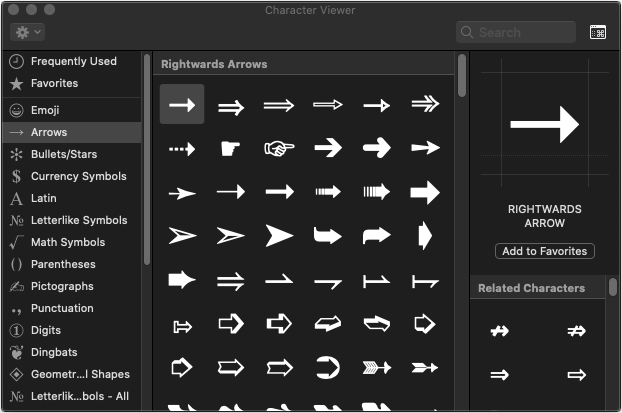
Mac users can insert special characters and emoji through Character Viewer.
Use Character Viewer
- Open the application where you want to insert the symbol.
- Press Control + Command + Space.
- Search for envelope, email, or letter.
- Double-click the symbol you want.
You can insert symbols such as ✉, 📧, 📩, and 📨 this way.
Type the @ Symbol on Mac
On a US English Mac keyboard, press:
Shift + 2
On other keyboard layouts, the key combination may differ. If you cannot type @, check the active input source in macOS keyboard settings.
How to Type Email Symbols on Android
On Android phones, you can usually insert email emoji through the keyboard’s emoji panel.
- Open an app such as Gmail, Messages, or Google Docs.
- Tap the text field to display the keyboard.
- Tap the emoji key, usually shown as a smiley face.
- Search for envelope or browse the symbols and objects categories.
- Tap the email symbol you want to insert.
If your keyboard doesn’t include a search feature, browse the emoji categories or copy a symbol from this article.
To type @, switch to the keyboard’s number and symbol layout. The exact position depends on the keyboard app.
How to Type Email Symbols on iPhone
The iPhone keyboard supports the @ symbol and emoji such as 📧 and 📩.
Insert Email Emoji
- Open an app where you can type text.
- Tap the emoji key on the keyboard.
- Search for envelope or browse the available emoji.
- Tap the symbol to insert it.
Type the @ Symbol
- Open the keyboard.
- Tap 123 to display numbers and symbols.
- Tap @.
The @ symbol may also be available directly on the keyboard, depending on the app and keyboard configuration.
How to Insert Email Symbols in Microsoft Word
Microsoft Word lets you insert envelope symbols and emoji using its built-in symbol tools.
Use the Symbol Menu
- Open your Word document.
- Place the cursor where you want the symbol.
- Select Insert > Symbol > More Symbols.
- Choose a font that supports the character.
- Find and select ✉ or another available symbol.
- Click Insert.
The symbols available depend on the selected font and Word version.
Use Emoji or Copy and Paste
For emoji-style symbols such as 📧 and 📩, you can use the Windows emoji picker or copy them from this article.
Some fonts may display these characters in color, while others may show a monochrome version or fail to render them properly.
How to Insert Email Symbols in Google Docs
Google Docs supports special characters and emoji.
- Open your Google Docs document.
- Select Insert > Special characters.
- Search for envelope or a related term.
- Select the symbol from the results.
You can also copy and paste ✉, 📧, 📩, or 📨 directly into your document.
If an emoji appears as an empty box, try using a different browser or device, or choose a font and application that supports the character.
How to Use Email Symbols in Gmail and Outlook
You can use email symbols in message bodies, subject lines, signatures, and contact information, depending on the application.
In Gmail
- Compose a new email.
- Place the cursor in the message or subject field.
- Use your device’s emoji picker or copy and paste the desired symbol.
- Send a test email to check how it appears.
In Microsoft Outlook
- Create a new email.
- Click where you want the symbol to appear.
- Use the Windows emoji picker or Outlook’s symbol-insertion feature if available.
- Insert the symbol and check the message before sending.
Keep in mind that recipients may see emoji differently depending on their device, email application, and font support.
What is the keyboard shortcut for the email symbol?
There is no single universal keyboard shortcut for every email symbol. On Windows, press Windows + . to open the emoji picker. On Mac, use Control + Command + Space to open Character Viewer.
How do I type the @ symbol?
On a US English keyboard, press Shift + 2 on Windows or Mac. Other keyboard layouts may use different combinations.
What is the difference between ✉, 📧, and 📩?
✉ is a simple envelope symbol. 📧 is the e-mail emoji, and 📩 is the envelope-with-arrow emoji, commonly used to represent an incoming or received message.
Can I use email symbols in an email address?
The @ symbol is part of standard email-address syntax. Emoji and decorative envelope symbols should generally not be used in place of the @ sign in an ordinary email address.
Can I use email symbols on websites and social media?
Yes. You can often use these symbols in posts, bios, contact sections, and messages. Their appearance may vary by browser, platform, and font.