Brackets and braces are common symbols used in everyday writing, mathematics, programming, spreadsheets, and web development. Whether you are writing a document, entering an Excel formula, or working with code, knowing how to type these symbols can save time.
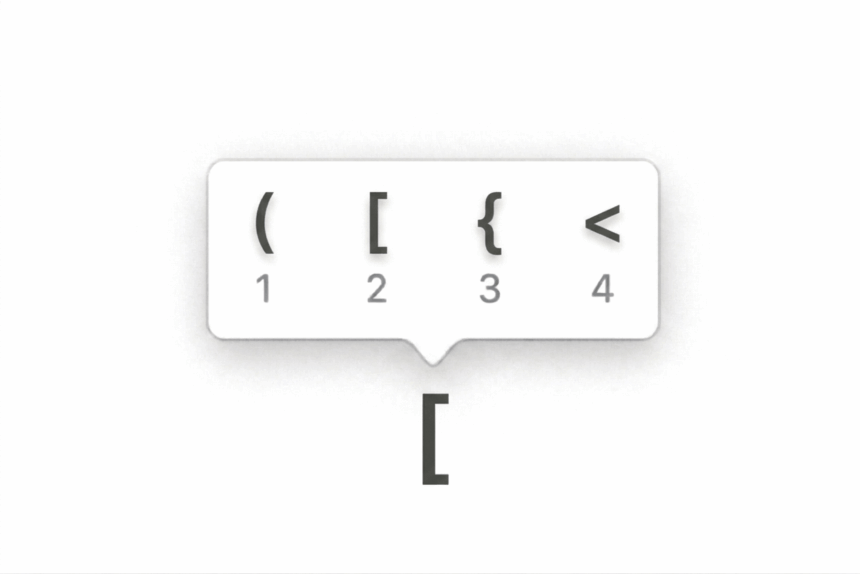
The most commonly used bracket symbols are parentheses ( ), square brackets [ ], curly braces { }, and angle brackets < >. Each has a different appearance and purpose, and the keyboard shortcut depends on the symbol you need and the device you are using.
On most standard English keyboards, parentheses are typed with the Shift key, square brackets have dedicated keys, curly braces require Shift, and angle brackets use the comma and period keys with Shift.
This guide explains how to type brackets and braces on Windows PCs, Mac computers, Microsoft Word, Excel, PowerPoint, Google Docs, Chromebooks, iPhones, and Android devices. It also covers Alt codes, Unicode values, HTML entities, common mistakes, and frequently asked questions.
Quick Keyboard Shortcuts for Brackets and Braces
If you only need the basic keyboard shortcuts, use this reference table.
| Symbol | Name | Keyboard Shortcut |
|---|---|---|
( | Left parenthesis | Shift + 9 |
) | Right parenthesis | Shift + 0 |
[ | Left square bracket | [ key |
] | Right square bracket | ] key |
{ | Left curly brace | Shift + [ |
} | Right curly brace | Shift + ] |
< | Less-than sign or left angle bracket | Shift + comma |
> | Greater-than sign or right angle bracket | Shift + period |
These shortcuts work on many standard US English keyboard layouts. Other layouts may use different key positions.
What Are Brackets and Braces?
Brackets and braces are punctuation symbols used to enclose information, group expressions, organize code, and distinguish one part of a statement from another.
Although the word brackets is sometimes used for all these symbols, each type has its own name and common applications.
- Parentheses
( ): Used for additional information, mathematical expressions, and function calls. - Square brackets
[ ]: Used for references, editorial notes, arrays, and indexed values. - Curly braces
{ }: Used in programming, mathematical sets, objects, and code blocks. - Angle brackets
< >: Used in HTML tags, mathematical comparisons, and technical notation.
For example, parentheses can add context to a sentence, square brackets can clarify a quotation, and curly braces can define a block of code.
Understanding these differences helps you choose the right symbol when writing or programming.
How to Type Parentheses on a Keyboard
Parentheses are the curved symbols ( ), also known as round brackets. They are commonly used in written sentences, equations, formulas, and programming languages.
On a standard English keyboard, the shortcuts are:
| Symbol | Shortcut |
|---|---|
( | Shift + 9 |
) | Shift + 0 |
Steps to Type Parentheses
To type the left parenthesis:
- Press and hold the Shift key.
- Press the 9 key on the number row.
- Release both keys.
To type the right parenthesis:
- Press and hold Shift.
- Press the 0 key on the number row.
- Release both keys.
You can use parentheses in sentences such as:
The meeting is scheduled for Friday (not Monday).
They are also useful in mathematical expressions:
(A + B) × C
In programming, parentheses are commonly used when calling functions:
print("Hello")
How to Type Square Brackets on a Keyboard
Square brackets look like this: [ ]. They are also called box brackets and are frequently used in programming, citations, technical documents, and mathematical expressions.
On most standard English keyboards, square brackets have dedicated keys.
| Symbol | Shortcut |
|---|---|
[ | [ key |
] | ] key |
Steps to Type Square Brackets
- Locate the square bracket keys, usually near the Enter key or to the right of the P key on many US keyboards.
- Press the
[key to type the left square bracket. - Press the
]key to type the right square bracket.
For example:
[Important note]
Square brackets can also clarify information within a quotation:
"He [the manager] approved the request."
In programming, square brackets are often used to access an item in an array:
colors[0]
The exact position of the keys may differ depending on your keyboard layout.
How to Type Curly Braces on a Keyboard
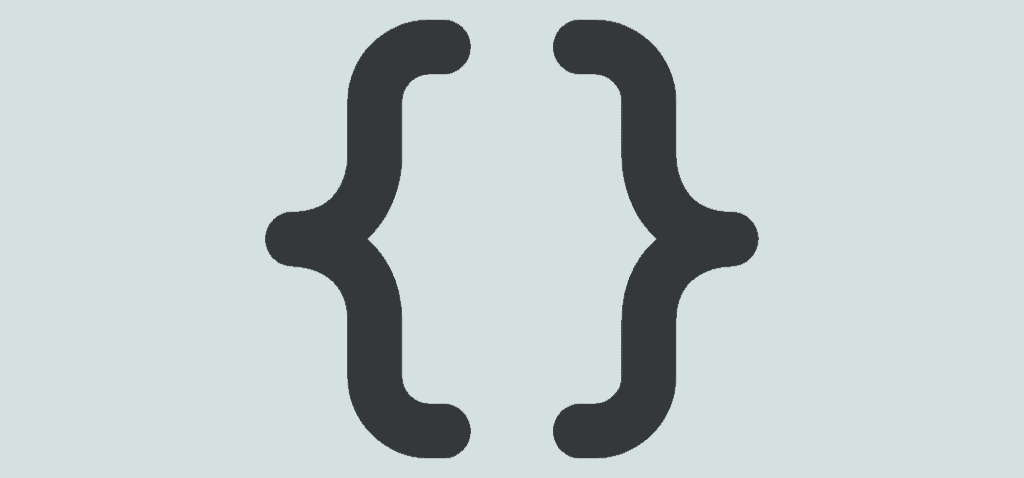
Curly braces look like this: { }. They are also known as curly brackets or simply braces.
These symbols are especially important in programming languages such as JavaScript and C++, where they define code blocks and group related statements. They are also used in mathematical sets and data structures.
On most standard English keyboards, you can type curly braces using Shift and the square bracket keys.
| Symbol | Shortcut |
|---|---|
{ | Shift + [ |
} | Shift + ] |
Steps to Type Curly Braces
To type the left curly brace:
- Hold down Shift.
- Press the
[key.
To type the right curly brace:
- Hold down Shift.
- Press the
]key.
For example, a JavaScript code block may look like this:
function test() {
  console.log("Hello");
}
Curly braces can also group values in a mathematical set:
{1, 2, 3, 4}
If the shortcuts produce different symbols, check your operating system’s keyboard language and layout settings.
How to Type Angle Brackets on a Keyboard

Angle brackets are written as < >. The same symbols are also known as the less-than and greater-than signs when used in mathematical comparisons.
On a standard English keyboard, the shortcuts are:
| Symbol | Shortcut |
|---|---|
< | Shift + comma |
> | Shift + period |
Steps to Type Angle Brackets
To type the less-than sign:
- Hold down Shift.
- Press the comma key.
To type the greater-than sign:
- Hold down Shift.
- Press the period key.
For example, in mathematics:
5 < 10
10 > 5
In HTML, angle brackets are used to write tags:
<p>This is a paragraph.</p>They can also represent placeholders in technical instructions, such as <your name>. In actual HTML source code, however, angle brackets have a special role and must be handled carefully when displaying them as text.
How to Type Brackets and Braces on Windows
Windows users can type the most common bracket symbols directly from the keyboard without opening a special character menu.
The following shortcuts work on many standard US English keyboards.
| Symbol | Windows Shortcut |
|---|---|
( | Shift + 9 |
) | Shift + 0 |
[ | [ key |
] | ] key |
{ | Shift + [ |
} | Shift + ] |
< | Shift + comma |
> | Shift + period |
To enter a bracket, place the cursor where you want the symbol and press the appropriate key combination.
If you cannot find a symbol on your keyboard, you can use the Windows Character Map or copy and paste it from another document. You can also use Alt codes for supported characters if your keyboard has a numeric keypad.
How to Type Brackets and Braces on Mac
Typing brackets on a Mac is similar to typing them on a Windows PC. On a standard US keyboard layout, the common shortcuts are generally the same.
| Symbol | Mac Shortcut |
|---|---|
( | Shift + 9 |
) | Shift + 0 |
[ | [ key |
] | ] key |
{ | Shift + [ |
} | Shift + ] |
< | Shift + comma |
> | Shift + period |
Using Character Viewer on Mac
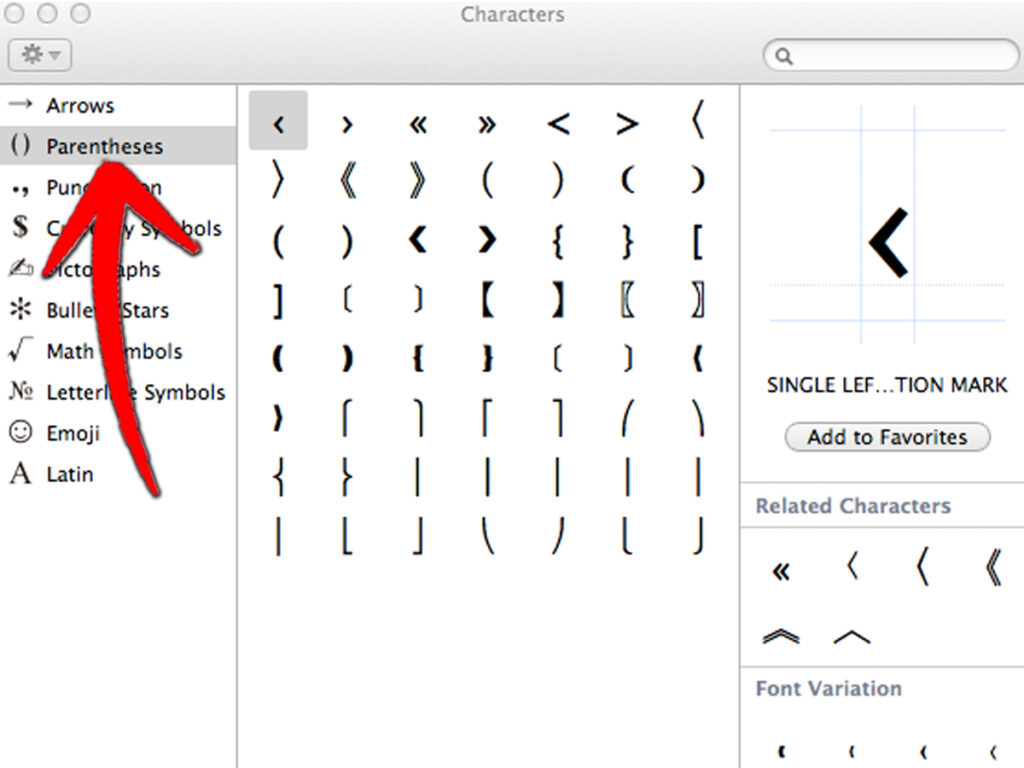
If you cannot locate a particular bracket symbol, macOS includes a Character Viewer that lets you search for special characters.
Follow these steps:
- Place the cursor in the document or text field.
- Press Control + Command + Space.
- Search for the symbol by name, such as left bracket, curly brace, or parenthesis.
- Double-click the required symbol to insert it.
Character Viewer is particularly useful when you need less common symbols, including mathematical brackets and decorative punctuation.
Keep in mind that keyboard shortcuts can vary with the selected input source and keyboard layout.
How to Type Brackets in Microsoft Word
Microsoft Word supports the standard keyboard shortcuts for parentheses, square brackets, curly braces, and angle brackets. You can use the keyboard to insert these symbols while writing reports, essays, technical documents, or other text.
Common Word Keyboard Shortcuts
| Symbol | Shortcut |
|---|---|
( | Shift + 9 |
) | Shift + 0 |
[ | [ key |
] | ] key |
{ | Shift + [ |
} | Shift + ] |
< | Shift + comma |
> | Shift + period |
Insert Brackets Using the Symbol Menu
If a symbol is not available through your keyboard layout, you can insert it through Word’s symbol menu.
- Open your Word document.
- Place the cursor where you want the symbol.
- Select Insert from the ribbon.
- Choose Symbol, then open More Symbols if needed.
- Select the required symbol from the available characters.
- Click Insert and close the dialog.
This method is helpful when working with mathematical notation or less common bracket styles.
Use Unicode in Microsoft Word
Word also supports many Unicode characters. To insert a symbol using its Unicode value:
- Type the character’s hexadecimal Unicode value.
- Press Alt + X.
For example, type 007B and press Alt + X to insert the left curly brace {.
The same method works for several common brackets:
| Symbol | Unicode |
|---|---|
( | U+0028 |
) | U+0029 |
[ | U+005B |
] | U+005D |
{ | U+007B |
} | U+007D |
< | U+003C |
> | U+003E |
Unicode conversion can be useful when you need a particular character and cannot easily type it from the keyboard.
How to Type Brackets and Braces in Microsoft Excel
Excel uses brackets and braces in formulas, structured references, and array calculations. Parentheses are particularly important because they determine the order of operations in a formula.
The standard keyboard shortcuts work in Excel just as they do in other Windows applications.
Parentheses in Excel Formulas
Parentheses help control the order in which Excel performs calculations.
For example:
=(A1+B1)*C1This formula adds the values in cells A1 and B1, then multiplies the result by C1.
Square Brackets in Excel
Square brackets often appear in structured table references and formulas that refer to external workbooks.
For example:
[Book1.xlsx]Sheet1!A1The reference identifies a cell in a worksheet within an external workbook.
Curly Braces in Excel
Curly braces may appear in certain array formulas. In older versions of Excel, formulas entered using Ctrl + Shift + Enter may display curly braces around the formula.
For example, an older array formula may appear as:
{=SUM(A1:A5*B1:B5)}In these cases, Excel automatically adds the braces. You generally should not type them manually when entering a traditional array formula.
Modern Excel versions support dynamic arrays, so how array formulas behave depends on the version and the formula used.
Angle Brackets in Excel
Excel uses comparison operators to compare cell values.
Examples include:
=A1<10This checks whether the value in A1 is less than 10.
=A1>10This checks whether the value in A1 is greater than 10.
=A1<>B1This checks whether the values in A1 and B1 are different.
The <> operator means “not equal to” in Excel.
How to Type Brackets in PowerPoint
Microsoft PowerPoint supports the same standard keyboard shortcuts used in Word and other Office applications.
You can insert brackets into slide titles, text boxes, labels, equations, and programming examples.
For example:
(Introduction)[Important note]{Placeholder Text}<Website URL>
If you need a special bracket symbol, you can use the Insert Symbol option when it is available in your version of PowerPoint.
When preparing technical presentations, using the correct bracket type can make formulas, code snippets, and instructions easier to read.
How to Type Brackets and Braces in Google Docs
Google Docs supports standard keyboard shortcuts for common bracket symbols. On a typical US English keyboard, you can use Shift + 9 and Shift + 0 for parentheses, the dedicated square bracket keys for [ ], and Shift with those keys for { }.
For less common symbols, Google Docs provides a special character insertion tool.
Insert Special Brackets in Google Docs
- Open your Google Docs document.
- Click Insert.
- Select Special characters.
- Search for the symbol by name or browse the available characters.
- Click the symbol to insert it into your document.
This method is useful when you need symbols such as mathematical angle brackets, double angle brackets, or decorative bracket styles that do not appear on a standard keyboard.
How to Type Brackets and Braces in Google Sheets
Google Sheets uses brackets and braces in several technical contexts, while parentheses are common in formulas and functions. The usual keyboard shortcuts work when entering text into a cell or editing a formula.
Examples of formulas include:
=SUM(A1:A10)This adds the values in cells A1 through A10.
=IF(A1>10,"Yes","No")This returns “Yes” if A1 is greater than 10 and “No” otherwise.
=A1<>B1This checks whether A1 and B1 contain different values.
Square brackets and curly braces may also appear in formulas or expressions, depending on the data source and function being used.
How to Type Brackets and Braces on a Chromebook
On many Chromebooks with a standard US English keyboard layout, the shortcuts for brackets and braces are similar to those on Windows and Mac computers.
| Symbol | Chromebook Shortcut |
|---|---|
( | Shift + 9 |
) | Shift + 0 |
[ | [ key |
] | ] key |
{ | Shift + [ |
} | Shift + ] |
< | Shift + comma |
> | Shift + period |
If the symbols appear in different positions, check your Chromebook’s selected keyboard layout. You can also copy and paste a bracket from another document if you cannot find the correct key.
How to Type Brackets and Braces on iPhone and iPad
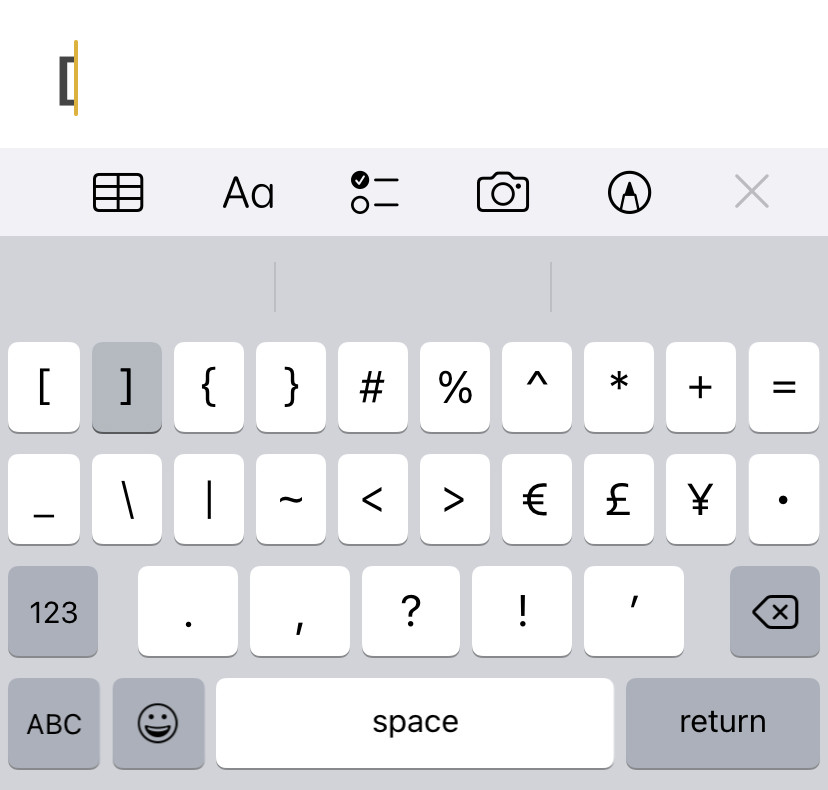
On an iPhone or iPad, brackets are available through the on-screen keyboard’s number and symbol layouts.
Follow these steps:
- Open the app where you want to type.
- Tap the text field to display the keyboard.
- Tap 123 to open the numbers and symbols layout.
- Find and tap the required bracket.
- If the symbol is not visible, tap #+= to access additional symbols.
The exact arrangement can vary depending on the keyboard, language, and iOS version. You can use the same method in messaging apps, email, notes, documents, and other text fields.
How to Type Brackets and Braces on Android
Android keyboards such as Gboard typically provide brackets through the numbers and symbols layouts.
To type brackets on Android:
- Open the app where you want to enter the symbol.
- Tap the text field to display the keyboard.
- Tap ?123 or the equivalent symbols key.
- Look for the required bracket.
- If it is not visible, open the additional symbols layout, often marked
=<or#+=.
The available symbols and their positions depend on the keyboard app and its configuration.
Common symbols available in the symbol layouts include:
( ) [ ] { } < >
If you regularly use a particular symbol, check whether your keyboard supports a shortcut or text replacement option.
How to Type Brackets Using Alt Codes on Windows
Windows Alt codes offer another way to enter certain symbols. This method can be useful if a key on the keyboard is damaged or you are working with a layout that makes a particular character difficult to access.
On supported Windows configurations, Alt codes are typically entered using the numeric keypad.
- Make sure Num Lock is enabled if your keyboard has a Num Lock key.
- Place the cursor where you want to insert the symbol.
- Hold down the Alt key.
- Enter the appropriate code using the numeric keypad.
- Release Alt.
The following are commonly listed Alt codes for bracket characters:
| Symbol | Name | Alt Code |
|---|---|---|
( | Left parenthesis | Alt + 40 |
) | Right parenthesis | Alt + 41 |
[ | Left square bracket | Alt + 91 |
] | Right square bracket | Alt + 93 |
{ | Left curly brace | Alt + 123 |
} | Right curly brace | Alt + 125 |
< | Less-than sign | Alt + 60 |
> | Greater-than sign | Alt + 62 |
Alt-code behaviour can vary with Windows configuration and keyboard hardware. A numeric keypad is generally required, and the number row above the letters may not produce the same result.
If a code does not work, use the standard keyboard shortcut or insert the character using Windows Character Map.
How to Type Brackets and Braces Using Unicode
Unicode assigns a unique code point to each character, including common brackets and many specialised punctuation symbols.
Unicode values are useful in word processors, programming, and technical documentation when you need to identify a specific character.
Here are the Unicode values for the most common bracket symbols:
| Symbol | Character Name | Unicode Value |
|---|---|---|
( | Left parenthesis | U+0028 |
) | Right parenthesis | U+0029 |
[ | Left square bracket | U+005B |
] | Right square bracket | U+005D |
{ | Left curly brace | U+007B |
} | Right curly brace | U+007D |
< | Less-than sign | U+003C |
> | Greater-than sign | U+003E |
In Microsoft Word, you can enter a hexadecimal code and press Alt + X to convert it into the corresponding character.
For example:
- Enter
0028, then press Alt + X to produce(. - Enter
007B, then press Alt + X to produce{.
This conversion method is specific to supported applications. Unicode values do not work as universal keyboard shortcuts across every operating system or program.
How to Type Brackets and Braces in HTML
HTML uses angle brackets to define elements and tags. For example:
<p>This is a paragraph.</p>The opening tag begins with <p>, while the closing tag uses </p>.
When you want to display an angle bracket as ordinary text in an HTML document, you should use an HTML character reference rather than allowing the browser to interpret it as markup.
HTML Entities for Bracket Symbols
| Symbol | HTML Entity |
|---|---|
( | ( |
) | ) |
[ | [ |
] | ] |
{ | { |
} | } |
< | < |
> | > |
For example, use < to display a less-than sign and > to display a greater-than sign.
If you want to display the text <strong> rather than create a bold HTML element, you can write:
<strong>The browser will display:
<strong>
This is particularly useful when writing tutorials, publishing code examples, or explaining HTML syntax.
How to Type Brackets and Braces in CSS
CSS uses curly braces to contain style declarations. Each rule consists of a selector followed by a block of properties enclosed in braces.
For example:
body {
  color: black;
}
The opening brace marks the beginning of the declaration block, and the closing brace marks its end. CSS also uses parentheses in functions and square brackets in attribute selectors.
For example:
body {
  background: rgb(255, 255, 255);
}

input[type="text"] {
  border: 1px solid gray;
}
In the first example, parentheses contain the color values passed to the rgb() function. In the second, square brackets identify an attribute selector.
You can type these symbols using the standard keyboard shortcuts for your selected keyboard layout.
How to Type Brackets and Braces in JavaScript
JavaScript uses parentheses, square brackets, and curly braces for different purposes.
Parentheses in JavaScript
Parentheses are commonly used in function calls, conditions, and expressions.
alert("Hello");

if (age > 18) {
  console.log("Adult");
}
Curly Braces in JavaScript
Curly braces define blocks of code and are also used to create object literals.
const person = {
  name: "John",
  age: 30
};
Square Brackets in JavaScript
Square brackets are used to define arrays and access items by index.
const colors = ["red", "blue", "green"];

console.log(colors[0]);
This example prints the first item in the array, which is "red".
Angle brackets are less common in ordinary JavaScript expressions, although they appear in HTML strings, JSX, and comparison operations. Understanding which bracket type a programming language expects is important because replacing one type with another can cause syntax errors.
How to Type Brackets and Braces in Python
Python uses parentheses, square brackets, and curly braces for functions, lists, dictionaries, sets, and other expressions.
Parentheses in Python
Parentheses are commonly used when calling functions.
print("Hello")They can also group expressions and control evaluation order.
Square Brackets in Python
Square brackets define lists and access individual items.
items = ["pen", "book", "bag"]

print(items[0])
The example prints the first item in the list.
Curly Braces in Python
Curly braces are used to define dictionaries and sets.
person = {
    "name": "John",
    "age": 30
}

numbers = {1, 2, 3}
Angle brackets are commonly used as comparison operators.
if age < 18:
    print("Minor")
The correct bracket type depends on the expression you are writing. Using the wrong symbol can prevent your code from running.
Special Bracket Symbols You Can Copy and Paste
Beyond the four common bracket types, Unicode includes several additional bracket styles used in mathematics, technical writing, and typography.
The following symbols can be copied directly when supported by your font and application.
| Symbol Pair | Name |
|---|---|
⟨ ⟩ | Mathematical angle brackets |
〈 〉 | Angle brackets |
⟦ ⟧ | White square brackets |
⟪ ⟫ | Double angle brackets |
❨ ❩ | Medium flattened parentheses |
❪ ❫ | Ornamental parentheses |
❬ ❭ | Medium angle bracket ornaments |
❮ ❯ | Heavy angle quotation marks |
❰ ❱ | Heavy angle brackets |
【 】 | Black lenticular brackets |
〖 〗 | White lenticular brackets |
〔 〕 | Tortoise shell brackets |
〘 〙 | White lenticular brackets |
〚 〛 | White square brackets |
‹ › | Single angle quotation marks |
« » | Double angle quotation marks |
You can insert these characters through your operating system’s character picker or your application’s special character menu.
Their appearance may vary by font, and not every font supports every symbol.
Parentheses vs Brackets vs Braces: What Is the Difference?
The names of these symbols can be confusing because terminology differs between regions and technical fields.
In common American English, parentheses usually refer to ( ), square brackets to [ ], and braces to { }. In British English, the term round brackets is often used for parentheses, while curly brackets is another name for braces.
| Symbol | Common Name | Typical Use |
|---|---|---|
( ) | Parentheses or round brackets | Extra information, expressions, and function calls |
[ ] | Square brackets | References, editorial notes, arrays |
{ } | Braces or curly brackets | Code blocks, sets, objects |
< > | Angle brackets | HTML tags, comparisons, technical notation |
The symbols may serve similar purposes in some contexts, but they are not interchangeable in every situation.
Brackets in Normal Writing
Parentheses add information without interrupting the main sentence.
Example: The event is on Friday (weather permitting).
Square brackets can add clarification within a quotation.
Example: "He [the manager] approved the request."
Brackets in Mathematics
Different bracket types help organise expressions and show which operations belong together.
Example:
{[(2 + 3) × 4] + 5}
In this expression, the innermost parentheses are evaluated first, followed by the surrounding groups according to the usual order of operations.
Brackets in Programming
Programming languages assign specific roles to different bracket types.
Examples:
function() { }uses parentheses and braces.array[0]uses square brackets.{ key: value }uses curly braces to group an object-like structure.
The rules depend on the programming language and the expression being written.
If a shortcut does not work, check your keyboard layout or use an alternative method such as Character Viewer, Windows Character Map, Unicode conversion in Word, or the special character menu in your application.
Once you know where these symbols are located and how they are used, you can enter them quickly across documents, spreadsheets, mobile devices, and programming environments.