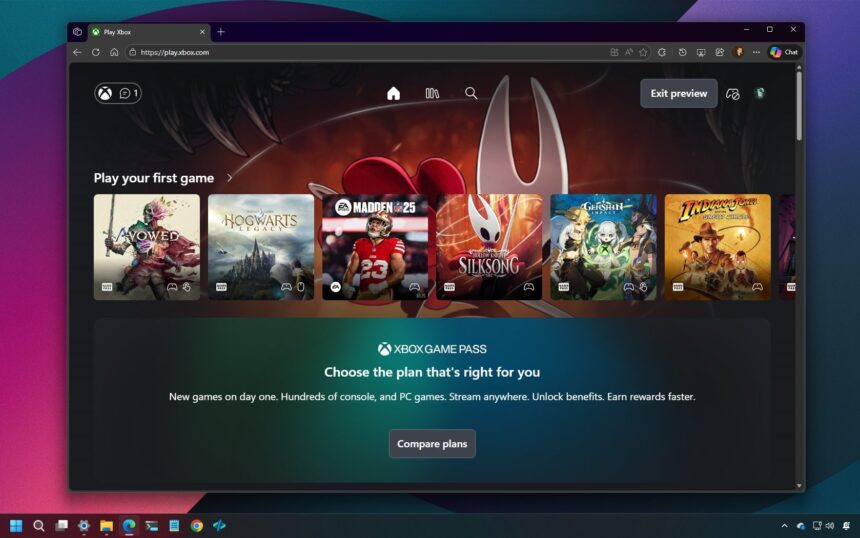
Microsoft has begun testing an early preview of its redesigned Xbox Cloud Gaming interface, and the best part is that anyone can try it-even without an active subscription. This guide walks you through how to access the preview and explains what’s new once you’re in.
Until now, Xbox Cloud Gaming has relied on a fairly basic web dashboard. The updated interface changes that by closely matching the layout and style found on Xbox consoles. This makes the experience instantly familiar for console users, while also being more intuitive and welcoming for newcomers who have never owned an Xbox. Navigation is cleaner, menus are easier to understand, and overall usability has been improved.
Because this is still an early preview, the new interface isn’t enabled by default. You’ll need to manually opt in by turning on preview features in your account settings. The process is simple and only takes a few minutes.
How to enable the new Xbox Cloud Gaming interface
To access the redesigned Xbox Cloud Gaming experience, follow these steps:
- Open Microsoft Edge.
- Go to the Xbox Play website and sign in with your Microsoft account.
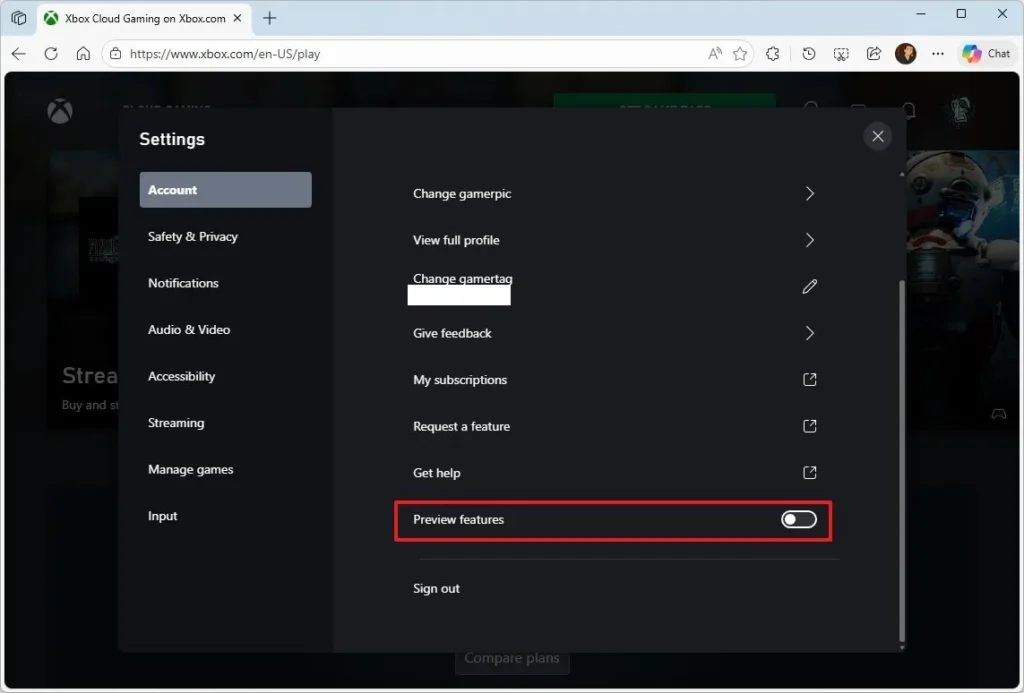
Note: Anyone can access the interface, but a subscription is required to actually play games. - Click your profile icon in the top-right corner and select Settings.
- Enable the Preview features toggle.
- Click Yes to confirm.
- Wait about 10 minutes for the change to activate.
- Visit Play.Xbox.com to load the new gaming dashboard.
Once these steps are complete, your account will be enrolled in the public preview, giving you access to the redesigned Xbox Cloud Gaming interface.
If at any point you want to return to the older version, you can do so easily by clicking the “Exit preview” button in the top-right corner of the page.
Install Xbox Cloud Gaming as an app
If you’re using Microsoft Edge on Windows 11, you can take things a step further by installing Xbox Cloud Gaming as a standalone app. Simply click the Install button in the browser’s address bar. This allows the experience to run like a native app, making it quicker to access and more immersive.
Switch between viewing modes
The new interface also lets you choose between two display modes:
- Desktop Mode: Offers a more traditional app-like layout with a sidebar, similar to the Xbox app on Windows.
- Full Screen Mode: Provides a console-style experience that fills the entire screen.
To switch modes:
- Click the Xbox button.
- Open Settings.
- Select Appearance.
- Choose either Desktop Mode or Full Screen Mode, whichever you prefer.
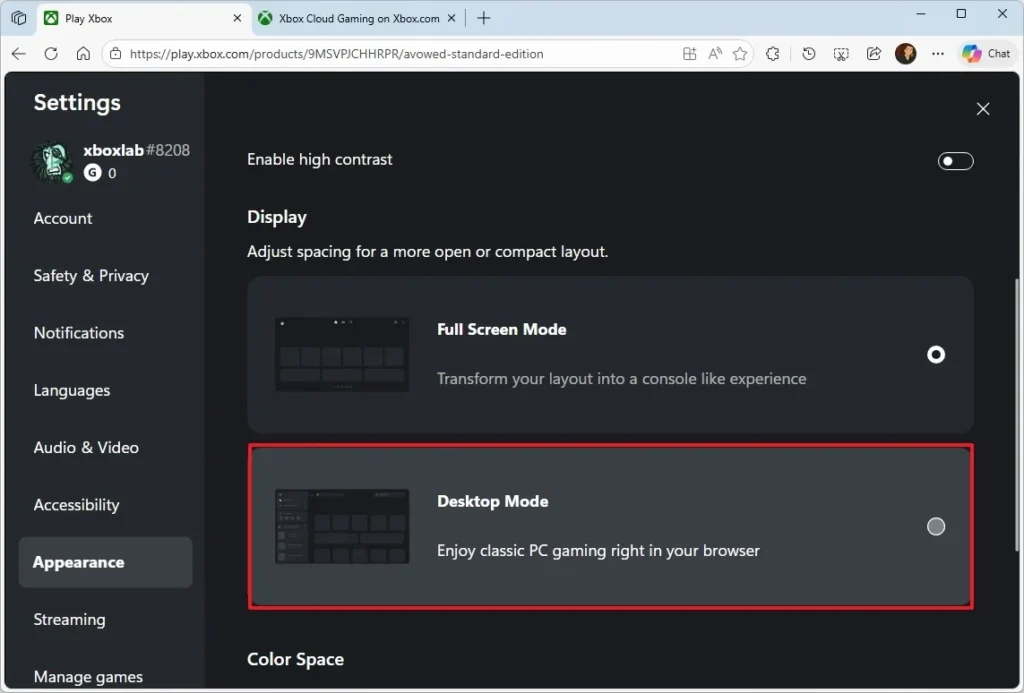
This flexibility makes it easier to tailor the experience to how you like to play, whether you want something streamlined or more feature-rich.
As Microsoft continues to develop its cloud gaming platform, this redesigned interface feels like a clear step forward. It brings consistency across devices and reinforces Xbox Cloud Gaming as a core part of the Xbox ecosystem rather than a secondary feature. While the preview is still evolving, it offers a strong glimpse into the future of how Xbox games will be played anywhere, on almost any device.
- Open Xbox Game Bar in Windows 11
- How to Disable Xbox Achievement Notifications
- Use Voice Changer in Xbox
- AI Assistant for Xbox