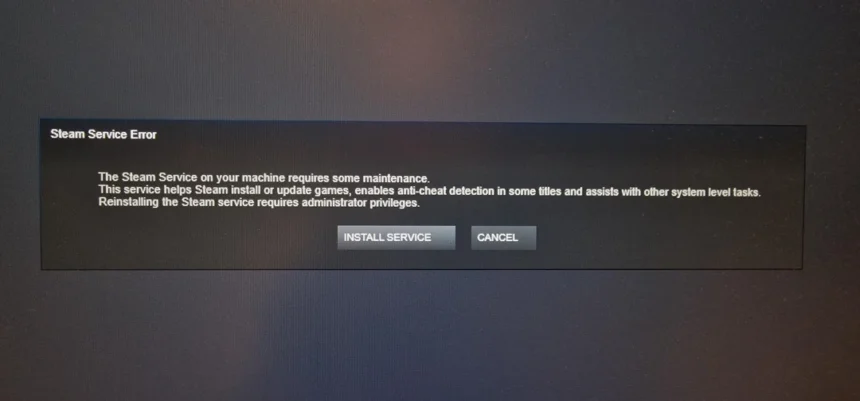
Are you seeing a Steam Service Error when opening Steam or launching a game on your Windows 11 PC? The error may say that the Steam Client Service needs maintenance, failed to start, or requires administrator privileges.
This issue can occur when Steam’s background service is damaged, its files are corrupted, or Windows prevents it from running correctly. Fortunately, several troubleshooting methods can help you fix the problem without deleting your installed games.
Follow the solutions below in order, starting with the simplest fix.
1. Restart Steam and Your Computer
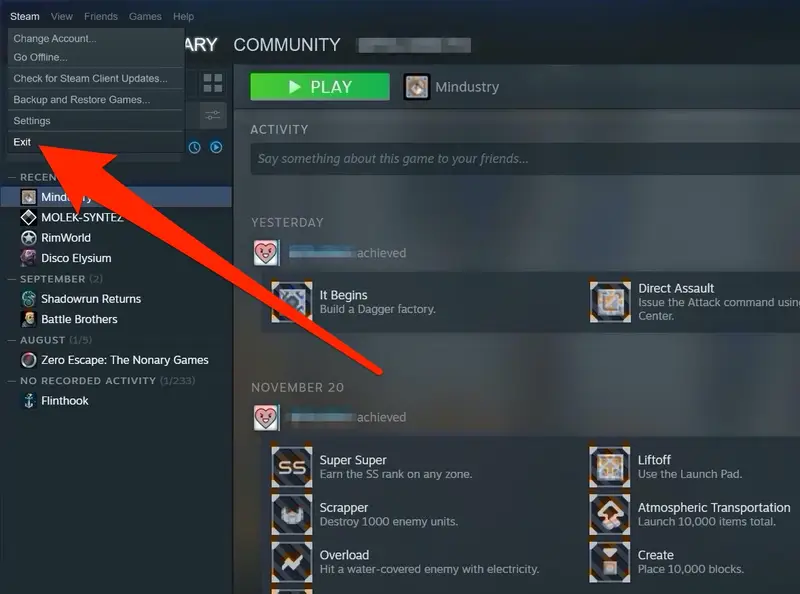
A temporary system glitch may prevent the Steam Client Service from starting properly. Restarting Steam and Windows can resolve the problem.
- Exit Steam using Steam > Exit.
- Press Ctrl + Shift + Esc to open Task Manager.
- Look for Steam-related processes that are still running.
- End any remaining Steam processes if necessary.
- Restart your computer.
- Open Steam and check whether the error appears again.
If the error persists, move to the next solution.
2. Repair the Steam Client Service
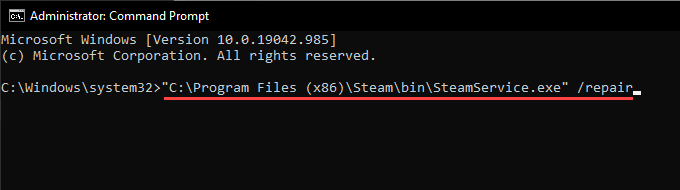
Repairing the Steam Client Service is one of the most direct ways to resolve this error. Steam’s service repair command attempts to repair the service installation.
- Close Steam completely.
- Open the Start menu and search for Command Prompt.
- Right-click Command Prompt and select Run as administrator.
- Enter the following command if Steam is installed in its default location:
"C:\Program Files (x86)\Steam\bin\SteamService.exe" /repair - Press Enter and wait for the repair process to finish. It may take a few minutes.
- Close Command Prompt and open Steam again.
If Steam is installed in a different directory, replace the path in the command with the correct location of SteamService.exe.
For example, if Steam is installed in C:\Program Files\Steam, use:
"C:\Program Files\Steam\bin\SteamService.exe" /repair
Make sure you include the quotation marks around the executable path, especially when the path contains spaces.
3. Run Steam as an Administrator
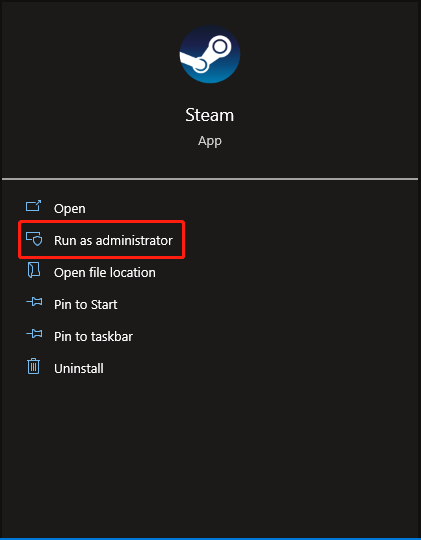
Steam may encounter permission problems if Windows prevents it from accessing the files or system resources required by its service.
To test this:
- Close Steam.
- Open the folder where Steam is installed.
- Find
steam.exe. - Right-click the file and select Run as administrator.
- Approve the User Account Control prompt if it appears.
- Check whether Steam starts normally.
If this resolves the problem, the issue may be related to permissions. Avoid permanently changing administrator settings unless necessary; first try the service repair method above.
4. Check the Steam Client Service in Windows
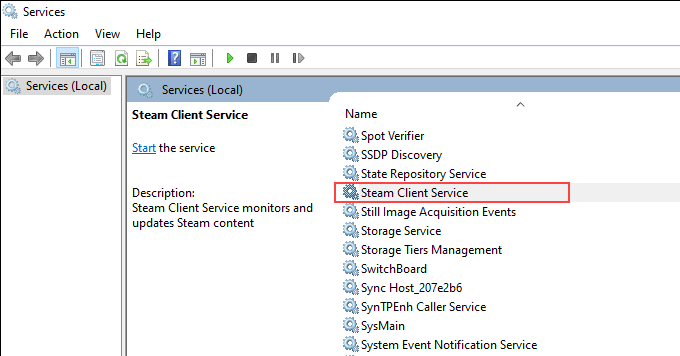
Windows manages the Steam Client Service through its Services console. If the service is disabled or cannot start, Steam may display an error.
- Press Windows + R.
- Type
services.mscand press Enter. - Find Steam Client Service in the list, if present.
- Double-click it to open its properties.
- Check the service status and startup type.
- If the service is stopped, try clicking Start if the option is available.
- If the startup fails, note the error message before making further changes.
Do not force a startup type or change service permissions without understanding the cause. If the service is missing or Windows reports that its executable cannot be found, return to the service repair method or reinstall Steam over the existing installation.
5. Check Your Antivirus and Firewall
Security software can sometimes block Steam’s service or quarantine a file that Steam needs.
If the problem began after installing or updating security software:
- Open your antivirus application.
- Review its protection history or quarantine section.
- Check whether a legitimate Steam file was blocked.
- Update the security software and verify that Steam is allowed to run.
- Review your firewall rules for blocked Steam connections.
Only restore a file from quarantine if you have verified that it belongs to the genuine Steam installation. If an exception is necessary, limit it to the legitimate Steam application or folder.
Avoid permanently disabling your antivirus or Windows Firewall to fix this error.
6. Update Windows and Restart Your PC
Pending Windows updates or outdated system components may contribute to application compatibility problems.
- Press Windows + I to open Settings.
- Select Windows Update.
- Click Check for updates.
- Install applicable updates.
- Restart your PC.
- Open Steam again.
If the error began immediately after a specific update, investigate that update and any related driver or compatibility issues before attempting more extensive repairs.
7. Check Steam Files for Corruption
Damaged Steam files can prevent the client or its background service from working correctly. Steam’s official troubleshooting guidance recommends reinstalling the client into the same installation location when client files may be damaged. <Cite refs={[“turn456131search0″,”turn456131search1”]}/>
Before doing this, try the service repair command in Solution 2. If that does not help, proceed with an in-place reinstall.
- Exit Steam completely.
- Open the official Steam website and download the latest installer.
- Run the installer.
- Select the same installation directory as your existing Steam installation.
- Allow the installer to complete.
- Launch Steam and check whether the service error is resolved.
Important: Avoid uninstalling Steam through Windows Settings as your first step. Steam warns that uninstalling the application can delete game and user data. Reinstalling into the existing directory is intended to repair the client while preserving installed games, but backing up important game data first is still a sensible precaution.
8. Restart Your Router and Check Your Connection
Although a Steam Service Error is often related to the local service, network problems can also interfere with Steam’s startup, login, and update operations.
- Close Steam.
- Restart your router or modem.
- Wait for your internet connection to return.
- Open a browser and confirm that websites load normally.
- Launch Steam and test it again.
If possible, temporarily test Steam on another reliable network. If Steam works on a different connection, investigate your router, VPN, proxy, or network configuration.
9. Close Programs That May Interfere With Steam
Background programs that monitor system activity, modify network traffic, or inject overlays can sometimes conflict with Steam.
Examples include:
- Third-party antivirus and firewall software
- VPNs and proxies
- Game overlays and recording utilities
- System cleaners and performance-tuning applications
- Other software that monitors or modifies running processes
Close nonessential applications and try opening Steam again. If this fixes the issue, reopen the applications one at a time to identify the conflict.
Do not remove security software or essential Windows services without confirming that they are responsible.
10. Contact Steam Support if the Error Persists
If none of the previous methods works, collect the exact error message and contact Steam Support.
Include the following information:
- The complete Steam Service Error message
- Your Windows version
- Whether the service repair command completed successfully
- Whether Steam opens when run as an administrator
- Any recent Windows, driver, or security software changes
The Steam Service Error in Windows 11 can usually be investigated by repairing the Steam Client Service, restarting the computer, and checking for permission or security software conflicts.
These steps address the most common causes without requiring you to reinstall Windows.