There are several advantages to changing your DNS servers, including faster website loading, better security, and the ability to bypass blocked or restricted websites.
When you subscribe to a broadband provider, your internet connection is automatically configured to use your ISP’s DNS servers. While this makes setup easy, ISP DNS servers are not always the fastest, most reliable, or most secure.
Fortunately, many public DNS services are available, giving you the freedom to choose what best fits your needs.
In this guide, you’ll learn:
- What a DNS server is
- Why changing DNS can help
- How to change DNS settings in Windows 11
- How to change DNS settings in Windows 7
- Popular DNS alternatives and when to use them
What is a DNS Server?
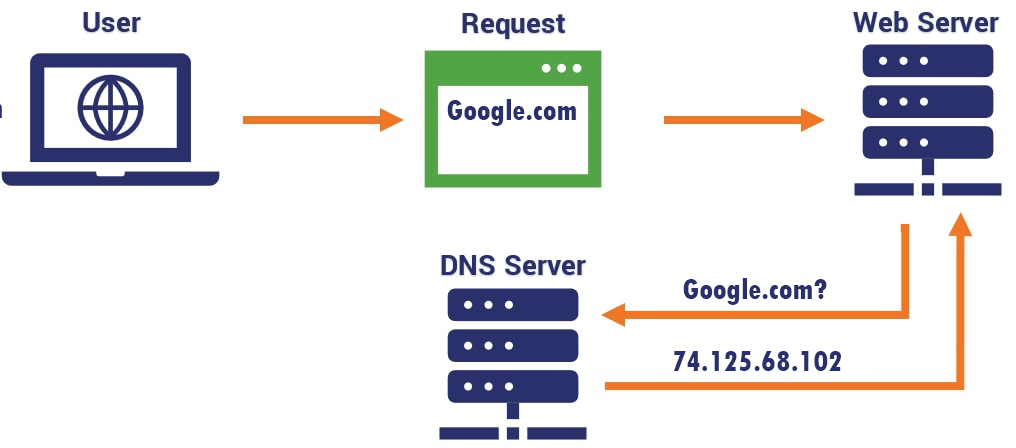
A DNS (Domain Name System) server is responsible for translating website names (such as example.com) into IP addresses that computers understand.
When you type a website address into your browser, your computer contacts a DNS server to find the correct IP address so it can load the site. DNS servers can be provided by your ISP or by public DNS services such as Google Public DNS and Cloudflare DNS.
How to Change DNS Settings in Windows 11
Windows 11 offers a modern way to manage DNS settings directly from the Settings app and also supports DNS over HTTPS (DoH) for improved privacy.
- Open Settings
- Go to Network & Internet
- Select your active connection (Wi-Fi or Ethernet)
- Click Hardware properties
- Locate DNS server assignment and click Edit
- Change from Automatic (DHCP) to Manual
- Enable IPv4
- Enter your preferred DNS addresses
- Google:
8.8.8.88.8.4.4
- Cloudflare:
1.1.1.11.0.0.1
- Google:
- Click Save
How do I change my DNS server settings in Older Windows?
To change your DNS server settings in Windows, follow these steps:
- Open the Control Panel.
- Click on Network and Internet.
- Click on Network and Sharing Center.
- Click on Change adapter settings.
- Right-click your active network connection, then select Properties.
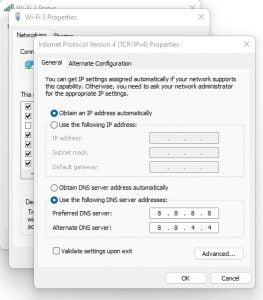
- Select Internet Protocol Version 4 (TCP/IPv4) and click on Properties.

- Select Use the following DNS server addresses and enter the IP addresses of the DNS servers you want to use. You can use multiple DNS servers, separated by commas. For example, 8.8.8.8, 8.8.4.4 (Google Public DNS). If you want to use Cloudflare DNS, you can use 1.1.1.1 and 1.0.0.1
Now, if you do not want to use Google or Cloudflare DNS, other options are available based on your requirements.
Popular DNS alternatives
OpenDNS
OpenDNS is used by more than 3,000 corporations and more than 30 million people. It helps keep your internet connection stable and protects against phishing.
- Following the tutorial above, change your computer’s IPv4 addresses to 208,67,222,222 and 208,67,220,220, respectively, to start using.
Comodo Secure DNS
For those looking to browse safely and avoid being tricked by a malicious website, Comodo Secure DNS is the most recommended option. It blocks malicious sites or even restricts certain operations requested by them.
- Following the tutorial above, change your computer’s IPv4 addresses to 8.26.56.26 and 8,20,247,20, respectively, to start using.
NextDNS
NextDNS is a DNS service that offers a range of features to make your browsing experience safer and faster. One of the most important features is its ability to block malicious websites. This way, you can avoid accidentally visiting a site that could infect your computer with malware.
NextDNS also offers other features, such as parental controls and privacy protection. You can use it on any device that connects to the internet, including computers, smartphones, and routers.
- To use NextDNS, first, you need to register on their Website and get the DNS IP Address.
- Then, follow the same steps given above to change your NextDNS.
Why should I change my DNS server settings in Windows 7?
You might want to change your DNS server settings in Windows 7 for several reasons.
- The first reason is that you want to improve your internet speed. If your current DNS server is slow, changing to a faster one can make a big difference.
- Another reason to change your DNS server settings is if you want to improve your online security. Some DNS servers offer better protection against malware and phishing attacks than others.