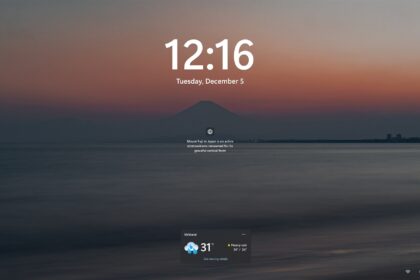
Windows 11 lets you customise how the time appears on your taskbar, lock screen, and other parts of the operating system. If your PC shows 3:30 PM but you prefer 15:30, you can change the time format without changing the actual system time.
The process is straightforward once you know where Windows 11 keeps its regional and clock settings.
In this guide, you’ll learn how to change time format in Windows 11 from 12-hour to 24-hour time, switch back to AM/PM, customise date and time displays, and troubleshoot situations where the clock format does not change as expected.
What Does Time Format Mean in Windows 11?
Time format determines how Windows displays the current time. The two most common formats are:
- 12-hour format: 3:30 PM
- 24-hour format: 15:30
The 12-hour clock uses AM and PM to distinguish between morning and afternoon/evening.
The 24-hour clock runs from 00:00 to 23:59 and does not normally require AM or PM.
For example:
| Time | 12-Hour Format | 24-Hour Format |
|---|---|---|
| Morning | 8:15 AM | 08:15 |
| Noon | 12:00 PM | 12:00 |
| Afternoon | 3:45 PM | 15:45 |
| Evening | 7:30 PM | 19:30 |
| Night | 11:50 PM | 23:50 |
Changing the time format does not change your computer’s actual time or time zone. It only changes how the time is displayed.
How to Change Time Format in Windows 11
The easiest method is through the Windows 11 Settings app.
- Press Windows + I on your keyboard, or open the Start menu and select Settings.
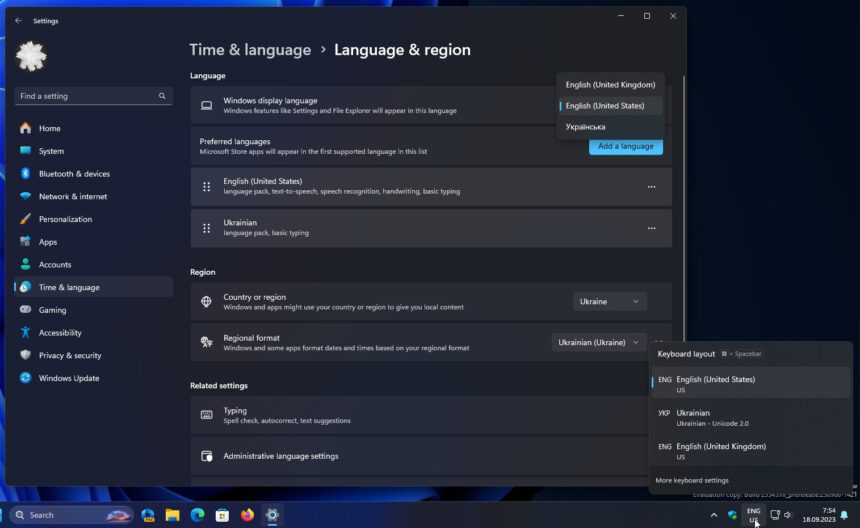
- In Settings, select: Time & language → Language & region.

- This section contains regional preferences that influence how Windows displays dates, numbers, and time.
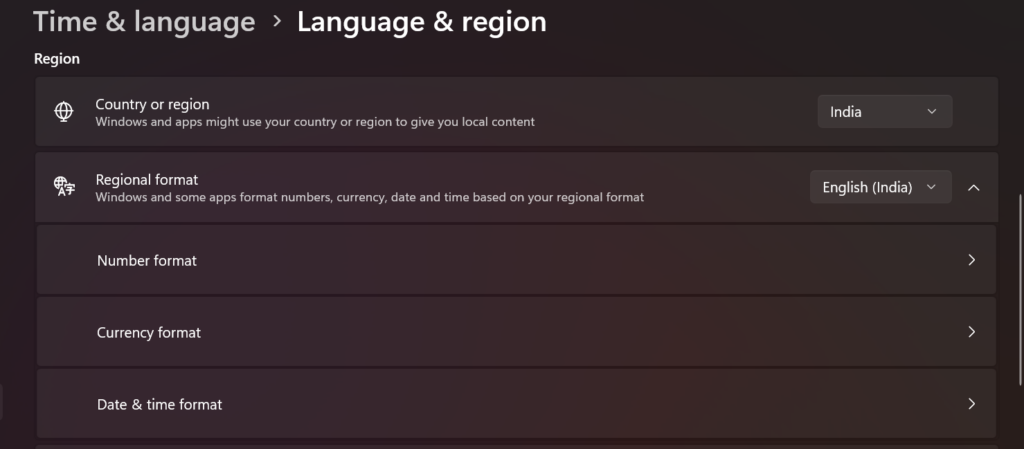
- Under Language & region, look for Regional format.
- Select the available regional format options or open the related regional settings.
- Depending on your Windows 11 version, you may see an option such as Change formats.
- Find the Short time setting.
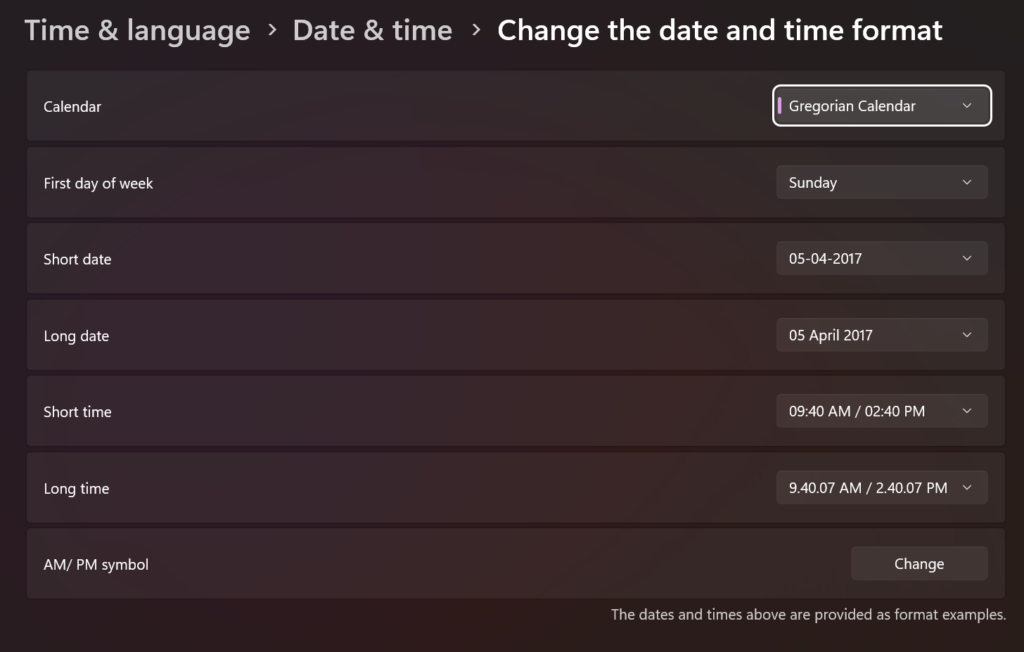
You may see formats similar to:
h:mm tthh:mm ttHH:mm
The exact options can vary depending on your selected region.
For a typical 12-hour clock, choose:
h:mm AM/PM
For a 24-hour clock, choose:
HH:mm
After selecting the desired format, Windows should apply the change automatically.
If you only want to change the taskbar clock from 12-hour to 24-hour time, changing the short-time format is usually the setting you need.
How to Switch Windows 11 From 12-Hour to 24-Hour Time
If your Windows 11 clock currently shows 6:45 PM and you want it to display 18:45, change the short time format to 24-hour.
Follow these steps:
- Press Windows + I.
- Select Time & language.
- Select Language & region.
- Open the regional format settings.
- Locate Short time.
- Select a 24-hour format such as HH:mm.
- Close Settings.
Your taskbar clock should now use the 24-hour format.
For example:
Before: 6:45 PM
After: 18:45
The 24-hour clock is especially useful when a precise distinction between morning and evening matters.
How to Change Back to the 12-Hour Clock
If you changed Windows 11 to 24-hour time and want to restore AM/PM, you can reverse the process.
- Go to: Settings → Time & language → Language & region
- Open the regional format settings and find Short time.
- Select a 12-hour option such as:
- h:mm AM/PM or another available format that includes an AM/PM indicator.
For example:
18:45 → 6:45 PM
The underlying system time remains unchanged.
How to Change the Time Format Using Control Panel
Windows 11 still includes the classic Control Panel, which provides another way to customise regional time settings.
This method can be useful if you prefer the traditional Windows interface.
- Press the Windows key and search for: Control Panel
- Open the Control Panel.
- Select: Clock and Region
- Then choose: Region
- In the Region window, select: Additional settings
- Then open the Time tab.
- Look for the Short time field.
- You can enter or select a suitable format.
Common examples include:
h:mm tt— 12-hour time with AM/PMhh:mm tt— 12-hour time with a leading zeroHH:mm— 24-hour time
Select Apply, then choose OK.
Control Panel is particularly useful when you want more direct control over Windows’ traditional regional formatting options.
Windows 11 Time Format Codes Meanings
Windows uses formatting symbols to determine how hours, minutes, seconds, and AM/PM indicators appear.
Here are some useful examples:
| Format Code | Example | Meaning |
|---|---|---|
h:mm tt | 7:05 PM | 12-hour time |
hh:mm tt | 07:05 PM | 12-hour time with leading zero |
H:mm | 19:05 | 24-hour time |
HH:mm | 19:05 | 24-hour time with two-digit hour |
h:mm:ss tt | 7:05:30 PM | 12-hour time with seconds |
HH:mm:ss | 19:05:30 | 24-hour time with seconds |
What Does tt Mean?
The tt component represents the AM/PM designator.
For example:
h:mm tt
can produce:
9:25 AM
Removing the AM/PM component gives you a format based on the 24-hour clock.
The exact formatting options available can depend on your Windows regional settings and version.
How to Change Time Format Without Changing Your Region
You don’t necessarily need to change your entire Windows region just because you prefer another clock style. Changing your region can affect other formatting preferences, including:
- Date order
- Currency
- Number formatting
- Regional conventions
- Calendar-related display
If you only want a different clock style, use the Short time formatting option whenever it is available. Avoid changing your entire region just to switch between 12-hour and 24-hour time.
Can You Show Seconds on the Windows 11 Clock?
Yes. Newer versions of Windows 11 provide an option to display seconds in the taskbar clock. If the option is available on your system, open:
Settings → Personalization → Taskbar → Taskbar behaviors
Look for an option related to showing seconds in the system tray clock.
How to Change Time Format for a Different Regional Style
Windows 11 supports regional formatting because people around the world use different conventions.
For example, users may prefer:
- 12-hour time with AM/PM
- 24-hour time
- Different date ordering
- Different separators
- Different number formats
Instead of changing individual settings repeatedly, you can select an appropriate regional format under:
Settings → Time & language → Language & region
However, remember that changing the regional format can affect more than the clock. Choose your regional settings carefully if you want to preserve your existing date, currency, and number formatting.
How do I change the clock from 12-hour to 24-hour in Windows 11?
Go to Settings → Time & language → Language & region, open the regional formatting options, and change Short time to a 24-hour formatHH:mm, when available.
How do I change Windows 11 back to AM/PM?
Open the regional format settings and select a Short time format containing an AM/PM designator, such as h:mm tt.
Does changing the time format change my computer’s time?
No. It only changes how Windows displays the time. Your actual system clock and time zone remain unchanged.
Why can’t I find the Short time option in Windows 11?
The Settings interface can vary between Windows 11 versions and updates. Search Settings for regional format or use Control Panel → Clock and Region → Region → Additional settings → Time.
Can I display seconds on the Windows 11 taskbar clock?
On supported Windows 11 versions, yes. Open Taskbar behaviours under Personalisation and look for the option to display seconds in the system tray clock.