
Typing accented letters can be confusing if your keyboard doesn’t have dedicated keys for them. However, you don’t need to purchase a special keyboard or install complicated software to enter accented characters. Windows, macOS, ChromeOS, Android, and iOS all provide ways to type these letters using keyboard shortcuts, character menus, international keyboard layouts, or copy-and-paste options.
Accented letters are commonly used in languages such as French, Spanish, German, Portuguese, Italian, and many others. Examples include é, è, ê, ñ, ü, ç, å, ô, and ä. These marks are not merely decorative. In many languages, they can change a word’s pronunciation, meaning, or grammatical form.
For example, the Spanish words si and sí have different meanings, while French words such as ou and où are also distinguished by an accent.
Whether you need to type a single accented character in an email or regularly write documents in another language, this guide explains several ways to enter accented letters on different devices.
What Are Accented Letters?
Accented letters are alphabetic characters that include one or more additional marks called diacritics. These marks appear above, below, or alongside a letter.
Different languages use different accent marks to represent pronunciation, stress, tone, or distinctions between words.
Here are some common examples:
| Accent mark | Example | Common name |
|---|---|---|
| ´ | é, á, í | Acute accent |
| ` | è, à, ù | Grave accent |
| ^ | ê, â, ô | Circumflex |
| ¨ | ë, ü, ö | Umlaut or diaeresis |
| ~ | ñ, ã, õ | Tilde |
| ˚ | å | Ring above |
| ¸ | ç | Cedilla |
| ˇ | č, š, ž | Caron |
| ¯ | ā, ē, ō | Macron |
| ˙ | ż, ė | Dot above |
The same accent mark can have different linguistic purposes depending on the language. For instance, the acute accent is used in Spanish, French, Portuguese, and several other languages, but its pronunciation rules differ.
1. How to Type Letters With Accents on Windows
Windows provides several built-in methods for entering accented characters. You can use Alt codes, the symbol picker, Character Map, or an international keyboard layout.
1: Use Alt Codes on Windows
Alt codes are numerical keyboard shortcuts that let you insert special characters. This is a useful method if you know the code for the character you want.
Follow these steps:
- Open the application where you want to type an accented letter.
- Make sure Num Lock is turned on.
- Press and hold the Alt key.
- Enter the required numeric code using the numeric keypad.
- Release the Alt key.
- The selected character should appear in your text.
Here are commonly used Windows Alt codes:
| Character | Alt code |
|---|---|
| á | Alt + 0225 |
| à | Alt + 0224 |
| â | Alt + 0226 |
| ä | Alt + 0228 |
| ã | Alt + 0227 |
| å | Alt + 0229 |
| é | Alt + 0233 |
| è | Alt + 0232 |
| ê | Alt + 0234 |
| ë | Alt + 0235 |
| í | Alt + 0237 |
| ì | Alt + 0236 |
| î | Alt + 0238 |
| ï | Alt + 0239 |
| ó | Alt + 0243 |
| ò | Alt + 0242 |
| ô | Alt + 0244 |
| ö | Alt + 0246 |
| õ | Alt + 0245 |
| ú | Alt + 0250 |
| ù | Alt + 0249 |
| û | Alt + 0251 |
| ü | Alt + 0252 |
| ñ | Alt + 0241 |
| ç | Alt + 0231 |
| ý | Alt + 0253 |
| ÿ | Alt + 0255 |
Some uppercase examples include:
| Character | Alt code |
|---|---|
| Á | Alt + 0193 |
| À | Alt + 0192 |
| Â | Alt + 0194 |
| Ä | Alt + 0196 |
| É | Alt + 0201 |
| È | Alt + 0200 |
| Ê | Alt + 0202 |
| Ë | Alt + 0203 |
| Ñ | Alt + 0209 |
| Ö | Alt + 0214 |
| Ü | Alt + 0220 |
| Ç | Alt + 0199 |
Important: These are traditional Windows Alt codes that use the numeric keypad. They may not work with the number row above the letters or on some compact keyboards. If your laptop doesn’t have a dedicated numeric keypad, use Character Map, the symbol picker, or an international keyboard layout instead.
2: Use the Windows Symbol Picker
Windows includes a built-in picker that lets you browse and insert special characters.
- Open a document, browser text field, or messaging application.
- Press Windows + . (period).
- Find the symbols section in the panel.
- Browse the available character categories.
- Select the accented character you want to insert.
The exact categories and available characters can vary by Windows version. If you cannot find a particular letter, try Character Map.
This method is convenient because you don’t have to remember numerical codes.
3: Use Character Map
Character Map is a Windows utility that provides access to characters included in installed fonts.
To use it:
- Press Windows + S to open Windows Search.
- Type Character Map.
- Open the application.
- Select a font, such as Arial, Calibri, or Times New Roman.
- Browse the character grid.
- Select the accented letter you need.
- Click Select.
- Click Copy.
- Return to your document and press Ctrl + V.
You can also use the Advanced View option, where available, to search for characters by name or Unicode value.
For example, searching for the lowercase Latin letter e with an acute accent can help you locate é.
Character Map is particularly useful when you need uncommon accented letters that aren’t available through familiar keyboard shortcuts.
4: Add an International Keyboard Layout in Windows
If you frequently type in another language, adding an international keyboard layout can make the process much easier.
For example, the United States-International keyboard supports several accent combinations.
To add it:
- Open Settings.
- Select Time & language.
- Open Language & region.
- Find your preferred language.
- Open its language options.
- Add the United States-International keyboard, if available.
- Switch to the new keyboard layout when you want to use it.
On this layout, certain punctuation keys work as dead keys. A dead key lets you enter an accent first and combine it with a letter.
For example:
- Type an apostrophe followed by e to enter é.
- Type a grave accent followed by e to enter è.
- Type a double quotation mark followed by u to enter ü.
- Type a tilde followed by n to enter ñ.
The exact combinations depend on the active keyboard layout. Some dead-key combinations require pressing Space to produce the accent mark by itself.
You can switch between installed layouts using Windows + Space.
2. How to Type Letters With Accents on Mac
Mac computers offer several convenient methods for entering accented letters. You can press and hold a letter, use Option key combinations, or open the Character Viewer.
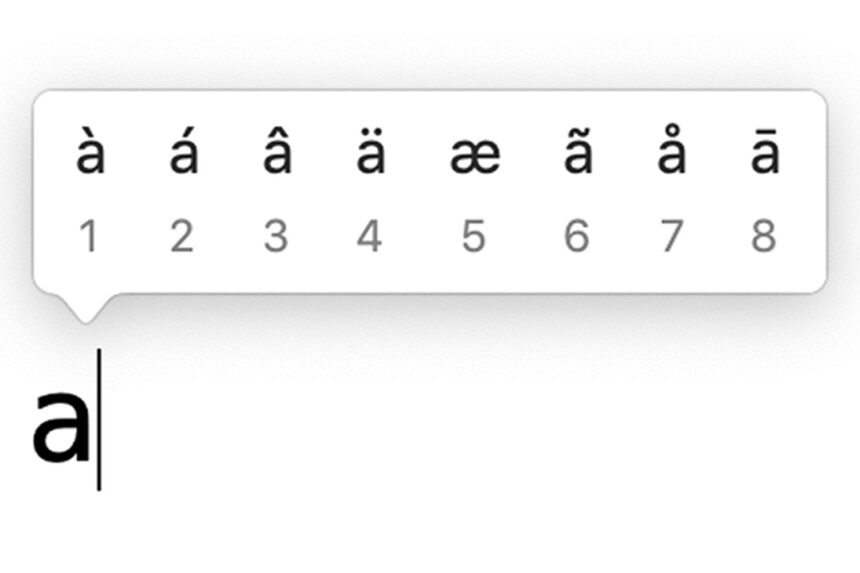
1: Press and Hold a Letter
The press-and-hold method is one of the simplest ways to type accented characters on a Mac.
Follow these steps:
- Open a document, email, or text field.
- Press and hold the letter you want to accent.
- Wait for a small menu of accented versions to appear.
- Select the character using the mouse or its displayed number.
- The accented letter will appear in your text.
For example, pressing and holding e can display:
- é
- è
- ê
- ë
- ē
The available options depend on the letter and your language settings.
If holding down a key repeats the same letter instead of displaying accent options, the application or keyboard settings may not support this feature. You can use the Option shortcuts or Character Viewer instead.
2: Use Mac Option Key Shortcuts
macOS provides keyboard combinations for commonly used accent marks.
| Accent | Shortcut | Result |
|---|---|---|
| Acute | Option + E, then letter | é |
| Grave | Option + `, then letter | è |
| Circumflex | Option + I, then letter | ê |
| Tilde | Option + N, then letter | ñ |
| Umlaut | Option + U, then letter | ü |
| Cedilla | Option + C | ç |
For most of these shortcuts, press the Option combination first, release the keys, and then type the letter you want to accent.
For example, to type é:
- Hold Option and press E.
- Release both keys.
- Press E again.
To type ñ:
- Hold Option and press N.
- Release both keys.
- Press N.
The result is an accented character rather than two separate characters.
3: Use Character Viewer on Mac
Character Viewer gives you access to accented letters, symbols, emoji, and other special characters.
- Open the application where you want to type.
- Press Control + Command + Space.
- Character Viewer will appear.
- Search for the character by name or browse the available categories.
- Double-click the desired character to insert it.
You can search for terms such as acute, umlaut, tilde, or Latin small letter e with acute.
This method is helpful when you need a character that isn’t covered by the standard keyboard shortcuts.
4: Add Another Keyboard Layout on Mac
If you regularly write in French, Spanish, German, or another language, adding a keyboard layout can save time.
- Open System Settings.
- Select Keyboard.
- Find the Text Input section.
- Select Edit or the input-source management option.
- Click the option to add a keyboard layout.
- Search for the language or layout you need.
- Add it to your available input sources.
You can then switch between keyboard layouts using the Input menu or the configured keyboard shortcut.
Remember that different layouts may place punctuation and special characters in different positions. It is worth practicing the layout before using it for longer documents.
3. How to Type Accented Letters in Microsoft Word
Microsoft Word includes keyboard shortcuts and a dedicated symbol menu for inserting accented letters.
1: Use Word Keyboard Shortcuts
Word supports several accent shortcuts on Windows.
| Character | Shortcut |
|---|---|
| á | Ctrl + ‘ followed by a |
| é | Ctrl + ‘ followed by e |
| í | Ctrl + ‘ followed by i |
| ó | Ctrl + ‘ followed by o |
| ú | Ctrl + ‘ followed by u |
| è | Ctrl + ` followed by e |
| à | Ctrl + ` followed by a |
| ê | Ctrl + Shift + ^ followed by e |
| ô | Ctrl + Shift + ^ followed by o |
| ñ | Ctrl + Shift + ~ followed by n |
| ü | Ctrl + Shift + : followed by u |
| ç | Ctrl + , followed by c |
To use these shortcuts, press the accent combination, release the keys, and then type the letter.
For example, to enter é, press Ctrl + ‘, release the keys, and then press E.
These shortcuts are useful when writing long documents because you don’t need to open the Symbol menu repeatedly. Keyboard layouts and Word versions can affect how some combinations work.
2: Insert Accented Characters From the Symbol Menu
If you don’t remember a shortcut, use Word’s built-in character menu.
- Open Microsoft Word.
- Place the cursor where the accented letter should appear.
- Select Insert.
- Click Symbol.
- Choose More Symbols.
- Select a font that supports the character.
- Browse the available symbols.
- Select the accented letter.
- Click Insert.
Word also displays the character’s Unicode information in the symbol dialog.
You can use the Subset menu to narrow the list to Latin characters and related character groups, depending on the selected font.
3: Use Unicode in Word
Microsoft Word supports Unicode hexadecimal codes for many characters.
To insert a Unicode character:
- Type the character’s Unicode hexadecimal value.
- Immediately press Alt + X.
- Word will convert the code into the corresponding character.
For example:
| Character | Unicode |
|---|---|
| é | 00E9 |
| è | 00E8 |
| ê | 00EA |
| ë | 00EB |
| ñ | 00F1 |
| ü | 00FC |
| ç | 00E7 |
| á | 00E1 |
| ö | 00F6 |
| ô | 00F4 |
For example, type 00E9 and press Alt + X to produce é.
If you need to display the original code instead of converting it, place the cursor carefully or use Word’s symbol menu.
This method is particularly useful for characters you don’t type frequently.
4. How to Type Accented Letters in Google Docs
Google Docs makes it possible to insert accented characters without memorizing keyboard combinations.
1: Use the Special Characters Menu
- Open your document in Google Docs.
- Place the cursor where you want the accented letter.
- Click Insert in the menu bar.
- Select Special characters.
- Search for the character by name or Unicode value, or draw it in the search area.
- Select the correct result.
- The character will be inserted into your document.
For example, you can search for é or Latin small letter e with acute.
2: Copy and Paste Accented Letters
If you only need a few characters, copying and pasting is often faster.
- Find the accented letter in a character reference or another document.
- Select the character.
- Press Ctrl + C on Windows or Command + C on Mac.
- Open your Google Docs document.
- Place the cursor where the character should appear.
- Press Ctrl + V or Command + V.
3: Use an International Keyboard
You can also configure an international keyboard through your computer’s operating system. Once enabled, the keyboard layout can be used in Google Docs and other applications.
This is a good option if you regularly write in another language and want to avoid opening the special-character menu every time.
5. How to Type Accented Letters on a Chromebook
Chromebooks support accented characters through keyboard layouts and special-character input options.
1: Add an International Keyboard
- Open Chromebook Settings.
- Find the keyboard or input-method settings.
- Add a keyboard layout that supports the language you use.
- Switch to the selected layout when needed.
- Use the layout’s accent keys or combinations to enter accented letters.
The exact menu names may vary between ChromeOS versions.
2: Use the On-Screen Keyboard
If your Chromebook supports an on-screen keyboard, you can use it to access additional characters.
- Open Settings.
- Find the Accessibility section.
- Enable the on-screen keyboard.
- Open a text field.
- Use the on-screen keyboard to select the available accented characters.
The available characters depend on the selected language and keyboard layout.
6. How to Type Accented Letters on Android
Android keyboards such as Gboard commonly allow you to type accented letters by pressing and holding a letter.
Follow these steps:
- Open an application where you want to type.
- Tap a text field to display the keyboard.
- Press and hold the letter you want to accent.
- Wait for a selection of accented versions to appear.
- Slide your finger to the required character.
- Release your finger to insert it.
For example, pressing and holding the letter a may display:
- á
- à
- â
- ä
- ã
- å
Similarly, holding n may display ñ.
Change the Keyboard Language on Android
If you regularly type in another language, you can add its keyboard layout.
- Open your device’s Settings.
- Find System or General management, depending on the manufacturer.
- Open Keyboard or Languages & input.
- Select your current keyboard.
- Add the language you want.
- Switch between languages using the keyboard’s language button or spacebar, depending on the keyboard.
Menu names and options vary across Android devices and keyboard applications.
7. How to Type Accented Letters on iPhone and iPad
The iPhone and iPad keyboard provides a convenient way to type accented letters.
1: Press and Hold a Letter
- Open Messages, Notes, Mail, or another application.
- Tap a text field.
- Press and hold the letter you want to accent.
- Wait for the available accented versions to appear.
- Move your finger to the character you need.
- Release your finger to insert it.
For example, pressing and holding e may display é, è, ê, and ë.
The available options depend on the active keyboard language.
2: Add Another Keyboard Language
If you regularly write in a different language, adding its keyboard can make typing easier.
- Open Settings.
- Select General.
- Tap Keyboard.
- Select Keyboards.
- Tap Add New Keyboard.
- Choose the language you want.
- Switch between installed keyboards using the globe key when typing.
This is especially useful for people who regularly communicate in multiple languages.
8. How to Type Different Types of Accent Marks
Understanding the different accent marks can help you select the correct character.
Acute Accent (´)
The acute accent slopes upward from left to right.
Examples:
- Lowercase: á, é, í, ó, ú
- Uppercase: Á, É, Í, Ó, Ú
It is commonly used in Spanish, French, Portuguese, and several other languages.
Grave Accent (`)
The grave accent slopes downward from left to right.
Examples:
- Lowercase: à, è, ì, ò, ù
- Uppercase: À, È, Ì, Ò, Ù
It appears in languages such as French and Italian.
Circumflex (^)
The circumflex looks like a small pointed roof above a letter.
Examples:
- Lowercase: â, ê, î, ô, û
- Uppercase: Â, Ê, Î, Ô, Û
It is used in French, Portuguese, and other languages.
Umlaut or Diaeresis (¨)
The umlaut or diaeresis consists of two dots above a letter.
Examples:
- Lowercase: ä, ë, ï, ö, ü, ÿ
- Uppercase: Ä, Ë, Ï, Ö, Ü, Ÿ
It is particularly familiar in German, where it appears in words containing ä, ö, and ü.
Tilde (~)
The tilde is a curved mark placed above a letter.
Examples:
- Lowercase: ã, ñ, õ
- Uppercase: Ã, Ñ, Õ
It is commonly used in Spanish and Portuguese.
Cedilla (¸)
The cedilla is a small mark placed below a letter.
Examples:
- Lowercase: ç
- Uppercase: Ç
It is commonly used in French and Portuguese, among other languages.
Ring Above (˚)
The ring above appears as a small circle above a letter.
Examples:
- Lowercase: å
- Uppercase: Å
It is used in languages such as Swedish, Danish, and Norwegian.
9. Accented Letters You Can Copy and Paste
If you don’t want to use keyboard shortcuts, you can copy accented letters directly from this section.
Accented A
| Lowercase | Uppercase |
|---|---|
| à | À |
| á | Á |
| â | Â |
| ä | Ä |
| ã | Ã |
| å | Å |
| ā | Ā |
| ă | Ă |
| ą | Ą |
Accented E
| Lowercase | Uppercase |
|---|---|
| è | È |
| é | É |
| ê | Ê |
| ë | Ë |
| ē | Ē |
| ė | Ė |
| ę | Ę |
| ě | Ě |
Accented I
| Lowercase | Uppercase |
|---|---|
| ì | Ì |
| í | Í |
| î | Î |
| ï | Ï |
| ī | Ī |
| į | Į |
| ı | I |
Accented O
| Lowercase | Uppercase |
|---|---|
| ò | Ò |
| ó | Ó |
| ô | Ô |
| ö | Ö |
| õ | Õ |
| ø | Ø |
| ō | Ō |
| ő | Ő |
Accented U
| Lowercase | Uppercase |
|---|---|
| ù | Ù |
| ú | Ú |
| û | Û |
| ü | Ü |
| ū | Ū |
| ů | Ů |
| ű | Ű |
| ų | Ų |
Other Special Letters
| Lowercase | Uppercase |
|---|---|
| ç | Ç |
| ñ | Ñ |
| ý | Ý |
| ÿ | Ÿ |
| š | Š |
| ž | Ž |
| č | Č |
| ł | Ł |
| æ | Æ |
| œ | Œ |
| ß | ẞ |
To copy a character, select it with your mouse or touch screen and use your device’s normal copy-and-paste shortcut.
10. Unicode Values for Common Accented Letters
Every Unicode character has a unique code point. Unicode provides a consistent way to represent accented letters across operating systems, applications, and websites.
Here are some frequently used Unicode values:
| Character | Unicode value | Character name |
|---|---|---|
| á | U+00E1 | Latin small letter a with acute |
| à | U+00E0 | Latin small letter a with grave |
| â | U+00E2 | Latin small letter a with circumflex |
| ä | U+00E4 | Latin small letter a with diaeresis |
| ã | U+00E3 | Latin small letter a with tilde |
| é | U+00E9 | Latin small letter e with acute |
| è | U+00E8 | Latin small letter e with grave |
| ê | U+00EA | Latin small letter e with circumflex |
| ë | U+00EB | Latin small letter e with diaeresis |
| ñ | U+00F1 | Latin small letter n with tilde |
| ó | U+00F3 | Latin small letter o with acute |
| ö | U+00F6 | Latin small letter o with diaeresis |
| ü | U+00FC | Latin small letter u with diaeresis |
| ç | U+00E7 | Latin small letter c with cedilla |
| ß | U+00DF | Latin small letter sharp s |
Unicode is especially useful for identifying characters and working with software that supports Unicode input. However, the way you enter a Unicode value depends on the application. For example, Word supports hexadecimal conversion using Alt + X, while other applications may require a character picker or operating-system input method.
11. How to Type Accented Letters in HTML and on Websites
If you create websites, HTML provides ways to display accented letters correctly.
1: Type the Character Directly
Modern websites generally support Unicode. If your HTML document uses UTF-8 encoding, you can often enter accented characters directly.
For example:
<meta charset="UTF-8">

<p>Bonjour, café!</p>
<p>Español, français, and português.</p>
2: Use HTML Character References
You can also represent accented characters using named or numeric HTML character references.
| Character | HTML entity | Numeric reference |
|---|---|---|
| é | é | é |
| è | è | è |
| ê | ê | ê |
| ë | ë | ë |
| á | á | á |
| ñ | ñ | ñ |
| ü | ü | ü |
| ç | ç | ç |
For example, writing café in HTML displays café.
For most modern web projects, UTF-8 encoding and directly entered Unicode characters are convenient choices.