If you have ever seen the “storage almost full” warning on your Google account and thought a quick cleanup of your Drive would fix it, you are not alone. But here is what most people miss: that warning is often a sign of a much bigger problem hiding across multiple Google services.
Google gives every free account 15 GB of shared storage. That limit does not just apply to your Drive files. It covers Gmail, Google Photos, and Drive all at once. So if you spend an hour deleting documents from Drive and still see the same warning, the real culprit might be sitting in your photo library or buried inside old email attachments.
Why Reaching the Limit Is a Big Deal
Once your storage hits 100%, Gmail stops accepting new emails entirely. Senders get a delivery failure notice, and you never see the message. Google may offer a short grace period, but it is brief. If you run a small business or depend on email for anything important, this is not a situation you want to land in.
Start With a Diagnosis, Not Random Deletions
Before you delete anything, go to drive.google.com and open the Storage Manager. It gives you a visual breakdown of what is consuming your space across all three services. This step alone can save you a lot of time. If 80% of your storage is sitting in Google Photos, spending time cleaning Drive will not move the needle.
Finding the Heaviest Files in Google Drive
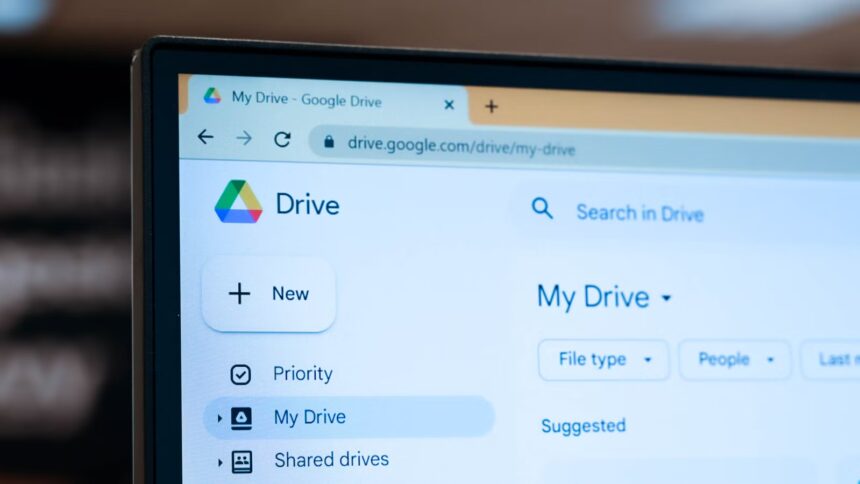
In the web version of Drive, click on “Storage” in the left sidebar. Files will be sorted from largest to smallest, which is exactly what you want. Focus on old videos, ZIP archives, data exports, software installers, and project folders from work you finished months or years ago. Deleting five large files often frees more space than removing hundreds of small ones.
Before deleting anything significant, make sure you have a backup copy saved locally or on another service. Also confirm the file is not the only existing version of something important and that no colleagues are still actively using it.
The Recycle Bin Mistake
A very common scenario: someone deletes several gigabytes of files and the storage counter barely moves. The reason is almost always the same. Files you delete go into Drive’s Recycle Bin, where they sit for 30 days before Google removes them permanently. Until you empty the Recycle Bin manually, that space is not released. Same rule applies to Gmail’s Trash folder.
Cleaning Up Gmail Using Search Operators
Scrolling through your inbox looking for large attachments is a waste of time. Gmail’s search operators let you find exactly what you are looking for in seconds. Here are the ones worth knowing:
has:attachment larger:10Mfinds all emails with attachments over 10 MBhas:attachment larger:20Mnarrows it to 20 MB and abovefilename:pdforfilename:zipfilters by specific file typeshas:attachment larger:10M filename:pdfcombines both to get large PDF attachments specifically
Select the results and delete them in bulk, then empty your Trash to actually reclaim the space.
Google Photos Is Often the Biggest Offender
Most people underestimate how much space Google Photos consumes, especially if they take a lot of videos or shoot in high resolution. There are two practical approaches here.
The first is a manual review using Google Photos’ built-in management tools, which can surface blurry photos, screenshots, and large videos worth removing.
The second is switching to Storage Saver quality. Found under Settings in the Google Photos web interface, this option compresses your existing photos and videos to a slightly reduced but still screen-quality resolution. For most people, the visual difference is minimal, but the space savings can be substantial.
WhatsApp Backup and Other Hidden Storage Drains
If you have cleared everything obvious and the storage counter still looks bad, WhatsApp backup is worth investigating. On Android, WhatsApp backs up your chats and media to your Google account by default, and that backup counts against your 15 GB limit.
To reduce its footprint, open WhatsApp, go to Settings, then Conversations, then Chat Backup, and turn off the option to include videos.
Beyond WhatsApp, a few other quiet culprits are worth checking:
- Old phone backups from devices you no longer use
- App data that syncs automatically to your Google account
- Duplicate files created by third-party apps like document scanners or PDF editors
Building Better Habits Going Forward
Cleaning storage once a year is better than never, but a few small habits will keep you from ending up in the same situation repeatedly.
If you need to share a large video with someone and do not need to store it permanently, use a temporary file transfer service instead of uploading it to Drive. Set aside five minutes at the end of each month to check the Storage tab and clear anything that has accumulated.
And consider creating a folder called “Temp” or “Staging” where files that do not need long-term storage go by default. Anything in that folder is fair game for deletion on your next cleanup pass.
Do files in “Shared with me” count against my storage?
No. Files shared with you use the storage of the person who owns them. Removing items from your “Shared with me” view does not free up any of your own space.
How do I download everything before a big cleanup?
Use Google Takeout at takeout.google.com. It exports a complete copy of your Drive, Photos, and Gmail data to your computer or another cloud service.
Why does the storage number not change after I delete files?
Almost always because the Trash or Recycle Bin has not been emptied. Google only updates the counter after files are permanently deleted.
Keeping your Google storage in check comes down to knowing where your space is actually going, targeting the largest files first, and remembering to empty the bin when you are done. With those three habits in place, you are unlikely to hit the limit unexpectedly again.