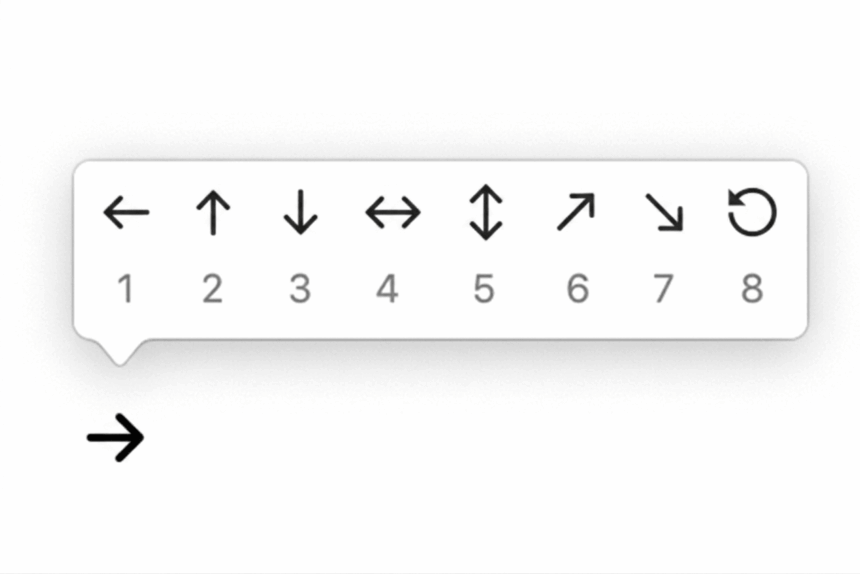
Arrow symbols are among the most useful special characters you can add to a document. They can show directions, connect steps in a process, highlight changes, explain relationships in diagrams, or represent mathematical and logical operations.
The problem is that most keyboards do not have dedicated keys for every type of arrow. While basic directional arrows may be available through certain keyboard layouts, symbols such as ⇔, ⟶, ↗, ↻, and ⤴ usually require a shortcut or special-character tool.
Fortunately, there are several easy ways to type arrow symbols. You can use Windows Alt codes, Mac keyboard shortcuts, Microsoft Word’s symbol tools, Google Docs’ special-character menu, or simply copy and paste the arrow you need.
This guide explains how to type arrow symbols on Windows, Mac, Microsoft Word, Excel, PowerPoint, Google Docs, Chromebooks, iPhones, and Android devices. It also covers Unicode codes, common arrow symbols, and solutions for laptops without a numeric keypad.
Quick Arrow Symbols to Copy
If you only need an arrow right now, copying the symbol is usually the fastest option.
Basic arrows:
← ↑ → ↓
Two-way arrows:
↔ ↕ ↨
Double arrows:
⇐ ⇑ ⇒ ⇓ ⇔
Long arrows:
⟵ ⟶ ⟷
Diagonal arrows:
↖ ↗ ↘ ↙
Curved and looping arrows:
↩ ↪ ↺ ↻
Bold arrows:
⬅ ⬆ ➡ ⬇
You can copy any of these symbols and paste them into Word, Google Docs, email, social media posts, spreadsheets, presentations, or most other applications.
Which Method Should You Use?
The best way to type an arrow depends on the device and application you are using.
- Windows desktop: Use an Alt code when your keyboard has a numeric keypad. For less common arrows, Word’s Symbol menu or Unicode shortcut is usually easier.
- Windows laptop: If there is no numeric keypad, use the Windows symbol panel, Character Map, or the Insert Symbol option in Microsoft Office.
- Mac: Use the built-in keyboard shortcuts for common symbols, or open Character Viewer when you need a wider selection.
- Microsoft Word: The Symbol menu and Unicode + Alt + X method are particularly useful when you frequently work with special characters.
- Google Docs: Insert > Special characters is the simplest option.
- Phone or tablet: The easiest approach is usually the emoji/symbol keyboard or copy and paste.
How to Type Arrow Symbols on Windows
Windows provides several ways to enter arrow symbols. The traditional method is an Alt code, but this works best when you have a physical numeric keypad.
Alt codes are especially convenient when you regularly use a small number of common symbols. Once you remember the codes, inserting an arrow takes only a few seconds.
1. Use Windows Alt Codes
To use an Alt code, place the cursor where you want the symbol, turn on Num Lock, hold the Alt key, and enter the appropriate number using the numeric keypad.
For example:
- Alt + 24 → ↑
- Alt + 25 → ↓
- Alt + 26 → →
- Alt + 27 → ←
- Alt + 29 → ↔
How to use an Alt code
- Place the cursor where you want the arrow.
- Make sure Num Lock is enabled.
- Hold down the Alt key.
- Type the required code using the numeric keypad.
- Release Alt.
The arrow should appear immediately.
Why the numeric keypad matters
Traditional Windows Alt codes generally require a numeric keypad. The number row above the letters is usually not available for these shortcuts.
This is why an Alt code may work perfectly on a desktop keyboard but fail on a laptop. If your laptop does not have a numeric keypad, don’t worry. Windows provides several other ways to insert arrow symbols.
2. Use the Windows Symbol Panel
Windows 10 and Windows 11 include a built-in symbols panel that can be opened from almost any text field.
This is useful when you need an arrow but do not want to remember an Alt code.
- Place the cursor in the text field.
- Press Windows + . (period).
- Open the Symbols section.
- Browse the available symbols or select the appropriate category.
- Click the arrow you want to insert it.
This method is particularly useful on laptops without a numeric keypad.
3. Use Character Map
Windows Character Map provides access to a large collection of special characters. It is a good fallback when an Alt code does not work or when you need a less common arrow.
- Open the Start menu.
- Search for Character Map.
- Open the application.
- Select a font that supports the character.
- Find the arrow you need.
- Select the character and click Copy.
- Paste it into your document with Ctrl + V.
Character Map can also be useful for other special characters, accented letters, mathematical symbols, and Unicode characters.
Why Some Arrow Alt Codes Work Only in Word
This causes confusion because not every number presented online as an “Alt code” behaves the same way across Windows applications. Traditional Alt codes are tied to Windows character input and code pages. Unicode characters, however, can be handled differently depending on the application.
For example, an arrow represented by the Unicode value U+2192 is the standard Unicode character for →. Entering its decimal value as an Alt shortcut may work in one application but not another.
Microsoft Word provides its own Unicode conversion method, which is much more reliable for these characters.
If an arrow shortcut works in Word but not in your browser, that does not necessarily mean your keyboard is faulty. The application may simply handle Unicode input differently.
How to Type Arrows in Microsoft Word
Microsoft Word offers several reliable ways to insert arrow symbols, making it one of the easiest applications for working with special characters.
You can use a standard keyboard shortcut, the Symbol menu, or Word’s Unicode conversion feature.
1. Insert an Arrow Using Symbol
The Symbol menu is the easiest option if you do not want to memorize keyboard codes.
- Open your Word document.
- Place the cursor where you want the arrow.
- Select Insert from the ribbon.
- Click Symbol.
- Choose More Symbols.
- Find the arrow you want.
- Click Insert.
Word also remembers recently used symbols, so frequently used arrows become easier to access over time.
2. Use Unicode and Alt + X
Word has a particularly useful shortcut for entering Unicode characters.
Every Unicode symbol has a hexadecimal code. For example:
- 2190 = ←
- 2191 = ↑
- 2192 = →
- 2193 = ↓
- 2194 = ↔
- 21D2 = ⇒
- 27F6 = ⟶
To insert one:
- Type the Unicode code.
- Press Alt + X.
- Word converts the code into the corresponding symbol.
For example, type:
2192
Then press Alt + X and Word changes it to:
→
This is one of the most useful methods if you regularly work with different Unicode symbols in Word.
3. Create an AutoCorrect Shortcut
If you frequently type the same arrow, you can create a custom AutoCorrect entry.
For example, you could configure Word to replace:
->
with:
→
Once configured, typing the shortcut and pressing Space can automatically insert the arrow.
This is particularly useful for technical documentation, flowcharts, notes, and instructional content, where arrows frequently appear.
Common Arrow Symbols and Their Uses
Not all arrows serve the same purpose. Choosing the right symbol can make a document easier to understand.
Basic directional arrows
← ↑ → ↓
These are the most common arrows and work well for directions, navigation, instructions, and simple diagrams.
Left-right and up-down arrows
↔ ↕
These are useful when showing movement or relationships in two directions.
Double arrows
⇐ ⇒ ⇔
Double arrows are commonly used in mathematics, logic, technical writing, and explanations of relationships between two concepts.
Long arrows
⟵ ⟶ ⟷
Long arrows are useful in diagrams, workflows, timelines, and headings because their extended shape makes connections easier to see.
Diagonal arrows
↖ ↗ ↘ ↙
Diagonal arrows are useful for maps, interface instructions, diagrams, and showing movement toward a corner or direction.
Curved and circular arrows
↩ ↪ ↺ ↻
These symbols are commonly associated with returning, undoing, repeating, refreshing, or showing a circular process.
Heavy Arrows
⬅ ⬆ ➡ ⬇
Heavy arrows are more prominent than standard text arrows. They can be useful in instructions, visual guides, social posts, and other places where the direction needs to stand out.
Unicode and HTML Arrow Codes
If you are creating a website, blog post, app, or other digital content, Unicode provides a reliable way to represent arrow symbols. Each arrow has its own Unicode code point, which allows browsers and software to display the correct character.
Here are some of the most commonly used arrow codes:
| Arrow | Unicode | HTML Decimal | HTML Hex |
|---|---|---|---|
| ← | U+2190 | ← | ← |
| ↑ | U+2191 | ↑ | ↑ |
| → | U+2192 | → | → |
| ↓ | U+2193 | ↓ | ↓ |
| ↔ | U+2194 | ↔ | ↔ |
| ↕ | U+2195 | ↕ | ↕ |
| ⇒ | U+21D2 | ⇒ | ⇒ |
| ⇔ | U+21D4 | ⇔ | ⇔ |
For example, if you want to display a right arrow on a webpage, you can use the HTML decimal code → or the hexadecimal version →. Both will render as → in a browser.
Troubleshooting Arrow Shortcuts
If an arrow shortcut does not work as expected, the problem is usually related to the keyboard, application, or character code being used.
Alt codes are not working on Windows
Make sure Num Lock is enabled and that you are entering the numbers using the numeric keypad. The number row above the letters generally does not work for traditional Windows Alt codes.
If your laptop does not have a numeric keypad, use Insert > Symbol, the Windows symbol panel, or simply copy and paste the arrow.
The shortcut works in Word but not in Chrome
Some Unicode entry methods are handled differently by individual applications. A method that works in Microsoft Word may not work in a browser text box.
In that situation, use the Windows symbol panel, Google Docs’ Special characters tool, or copy and paste the symbol directly.
The arrow looks different in another application
The appearance of a Unicode arrow can change depending on the font and application. If an arrow looks too thin, heavy, or slightly different from the original, try switching to a commonly supported font such as Arial or Calibri.
For most users, the actual Unicode character remains the same even when its visual appearance changes.