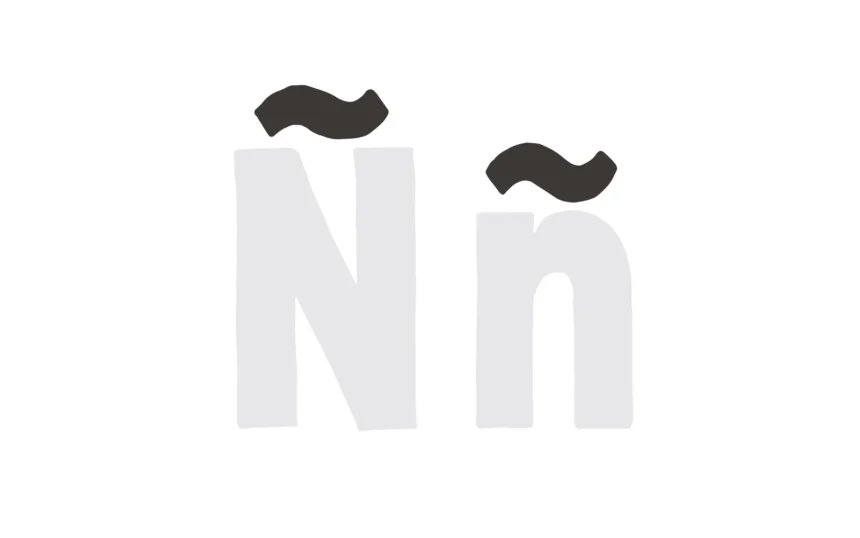
The Spanish letter ñ and its uppercase version Ñ are more than an n with a tilde. In Spanish, ñ is a separate letter with its own pronunciation. It produces a sound similar to the “ny” sound in the English word canyon.
You will find ñ in many common Spanish words and names, including niño, mañana, España, jalapeño, piñata, señor, Muñoz, and Peña.
If you need to type ñ on a Windows PC, Mac, iPhone, Android phone, Microsoft Word, Google Docs, Excel, or another application, there are several easy ways to do it.
How to Type Ñ and ñ
Here are the fastest keyboard shortcuts:
| Device or App | Lowercase ñ | Uppercase Ñ |
|---|---|---|
| Windows | Alt + 0241 | Alt + 0209 |
| Mac | Option + N, then N | Option + N, then Shift + N |
| iPhone/iPad | Press and hold n, then select ñ | Press and hold n, then select Ñ |
| Android | Press and hold n, then select ñ | Press and hold n, then select Ñ |
| Microsoft Word | Ctrl + Shift + ~, then n | Ctrl + Shift + ~, then Shift + n |
| Google Docs | Insert → Special characters | Insert → Special characters |
What Is the Difference Between ñ and n + ~
It is easy to assume that ñ is simply an n followed by a tilde. Technically, that is not always the case.
ñ is a single Unicode character representing the Spanish letter.
A lowercase n followed by a separate tilde can consist of two characters. This is known as a combining character sequence and may behave differently when you select, delete, search, or format text.
For normal Spanish writing, names, websites, documents, and other text, you generally want the single character ñ.
Copy and Paste Ñ and ñ
If you only need the character once, copying it is the quickest option:
Lowercase: ñ
Uppercase: Ñ
To paste it:
- Windows:
Ctrl + V - Mac:
Command + V - iPhone/iPad: Tap and hold, then select Paste
- Android: Tap and hold, then select Paste
How to Type ñ on Windows
There are several ways to type the Spanish ñ on Windows.
1. Use the Alt Code
The Windows Alt code is one of the quickest methods if your keyboard has a numeric keypad.
To type lowercase ñ:
- Place your cursor where you want the letter.
- Make sure Num Lock is turned on.
- Hold down the Alt key.
- Type 0241 on the numeric keypad.
- Release Alt.
You should see ñ.
For uppercase Ñ, use Alt + 0209.
Windows Alt Codes for Ñ
- ñ:
Alt + 0241 - Ñ:
Alt + 0209
Important: Traditional Windows Alt codes generally require the numeric keypad. The number keys above the letters may not work for this method.
If you are using a laptop without a dedicated numeric keypad, try one of the alternative methods below.
2. Windows Character Map
Windows also includes a built-in Character Map utility.
- Open the Start menu.
- Search for Character Map.
- Open the application.
- Find ñ or Ñ.
- Select the character.
- Click Select, then Copy.
- Paste it wherever you need it.
This is useful when you only occasionally need special characters.
3. Windows Symbol Panel
You can also use the Windows symbol panel.
- Place the cursor in your document or text field.
- Press Windows + . or Windows + ;.
- Open the Symbols section.
- Find ñ or Ñ.
- Click the character to insert it.
How to Type ñ on a Mac
Typing ñ is particularly simple on macOS.
1. Use the Option Shortcut
To type lowercase ñ:
- Press Option + N.
- Release the keys.
- Press N.
The result is ñ.
For uppercase Ñ:
- Press Option + N.
- Release the keys.
- Press Shift + N.
The result is Ñ.
Mac Shortcuts for Ñ
- ñ:
Option + N, thenN - Ñ:
Option + N, thenShift + N
The first shortcut creates the tilde accent, while the second key determines which letter receives it.
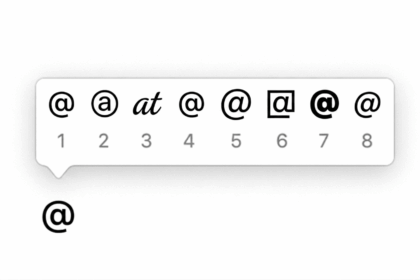
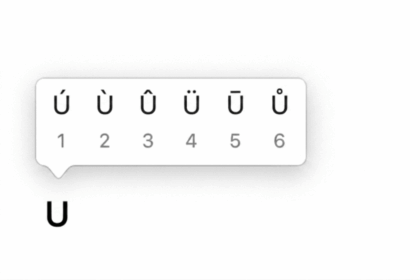
2. Press and Hold N
On many Mac applications, you can simply press and hold the N key.
A character menu will appear with different variations of the letter. Select ñ or Ñ if it is available.
3. Character Viewer
macOS also has Character Viewer.
- Press Control + Command + Space.
- Search for n tilde.
- Find ñ or Ñ.
- Double-click the character to insert it.
How to Type ñ in Microsoft Word
Microsoft Word provides several ways to insert ñ.
1. Use the Keyboard Shortcut
On Windows, you can use:
Ctrl + Shift + ~, thenn→ ñCtrl + Shift + ~, thenShift + n→ Ñ
Press the shortcut for the tilde first, then type the letter.
2. Insert ñ as a Symbol
You can also insert the character directly from Word’s symbol menu.
- Open the Insert tab.
- Select Symbol.
- Choose More Symbols.
- Find ñ or Ñ.
- Select the character.
- Click Insert.
This method is useful when keyboard shortcuts are not working or when you are using a keyboard layout with different shortcuts.
3. Create an AutoCorrect Shortcut
If you frequently type Spanish words, creating an AutoCorrect entry can save time.
For example, you could make Word replace n~ with ñ.
- Open File → Options.
- Select Proofing.
- Click AutoCorrect Options.
- Enter
n~in the Replace field. - Enter ñ in the With field.
- Click Add and then OK.
You can create another entry for uppercase Ñ if needed.
How to Type ñ in Excel
Excel supports several methods for entering ñ.
Use the Windows Alt Code
While editing a cell, use:
Alt + 0241→ ñAlt + 0209→ Ñ
Use the CHAR Function
You can also generate the characters with an Excel formula:
=CHAR(241)This produces:
ñ
For uppercase:
=CHAR(209)This produces:
Ñ
If you need to keep the character as regular text instead of a formula, copy the cell and use Paste Special → Values.
Insert the Character as a Symbol
Depending on your version of Excel, you can also use Insert → Symbol and select ñ or Ñ.
How to Type ñ in PowerPoint
The same shortcuts used in Word generally work in PowerPoint.
On Windows:
Alt + 0241→ ñAlt + 0209→ Ñ
On Mac:
Option + N, thenN→ ñOption + N, thenShift + N→ Ñ
You can also use Insert → Symbol when working with text boxes.
How to Type ñ in Google Docs
Google Docs has a built-in special character tool.
Insert ñ Using Special Characters
- Open your Google Docs document.
- Select Insert from the menu.
- Click Special characters.
- Search for n tilde.
- Select ñ or Ñ.
The character will be inserted at your cursor position.
Mac Shortcut in Google Docs
If you are using a Mac, you can also use:
Option + N, then N → ñ
For uppercase:
Option + N, then Shift + N → Ñ
How to Type ñ in Google Sheets
You can use several methods in Google Sheets.
Use the CHAR Function
Enter:
=CHAR(241)for ñ.
For uppercase Ñ, enter:
=CHAR(209)You can also copy and paste the character directly into a cell.
How to Type ñ on iPhone and iPad
Typing ñ on an iPhone or iPad is straightforward.
- Open the keyboard.
- Press and hold the n key.
- A list of accented characters will appear.
- Slide your finger to ñ.
- Release your finger.
For uppercase Ñ, first enable uppercase letters using the Shift key, then press and hold N and select Ñ.
This method works with Apple’s standard keyboard in supported language configurations.
How to Type ñ on Android
Most Android keyboards support ñ through the long-press menu.
- Open any app where you can type.
- Press and hold the n key.
- Select ñ from the available characters.
For uppercase Ñ, switch to uppercase first and then press and hold N.
The exact appearance and available characters can vary depending on your Android keyboard. Gboard and other popular keyboard apps support a wide range of accented characters.
Add a Spanish Keyboard for Faster Typing
If you regularly write in Spanish, adding a Spanish keyboard layout is usually more convenient than relying on shortcuts.
Add a Spanish Keyboard on Windows
- Open Settings.
- Go to Time & language → Language & region.
- Select your language.
- Open Language options.
- Add a Spanish keyboard.
- Choose the Spanish layout that suits your needs.
You can switch between installed keyboard layouts using Windows + Space.
Add Spanish Input on Mac
- Open System Settings.
- Select Keyboard.
- Go to Input Sources.
- Click Edit or +, depending on your macOS version.
- Add Spanish.
- Switch between input sources using the configured keyboard shortcut.
Using a Spanish layout can be much faster if you regularly type Spanish names, documents, messages, or search queries.
Common Problems When Typing ñ
Why is my Windows Alt code not working?
Check that:
- Num Lock is enabled.
- You are using the numeric keypad.
- You are entering the full four-digit code.
- Your laptop’s embedded numeric keypad is enabled if it has one.
Try Alt + 0241 for lowercase ñ and Alt + 0209 for uppercase Ñ.
My laptop does not have a numeric keypad
You can use Windows Character Map, the Windows symbol panel, copy and paste, or install a Spanish keyboard layout.
Pressing ~ only produces a tilde
That is normal with many keyboard layouts. A tilde key does not automatically turn an n into ñ.
On a Mac, use Option + N, then N.
On Windows, use the Alt code or a suitable keyboard layout.
Why does my ñ behave differently when I delete or select it?
You may be dealing with an n followed by a separate combining tilde rather than the single Unicode character ñ.
The standard single-character version is:
ñ
This is usually the better choice for Spanish text.
Unicode and HTML Codes for Ñ and ñ
The Spanish ñ has its own Unicode code point.
| Character | Name | Unicode | HTML Entity |
|---|---|---|---|
| ñ | Latin Small Letter N with Tilde | U+00F1 | ñ |
| Ñ | Latin Capital Letter N with Tilde | U+00D1 | Ñ |
You can use the HTML entities when working with HTML documents or websites.
For example:
ñdisplays as:
ñ
And:
Ñdisplays as:
Ñ
Ñ and ñ Quick Reference
| Platform | ñ | Ñ |
|---|---|---|
| Windows | Alt + 0241 | Alt + 0209 |
| Mac | Option + N, then N | Option + N, then Shift + N |
| iPhone/iPad | Hold n | Hold N |
| Android | Hold n | Hold N |
| Word | Ctrl + Shift + ~, then n | Ctrl + Shift + ~, then Shift + n |
| Excel | CHAR(241) | CHAR(209) |
| Google Sheets | CHAR(241) | CHAR(209) |
| Unicode | U+00F1 | U+00D1 |
| HTML | ñ | Ñ |
Frequently Asked Questions
Is ñ a separate letter in Spanish?
Yes. Ñ is a distinct letter in the Spanish alphabet, rather than simply an accented version of the letter n. It represents a different sound and can change the meaning of a word.
What is the Windows Alt code for ñ?
The Windows Alt code for lowercase ñ is Alt + 0241.
For uppercase Ñ, use Alt + 0209.
How do I type Ñ on a Mac?
Press Option + N, release the keys, and then press Shift + N.
For lowercase ñ, press Option + N, then N.
How do I type ñ in Google Docs?
Go to Insert → Special characters, search for n tilde, and select ñ.
On a Mac, you can also use Option + N, followed by N.
What is the Unicode value of ñ?
The Unicode code point for lowercase ñ is U+00F1.
The Unicode code point for uppercase Ñ is U+00D1.
Can I copy and paste ñ?
Yes. If you only need the character occasionally, copy ñ or Ñ and paste it into your document, browser, spreadsheet, message, or other application.
Typing ñ is easy once you know the right shortcut for your device.
- Windows:
Alt + 0241for ñ andAlt + 0209for Ñ - Mac:
Option + N, thenNorShift + N - iPhone and iPad: Press and hold n
- Android: Press and hold n
- Microsoft Word:
Ctrl + Shift + ~, thenn - Google Docs: Insert → Special characters
- Excel and Google Sheets:
CHAR(241)for ñ andCHAR(209)for Ñ
If you type Spanish regularly, adding a Spanish keyboard layout is worth considering. For occasional use, the shortcuts above or simply copying and pasting are usually the fastest options.