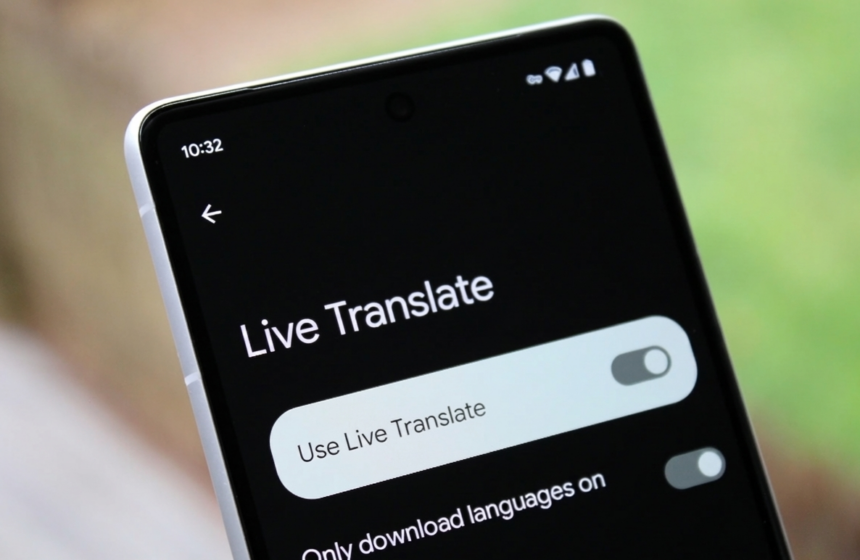
The Live Translate feature on recent Google Pixel smartphones is one of the most practical tools Google has introduced for breaking language barriers in everyday situations. While Google Translate has been around for years, Live Translate takes things a step further by making translations feel instant and seamless—without requiring constant app switching.
This feature is currently limited to newer Pixel models, including the Google Pixel 6, Google Pixel 7, Google Pixel 8 lineup, and the Pixel Fold. What makes Live Translate special is its deep system integration, which enables translations to occur directly within messages, calls, and videos rather than in a separate app.
What Is Live Translate on Pixel?
Despite the similar name, Live Translate isn’t just another mode inside Google Translate. On Pixel devices, it refers specifically to real-time, on-device translation powered by Google’s custom Tensor chip. Because the processing happens on the phone itself, translations are faster and more private, which is why this feature remains exclusive to Pixel phones.
Live Translate can automatically detect foreign languages and instantly convert them, whether you’re reading text messages, watching videos, or listening to spoken audio. On devices like the Pixel 8 Pro running Android 14, translations appear directly on-screen as captions or text overlays, making conversations and media far easier to follow.
Like any translation tool, it isn’t flawless—but it’s accurate enough to comfortably understand conversations, messages, and video content in another language without feeling lost.
Supported Languages and Limitations
Live Translate doesn’t support every language yet. For live media and audio captions, only a small group of languages—such as English, German, Spanish, French, Italian, and Japanese—are currently available. Overall, the feature supports 21 languages, and your Pixel will clearly show which functions (text, audio, captions) are available for each one.
Before using Live Translate, you’ll need to download the language pack, which usually takes just a few seconds.
How to Turn On Live Translate
Activating Live Translate is straightforward:
- Open the Settings app.
- Scroll down and tap System.
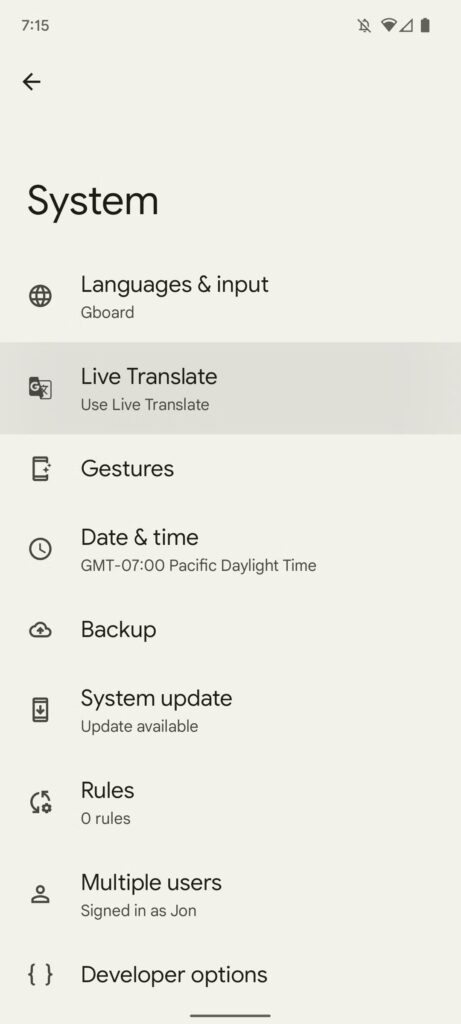
- Select Live Translate
- Turn on the Live Translate toggle
- Tap Add language
- Choose the language you want to translate
- Confirm by tapping Add language
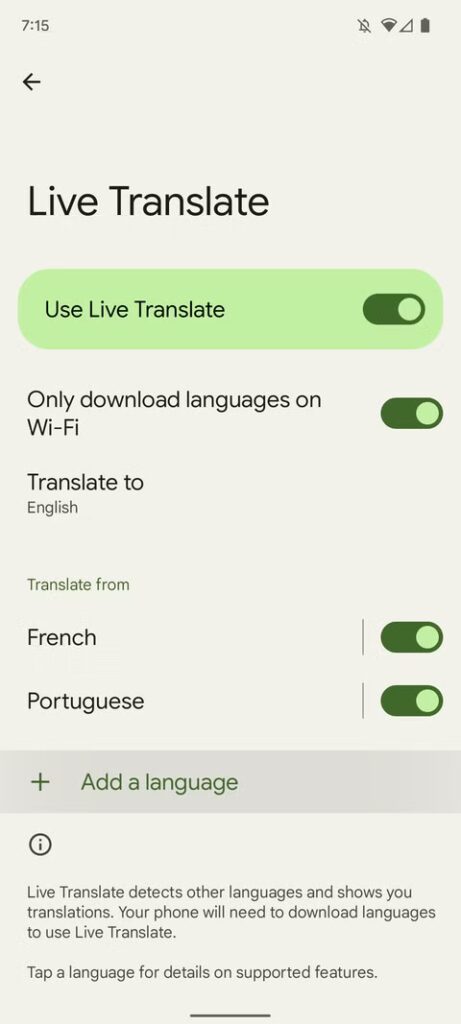
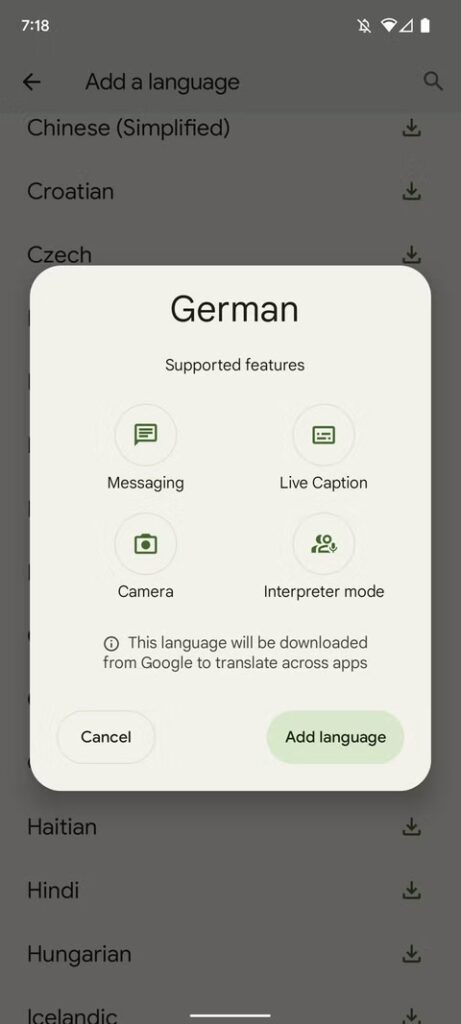
Once enabled, your Pixel will automatically handle translations when it detects supported languages.
Using Live Translate for Text Messages
When your Pixel detects a foreign language in a messaging app, a small pop-up with the Google Translate icon appears near the top of the screen. Tapping it activates Live Translate for that conversation.
If the prompt doesn’t appear—sometimes this happens when there isn’t enough text—you can manually activate translation by copying the message and selecting Translate copied text from the pop-up.
After activation, a language selector appears at the top of the conversation. Incoming messages are translated automatically, and when you reply, your typed text is translated in real time, allowing you to preview the translation before sending it.
You can also customize how Live Translate behaves:
- Ask to translate: Prompts you when a new language is detected
- Automatically translate: Translates all messages in that language instantly
- Don’t translate again: Disables translations for that language until re-enabled in settings
These preferences apply across all conversations using that language.
Using Live Translate for Audio and Video
Live Translate also works with spoken content through Live Captions. When enabled, your Pixel can generate captions for supported languages during videos, calls, and other audio playback.
To turn on Live Captions:
- Press the Volume button
- Tap the Live Caption icon below the volume slider
If you enable captions during a phone call, the other person is notified for transparency. Captions can be turned off at any time by tapping the same button again.
A Big Step Toward Effortless Translation
Live Translate demonstrates the significant advancements in mobile translation technology. By combining on-device processing with smart language detection, Pixel phones make multilingual communication far less intimidating. While the feature is currently limited to Pixel 6, 7, 8, and Pixel Fold devices, it’s likely to expand further as Google refines its AI and hardware.
Whether you’re chatting with someone abroad, watching foreign videos, or reading messages in another language, Live Translate quietly removes friction—making communication feel natural, even across language barriers.