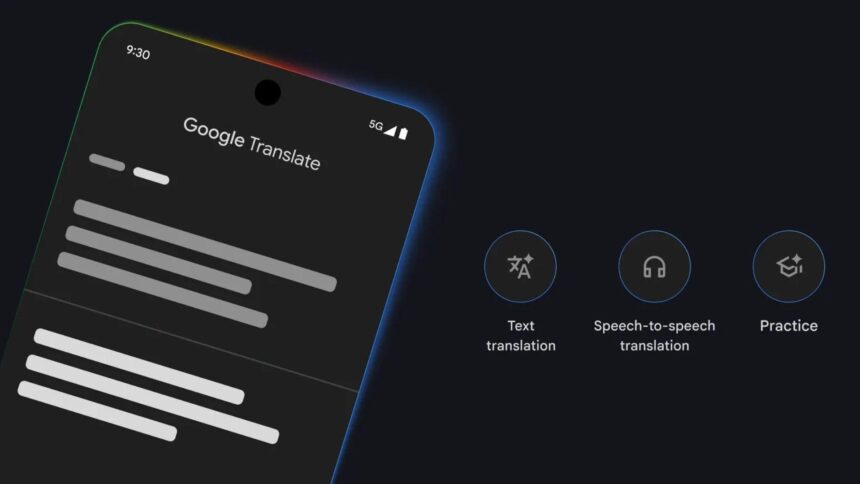
Google Translate is one of the most accessible tools available for breaking down language barriers, whether you’re travelling, studying a new language, or trying to understand content written in a foreign script. Google’s translation service offers multiple ways to translate text, speech, and images, making it far more versatile than many people realise.
For users on Android and iOS, the Google Translate app is the most complete and convenient option. It supports typed text, spoken input, real-time conversations, handwriting, and even translations directly from your camera. While owners of newer Google Pixel phones get access to some exclusive features, the core tools are available on almost any modern smartphone.
Below is a detailed look at how Google Translate works, its reliability, and how to utilise its most useful features.
Does Google Translate work well?
Google Translate has undergone significant improvements over the years, particularly with the integration of modern AI and machine learning models. While it was once known for awkward, literal translations, it now focuses on understanding meaning and context, rather than translating word for word.
That said, accuracy can still vary depending on the language pair. A well-known 2019 UCLA study that tested translations of medical instructions found a 94% accuracy rate for English-to-Spanish translations, but only 55% accuracy for English-to-Armenian translations. This highlights an important point: some languages are better supported than others.
Since that study, Google has expanded its language support and improved its translation models. For everyday tasks-like reading menus, translating directions, or understanding short phrases-Google Translate is more than reliable enough. However, for nuanced materials such as literature, legal documents, or medical texts, a professional human translator remains the safer option.
Where can you use Google Translate?
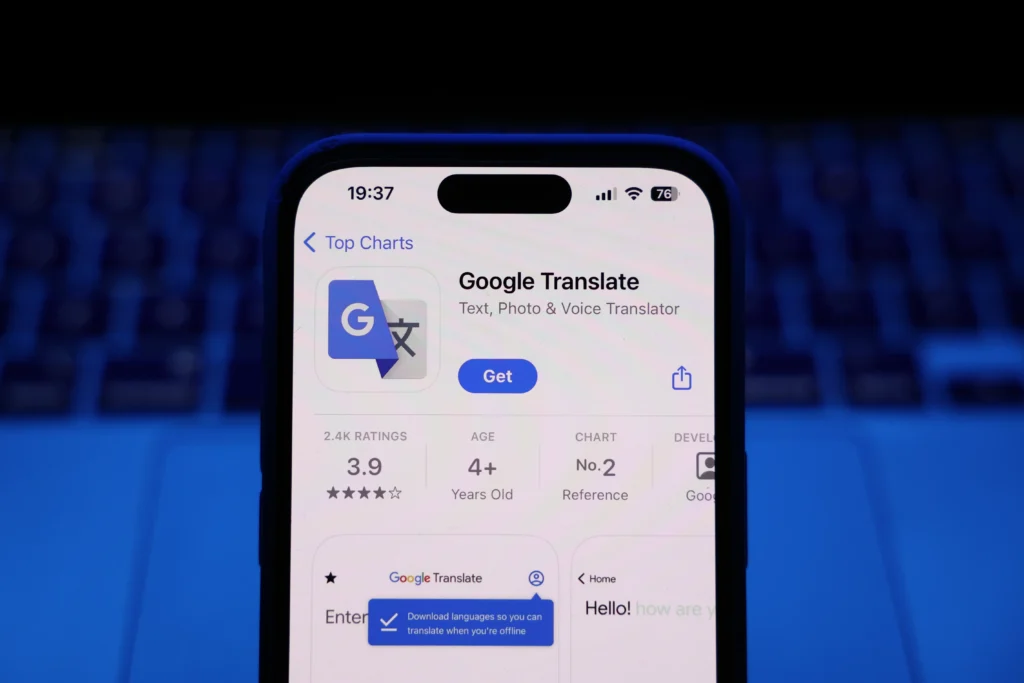
Google Translate is available across multiple platforms:
- Mobile app on Android (often preinstalled) and iOS (iPhone and iPad)
- Web version via any browser
- Chrome extension, which translates entire web pages automatically
The mobile app offers the widest range of features, though some require an active internet connection. Offline translation is supported, but only for downloaded languages and with limited functionality.
Regardless of the platform, Google Translate offers multiple translation methods to suit various situations.
How to translate conversations in real time
One of Google Translate’s most powerful features is real-time conversation mode, which effectively turns your phone into a live interpreter.
How to use conversation mode:
- Open Google Translate
- Tap the Conversation button in the lower-left corner
- Select the source language (on the left)
- Select the target language (on the right)
- Tap the microphone icon under the Gemini AI symbol for automatic detection
- Or use the individual microphones for manual language selection
As each person speaks, the translated text appears on screen, and you can choose to play the translated audio aloud. This feature is especially useful for travel, casual conversations, or customer service interactions.
Tip: For offline conversations, download the required language packs in advance.
How to translate text and speech
Text translation is the most basic-and fastest-method for using Google Translate.
- Open Google Translate
- Choose the source language (left)
- Choose the target language (right)
- Type your text or tap the microphone to speak
- Use the speaker icon to hear the translation or copy it to your clipboard
This method is most effective for single words, short phrases, or quick checks when learning a new language.
How to translate images with your camera
Using Google Lens, Google Translate can read and translate text directly from images. This is ideal for signs, menus, labels, and printed documents.
- Open Google Translate
- Tap the Camera icon
- Select the source and target languages
- Choose:
- Instant live translation through your camera
- Import to translate text from a saved image
The translated text appears overlaid on the image, making it easy to read without switching apps.
Does Google Translate Camera Work Offline on Android?
Google Translate can translate downloaded languages offline, but offline support does not mean every camera feature works exactly the same way as it does with an internet connection. Before travelling, download the required language packs in the Translate app and test the camera feature while your phone is in Aeroplane Mode.
This is especially important if you need offline image translation on Android. Availability and supported features can vary by language and app version, so you should not assume that every camera or image-translation function will work offline simply because the language has been downloaded.
How to use Google Translate offline
If you’re travelling without reliable internet access, offline translation can be a lifesaver.
How to download a language for offline use:
- Open Google Translate
- Tap the language bar at the bottom
- Find the language you want
- Tap the Download icon next to it
Offline mode supports fewer languages and features, but it’s still useful for basic translations.
How to translate handwriting
Google Translate also supports handwritten input, which is useful for characters you can’t easily type.
Steps:
- Open Google Translate
- Tap Enter text
- Tap the handwriting icon
- Write using your finger or a stylus
This feature works especially well for languages like Chinese, Japanese, and Korean.
How to Save Phrases for later
If you regularly use certain translations, you can save them for quick access.
Steps:
- Translate a phrase
- Tap the star icon
- Access saved phrases from the star menu on the home screen
Saved phrases sync across devices when you’re signed into your Google account.
Live Translate on Google Pixel phones
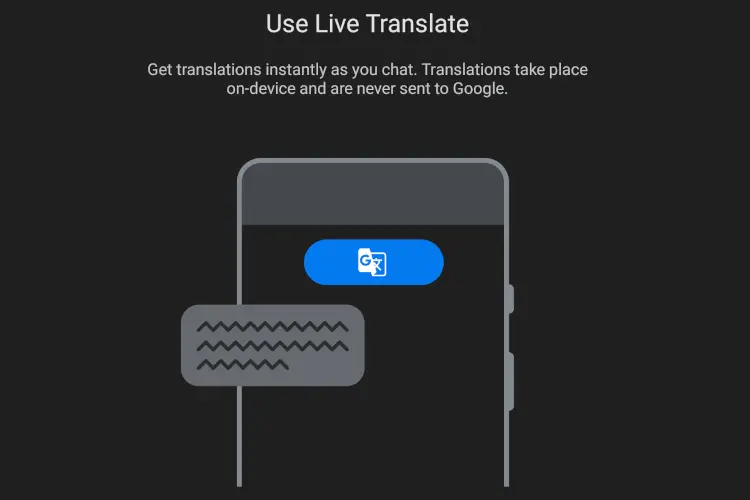
Pixel phones offer Live Translate, which automatically detects and translates languages in real time across apps like Messages, video playback, and supported chats.
How to enable Live Translate:
- Open Settings
- Go to System
- Tap Live Translate
- Turn it on and add supported languages
When foreign text or speech is detected, a pop-up appears offering instant translation.
Voice Translate on newer Pixel phones
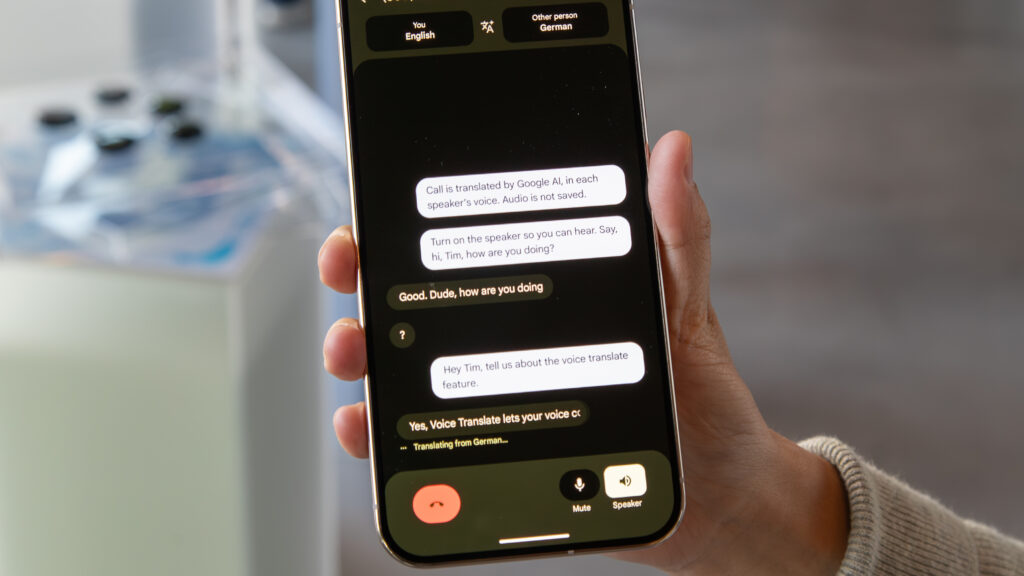
On the latest Pixel devices, Voice Translate enables real-time translation during phone calls. This feature runs on-device, powered by Gemini Nano and Tensor chips, meaning:
- No internet connection is required
- Audio stays private and isn’t sent to the cloud
- Translations appear as on-screen transcripts during calls
Google Translate has grown from a basic dictionary tool into a powerful, multi-purpose language assistant. While it isn’t perfect-especially for complex or nuanced material-it excels at everyday communication, travel assistance, and quick understanding across languages.
Used correctly, it can dramatically reduce friction when navigating a multilingual world, whether you’re reading a menu, chatting with someone abroad, or watching content in another language.
How to Use Google Translate Camera
Google Translate Camera makes it easy to translate printed or on-screen text without typing it manually. If you are wondering how to use Google Translate Camera.
- Open the Google Translate app on your Android phone or iPhone, choose the source and target languages, and tap the Camera option.
- Point your phone at the text you want to translate, and Google Translate will recognise the words and display the translation on your screen.
For supported languages, you can use the camera for both a quick photo translation and real-time translation.
The real-time camera feature is particularly useful for signs, menus, labels, instructions, and other text you encounter while travelling. For better results, hold the phone steadily and make sure the text is clearly visible and well-lit.
Can You Use Google Translate Camera Online for Free?
Yes, Google Translate’s camera translation feature is available without a separate paid subscription. On a phone, the easiest option is to use the Google Translate app. If you want to translate text without an app, browser-based options can be more limited because camera translation features vary by device and browser.
For the most reliable experience, especially when you need Google Translate camera features while traveling, use the official mobile app and download the languages you need before leaving.
Google Translate Voice Input and Audio to Text
Google Translate also supports voice input, allowing you to speak instead of typing the text you want to translate. Tap the microphone and speak clearly in the selected language. This can be useful for conversations, asking questions, or translating short spoken phrases.
If you are looking for Google Translate audio to text, the app can recognize spoken language and convert your speech into text before providing a translation. Accuracy can depend on pronunciation, background noise, internet connectivity, and the languages involved. For longer recordings or audio files, Google Translate is not necessarily a replacement for a dedicated transcription service.
Google Translate During a Phone Call
Can you put a call in to Google Translate? In some situations, Google provides translation features for phone conversations, but availability depends on the phone, Android version, language, region, and the Google features it supports. Some Pixel devices have offered translation capabilities for calls, allowing participants to communicate across supported languages.
If your phone does not support live call translation, you can still use Google Translate’s conversation or voice features alongside a phone call, although this may be less seamless.
How do I use Google Translate Camera?
Open the Google Translate app, select the languages you need, and tap Camera. Point your phone at the text you want to translate. Depending on the language and app version, you can translate text instantly through the camera or capture an image for translation.
Does Google Translate have an offline camera mode?
Google Translate supports offline translation for languages that you download, but camera and image translation features can have different offline capabilities depending on the language and device. Download the language pack and test the camera while offline before relying on it during travel.
Can I use Google Translate camera without an internet connection?
You can use downloaded languages for offline translation, but not every camera feature is guaranteed to work offline. For important travel use, download the languages in advance and test the exact camera function you plan to use.
Is Google Translate Camera free?
Yes. Google Translate’s core translation features, including camera translation on supported devices, are available without a separate paid subscription. Your phone may still use mobile data when features require an internet connection.
Can I translate text without an app using a camera?
There are browser-based ways to translate text from images, but the experience can differ from the Google Translate mobile app. If you specifically want to point your phone’s camera at text and see a translation, the Google Translate app is generally the more direct option.
Does Google Translate convert audio to text?
Google Translate can use voice input to recognize spoken language and translate it. This means spoken words can be converted into text as part of the translation process. For dedicated transcription of long audio recordings, however, a specialized transcription tool may be more appropriate.
Can Google Translate translate a phone call?
Call translation is available only on certain supported devices and configurations. If your phone supports Google’s call-translation feature, you may be able to translate conversations during a call. Otherwise, Google Translate’s voice or conversation modes can be used separately.
Do I need a Google account to use Google Translate?
You generally do not need to sign in to use the basic translation features. However, some features or settings may work differently depending on your device, app version, and how you use Google services.
Can Google Translate translate text from a photo?
Yes. You can use the camera feature to recognize text in a photo and translate it into another language. This is useful for menus, signs, documents, product labels, and other printed material.
Does Google Translate work without mobile data?
Yes, for supported languages that you have downloaded for offline use. Offline functionality is more limited than online translation, so download the required language packs before you lose your internet connection.
How accurate is Google Translate Camera?
Camera translation can be very useful for everyday text, but results depend on image quality, font style, lighting, language support, and the complexity of the text. For important documents or situations where accuracy is critical, check the translation carefully rather than relying on it without verification.