Gaming on my Xbox has always been an amazing experience, but for me, it’s not just about playing—it’s about adding a personal touch, especially during voice chats and streams. That’s exactly why I started using voice changers.
These tools are super easy to use and let me change my voice in real time, which makes multiplayer sessions more fun and my content a lot more entertaining.
In this guide, I’ll walk you through the top three voice changers for Xbox, including their features, how to set them up, and when to use each one. I’ll also show you step by step how I integrate them seamlessly with my console.
Stick with me till the end, and you’ll be able to find the perfect voice changer for your own Xbox gaming setup.
Best Voice Changers for Xbox
I spent a good amount of time testing different options before putting this list together. After trying them out in real scenarios, I’m confident that the best voice changers for Xbox are EaseUS VoiceWave, Voicemod, and Clownfish Voice Changer.
1. Voicemod
From what I’ve used, Voicemod is easily one of the most powerful and user-friendly voice changers out there. The interface is clean and intuitive, so I didn’t have to spend much time figuring things out before jumping in.
What really stands out to me is the huge collection of voice filters. I can switch between scary, funny, fantasy, and other creative effects depending on the vibe I want during gameplay. It’s perfect when I want to add something extra to my sessions instead of just using my normal voice.
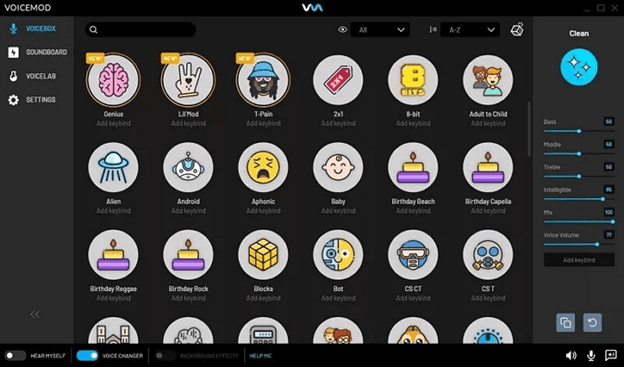
The AI-powered processing is another big plus—it changes my voice in real time and actually sounds convincing, not laggy or distorted. I’ve used it to sound like everything from an orc to a futuristic robot, and it always feels immersive.
It also works smoothly with popular games like Apex Legends, so I’ve had no trouble using it during live matches or while chatting with teammates.
Key Features:
- Real-Time Voice Filters – Instantly modify your voice with high-quality effects.
- Voicelab for Custom Voices – Create and fine-tune unique voice effects with advanced customisation options.
- Tone Filters – Adjust your voice to sound scary, funny, or like a specific character.
- Soundboard Feature – Add pre-set audio effects and background sounds to enhance your gaming experience.
- Text-to-Speech Scripting – Generate voiceovers with text input for creative content.
3. Clownfish Voice Changer
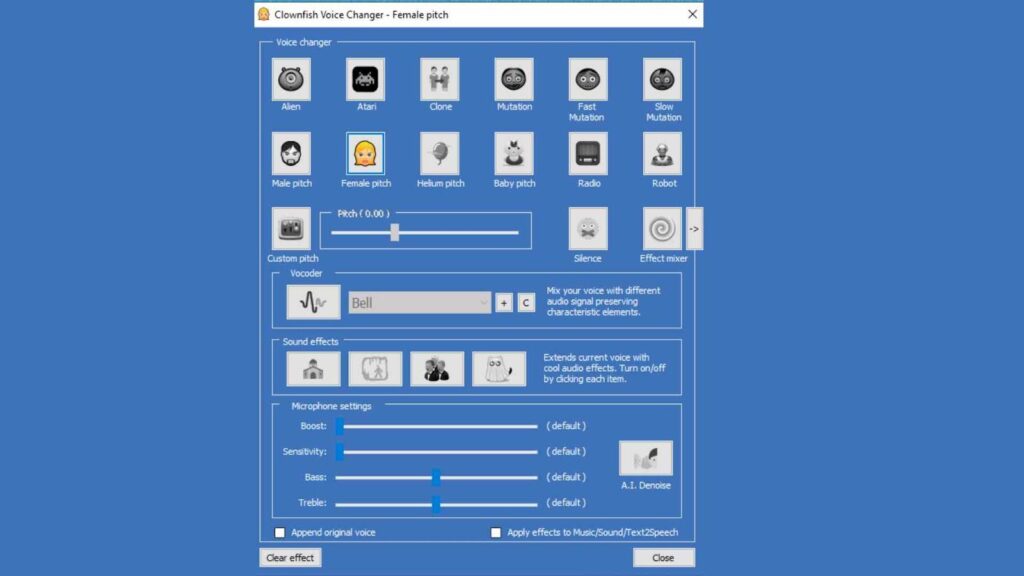
In my experience, Clownfish Voice Changer is a great option if you’re looking for something simple but still effective for Xbox gaming. It’s completely free, which is a big plus, and it gives me access to over a dozen real-time voice effects without any hassle.
What I appreciate most is how lightweight it is. I can run it in the background while gaming, and it doesn’t slow anything down or affect performance—which is super important during intense sessions.
Even though it’s a free tool, I’ve found it to be safe and reliable, with no weird issues or hidden surprises. It just works.
Features I’ve found useful:
- Real-time voice effects: I can quickly switch between different filters like robot, helium, baby voice, and more.
- Low resource usage: It runs quietly in the background without impacting my gameplay.
- Voice customisation: I can tweak things like tone, pitch, and frequency to create more personalised effects.
- Wide compatibility: Once it’s set up, it works across pretty much everything I use, including Xbox chat, Discord, and other apps.
Overall, it’s a solid choice if you want a straightforward voice changer that gets the job done without overcomplicating things.
3. Easyus Voice Wave
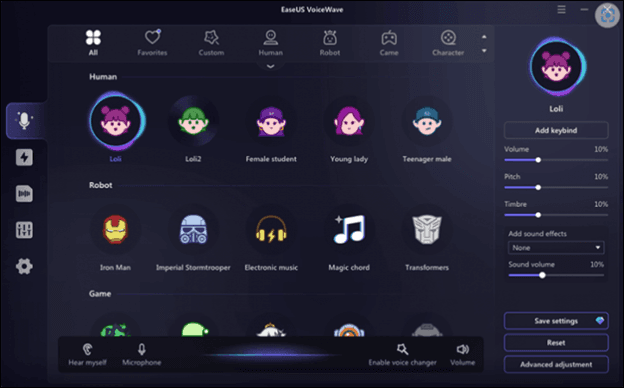
From my experience, EaseUS VoiceWave is also one of the most effective free voice changers I’ve used for Xbox gaming. It delivers really realistic voice effects and adds a whole new layer of fun to my sessions.
What I like most is the variety—it offers tons of voice filters, from scary and funny to robotic and character-style. Whether I’m just messing around with friends or playing more competitively, it always keeps things interesting.
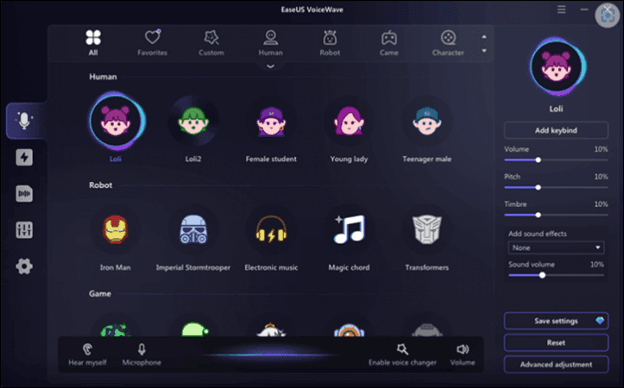
Another big plus is how well it works with other platforms. I’ve been able to use it seamlessly with over 250 games and apps like Discord, Twitch, and Valorant, which makes switching between gaming and streaming super smooth. The real-time voice changing works without noticeable lag, which is a huge win.
And if you’re someone who likes to customise things (like me), the Voice Laboratory feature is a standout. It lets me create and tweak my own voices using advanced sound controls, so I’m not limited to just the presets.
Features
- 100+ Real-Time Voice Filters – Instantly change your voice while gaming or streaming.
- AI-Powered Voice Processing – Delivers high-quality, realistic voice modifications.
- Custom Voice Creation – Use the Voice Laboratory to tweak and personalize your own voices.
- Extra Features – Includes a Soundboard for sound effects and noise reduction for clearer audio.
- Seamless Integration – Works perfectly with Discord and other online gaming applications.
How to use VoiceMod on Xbox
How to Use Voicemod on Xbox
From what I’ve used, Voicemod is a fantastic voice changer that lets me apply real-time voice effects while gaming, streaming, or just chatting with friends.
Here’s how I set it up on my Xbox using my PC with a simple step-by-step process:
- Visit the official Voicemod website and download the application.
- Install it on your PC by following the setup instructions.
- Download and install the Xbox Console Companion app from the Microsoft Store on your PC.
- Open the app and click “Connect” to link your Xbox console to your PC.
- Start streaming by clicking the “Transmit” button in the app.
- Launch Voicemod on your PC.
- Set Voicemod Virtual Audio Device (WDM) as the default microphone in your system’s audio settings.
- On your Xbox console, go to audio settings and select Voicemod Virtual Audio Device (WDM) as the default microphone.
- Open Voicemod and browse through the available voice filters.
- Choose your favorite voice and start speaking into your microphone.
- Every time you speak, the voice effect will be applied in real time.
- You can switch between different voices anytime, making your Xbox gaming experience even more fun and immersive!
How to use Clownfish in Xbox
How to Use Clownfish Voice Changer on Xbox
From my experience, Clownfish is a great free and lightweight voice changer that works across my entire system. Once I set it up, I can modify my voice in real time while gaming on Xbox without any extra hassle.
Here’s exactly how I set it up on my PC and Xbox console:
- Visit the official Clownfish website and download the latest version.
- Install it on your PC by following the setup instructions.
- Find the Clownfish icon in the system tray (bottom-right corner of your PC screen).
- Right-click the icon and select “Configuration”.
- Clownfish requires microphone drivers for full functionality.
- Download and install the necessary drivers when prompted.
- Ensure that a default microphone is selected to avoid compatibility issues.
- Download and install the Xbox Console Companion app from the Microsoft Store on your PC.
- Open the app and click “Connect” to link your Xbox console to your PC.
- Start streaming by clicking the “Transmit” button.
- Open Control Panel > Sound > Recording.
- Locate your microphone, right-click it, and select “Set as Default”.
- On your Xbox console, go to audio settings and select Clownfish as the default microphone.
- Open Clownfish and go to the Voice Changer menu.
- Choose your preferred voice filter (robot, alien, helium, deep voice, etc.).
- Start speaking, and your voice will be modified in real-time while playing on Xbox!
How to Use EaseUS VoiceWave on Xbox
Want to add some fun to my Xbox gaming experience? Using a voice changer lets me modify my voice in real time, which makes multiplayer matches and streaming way more entertaining.
Here’s how I set it up on my Xbox using my PC in just a few simple steps.
- Visit the official EaseUS VoiceWave website and download the application.
- Install it on your PC following the on-screen instructions.
- Download and install the Xbox Console Companion app from the Microsoft Store on your PC.
- Open the app and click “Connect” to link your Xbox console to your PC.
- To stream your Xbox to your PC, click the “Transmit” button in the app.
- Launch EaseUS VoiceWave on your PC.
- Set EaseUS VoiceWave as the default microphone for audio input and output in your system settings.
- On your Xbox console, navigate to audio settings and select EaseUS VoiceWave as the default mic.
- Select from the pre-built voice filters or create a custom voice using the built-in Voice Lab.
- Adjust sound parameters like pitch, frequency, and modulation to get the perfect voice.
- Listen to a preview of your voice and make final adjustments.
- Once satisfied, start gaming and enjoy your modified voice on Xbox!
Xbox voice changers add a fun and creative twist to your gaming experience by allowing you to modify your voice, add background effects, and even enhance audio quality. Whether streaming, role-playing, or just laughing with friends, these tools can transform your communication in-game.
- How to Change Voice on Discord
- How to Connect to Xbox One to Discord
- How to Enable Voice Typing on WhatsApp
- Disable Achievements Notifications In Xbox