Online conversations have become a big part of everyday life, but keeping up with them isn’t always simple—especially when words alone don’t quite do the job. That’s where emojis come in. They help people express emotions, reactions, and ideas in a quick, fun, and personal way. Whether it’s a smile, a heart, or a thumbs-up, these little icons add warmth and character to both text and voice chats.
If you use an iPhone or another Apple device, you’ve probably noticed how easy it is to send emojis through apps like WhatsApp or iMessage. On the iPhone keyboard, you’ll find a dedicated emoji section that even keeps track of your most-used icons for faster access.
And on a Mac, you can take it a step further by saving your favourite emojis so they’re always within reach.
Here’s how you can mark your favourite emojis on your Mac for quick and easy use:
How to add Emojis to your favourites list on Mac
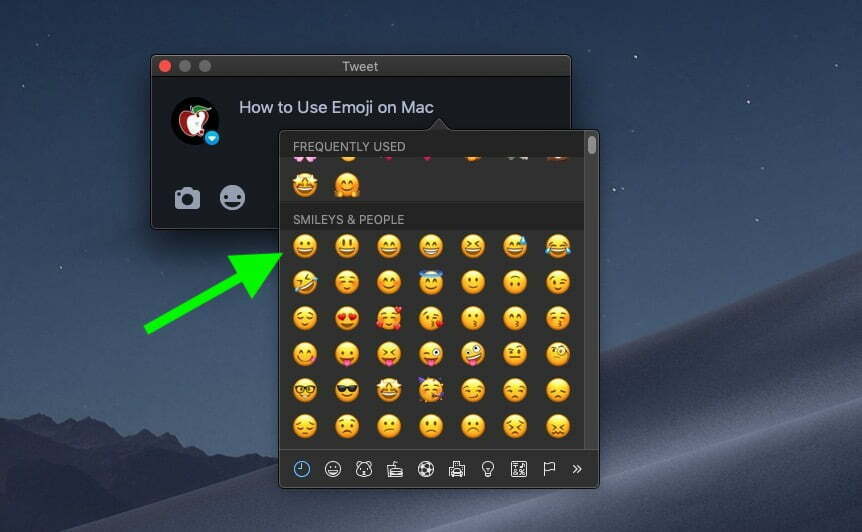
1. In the menu bar in any application, go to “Edit” > “Emoji and Symbols.”
2. Click the button in the window’s upper left corner to access the “Character Viewer.”
3. In the sidebar, choose the “Emoji” section.
4. Choose the emoji you want to favourite and click “Add to Favourites” in the right corner of the window.
Keep bookmarking the emojis you prefer to quickly use in conversations or texts in “Favourites” in the “Emojis and Symbols” viewer.
Adding emojis to your favourites list on Mac can help you quickly access and use the ones you like most. It’s an easy process that takes just a few moments and can make using emojis even easier.

And with so many options available, you’ll be sure to find an emoji or two (or more) that will add extra fun to your chats or messages! Whether you want something funny or serious, adding emojis from your favourites list is a great way to communicate creatively.