
Not sure if your Windows 11 PC is activated? You can check the activation status in less than a minute without installing any additional software.
Windows 11 provides a straightforward way to verify activation through the Settings app. You can also use Command Prompt if you prefer checking the status with a simple command.
Here are the two easiest ways to check Windows 11 activation status.
How to Check Windows 11 Activation in Settings
The Settings app is the easiest method for most users. It also provides additional information about how Windows was activated.
Follow these steps:
- Press Windows + I to open Settings.
- Select System from the left-hand menu.
- Click Activation.
- Check the Activation state section.
- If Windows is properly activated, you should see Active.
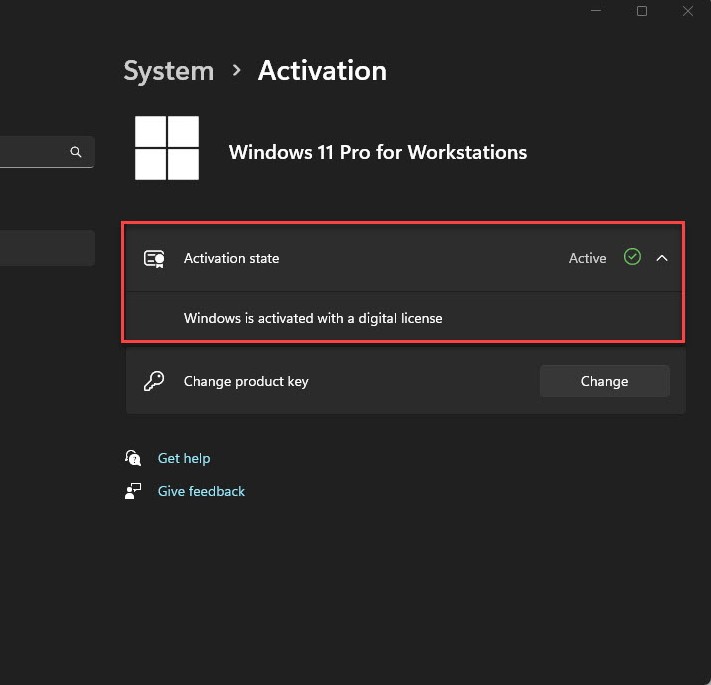
Depending on your Windows license, you may also see information explaining how the system was activated. For example, Windows may indicate that it is activated using a digital license linked to your Microsoft account.
What Does Windows 11 Activation Status Mean?
The activation page tells you whether your current Windows installation has been successfully activated.
If it shows Active, Windows 11 is activated, and you don’t need to take any further action.
If Windows isn’t activated, the same page can provide information about the issue and, in some cases, options for resolving it.
How to Check Windows 11 Activation Using CMD
You can also check Windows 11’s activation status through Command Prompt (CMD). This method is useful if you prefer using Windows commands or need a quick way to verify the status.
Here’s what to do:
- Open Start.
- Search for Command Prompt.
- Open Command Prompt.
- Enter the following command:
slmgr /xpr- Press Enter.
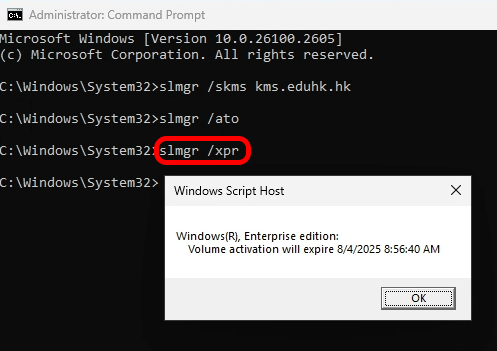
Windows will display a small dialog box showing the activation status of the operating system.
If the installation is permanently activated, the message will indicate that the system is permanently activated. If there is an activation issue, the dialog will provide the relevant status information.
What If Windows 11 Isn’t Activated?
If Windows 11 reports that it isn’t activated, first open Settings → System → Activation and review the information shown there.
You may need to sign in with the Microsoft account associated with your digital license, enter a valid product key, or troubleshoot an activation problem.
If you’re trying to activate Windows through PowerShell, make sure you use a legitimate Windows license and follow Microsoft’s licensing requirements.
Frequently Asked Questions
How Do I Know If Windows 11 Is Activated?
Open Settings → System → Activation and check the activation status. If it shows Active, your Windows 11 installation is activated.
What Command Checks Windows 11 Activation?
Open Command Prompt and run:
slmgr /xprA dialog box will then show the activation status.
Can I Check Windows 11 Activation Without a Product Key?
Yes. You don’t need to know your product key simply to check the current activation status. Windows can indicate whether the installation is activated and whether activation is associated with a digital license.
Is Windows 11 Activated Automatically?
Windows 11 can activate automatically when the PC has a valid digital license or product key and is connected to the internet. The exact activation process depends on how Windows was licensed.
Checking Windows 11 activation status is quick and doesn’t require third-party software.
For the simplest approach, open Settings → System → Activation and look for the activation status. If you prefer the command line, slmgr /xpr provides another quick way to check.
If Windows isn’t activated, the Activation page is the best place to start troubleshooting.