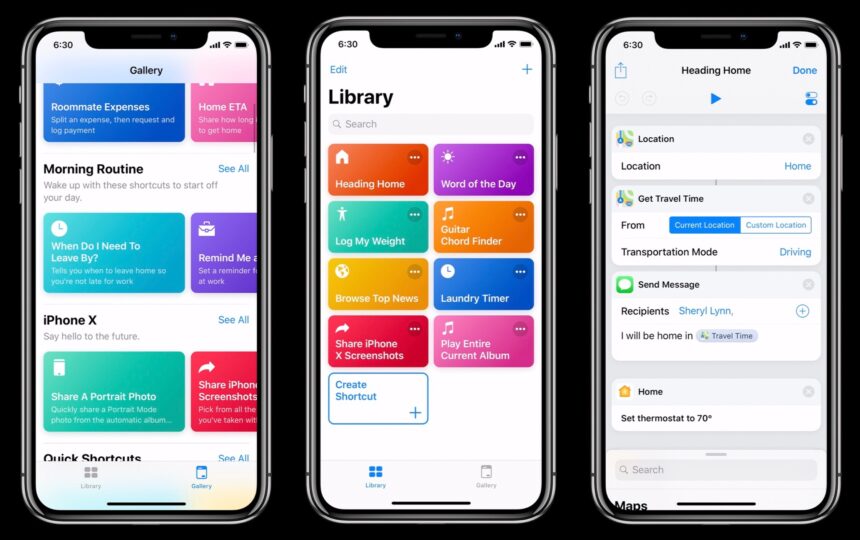
The Shortcuts app is one of the most useful automation tools available on iPhone and iPad. It can automate everyday tasks, launch apps, control smart home devices, and run complex workflows with little or no user input.
However, whenever a shortcut or automation runs, iOS displays a banner notification confirming that it has been executed. While these alerts are intended to keep users informed, they can quickly become distracting, especially if you rely on automations throughout the day.
Although Apple doesn’t provide a dedicated setting to permanently disable Shortcuts notifications, you can temporarily hide them in Screen Time.
Can You Permanently Disable Shortcuts Notifications?
Unfortunately, no.
The Shortcuts app doesn’t appear in the standard Settings > Notifications menu, so you can’t manage its notification preferences like other apps.
Instead, you’ll need to use Screen Time to temporarily disable the notifications. Keep in mind that this method only lasts until your iPhone or iPad is restarted. After a reboot, the notification settings reset, and you’ll need to repeat the process.
How to Turn Off Shortcuts Notifications on iPhone
Before you begin, make sure your iPhone or iPad has displayed at least one Shortcuts notification within the past 24 hours. Otherwise, the app won’t appear in Screen Time’s notification history.
1: Open Screen Time
- Open the Settings app.
- Tap Screen Time.
- If you haven’t enabled Screen Time before, follow the on-screen instructions to set it up.
2: View Notification Activity
- Tap See All Activity.
- Scroll down to the Notifications section.
- Locate Shortcuts in the list.
If you don’t see it immediately, tap Show More to expand the app list.
3: Disable Shortcuts Notifications
Once you’ve selected Shortcuts, you have two options.
To remove only the banner notifications:
- Turn off Banners under the Alerts section.
To disable all Shortcuts notifications:
- Turn off Allow Notifications.
The changes take effect immediately.
Why Do Shortcuts Notifications Return?
This workaround isn’t permanent.
Whenever you restart your iPhone or iPad, iOS automatically restores the original notification settings for the Shortcuts app. After the reboot, wait until another Shortcuts notification appears before the app becomes visible in Screen Time again.
Currently, Apple doesn’t offer an official option to permanently disable Shortcuts notifications.
Reduce Automation Alerts With “Ask Before Running”
If your goal is to make automations less intrusive, another option is to disable Ask Before Running when creating a personal automation.
To do this:
- Open the Shortcuts app.
- Go to the Automation tab.
- Select an existing automation or create a new one.
- Turn off Ask Before Running.
- Confirm your choice.
This allows automations to run automatically without requiring manual confirmation.
Keep in mind that this setting doesn’t remove every notification, but it does eliminate the prompt asking you to approve each automation before it runs.
Why Doesn’t the Shortcuts App Appear in Notification Settings?
Unlike most iPhone apps, Shortcuts doesn’t have its own entry under Settings > Notifications. Apple manages these alerts differently, which is why the Screen Time workaround is currently the only way to temporarily suppress them.
Many users have requested a permanent notification toggle, but Apple has yet to introduce one in iOS.
Shortcuts is one of the most powerful productivity features on iPhone and iPad, but its persistent banner notifications can interrupt an otherwise seamless automation experience.
While Apple doesn’t currently allow users to permanently disable these alerts, the Screen Time feature offers a temporary solution to hide banner notifications until the next device restart. If you frequently use automations, combining this workaround with the Ask Before Running option can significantly reduce interruptions and make your workflows feel much smoother.