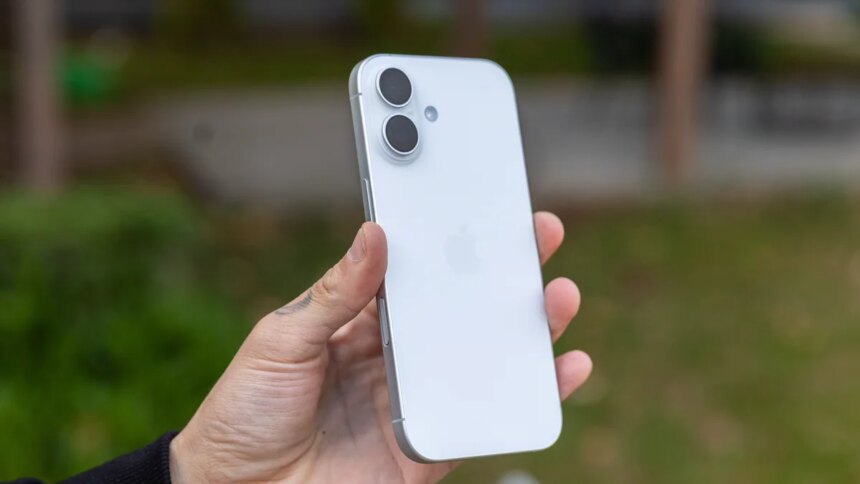
Resetting an iPhone erases the data stored on the device and returns it to its factory settings. You may need to do this before selling or trading in your iPhone, or when persistent software problems such as freezes and bugs are difficult to resolve.
Before you erase the device, however, make sure your important data is backed up. Photos, messages, contacts, app data, passwords, and other information may not be recoverable after a reset unless they are already synced or included in a backup.
Tested and updated in August 2026 on the latest version of iOS.
What to Do Before Resetting Your iPhone
The most important step is to create a recent backup.
Before proceeding, also check:
- Your photos and videos are synced or backed up.
- Your contacts, calendars, and notes are synced with the correct account.
- Important passwords are available through your password manager.
- Your two-factor authentication codes or authentication apps are accessible.
- WhatsApp has a recent chat backup.
- If you’re selling the iPhone, check its battery health before erasing it. You’ll need to set up the phone again to access this information after a reset.
If you’re moving from an iPhone to an Android phone, make sure any data that requires a separate transfer is moved before erasing the iPhone.
How to Back Up an iPhone With iCloud
iCloud is the easiest way to back up your iPhone directly.
- Open Settings.
- Tap your Apple Account at the top.
- Select iCloud.
- Tap iCloud Backup.
- Make sure Back Up This iPhone is enabled.
- Tap Back Up Now.
Wait until the backup finishes before resetting the phone.
If you don’t have Wi-Fi, some iPhone models and plans allow backups over a cellular connection. You can enable the relevant cellular backup option in the iCloud Backup settings. Keep in mind that a large backup can use a significant amount of mobile data.
How to Back Up iPhone Photos and Videos
Photos and videos can be synced separately with iCloud Photos.
- Open Settings.
- Tap your Apple Account.
- Select iCloud.
- Tap Photos.
- Turn on Sync this iPhone.
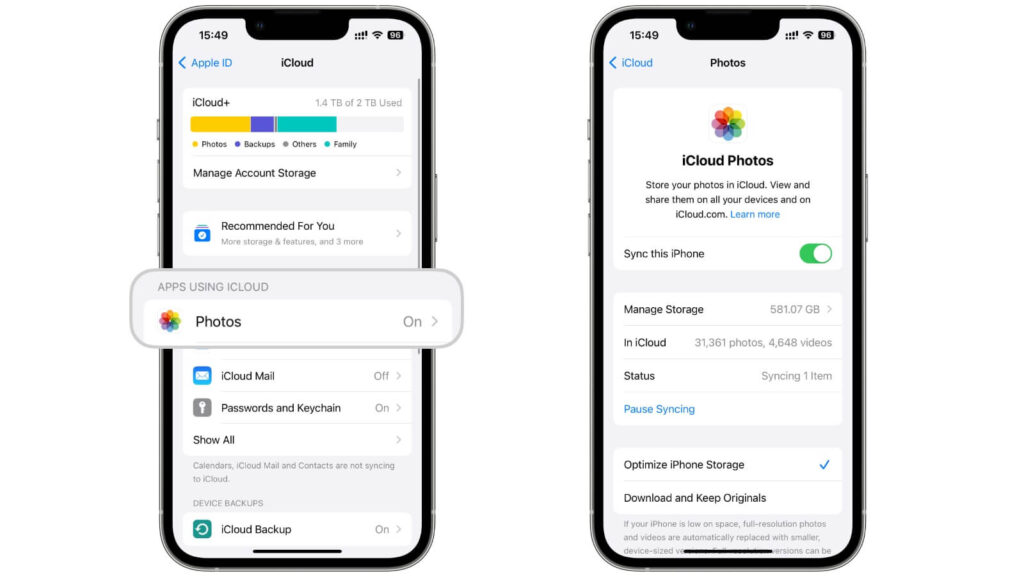
Make sure the synchronization has completed before erasing the device.
You can also use services such as Google Photos or another cloud-storage provider. If your photos are stored with another service, they may not be part of your iCloud backup.
What to Do If iCloud Storage Is Full
An iCloud backup cannot complete if there isn’t enough available storage.
You have several options:
- Delete unnecessary files or old backups from iCloud.
- Upgrade your iCloud storage with an iCloud+ plan.
- Use a computer to create a local backup.
- Move photos and videos to another cloud-storage service.
If you’re preparing the iPhone for sale, don’t delete your only copy of important files simply to make room for a backup. Confirm that your data exists somewhere else first.
How to Back Up an iPhone on Windows
On Windows, you can use Apple’s Apple Devices app to create a local backup.
- Connect your iPhone to the PC using a USB cable.
- Open Apple Devices.
- Select your iPhone.
- Open the General section.
- Choose the option to back up your iPhone.
- Click Back Up Now.
You can also enable Encrypt local backup if you want to protect the backup with a password.
An encrypted local backup can contain additional sensitive information that isn’t included in an unencrypted backup, so keep the backup password somewhere safe.
How to Back Up an iPhone on a Mac
If your Mac is running macOS Catalina or later, you can use Finder.
- Connect the iPhone to your Mac with a USB cable.
- Open Finder.
- Select your iPhone from the sidebar.
- Open the General tab.
- Select Back up all of the data on your iPhone to this Mac.
- Enable encrypted backup if required.
- Click Back Up Now.
Wait for the backup to finish before resetting your iPhone.
Do You Need to Back Up WhatsApp Separately?
It’s a good idea to check your WhatsApp backup before erasing the iPhone.
WhatsApp has its own chat backup system, which can store your conversations and media in iCloud.
To create a WhatsApp backup:
- Open WhatsApp.
- Open Settings.
- Tap Chats.
- Select Chat Backup.
- Tap Back Up Now.
- Wait for the backup to complete.
If you’re moving from iPhone to Android, don’t rely solely on an iCloud WhatsApp backup. Check WhatsApp’s supported transfer method for moving your chats to the new platform before resetting the iPhone.
How to Reset an iPhone
Once you’re certain that your important information is backed up, you can erase the device.
- Open Settings.
- Tap General.
- Scroll down and select Transfer or Reset iPhone.
- Tap Erase All Content and Settings.
- Tap Continue and follow the instructions on screen.
- Enter your iPhone passcode or Apple Account password if requested.
The iPhone will erase its contents and restart at the initial setup screen.
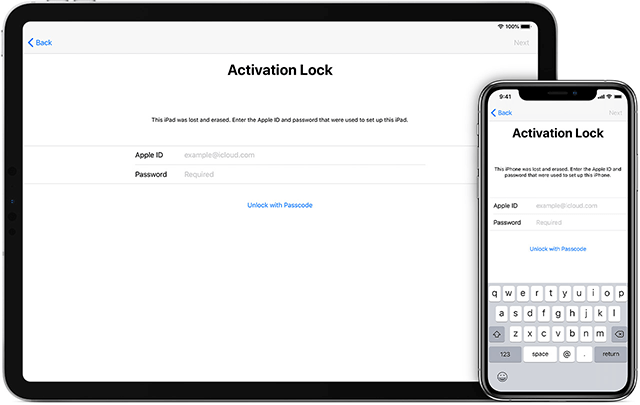
If you’re selling or giving away the phone, don’t set it up again after the reset. Leave it at the setup screen so the next owner can configure it with their own Apple Account.
Does Resetting an iPhone Delete Everything?
A factory reset removes the personal data and settings stored on the iPhone and returns the device to its factory state.
However, data that was already synchronized with services such as iCloud Photos, iCloud Contacts, or other cloud accounts is not necessarily deleted from those services simply because you erased the iPhone.
This distinction is important. Resetting the phone removes its local data, but it doesn’t mean that everything associated with your Apple Account or other cloud services has been permanently deleted.
Can You Recover Data After Resetting an iPhone?
If you erase an iPhone without a backup or cloud synchronization, recovering the deleted information may not be possible.
If you created a recent backup, you can restore your data during the iPhone’s setup process.
This is why creating and verifying a backup before resetting the phone is so important.
How to Restore an iCloud Backup
After erasing the iPhone, turn it on and begin the setup process.
When you reach the data-transfer or restore screen:
- Choose Restore from iCloud Backup.
- Sign in with your Apple Account.
- Select the appropriate backup.
- Wait for the restoration process to complete.
The time required depends on the size of the backup and your internet connection.
How to Restore an iPhone Backup on Windows
If you created a local backup using Apple Devices:
- Connect the erased iPhone to your Windows PC.
- Open Apple Devices.
- Select the iPhone.
- Choose Restore Backup.
- Select the backup you want to use.
- Start the restoration process.
If the backup is encrypted, you’ll need the password that was created when the backup was made.
How to Restore an iPhone Backup on Mac
For a Finder backup:
- Connect the iPhone to your Mac.
- Open Finder.
- Select the iPhone from the sidebar.
- Click Restore Backup.
- Choose the backup you want to restore.
- Enter the backup password if required.
What Does an iCloud Backup Store?
An iCloud device backup can include information and settings that aren’t already synchronized separately with iCloud.
Depending on your configuration, this can include:
- App data
- Device settings
- Home Screen layout
- Messages that aren’t already synced with iCloud
- Apple Watch backup data
- Other information stored locally on the device
Some information is already synchronized with iCloud and therefore doesn’t need to be duplicated in a device backup.
Are Contacts, Notes, and Calendars Included in an iCloud Backup?
It depends on how they’re stored.
If Contacts, Notes, Calendars, or other information is already syncing with iCloud, that data is stored separately in iCloud rather than being duplicated in the device backup.
If your contacts are associated with a Google, Microsoft, or other account, they remain with that service instead.
Before resetting your iPhone, open the relevant apps or account settings and confirm that your important information is syncing correctly.
What Happens to Face ID, Touch ID, and Apple Pay Data?
Some sensitive information is deliberately excluded from backups.
For example, Face ID and Touch ID data is not backed up, and Apple Pay card information is not transferred as part of a normal device backup.
These security credentials must be set up again when you configure the iPhone.
How to Delete an iCloud Backup
If you no longer need an old iPhone backup, you can remove it from iCloud.
The exact menu names can vary slightly between iOS versions, but the general path is:
- Open Settings.
- Tap your Apple Account.
- Select iCloud.
- Tap Storage or Manage Account Storage.
- Select Backups.
- Choose the device backup you want to remove.
- Delete the backup.
Be careful when deleting backups. Make sure you no longer need the backup before removing it.
What Is iCloud?
iCloud is Apple’s cloud service for storing and synchronizing information across Apple devices.
Depending on the features you use, iCloud can sync photos, contacts, calendars, notes, files, passwords, messages, and other information. It can also store iPhone and iPad backups.
You can access iCloud services from Apple devices or through a web browser by signing in to iCloud.com with your Apple Account.
Do You Need to Reset Your Old iPhone Before Transferring Data?
No.
If you’re moving to another iPhone, you can transfer your information directly during the setup of the new device or restore it from an iCloud or computer backup.
Do not erase your old iPhone until you’ve confirmed that your important data has successfully transferred.
Once everything is verified on the new device, you can erase the old iPhone before selling, trading in, or giving it away.
Why Is Some Data Missing From My Backup?
Not everything on an iPhone is stored inside the device backup.
Information that is already synchronized with iCloud or another online account can be stored separately. For example, iCloud Photos and iCloud Contacts don’t need to be duplicated in an iCloud device backup.
Similarly, security information such as Face ID, Touch ID, and Apple Pay credentials isn’t included in standard backups.
If something appears to be missing after restoring an iPhone, first check whether that information is synced through iCloud or another account.
Resetting an iPhone is straightforward, but the preparation matters more than the reset itself.
Before choosing Erase All Content and Settings, create a recent backup, confirm that your photos and contacts are synchronized, check WhatsApp if you use it, and make sure you can access your important passwords and authentication methods.
If you’re selling or trading in the device, verify that your data has been transferred successfully before erasing it.
Once everything is backed up, the reset process takes only a few steps:
Settings → General → Transfer or Reset iPhone → Erase All Content and Settings
After the process finishes, the iPhone will return to its setup screen, ready for a fresh configuration or a new owner.