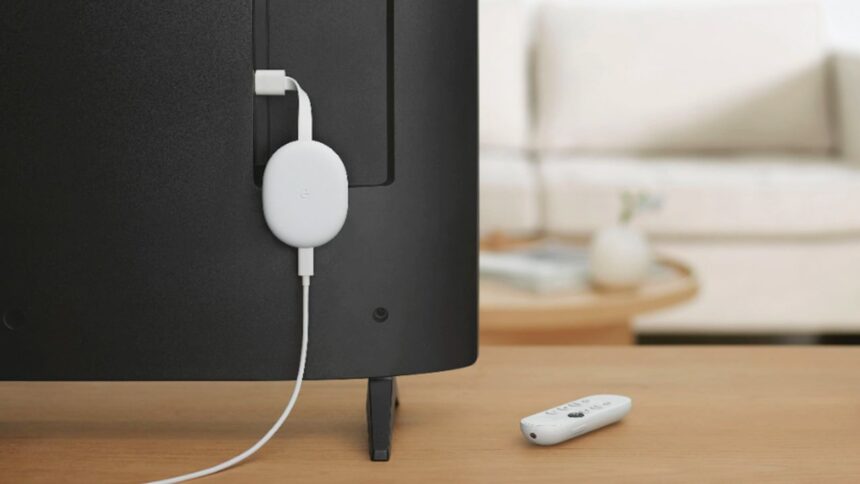
Google Chromecast makes it easy to stream movies, TV shows, music, and more from your smartphone, tablet, or computer directly to your television. However, when things go wrong, you may see the frustrating message:
“Sorry, Chromecast encountered a network error.”
This error usually appears when Chromecast loses its Wi-Fi connection or can no longer communicate with the device you’re streaming from. The good news is that the problem is often easy to fix.
In this guide, i’ll explain the most common causes of Chromecast network errors and the steps you can take to get your device working again.
Why Does Chromecast Show a Network Error?
Chromecast relies on a stable internet connection to communicate with your phone, tablet, and computer, as well as with streaming services.
Unlike many smart devices, Chromecast does not always reconnect automatically after a network interruption. If the connection drops unexpectedly, the device may stop communicating entirely until the issue is resolved.
Common causes include:
- Wi-Fi connection problems
- Internet outages or slow speeds
- Devices connected to different networks
- Issues with a streaming app
- Chromecast software glitches
- VPN-related connectivity conflicts
Let’s go through the most effective troubleshooting methods.
1. Check Your Internet Connection
The first step is to make sure your internet connection is working properly.
Restart Your Router
A simple router restart can often resolve temporary network issues.
- Unplug your router.
- Wait 30 seconds.
- Plug it back in.
- Allow it to fully reconnect.
Test Your Internet Connection
After restarting your router:
- Open a website on your phone or computer.
- Run an internet speed test.
- Verify that other devices can access the internet.
If your internet connection is unstable, Chromecast may struggle to maintain a connection.
2. Make Sure All Devices Are on the Same Wi-Fi Network
Chromecast requires both the casting device and the Chromecast itself to be connected to the same Wi-Fi network.
This issue often occurs after:
- Changing your Wi-Fi password
- Switching internet providers
- Adding a new router
- Connecting devices to a guest network
Open the Google Home app and confirm that your Chromecast and streaming device are connected to the same network.
3. Reconnect Chromecast to Wi-Fi
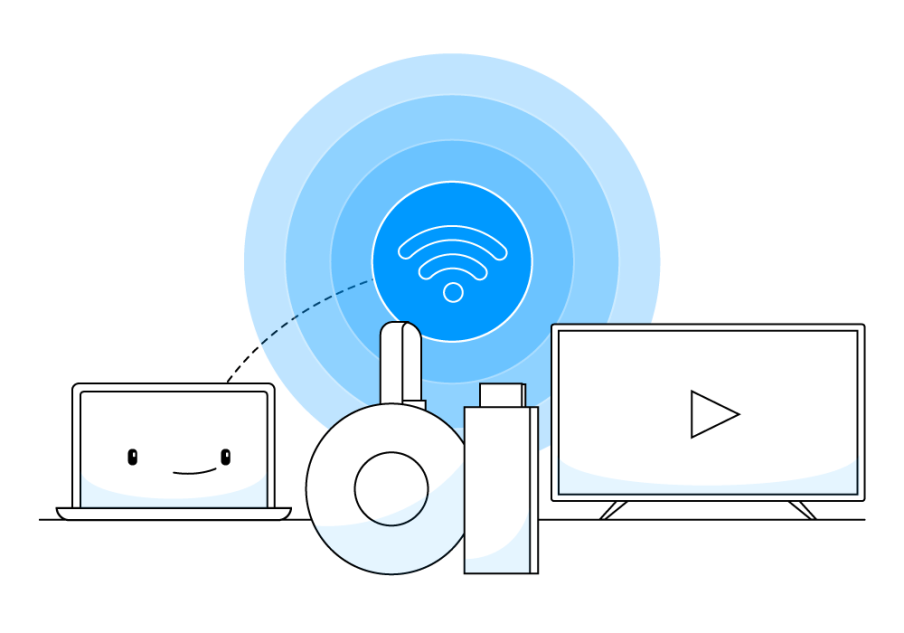
If Chromecast lost access to your network, reconnecting it may solve the problem.
How to Reconnect Chromecast
- Open the Google Home app.
- Select your Chromecast device.
- Tap Settings.
- Select Device Information.
- Tap Wi-Fi.
- Choose Forget Network.
- Confirm by selecting Forget Network.
Next:
- Return to the Google Home home screen.
- Tap the + icon.
- Select Set Up Device.
- Choose New Device.
- Follow the setup instructions.
Once setup is complete, try streaming again.
4. Improve Chromecast’s Wi-Fi Signal
Weak Wi-Fi coverage can trigger network errors, especially if your Chromecast is located behind a television or far from the router.
Try these solutions:
- Move the router closer to the TV.
- Reduce interference from other electronics.
- Connect to the 2.4 GHz Wi-Fi band for better range.
- Use the HDMI extender included with older Chromecast models.
The extender allows the Chromecast to sit outside the TV’s housing, which can improve signal reception.
5. Check for VPN Issues
VPN services can interfere with Chromecast connectivity.
If you’re using a VPN:
- Verify that your internet speed is fast enough for streaming.
- Ensure both Chromecast and your casting device are connected through the same VPN network.
- Temporarily disable the VPN to test whether it is causing the issue.
A mismatch between VPN connections can prevent Chromecast from communicating properly.
6. Test Different Streaming Apps
Sometimes the issue isn’t with Chromecast at all.
A streaming service may be experiencing temporary outages or bugs.
To identify the source:
- Open a different app.
- Try casting a video from another service.
- Check whether the error still appears.
For example:
- If Netflix fails but YouTube works, Netflix may be experiencing issues.
- If every app fails, the problem is more likely related to Chromecast or your network.
7. Factory Reset Your Chromecast
If none of the previous solutions work, a factory reset may resolve software-related issues.
Reset Using the Chromecast Device
- Make sure Chromecast is plugged in.
- Press and hold the small button on the device.
- Continue holding for approximately 20 to 25 seconds.
- Wait until the TV displays a factory reset message.
The device will restart and return to its original settings.
Reset Using Google Home
- Open the Google Home app.
- Select your Chromecast.
- Tap the three-dot menu.
- Choose Factory Reset.
- Confirm your selection.
After the reset, set up Chromecast again as a new device.
How to Prevent Chromecast Network Errors
To reduce future connectivity issues:
- Keep Chromecast firmware updated.
- Use a strong and stable Wi-Fi connection.
- Avoid frequent network changes.
- Restart your router occasionally.
- Keep streaming apps updated.
- Minimize interference from nearby devices.
The “Chromecast encountered a network error” message is usually caused by connectivity issues between your Chromecast, your Wi-Fi network, and the casting device. In most cases, restarting your router, reconnecting Chromecast to Wi-Fi, or performing a factory reset will resolve the issue.
If the error continues after trying these solutions, the problem may be related to your router settings, internet provider, or the streaming service itself.