Umlaut letters are commonly used in several European languages, especially German, Swedish, Finnish, Hungarian, and Albanian. While many modern keyboards don’t include dedicated umlaut keys, these special characters are easy to type once you know the correct keyboard shortcuts or Alt codes.
The two dots (¨) placed above a letter are known as an umlaut or diaeresis, depending on the language and its grammatical usage. In German, for example, the umlaut changes the pronunciation and sometimes even the meaning of a word. That’s why typing these letters correctly is important when writing names, documents, emails, academic papers, or multilingual content.
In this guide, you’ll learn how to type every common umlaut letter, including Ä, Ö, Ü, Ë, Ï, Ÿ and their lowercase versions. You’ll also find complete Windows Alt codes, Mac keyboard shortcuts, quick copy-and-paste characters, and other built-in tools that make inserting umlaut letters quick and effortless.
What is a Umlaut?
An umlaut is a diacritical mark represented by two dots (¨) placed above a vowel. It changes the letter’s pronunciation and, in some languages, can completely alter a word’s meaning.
Although the terms umlaut and diaeresis are often used interchangeably because they share the same symbol, they serve different linguistic purposes. An umlaut typically indicates a vowel shift, while a diaeresis shows that two adjacent vowels should be pronounced separately.
The most commonly used umlaut letters include:
Lowercase
ä ö ü ë ï ÿ
Uppercase
Ä Ö Ü Ë Ï Ÿ
These letters appear in many languages, including:
- German: Ä, Ö, Ü
- Swedish: Ä, Ö
- Finnish: Ä, Ö
- Hungarian: Ü
- Albanian: Ë
- French and Dutch names: Ë, Ï, Ÿ
If you frequently work with international documents or communicate in multiple languages, knowing how to type these characters correctly can save time and prevent spelling errors.
Umlaut Letters Copy and Paste
If you only need an umlaut letter occasionally, copying and pasting is the quickest solution. Simply copy the character you need from the list below and paste it into your document, email, spreadsheet, presentation, or web form.
Lowercase Umlaut Letters
ä ö ü ë ï ÿ
Uppercase Umlaut Letters
Ä Ö Ü Ë Ï Ÿ
These Unicode characters work across virtually every modern platform, including:
- Microsoft Word
- Microsoft Excel
- PowerPoint
- Google Docs
- Google Sheets
- Gmail and Outlook
- Web browsers
- Social media platforms
- Windows, macOS, Android, and iPhone
Copy and paste is also the easiest option if your keyboard doesn’t support Alt codes or special character shortcuts.
Windows Alt Codes for Umlaut Letters
Windows users can type umlaut letters using Alt codes, which work in most desktop applications such as Microsoft Word, Excel, PowerPoint, Notepad, and many other text editors.
To use an Alt code, hold the Alt key and enter the corresponding number using your keyboard’s numeric keypad.
| Letter | Description | Windows Alt Code |
|---|---|---|
| Ä | Uppercase A with umlaut | Alt + 0196 |
| ä | Lowercase a with umlaut | Alt + 0228 |
| Ë | Uppercase E with umlaut | Alt + 0203 |
| ë | Lowercase e with umlaut | Alt + 0235 |
| Ï | Uppercase I with umlaut | Alt + 0207 |
| ï | Lowercase i with umlaut | Alt + 0239 |
| Ö | Uppercase O with umlaut | Alt + 0214 |
| ö | Lowercase o with umlaut | Alt + 0246 |
| Ü | Uppercase U with umlaut | Alt + 0220 |
| ü | Lowercase u with umlaut | Alt + 0252 |
| Ÿ | Uppercase Y with umlaut | Alt + 0159 |
| ÿ | Lowercase y with umlaut | Alt + 0255 |
Tip: Alt codes require a physical numeric keypad. If you’re using a laptop without one, you can use Character Map, copy and paste the characters, or follow the alternative methods covered later in this guide.
How to Type Umlaut Letters on Windows
Windows offers several built-in ways to type umlaut letters, making it easy to insert characters like ä, ö, ü, ë, ï, and ÿ into documents, emails, or spreadsheets. The most common method is using Alt codes, but you can also use Character Map or the Windows Symbol panel if your keyboard doesn’t have a numeric keypad.
If you frequently type in German or other languages that use umlauts, learning these methods can save time and eliminate the need to copy and paste special characters from another source.
1. Use Alt Codes
Alt codes are the quickest way to type umlaut letters on a Windows PC. This method works in most desktop applications, including Microsoft Word, Excel, PowerPoint, Notepad, Outlook, and many third-party text editors.
Steps to Type Umlaut Letters Using Alt Codes
- Open the application where you want to insert the umlaut letter.
- Place the cursor where the character should appear.
- Turn on Num Lock if it isn’t already enabled.
- Press and hold the Alt key.
- While holding Alt, type the corresponding four-digit code using the numeric keypad.
- Release the Alt key to insert the character.
Examples
| Character | Alt Code |
|---|---|
| ä | Alt + 0228 |
| ö | Alt + 0246 |
| ü | Alt + 0252 |
| Ä | Alt + 0196 |
| Ö | Alt + 0214 |
| Ü | Alt + 0220 |
For example:
- Hold Alt and type 0252 to insert ü.
- Hold Alt and type 0246 to insert ö.
- Hold Alt and type 0196 to insert Ä.
Important: Alt codes only work with the numeric keypad. The number keys above the alphabet won’t produce these characters. If you’re using a laptop without a dedicated numpad, you may need to enable the embedded numeric keypad using Fn + Num Lock, depending on your keyboard model.
2. Use Character Map
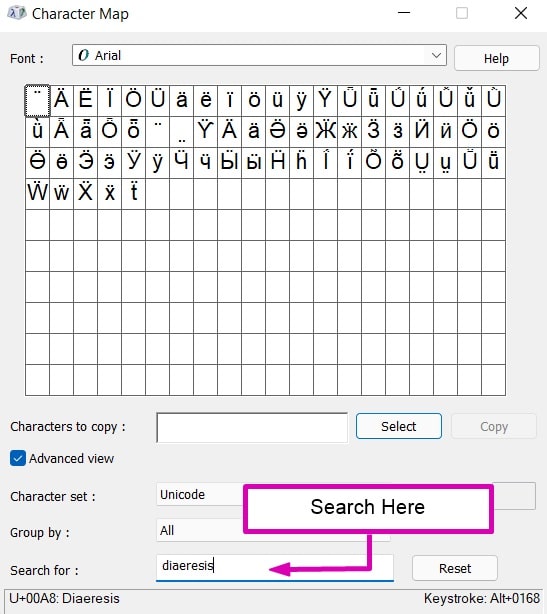
If your keyboard doesn’t support Alt codes or you only need an umlaut letter occasionally, Windows Character Map provides a simple alternative.
Character Map is a built-in utility that lets you browse thousands of Unicode characters and copy them into any application.
- Open the Start menu.
- Search for Character Map.
- Launch the application.
- Choose your preferred font, such as Arial or Calibri.
- Scroll through the character list or enable Advanced View to search more easily.
- Select the umlaut letter you want.
- Click Select, then Copy.
- Paste the character into your document using Ctrl+V.
This method works in nearly every Windows application and is especially useful if you don’t remember Alt codes.
3. Use the Windows Emoji and Symbol Panel
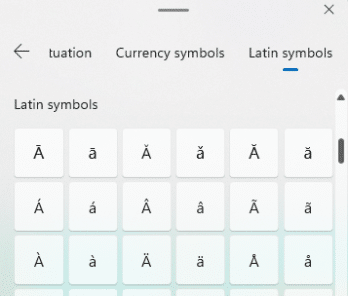
Windows 10 and Windows 11 include a built-in symbol panel that lets you quickly insert accented characters without memorizing keyboard shortcuts.
Although it’s primarily designed for emojis, it also includes a wide collection of symbols and special characters.
- Place the cursor where you want to insert the character.
- Press Windows + . (period) or Windows + ; (semicolon).
- Open the Symbols section.
- Browse or search for the required umlaut letter.
- Click the character to insert it.
This method is particularly useful in apps where Alt codes don’t work, such as certain web forms or messaging applications.
How to Type Umlaut Letters on Mac
Typing umlaut letters on macOS is much easier than on Windows because Apple includes a dedicated keyboard shortcut for accented characters. Once you learn the shortcut, you can type umlaut letters in just two keystrokes without remembering numeric codes.
The shortcut works throughout macOS, including Safari, Pages, Microsoft Office, Notes, Mail, Google Docs, and most other applications.
1. Option + U Keyboard Shortcut
The Option + U shortcut is the fastest way to type umlaut letters on a Mac.
Instead of inserting the letter immediately, macOS first activates the umlaut accent. You then press the desired vowel to complete the character.
- Place the cursor where you want the character.
- Press Option (⌥) + U.
- Release both keys.
- Press the letter you want to modify.
Examples
| Shortcut | Result |
|---|---|
| Option + U → A | ä |
| Option + U → O | ö |
| Option + U → U | ü |
| Option + U → E | ë |
| Option + U → I | ï |
| Option + U → Y | ÿ |
To type uppercase letters, simply hold Shift while pressing the final letter.
Examples
| Shortcut | Result |
|---|---|
| Option + U → Shift + A | Ä |
| Option + U → Shift + O | Ö |
| Option + U → Shift + U | Ü |
Because this shortcut is built directly into macOS, it works consistently across almost every application without requiring additional software or keyboard layouts.
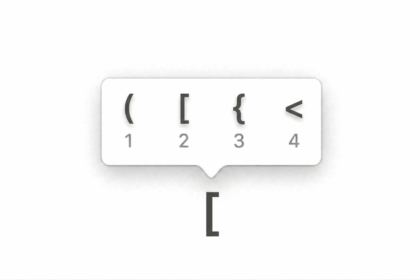
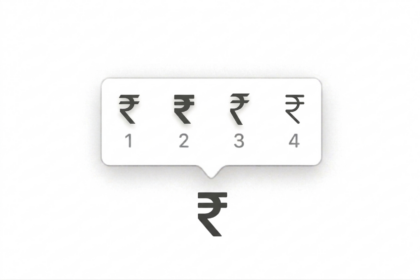
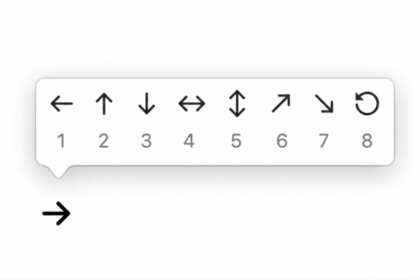
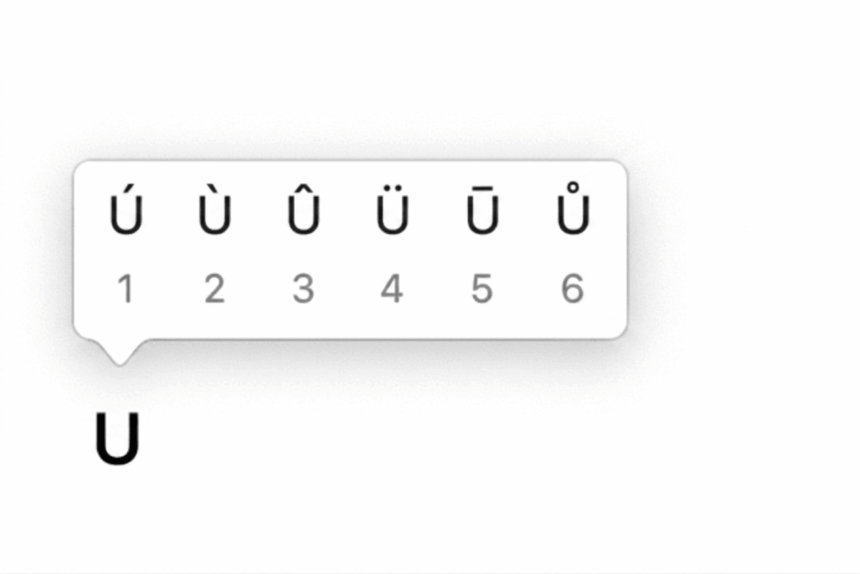
2. Press and Hold the Letter
Modern versions of macOS also include an accent selection menu similar to the one found on smartphones.
Instead of remembering shortcuts, you can simply hold down the vowel key until a list of accented characters appears.
- Press and hold a vowel such as A, E, I, O, U, or Y.
- Wait for the accent menu to appear.
- Click the desired umlaut character or press the matching number on your keyboard.
This method is ideal for occasional typing because it doesn’t require you to memorize keyboard shortcuts.
How to Type Umlaut Letters in Microsoft Word
Microsoft Word includes several built-in methods for inserting umlaut letters, making it easy to type characters like ä, ö, ü, ë, ï, and ÿ without switching keyboard layouts. Whether you’re writing a German document, editing multilingual text, or working with international names, Word provides multiple ways to add these special characters.
The best method depends on how often you use umlaut letters. If you only need them occasionally, the Insert Symbol menu is the easiest option. For regular use, keyboard shortcuts offer a much faster workflow.
1. Use the Word Keyboard Shortcut
Microsoft Word includes a dedicated shortcut for adding umlaut accents. Instead of memorizing Alt codes, you can use this built-in shortcut to insert umlaut letters in just a few keystrokes.
- Open your Word document.
- Place the cursor where you want the umlaut letter.
- Press Ctrl + Shift + ; together.
- Release all keys.
- Type the vowel you want.
Word automatically converts it into its umlaut version.
Examples
| Keyboard Shortcut | Result |
|---|---|
| Ctrl + Shift + ; → A | ä |
| Ctrl + Shift + ; → O | ö |
| Ctrl + Shift + ; → U | ü |
| Ctrl + Shift + ; → E | ë |
| Ctrl + Shift + ; → I | ï |
To insert uppercase letters, hold Shift while typing the vowel.
For example:
- Ctrl + Shift + ;, then Shift + A → Ä
- Ctrl + Shift + ;, then Shift + O → Ö
- Ctrl + Shift + ;, then Shift + U → Ü
Note: Depending on your keyboard layout, you may need to press Ctrl + Shift + : instead of the semicolon key.
2. Insert Umlaut Letters Using the Symbol Menu
If you don’t remember keyboard shortcuts, Microsoft Word’s Symbol tool lets you browse and insert special characters with just a few clicks.
- Open your Word document.
- Place the cursor where you want the character.
- Click the Insert tab.
- Select Symbol.
- Click More Symbols.
- Choose Latin-1 Supplement from the Subset menu or scroll through the character list.
- Select the umlaut letter.
- Click Insert.
This method works in both the Windows and Mac versions of Microsoft Word.
Use Character Map and the Windows Symbol Panel
If your keyboard doesn’t support Alt codes or you prefer a visual interface, Windows includes two built-in tools for inserting umlaut letters.
Character Map
Character Map gives you access to thousands of Unicode characters supported by your installed fonts.
- Open the Start menu.
- Search for Character Map.
- Launch the application.
- Choose your preferred font.
- Find the umlaut letter you need.
- Click Select.
- Click Copy.
- Paste it into your document using Ctrl + V.
Windows Emoji and Symbol Panel
Windows 10 and Windows 11 also include a built-in Symbols panel.
- Place the cursor where you want the letter.
- Press Windows + . (period) or Windows + ; (semicolon).
- Open the Symbols section.
- Locate the umlaut character.
- Click it to insert it.
This feature is particularly useful in messaging apps, web browsers, and programs where Alt codes may not work.
Frequently Asked Questions About Umlaut Letters
If you’re new to typing umlaut letters, you may run into a few questions along the way. Below are answers to the most common questions users have about umlauts, keyboard shortcuts, and Alt codes.
Are Umlaut and Diaeresis the Same Thing?
Although they look identical, umlaut and diaeresis are not exactly the same.
Both use the same two-dot symbol (¨) above a letter, but they serve different purposes depending on the language.
An umlaut changes the pronunciation of a vowel. It is most commonly used in German, where letters like ä, ö, and ü represent different vowel sounds than their unaccented versions.
A diaeresis, on the other hand, indicates that two adjacent vowels should be pronounced separately rather than as a single sound. You’ll often see it in languages such as French, Dutch, and Albanian, as well as in some proper names.
In everyday typing guides, the term umlaut is commonly used to describe both because they share the same symbol.
How Do I Type the German Letter ß?
The ß character, also known as the Eszett or Sharp S, is often used alongside umlaut letters in German. Although it isn’t an umlaut itself, many people search for it while looking for German keyboard shortcuts.
Windows
Hold Alt and type 0223 using the numeric keypad.
Result: ß
Mac
Press Option + S.
Result: ß
There is also an uppercase version (ẞ), but it appears much less frequently in everyday writing.
Why Aren’t My Alt Codes Working?
If Alt codes don’t produce the expected character, one of the following issues is usually the cause.
Your Keyboard Doesn’t Have a Numeric Keypad
Standard Alt codes require a dedicated numeric keypad. The number keys across the top of the keyboard won’t work.
If you’re using a laptop, you may need to enable the embedded numeric keypad using Fn + Num Lock, depending on your device.
Num Lock Is Disabled
Before entering an Alt code, make sure Num Lock is turned on. Without it, Windows won’t recognize the numeric input correctly.
The Application Doesn’t Support Alt Codes
Most desktop applications support Alt codes, but some browser search fields and web applications do not.
If this happens, you can:
- Copy and paste the character.
- Use Windows Character Map.
- Use the Windows Symbols panel.
- Insert the character using Microsoft Word’s Symbol tool.
Can I Type Umlaut Letters Without Using Alt Codes?
Yes. In fact, there are several easier methods depending on your device.
You can:
- Use Option + U on Mac.
- Use the built-in shortcut in Microsoft Word.
- Insert characters from Insert > Symbol.
- Copy and paste the required letter.
- Switch to a German or US International keyboard layout if you frequently type accented characters.
If you regularly write in German or another language that uses umlauts, changing your keyboard layout is often the most convenient long-term solution.
Do Umlaut Letters Work in Google Docs?
Yes. Google Docs fully supports Unicode characters, including all umlaut letters.
The easiest ways to insert them are:
- Copy and paste the required character.
- Go to Insert > Special characters.
- Search for the letter by typing terms such as umlaut, a umlaut, o umlaut, or u umlaut.
Can I Use Umlaut Letters in Excel and PowerPoint?
Absolutely. Microsoft Excel and PowerPoint support the same character input methods as Word.
You can use:
- Windows Alt codes
- Mac keyboard shortcuts
- Insert > Symbol
- Copy and paste
These methods work inside spreadsheet cells, presentation titles, bullet points, charts, and text boxes.
Which Languages Use Umlaut Letters?
Umlaut letters appear in several languages around the world. Some of the most common include:
- German: Ä, Ö, Ü
- Swedish: Ä, Ö
- Finnish: Ä, Ö
- Hungarian: Ü
- Albanian: Ë
- French and Dutch: Ë, Ï, and occasionally Ÿ in names and borrowed words
Each language uses these letters according to its own spelling and pronunciation rules.
Typing umlaut letters is easier than it might seem once you know the available shortcuts for your device. Windows users can quickly insert characters using Alt codes, while Mac users can rely on the simple Option + U keyboard shortcut. Microsoft Word, Excel, and PowerPoint also include built-in tools for inserting accented characters, making them accessible even if you don’t remember keyboard shortcuts.
If you only need an umlaut character occasionally, copying and pasting is the fastest solution. For frequent use, switching to an international or language-specific keyboard layout can make typing accented letters much more convenient.
- Type N With Accent Marks on Keyboard
- Type Phone Symbols on Keyboard
- What is the difference between emoji and emoticon
- What is Kaomoji