Adding an N with accent is essential when writing in languages such as Spanish, Polish, Czech, and Slovak. Whether you’re typing ñ in niño, ń in a Polish name, or ň in Czech text, using the correct accented letter ensures accurate spelling and pronunciation.
If you’ve searched for “N with accent”, “N with accent copy and paste”, or “How to type ñ on a keyboard”, you’ve come to the right place. While most users are looking for the Spanish letter ñ, there are several accented versions of the letter N, each used in different languages and writing systems.
In this guide, you’ll find everything you need in one place. You can quickly copy accented N letters, learn Windows Alt codes, use Unicode shortcuts in Microsoft Word, and discover the easiest ways to type them on Mac, Google Docs, Chromebooks, iPhone, and Android devices.
Whether you’re writing a document, completing a school assignment, creating multilingual content, or simply need the correct character for a name or word, this guide provides the fastest and most reliable methods to type N with an accent on any device.
N with Accent Copy and Paste
Need an accented N right away? Simply copy one of the characters below and paste it wherever you need it.
ñ Ñ ń Ń ň Ň ǹ Ǹ
These accented letters work in Microsoft Word, Google Docs, Excel, PowerPoint, web browsers, emails, and most modern applications that support Unicode.
What Is an N with accent?
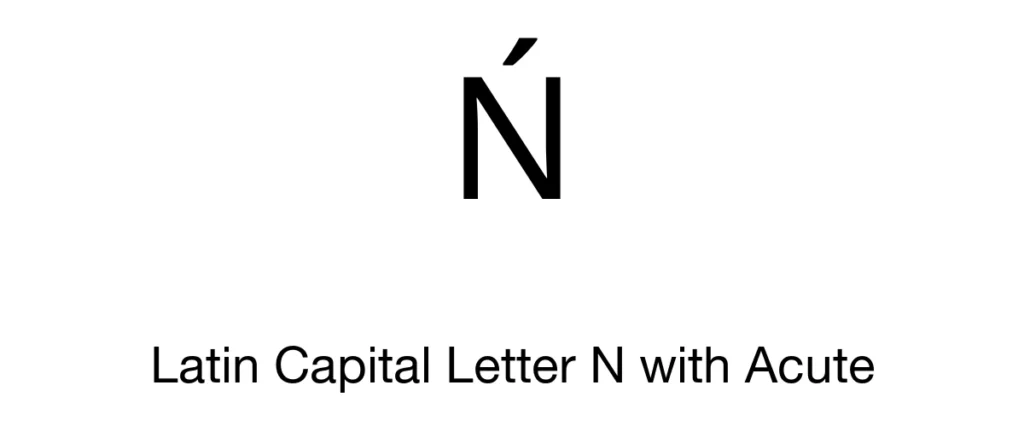
An N with accent is the letter N combined with a diacritical mark that changes its pronunciation or distinguishes it from the standard letter. Different languages use different accented forms of N, each with its own purpose.
The most commonly used accented N letters include:
| Letter | Name | Commonly Used In |
|---|---|---|
| ñ | N with Tilde | Spanish, Galician |
| ń | N with Acute | Polish |
| ň | N with Caron | Czech, Slovak |
| ǹ | N with Grave | Linguistics and regional writing systems |
Among these, ñ is by far the most widely used and is the character most people mean when searching for “N with accent.” It appears in everyday Spanish words such as niño, mañana, señor, España, and jalapeño.
N with Accent Copy and Paste
If you need an accented N quickly, simply copy one of the characters below and paste it into your document, email, website, or social media post.
ñ Ñ ń Ń ň Ň ǹ Ǹ
These Unicode characters are supported by most modern operating systems, web browsers, office applications, and mobile devices.
Quick Ways to Type N with Accent
The fastest method depends on the device or application you’re using. The table below provides a quick overview.
| Platform | Best Method |
|---|---|
| Windows | Alt codes or Character Map |
| Mac | Press and hold the N key |
| Microsoft Word | Unicode + Alt + X or Insert Symbol |
| Google Docs | Insert → Special Characters |
| Excel & Google Sheets | Copy and paste or use UNICHAR() |
| iPhone & Android | Press and hold the N key |
| Chromebook | Copy and paste or Google Docs Special Characters |
N with Accent Characters
Different languages use different versions of the letter N. Each accented letter has its own pronunciation and purpose.
| Letter | Name | Unicode | Commonly Used In |
|---|---|---|---|
| ñ | N with Tilde | U+00F1 | Spanish, Galician |
| Ñ | Capital N with Tilde | U+00D1 | Spanish |
| ń | N with Acute | U+0144 | Polish |
| Ń | Capital N with Acute | U+0143 | Polish |
| ň | N with Caron | U+0148 | Czech, Slovak |
| Ň | Capital N with Caron | U+0147 | Czech, Slovak |
| ǹ | N with Grave | U+01F9 | Linguistics |
| Ǹ | Capital N with Grave | U+01F8 | Linguistics |
Which One Should You Use?
Each letter belongs to a specific language or writing system.
- ñ is used in Spanish words like niño, mañana, año, and señor.
- ń appears in Polish names and vocabulary.
- ň is commonly used in Czech and Slovak.
- ǹ is rarely used in everyday writing and is mainly found in linguistic or academic contexts.
If you’re writing in Spanish, ñ is almost always the correct choice.
Accented N characters
Common
Extended
How to Type N with Accent on Windows
Windows offers several ways to type accented N letters. The easiest method depends on your keyboard and the application you’re using.
1. Use Alt Codes
If your keyboard has a numeric keypad, you can type ñ and Ñ using Alt codes.
| Letter | Alt Code |
|---|---|
| ñ | Alt + 0241 |
| Ñ | Alt + 0209 |
- Turn on Num Lock.
- Place the cursor where you want to insert the letter.
- Hold the Alt key.
- Type the Alt code using the numeric keypad.
- Release the Alt key.
The accented letter will appear automatically.
Note: Alt codes only work with a dedicated numeric keypad. They won’t work with the number keys at the top of most keyboards.
2. Use Character Map
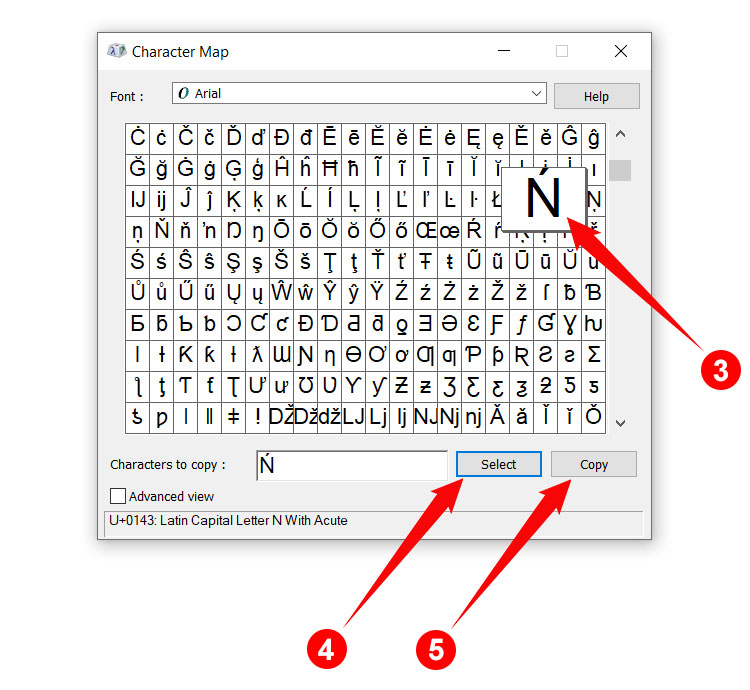
If your keyboard doesn’t include a numeric keypad, Character Map is the easiest alternative.
- Press Windows and search for Character Map.
- Open the application.
- Select a Unicode-supported font such as Arial or Segoe UI.
- Locate the accented N you need.
- Click Select, then Copy.
- Paste it into your document using Ctrl+V.
Character Map works across nearly all Windows applications, making it a reliable option for inserting accented characters.
How to Type N with Accent on Mac
Mac users can easily type accented N characters using built-in keyboard shortcuts and the Character Viewer. Whether you need ñ for Spanish or ń, ň, or ǹ for other languages, macOS provides quick and reliable methods.
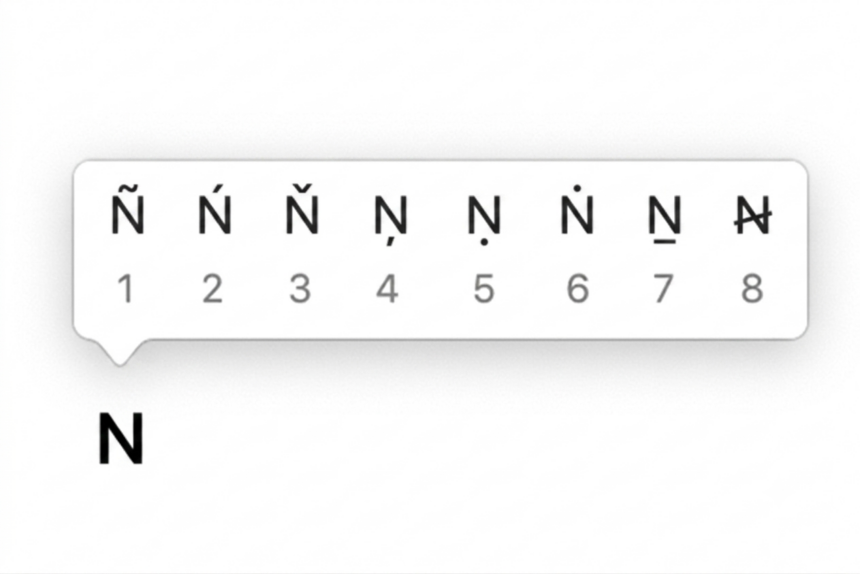
1. Press and Hold the N Key
The fastest way to type ñ on a Mac is by using the accent menu.
- Place your cursor where you want to insert the letter.
- Press and hold the N (or Shift + N) key.
- A popup menu will appear with available accented versions.
- Click the letter you want or press the corresponding number on your keyboard.
This method is ideal for typing ñ quickly in documents, emails, and web browsers.
Note: Depending on your keyboard language, only the most common accented letters may appear in the popup menu.
2. Use Character Viewer
If the letter you need isn’t available from the press-and-hold menu, use the built-in Character Viewer.
Steps
- Press:
Control + Command + Space
- The Character Viewer window will open.
- Search for one of the following:
- n tilde
- n acute
- n caron
- n grave
- Double-click the letter to insert it into your document.
Character Viewer works in most Mac applications, including Pages, Microsoft Word, Safari, Notes, and Mail.
How to Type N with Accent in Microsoft Word
Microsoft Word offers multiple ways to insert accented N characters. Whether you’re using Windows or Mac, you can choose the method that’s most convenient.
1. Unicode + Alt + X (Windows)
If you’re using Word on Windows, the Unicode shortcut is one of the fastest methods.
- Type the Unicode value.
- Press Alt + X.
- Word converts the code into the corresponding accented letter.
Unicode Shortcuts
| Letter | Unicode |
|---|---|
| ñ | 00F1 |
| Ñ | 00D1 |
| ń | 0144 |
| Ń | 0143 |
| ň | 0148 |
| Ň | 0147 |
| ǹ | 01F9 |
| Ǹ | 01F8 |
Example
Type:
00F1
Then press:
Alt + X
Word converts it to:
ñ
2. Insert Symbol
If you don’t want to remember Unicode values, Word’s Symbol menu makes it easy to insert accented letters.
- Open your document.
- Click Insert.
- Select Symbol.
- Click More Symbols.
- Choose a Unicode-supported font such as:
- Segoe UI
- Arial Unicode MS
- Calibri
- Select the accented N.
- Click Insert.
This method works on both Windows and Mac versions of Microsoft Word.
How to Type N with Accent in Google Docs
Google Docs includes a built-in Special Characters tool, making it easy to insert accented letters without installing additional software.
- Open your Google Docs document.
- Place the cursor where you want the letter.
- Click Insert.
- Select Special Characters.
- Search for:
- n tilde
- n acute
- n caron
- n grave
- Click the character to insert it.
You can also draw the shape of the letter in the search box if you don’t know its name.
How to Type N with Accent in Excel and Google Sheets
If you’re working with spreadsheets, the easiest method is to copy and paste the accented letter.
ñ Ñ ń Ń ň Ň ǹ Ǹ
If you need to generate characters dynamically, Excel and Google Sheets support the UNICHAR() function.
Examples
=UNICHAR(241)
Returns:
ñ
=UNICHAR(209)
Returns:
Ñ
This method is useful when creating templates or automatically generating multilingual text.
How to Type N with Accent in PowerPoint
PowerPoint supports the same methods as Microsoft Word.
You can:
- Copy and paste the accented letter.
- Use Insert → Symbol.
- Use the Unicode Alt + X shortcut in Word before copying the character into your presentation.
This makes it easy to include accented letters in presentations, educational slides, and multilingual content.
How to Type N with Accent on iPhone
Typing an accented N on an iPhone is quick and doesn’t require any additional apps. The iOS keyboard includes built-in support for accented characters, making it easy to insert letters like ñ while typing.
1. Press and Hold the N Key
This is the fastest way to type ñ on an iPhone.
- Open any app where you want to type, such as Messages, Notes, Mail, or Safari.
- Press and hold the N key on the keyboard.
- A popup menu with accented versions of N will appear.
- Slide your finger to ñ and release to insert it.
If you’re using a Spanish keyboard, this method works seamlessly and is the quickest option for everyday typing.
Can’t Find the Letter You Need?
Some accented letters, such as ń, ň, or ǹ, may not appear on the default English keyboard.
If that’s the case, you can:
- Add a Spanish, Polish, or Czech keyboard in Settings > General > Keyboard > Keyboards.
- Copy and paste the required character from this guide.
How to Type N with Accent on Android
Most Android keyboards, including Gboard and Samsung Keyboard, support accented characters through the press-and-hold feature.
1. Press and Hold the N Key
- Open any app where you want to type.
- Press and hold the N key.
- Select the accented N from the popup menu.
Depending on your keyboard language and settings, you may see options such as ñ and other accented variants.
If the Character Isn’t Available
If the letter you need doesn’t appear:
- Add the appropriate language keyboard in your keyboard settings.
- Copy and paste the character from this article.
Most modern Android devices fully support Unicode characters, so copied letters display correctly in messaging apps, documents, emails, and web browsers.
Typing an N with an accent is easy once you know the right method for your device. Whether you need ñ for Spanish, ń for Polish, ň for Czech or Slovak, or ǹ for specialised writing, there are several simple ways to insert these characters.
For most users, copying and pasting the character or holding down the N key is the fastest solution. Windows users can also use Alt codes, while Microsoft Word offers Unicode shortcuts, making it easy to insert any accented N with precision.