German uses several letters that are not found on a standard English keyboard. The most familiar are the three umlaut vowels, ä, ö, and ü, along with the German sharp S, ß, also known as Eszett. You will find these characters in everyday German words such as Mädchen, schön, über, Straße, and Grüße.
Typing these characters is straightforward once you know the right shortcut. On Windows, you can use Alt codes, the built-in symbol panel, or switch to a German keyboard layout. Mac users can create umlauts with the Option + U shortcut, while Microsoft Word offers its own Unicode method. On phones, pressing and holding a letter usually gives you the accented versions directly.
This guide explains the easiest ways to type ä, Ä, ö, Ö, ü, Ü, ß, and ẞ on Windows, Mac, Microsoft Word, Google Docs, iPhone, and Android.
Fastest Ways to Type German Letters
If you only need one or two German characters, there is no need to change your entire keyboard setup. Use the method that matches your device.
Windows
Windows users have several options. If your keyboard has a numeric keypad, Alt codes are one of the quickest methods. You can also use the Windows symbol panel or add a German keyboard layout and switch between languages with Win + Space.
For example:
- ä: Alt + 0228
- Ä: Alt + 0196
- ö: Alt + 0246
- Ö: Alt + 0214
- ü: Alt + 0252
- Ü: Alt + 0220
- ß: Alt + 0223
Alt codes require a numeric keypad, so they may not be practical on smaller laptops.
Mac
macOS makes umlauts particularly easy to type. Press Option + U, release the keys, and then type the letter.
For example:
- ä: Option + U, then A
- ö: Option + U, then O
- ü: Option + U, then U
For ß, the shortcut is commonly Option + S.
If you need a character that is not available through a shortcut, open Character Viewer with Control + Command + Space and search for the character by name.
Microsoft Word
Word provides two convenient ways to insert German characters. You can use Insert > Symbol > More Symbols to select the character visually, or use Word’s Unicode shortcut.
For example:
- Type
00E4, then press Alt + X → ä - Type
00F6, then press Alt + X → ö - Type
00FC, then press Alt + X → ü - Type
00DF, then press Alt + X → ß
The Unicode method is particularly useful when you regularly work with special characters in Word.
Google Docs
In Google Docs, go to Insert > Special characters. Search for terms such as a umlaut, o umlaut, u umlaut, sharp s, or Eszett, then select the character you need.
This is a simple option when you do not want to memorize keyboard shortcuts.
iPhone and Android
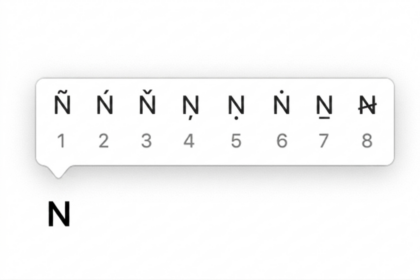
On most phone keyboards, you can type German characters by pressing and holding the corresponding letter.
For example:
- Press and hold a → ä
- Press and hold o → ö
- Press and hold u → ü
- Press and hold s → ß, depending on the keyboard
If the character you need does not appear, adding the German keyboard to your phone is the better long-term option.
Quick Reference: German Special Letters
Here are the most commonly used German characters along with their Unicode values and the quickest typing methods.
| Letter | Unicode | Windows Alt Code | Mac Shortcut |
|---|---|---|---|
| ä | U+00E4 | Alt + 0228 | Option + U, then A |
| Ä | U+00C4 | Alt + 0196 | Option + U, then Shift + A |
| ö | U+00F6 | Alt + 0246 | Option + U, then O |
| Ö | U+00D6 | Alt + 0214 | Option + U, then Shift + O |
| ü | U+00FC | Alt + 0252 | Option + U, then U |
| Ü | U+00DC | Alt + 0220 | Option + U, then Shift + U |
| ß | U+00DF | Alt + 0223 | Option + S |
| ẞ | U+1E9E | Character Map / Unicode | Character Viewer |
What Is ẞ?
The character ẞ is the uppercase form of ß, commonly called the capital sharp S. It is a separate Unicode character and is not as straightforward to enter with standard keyboard shortcuts.
If you need ẞ, the most reliable options are Character Viewer on Mac, Character Map on Windows, copy and paste, or Word’s Unicode insertion method.
For occasional use, copying ẞ is usually faster than changing your keyboard settings.
This gives the article a stronger SEO opening while keeping the explanations substantial enough to lead naturally into the individual typing methods.
How to Type German Letters on Mac
Mac users have a simple built-in shortcut for the three main German umlauts. You do not need to memorize Unicode values or open a symbol menu every time you want to type ä, ö, or ü.
1. Use the Option + U Shortcut
macOS treats the umlaut as a special accent that can be applied to a letter.
- Place the cursor where you want the character.
- Press Option + U.
- Release both keys.
- Press the letter you want to add the umlaut to.
For example:
- Option + U, then A → ä
- Option + U, then O → ö
- Option + U, then U → ü
For uppercase letters, hold Shift when entering the final letter:
- Option + U, then Shift + A → Ä
- Option + U, then Shift + O → Ö
- Option + U, then Shift + U → Ü
This shortcut works across many common Mac applications, including word processors, email clients, browsers, and other text fields.
2. Type ß on Mac
The German sharp S, ß, uses a different shortcut. On many Mac keyboard layouts, you can enter it with:
Option + S → ß
If the shortcut does not work with your particular keyboard layout, Character Viewer provides a reliable alternative.
3. Use Character Viewer
Character Viewer is useful when you need ẞ or another German character that is not available through your usual keyboard shortcut.
- Place the cursor where you want the character.
- Press Control + Command + Space.
- Search for the character you need.
- Select the character to insert it.
You can search for terms such as umlaut, sharp s, or capital sharp s.
This is also a good fallback when a keyboard shortcut behaves differently because of the selected keyboard layout.
How to Type German Letters in Microsoft Word
Microsoft Word offers several ways to insert German characters. If you only need a character occasionally, the Symbol menu is straightforward. If you type special characters regularly, Word’s Unicode shortcut can save time.
1. Insert German Characters Using Symbol
- Open your Word document.
- Place the cursor where you want the character.
- Go to Insert.
- Select Symbol and then More Symbols.
- Find the German character you need.
- Select it and click Insert.
You can use this method for characters such as ä, Ä, ö, Ö, ü, Ü, ß, and other supported symbols.
2. Use Unicode and Alt + X
Word also lets you enter a character by its Unicode value.
Type the Unicode value without the U+ prefix, then press Alt + X. Word converts the code into the corresponding character.
Examples:
00E4+ Alt + X → ä00C4+ Alt + X → Ä00F6+ Alt + X → ö00D6+ Alt + X → Ö00FC+ Alt + X → ü00DC+ Alt + X → Ü00DF+ Alt + X → ß1E9E+ Alt + X → ẞ
This method is especially useful when working with documents that contain many different Unicode characters.
How to Type German Letters in Google Docs
Google Docs does not require you to change your keyboard settings just to insert an occasional German character. Its Special characters tool provides a simple way to find the letter you need.
- Open your Google Docs document.
- Place the cursor where you want the character.
- Select Insert.
- Choose Special characters.
- Search for terms such as a umlaut, o umlaut, u umlaut, sharp s, or Eszett.
- Click the required character to insert it.
For frequent German typing, switching to a German keyboard layout is still more efficient than opening the character picker each time.