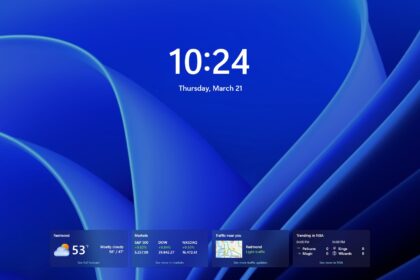
The Windows Insider Program gives users early access to upcoming Windows 11 features before they are officially released to the public. Through the program, Microsoft distributes preview builds that allow testers to explore new tools, interface changes, and system improvements ahead of stable updates.
The program is completely free to join and only requires an active Microsoft account.
Here is everything you need to know about how the Windows Insider Program works, how to enroll your PC, and which Insider channel is best for you.
What Is the Windows Insider Program?
The Windows Insider Program is Microsoft’s public testing platform for Windows 11 preview builds. Members receive experimental versions of the operating system that include upcoming features still under development.
These preview builds help Microsoft collect user feedback, identify bugs, and improve stability before updates roll out globally.
Because these versions are still being tested, they may contain:
- Software bugs
- Performance issues
- App compatibility problems
- Incomplete features
For that reason, Microsoft recommends avoiding Insider builds on computers used for work, studies, or critical daily tasks.
What You Need Before Joining Windows Insider
Before enrolling your device, make sure you have:
- A PC running Windows 11
- An active Microsoft account
- Internet access for updates and downloads
- Enough storage space for preview builds
It is also a good idea to back up important files before installing test versions of Windows.
How to Join the Windows Insider Program on Windows 11
Joining the program only takes a few minutes. First, you need to register your Microsoft account on the official Windows Insider website.
1: Register for the Insider Program
- Visit the official Windows Insider website (https://www.microsoft.com/en-us/windowsinsider/)
- Click Register
- Sign in with your Microsoft account
- Accept the program terms and conditions
Once your account is registered, you can activate Insider builds directly from Windows settings.
How to Enable Insider Builds on Windows 11
After registration, follow these steps on your PC:
- Open Settings
- Go to Windows Update
- Select Windows Insider Program
- Click Get Started
- Choose your Microsoft account
- Select an Insider channel
- Download the available preview update
- Restart your computer when prompted
After the reboot, your PC will begin receiving Insider preview builds automatically.
How to Stop Receiving Windows Insider Updates
If you decide to leave the program later, Windows 11 includes an option to stop receiving preview builds.
To disable Insider updates:
- Open Settings
- Go to Windows Update
- Select Windows Insider Program
- Enable the option Stop getting preview builds
Depending on your current build version, you may need to reinstall the stable version of Windows 11 to fully exit the program.
Windows Insider Channels Explained
Microsoft offers four Insider channels, each designed for different types of users. The biggest difference between them is stability and how early you receive new features.
Canary Channel
The Canary Channel receives the newest experimental features first. It is also the least stable version available.
Microsoft recommends this channel only for highly technical users because updates may:
- Arrive without documentation
- Include major bugs
- Cause unexpected system issues
This channel is mainly intended for advanced testing and early platform changes.
Dev Channel
The Dev Channel is aimed primarily at developers and enthusiasts who want early access to upcoming Windows features with more documentation and slightly better stability.
Builds in this channel may still change significantly before release.
Beta Channel
The Beta Channel offers a more stable experience while still giving users access to upcoming features before public release.
This is usually the best option for everyday users who want to try new Windows 11 tools without dealing with constant instability.
Release Preview Channel
The Release Preview Channel is the closest version to the final public release.
It focuses on:
- Stability testing
- Driver validation
- App compatibility
- Commercial deployment testing
Microsoft recommends this channel for business users and users who want the safest preview experience.
Which Windows Insider Channel Should You Choose?
Choosing the right Insider channel depends on how comfortable you are with unstable software.
| Channel | Best For | Stability |
|---|---|---|
| Canary | Advanced testers and developers | Very low |
| Dev | Developers and enthusiasts | Moderate |
| Beta | General users testing new features | High |
| Release Preview | Business and stable testing | Very high |
For most users, the Beta Channel offers the best balance between early access and system stability.
Is the Windows Insider Program Worth It?
The Windows Insider Program is a great way to test upcoming Windows 11 features before everyone else. It is especially useful for developers, tech enthusiasts, and users interested in exploring Microsoft’s newest tools early.
However, preview builds can still introduce bugs and performance issues, so they are best used on secondary devices whenever possible.
If you are also exploring alternatives beyond Windows, it may be worth learning more about Linux distributions designed for everyday use.