Typing accented letters can be confusing if you only use a standard English keyboard. Fortunately, you don’t need a special keyboard to type è, é, ê, ë, or other versions of the letter E.
Even if you’re writing French, Spanish, Portuguese, German, or another language, you can use keyboard shortcuts, character tools, or built-in language settings to insert accented letters quickly.
In this guide, you’ll learn how to type é with accent marks on Windows, Mac, Chromebook, iPhone, and Android, along with the easiest keyboard shortcuts to remember.
E with Accent Marks: Quick Reference
Here are the most common accented versions of the letter E:
| Character | Accent Name | Example |
|---|---|---|
| é | E acute | café |
| è | E grave | très |
| ê | E circumflex | fête |
| ë | E diaeresis/umlaut | Noël |
| É | Capital E acute | École |
| È | Capital E grave | È |
| Ê | Capital E circumflex | Être |
| Ë | Capital E diaeresis | Ë |
The easiest characters to copy when you need them quickly are: é è ê ë É È Ê Ë.
How to Type é, è, ê, and ë on Windows
Windows provides several ways to type accented letters. The best method depends on whether you need an occasional accent or type accented characters frequently.
1. Use Alt Codes on Windows
If you have a keyboard with a numeric keypad, Alt codes are one of the quickest ways to enter accented E characters.
Make sure Num Lock is enabled, then hold the Alt key while entering the appropriate number on the numeric keypad.
| Character | Windows Alt Code |
|---|---|
| é | Alt + 0233 |
| è | Alt + 0232 |
| ê | Alt + 0234 |
| ë | Alt + 0235 |
| É | Alt + 0201 |
| È | Alt + 0200 |
| Ê | Alt + 0202 |
| Ë | Alt + 0203 |
For example, to type é:
- Turn on Num Lock.
- Hold Alt.
- Type 0233 on the numeric keypad.
- Release Alt.
The accented letter should appear.
Alt codes are especially useful on Windows desktop keyboards with a dedicated number pad.
2. Use Windows Character Map
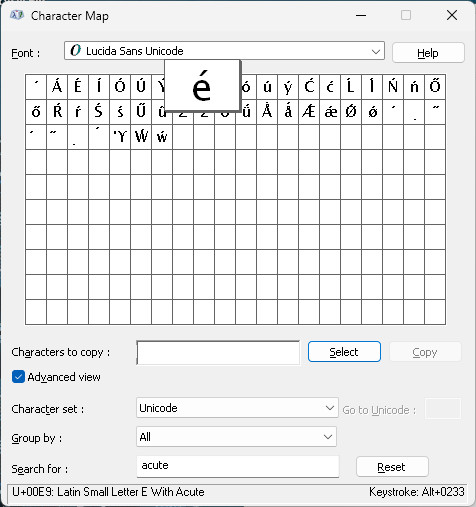
Windows also includes a built-in Character Map that lets you find and copy accented characters.
To use it:
- Press the Windows key.
- Search for Character Map.
- Open the application.
- Find the accented E you need.
- Select the character.
- Click Select.
- Click Copy.
- Paste it into your document or message.
This method is useful when you don’t remember the keyboard shortcut.
3. Use the Windows Emoji and Symbol Panel
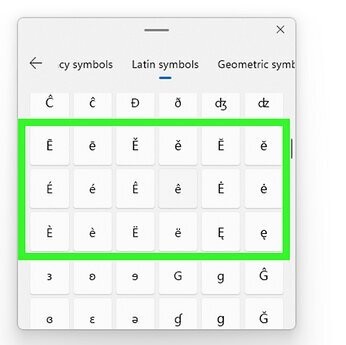
Windows also provides a symbol panel that can be useful for inserting special characters.
Press:
Windows key + . (period)
Depending on your Windows version and available input options, you may be able to access symbols and special characters from the panel.
For frequent typing of accented letters, however, keyboard shortcuts or an international keyboard layout are usually faster.
How to Type é, è, ê, and ë on a Mac
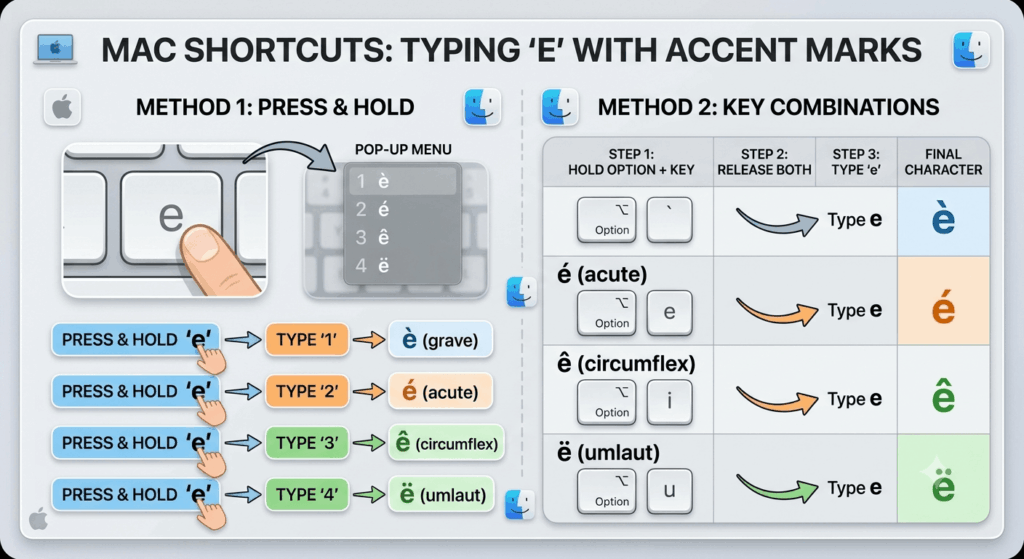
Mac keyboards make accented letters particularly easy to enter.
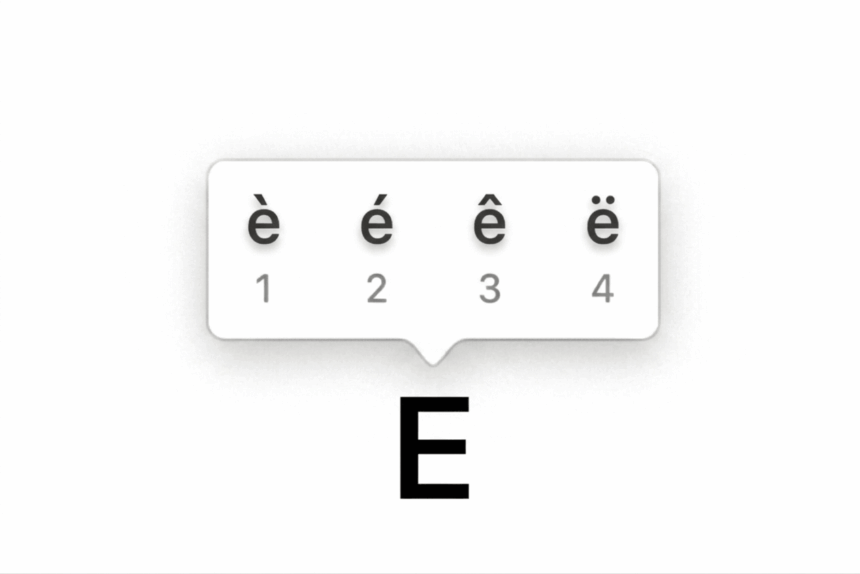
1. Press and Hold the E Key
- The simplest method is to press and hold the E key.
- After a moment, macOS displays a small accent menu with several versions of E.
You’ll see options such as:
é è ê ë ē ė ę
Select the character you want by clicking it or pressing the corresponding number shown in the menu.
For example:
- Press and hold E
- Choose é
- Release the key
This is usually the easiest method for occasional accented letters.
2. Use Mac Accent Keyboard Shortcuts
You can also use accent shortcuts.
For an acute accent:
Option + E, then E → é
For a grave accent:
Option + `, then E → è
For a circumflex:
Option + I, then E → ê
For a diaeresis:
Option + U, then E → ë
These are called dead-key shortcuts because the first key combination creates the accent, and the next key determines which letter receives it.
For example:
Option + E → E = é
Option + ` → E = è
These shortcuts are convenient if you’re typing accented characters regularly.
How to Type é, è, ê, and ë on Chromebook
Chromebooks provide several ways to enter accented characters.
1. Use the On-Screen Keyboard
If your Chromebook has an on-screen keyboard available, you can use it to access accented characters.
Open the keyboard and press and hold the E key. Available accented versions may appear so you can select the one you need.
2. Use Unicode Input
ChromeOS can support Unicode character entry through compatible input methods.
A commonly used method is:
Ctrl + Shift + U
Then enter the Unicode code point and press Enter or Space.
Common Unicode values include:
| Character | Unicode |
|---|---|
| é | U+00E9 |
| è | U+00E8 |
| ê | U+00EA |
| ë | U+00EB |
| É | U+00C9 |
| È | U+00C8 |
| Ê | U+00CA |
| Ë | U+00CB |
For example, a supported Unicode input method can be used to enter é with:
Ctrl + Shift + U → 00E9 → Enter
The exact behavior can vary depending on your ChromeOS version and keyboard/input method.
3. Change the Keyboard Language
If you regularly type French, Spanish, German, or another language, adding a suitable keyboard layout may be more convenient than using individual character codes.
Open your Chromebook’s language and keyboard settings and add the input language you need.
This can make accented characters much easier to enter while writing longer documents.
How to Type Accented E on a Keyboard Without a Number Pad
Many modern laptops don’t have a dedicated numeric keypad, which makes traditional Windows Alt codes less convenient.
If you’re using a Windows laptop, you can instead:
- Use Character Map.
- Copy and paste the character.
- Add an international keyboard layout.
- Use the Windows character/symbol tools.
- Use the application’s built-in special-character menu.
For occasional use, copying é è ê ë is often the fastest solution.
For frequent use, changing your keyboard layout is generally more efficient.
How to Type Accented E in Microsoft Word
Microsoft Word has several ways to insert accented letters.
One convenient approach is to use Word’s keyboard shortcuts.
For example:
- Ctrl + ‘, then E → é
- Ctrl + `, then E → è
- Ctrl + Shift + ^, then E → ê
- Ctrl + Shift + :, then E → ë
The first shortcut creates the accent, and the second key inserts it over the letter E.
You can also use:
Insert → Symbol → More Symbols
From there, locate the accented character you want and insert it into your document.
If you use accented letters frequently in Word, learning the shortcuts is much faster than opening the Symbol menu every time.
How to Type é, è, ê, and ë in Google Docs
Google Docs works with your computer’s keyboard and operating-system input settings.
You can use your normal Windows, Mac, or Chromebook method to insert accented characters.
Google Docs also includes special-character tools that can help you find symbols and accented letters.
Try:
Insert → Special characters
Then search for the character or browse the available options.
For example, searching for e acute can help you find é.
This is useful when you don’t remember the keyboard shortcut.
How to Type Accented E on iPhone and iPad
On an iPhone or iPad, accented letters are very easy to enter.
- Open the keyboard in any app.
- Press and hold the E key.
- A selection of accented versions appears.
- Slide your finger to the character you want.
- Release the key.
You can select:
é, è, ê, ë
and other variations depending on your keyboard settings.
This method works in apps such as Messages, Mail, Notes, Safari, and many third-party applications.
How to Type Accented E on Android
Android keyboards such as Gboard generally provide a similar long-press method.
- Open the keyboard.
- Press and hold E.
- Wait for the accented-letter options to appear.
- Slide to the character you need.
- Release your finger.
You can quickly type:
é è ê ë
without changing your entire keyboard layout.
How to Type Capital Accented E
The same methods work for uppercase accented letters.
The most common capital versions are:
É È Ê Ë
On a phone or tablet, press and hold the uppercase E after enabling Shift.
On Mac, Windows, or Chromebook, use the corresponding shortcut or character-input method.
For example:
é → É
è → È
ê → Ê
ë → Ë
Capital accented letters are important at the beginning of sentences and for proper names.
What Do the Different E Accents Mean?
The accent mark isn’t simply decorative. In many languages, it can change pronunciation or distinguish words.
É — E Acute
The acute accent is the mark that slopes upward:
é
It is commonly used in French and appears in words such as café and école.
È — E Grave
The grave accent slopes downward:
è
It appears frequently in French, including words such as très.
Ê — E Circumflex
The circumflex looks like a small roof:
ê
It appears in French words such as fête and être.
Ë — E Diaeresis
The diaeresis consists of two dots:
ë
It can indicate that the vowel should be pronounced separately from another vowel, depending on the language.
One familiar example is Noël.
E Accent Keyboard Shortcuts at a Glance
Keep this quick-reference table handy:
| Device | é | è | ê | ë |
|---|---|---|---|---|
| Windows Alt Code | Alt + 0233 | Alt + 0232 | Alt + 0234 | Alt + 0235 |
| Mac | Option + E, E | Option + `, E | Option + I, E | Option + U, E |
| Phone | Hold E | Hold E | Hold E | Hold E |
| Chromebook | Unicode/input method | Unicode/input method | Unicode/input method | Unicode/input method |
For phones and Macs, pressing and holding E is usually the easiest method. On Windows, Alt codes or an international keyboard can be more convenient.
Frequently Asked Questions
How do I type é on a keyboard?
On a Mac or mobile device, press and hold E and select é. On Windows, you can use Alt + 0233 with a numeric keypad or use an appropriate keyboard layout.
How do I type è on Windows?
On a Windows keyboard with a numeric keypad, hold Alt and type 0232 to produce è. You can also use Character Map or an international keyboard layout.
How do I type ê on a laptop?
On a Mac, use Option + I, then E. On Windows laptops, you can use Character Map, an international keyboard, or another character-input method if your laptop doesn’t have a numeric keypad.
How do I type ë?
On Mac, use Option + U, then E. On phones, press and hold E and select ë. On Windows, Alt + 0235 produces ë when using the numeric keypad.
What is the shortcut for é?
The Windows Alt code is Alt + 0233. On Mac, use Option + E, followed by E. On phones and many touchscreen keyboards, press and hold E and select é.
Learning how to type e with accent marks doesn’t require a special keyboard. Windows, Mac, Chromebook, iPhone, Android, and common writing applications all provide ways to enter characters such as é, è, ê, and ë.
For quick typing, remember these four characters:
é = acute
è = grave
ê = circumflex
ë = diaeresis
If you use accented letters frequently, take a few minutes to learn the shortcuts for your device or add the appropriate keyboard language. Once you get used to them, typing accented characters becomes much faster and more natural.