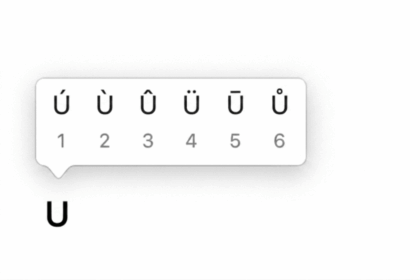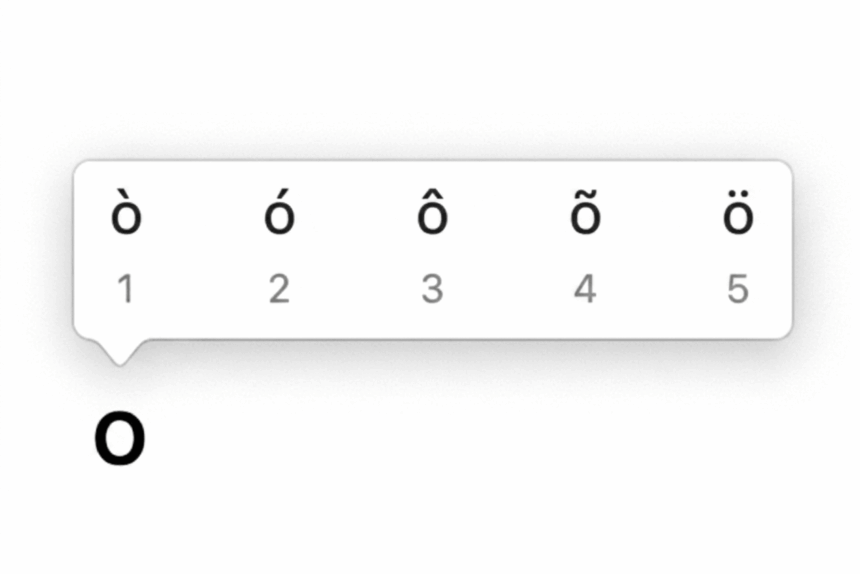
Need to type an O with an accent, but cannot find it on your keyboard? Whether you are writing in French, Spanish, Portuguese, German, Icelandic, or another language, accented O characters are easy to insert once you know the right keyboard shortcuts.
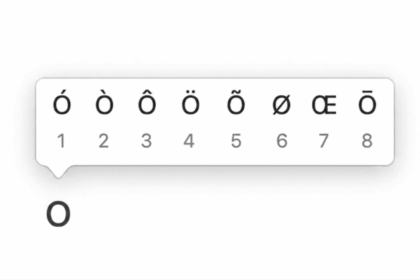
The most common accented O characters are ò, ó, ô, õ, ö and their uppercase versions Ò, Ó, Ô, Õ, Ö.
This guide explains how to type these characters on Windows and Mac, as well as how to insert them in Microsoft Word, Excel, and PowerPoint. You will also learn how to copy and paste accented O characters and find them using Windows’ built-in character tools.
O With Accent: Quick Copy and Reference
If you only need an accented O occasionally, copying the character is the quickest option.
Lowercase O With Accents
ò ó ô õ ö
- ò: O with grave
- ó: O with acute
- ô: O with circumflex
- õ: O with tilde
- ö: O with umlaut or diaeresis
Uppercase O With Accents
Ò Ó Ô Õ Ö
- Ò: O with grave
- Ó: O with acute
- Ô: O with circumflex
- Õ: O with tilde
- Ö: O with umlaut or diaeresis
To copy one, highlight the character, press Ctrl + C on Windows or Command + C on Mac, then paste it wherever you need it.
O With Accent Keyboard Shortcuts
Here is a quick reference for the most commonly used methods.
Windows Alt Codes
| Character | Name | Alt Code |
|---|---|---|
| ò | O with grave | Alt + 0242 |
| ó | O with acute | Alt + 0243 |
| ô | O with circumflex | Alt + 0244 |
| õ | O with tilde | Alt + 0245 |
| ö | O with umlaut | Alt + 0246 |
| Ò | O with grave | Alt + 0210 |
| Ó | O with acute | Alt + 0211 |
| Ô | O with circumflex | Alt + 0212 |
| Õ | O with tilde | Alt + 0213 |
| Ö | O with umlaut | Alt + 0214 |
Mac Shortcuts
| Character | Shortcut |
|---|---|
| ò | Option + `, then O |
| ó | Option + E, then O |
| ô | Option + I, then O |
| õ | Option + N, then O |
| ö | Option + U, then O |
For uppercase characters, press Shift + O after entering the accent shortcut.
How to Type O With an Accent on Windows
The easiest way to type accented O characters on a Windows PC is with Alt codes. This method requires a numeric keypad.
Important: Use the Numeric Keypad
The number keys above the letters generally do not work with these Alt codes. You need to use the numeric keypad, usually located on the right side of a full-size keyboard.
If you are using a laptop without a dedicated numeric keypad, try one of the alternative methods later in this guide.
Steps to Type a Lowercase O With an Accent
- Open the application where you want to type the character.
- Make sure Num Lock is enabled.
- Place the cursor where you want the accented O.
- Hold down the Alt key.
- Enter the appropriate four-digit code using the numeric keypad.
- Release Alt.
The accented character should appear immediately.
For example, to type ó, hold Alt, type 0243 on the numeric keypad, and release Alt.
Lowercase O Alt Codes
| Character | Alt Code |
|---|---|
| ò | Alt + 0242 |
| ó | Alt + 0243 |
| ô | Alt + 0244 |
| õ | Alt + 0245 |
| ö | Alt + 0246 |
Uppercase O Alt Codes
| Character | Alt Code |
|---|---|
| Ò | Alt + 0210 |
| Ó | Alt + 0211 |
| Ô | Alt + 0212 |
| Õ | Alt + 0213 |
| Ö | Alt + 0214 |
For example, type Ö by holding Alt, entering 0214 on the numeric keypad, and then releasing Alt.
How to Type O With an Accent on Mac
Mac keyboards make accented letters easy to enter with Option shortcuts.
The basic process is:
- Press and hold Option with the key associated with the accent.
- Release the keys.
- Press O to create the accented character.
Lowercase O With an Accent
O With Grave: ò
Press:
Option + `, release, then press O.
The grave accent key is usually located near the upper-left area of the keyboard, close to the number 1 key.
O With Acute: ó
Press:
Option + E, release, then press O.
O With Circumflex: ô
Press:
Option + I, release, then press O.
O With Umlaut: ö
Press:
Option + U, release, then press O.
O With Tilde: õ
Press:
Option + N, release, then press O.
Uppercase O With an Accent
The same shortcuts work for uppercase letters. Simply press Shift + O after entering the accent shortcut.
For example:
- Ó: Option + E, release, then Shift + O
- Ö: Option + U, release, then Shift + O
- Ô: Option + I, release, then Shift + O
You can also use Caps Lock before typing the final O.
How to Insert O With an Accent in Microsoft Word
Microsoft Word gives you several ways to insert accented O characters. You can use keyboard shortcuts, Windows Alt codes, Mac shortcuts, or Word’s built-in Symbol menu.
Insert O With an Accent Using Word’s Symbol Menu
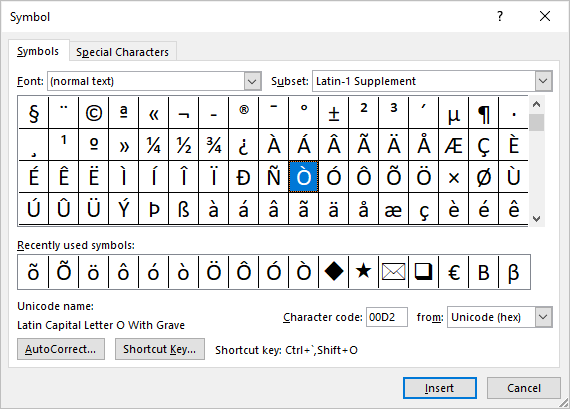
These steps work in Word on both Windows and Mac, although the exact menu layout can vary slightly between versions.
- Place the cursor where you want the character.
- Open the Insert tab.
- Select Symbol.
- Choose More Symbols.
- In the Symbol window, look for the Latin-1 Supplement subset.
- Find the character you need, such as ò, ó, ô, õ, ö or Ò, Ó, Ô, Õ, Ö.
- Select the character.
- Click Insert.
- Close the Symbol window.
This method is useful when you do not want to memorize keyboard shortcuts.
Word Keyboard Shortcuts for Accented O
Microsoft Word also supports dedicated shortcuts for several common accents on Windows.
- ò: Ctrl + `, then O
- ó: Ctrl + ‘, then O
- ô: Ctrl + ^, then O
- ö: Ctrl + Shift + ;, then O
For an uppercase character, use Shift + O as the final keystroke.
For example, to type ó, press Ctrl + ‘, release the keys, and then press O.
These Word-specific shortcuts should not be confused with Windows Alt codes. They are designed for Microsoft Word and may not work in other applications.
How to Insert O With an Accent in Excel
You can enter accented O characters directly into Excel cells using Windows Alt codes or Mac keyboard shortcuts.
Excel also includes a Symbol menu.
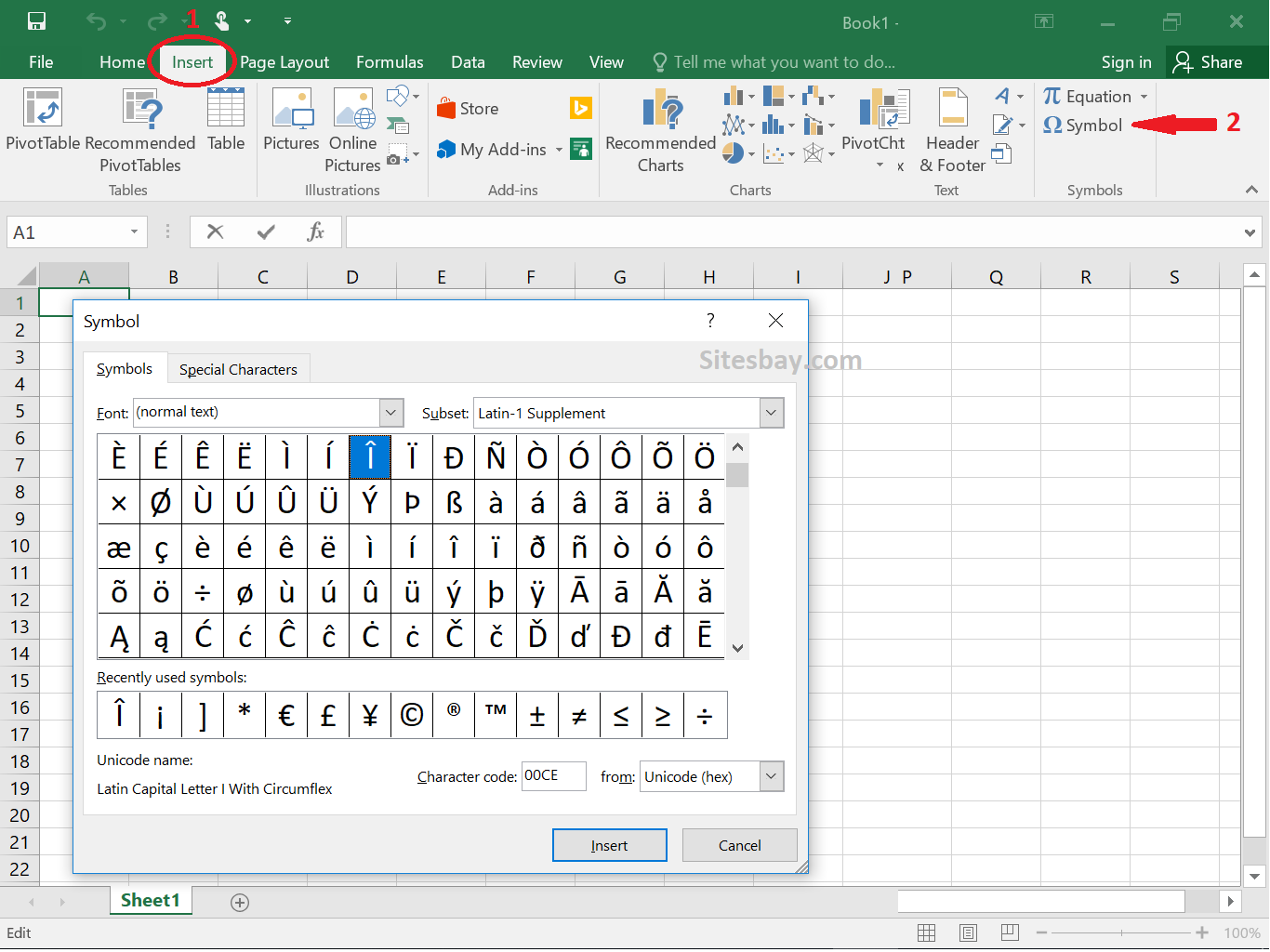
Using the Symbol Menu in Excel
- Select the cell where you want to insert the character.
- Open the Insert tab.
- Select Symbol.
- In the Symbol dialog box, choose Latin-1 Supplement if available.
- Find the accented O you need.
- Select the character.
- Click Insert.
- Close the dialog box.
You can then copy the accented character to other cells as needed.
For occasional use, copying ò ó ô õ ö directly from this guide can be faster than opening the Symbol menu.
How to Insert O With an Accent in PowerPoint
PowerPoint supports the same basic methods as Word and Excel.
You can use:
- Windows Alt codes
- Mac Option shortcuts
- The Insert > Symbol menu
- Copy and paste
Insert an Accented O Using Symbol
- Click inside a text box, title, placeholder, or other text area.
- Open the Insert tab.
- Select Symbol.
- Find the accented O character you need.
- Select Insert.
- Close the Symbol window.
The character can be used in slide titles, bullet points, captions, and other text elements.
How to Copy and Paste O With an Accent
If you only need an accented O once in a while, copy and paste is probably the easiest method.
Lowercase
ò ó ô õ ö
Uppercase
Ò Ó Ô Õ Ö
To copy a character:
- Highlight the character.
- Press Ctrl + C on Windows or Command + C on Mac.
- Open the document, website, email, or application where you want to use it.
- Press Ctrl + V on Windows or Command + V on Mac.
The characters can generally be pasted into Word, Excel, PowerPoint, Google Docs, email, web forms, social media posts, and other applications that support Unicode text.
How to Find O With an Accent Using Character Map on Windows
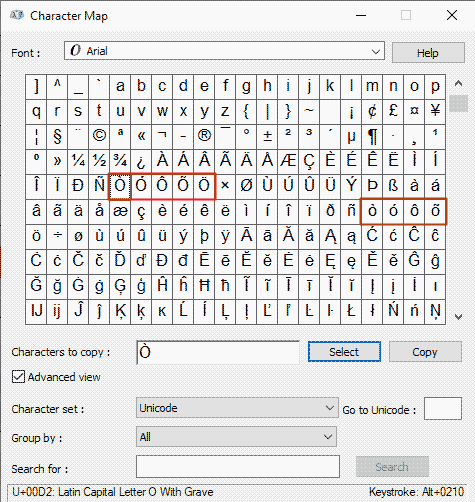
Windows includes a built-in Character Map utility that lets you browse and copy special characters.
- Open the Start menu.
- Search for Character Map.
- Open the Character Map application.
- Select a font such as Arial or Times New Roman.
- Enable the Advanced view if available.
- Find the accented O characters.
- Select the character you want.
- Click Select.
- Click Copy.
- Paste the character into your document.
You can find characters such as Ò, Ó, Ô, Õ, Ö, ò, ó, ô, õ, and ö in the character grid.
Character Map is particularly useful when you need a special character but do not know its keyboard shortcut.
How to Use the Windows Emoji and Symbol Panel
Windows 10 and Windows 11 also provide a built-in panel for symbols and special characters.
Steps
- Place the cursor where you want to insert the character.
- Press Windows + . or Windows + ;.
- Open the Symbols section.
- Browse the available symbols and accented characters.
- Select the accented O you need.
The selected character will be inserted at the current cursor position.
The available categories can vary depending on your Windows version and language settings.
Which Method Should You Use?
The best method depends on how often you need accented characters.
| Method | Best for | Platform |
|---|---|---|
| Alt codes | Frequent Windows users with a numeric keypad | Windows |
| Option shortcuts | Fast typing on a Mac | macOS |
| Insert > Symbol | Finding characters visually | Word, Excel, PowerPoint |
| Copy and paste | Occasional use | Windows, Mac, Web |
| Character Map | Browsing many special characters | Windows |
| Windows symbol panel | Quick access without memorizing codes | Windows 10/11 |
If you regularly type accented characters, keyboard shortcuts are usually the fastest option. If you only need one occasionally, copying and pasting is simpler.
Frequently Asked Questions
What is the O with an accent?
An O with an accent is the letter O combined with a diacritical mark. Common examples include ò, ó, ô, õ, and ö. Different accents can affect pronunciation and meaning depending on the language.
How do I type ó on Windows?
If your keyboard has a numeric keypad, hold Alt and type 0243, then release Alt. This produces ó.
How do I type Ö on Windows?
Hold Alt, type 0214 on the numeric keypad, and release Alt. This produces Ö.
How do I type ó on a Mac?
Press Option + E, release the keys, and then press O. For the uppercase version, press Shift + O instead.
How do I type ö on a Mac?
Press Option + U, release the keys, and then press O.
Can I type accented O characters without a numeric keypad?
Yes. On Windows, you can use the Character Map, Windows symbol panel, or copy and paste. On Mac, Option shortcuts provide a convenient alternative to numeric codes.
Can I use accented O characters in Google Docs?
Yes. You can copy and paste the characters or use Google Docs’ special-character tools. The same Unicode characters can be used in most modern word processors and web applications.
There are several easy ways to type O with an accent, whether you are using Windows, Mac, Microsoft Office, or a web browser.
On Windows, Alt codes are convenient if your keyboard has a numeric keypad. On Mac, Option shortcuts are usually the quickest method. Microsoft Word, Excel, and PowerPoint also provide a Symbol menu for finding accented characters without having to memorise shortcuts.
Once you know these shortcuts, typing accented O characters becomes a quick and straightforward part of everyday typing. You can use the same approach for other accented vowels, including N with accent, as well as accented E, I, and U characters.