

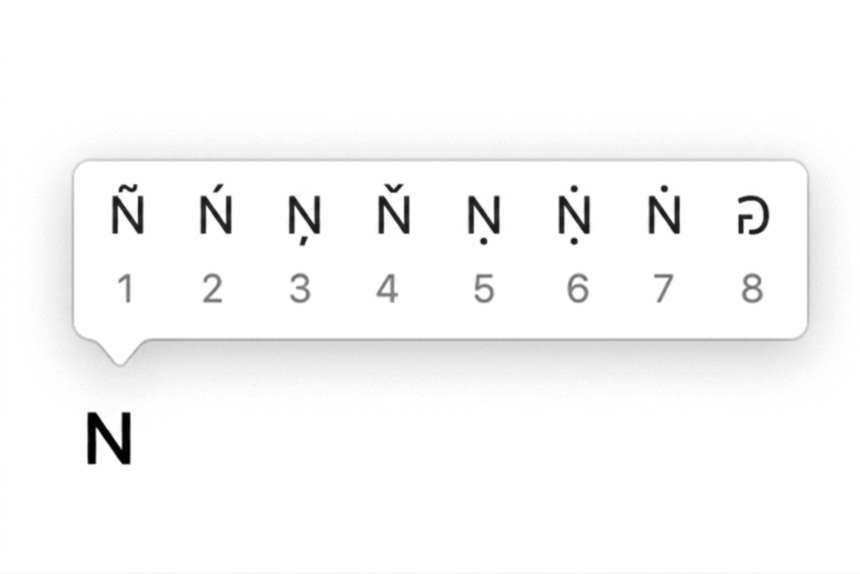
Trying to type ñ or Ñ but cannot find the letter on your keyboard? You are not alone. The enye is used in many Spanish words, names, and places, but it is not available as a dedicated key on most English keyboards.
Fortunately, you can type the enye letter in just a few seconds, whether you are using a Windows PC, MacBook, iPhone, iPad, or Android phone.
In this guide, we will show you the quickest keyboard shortcuts, Alt codes, and other simple methods for typing ñ and Ñ, along with ways to use the character in Word, Google Docs, Excel, and other popular apps.
Copy the Enye Letter
If you need the character right now, copy it from below: Lowercase: ñ Uppercase: Ñ You can paste it anywhere using Ctrl + V on Windows or Command + V on Mac.
Spanish Characters You May Also Need
ñ Ñ á é í ó ú ü ¡ ¿
What Is the Enye Letter?
Enye is the name commonly used for the letter ñ, with Ñ as its uppercase form. It is a distinct letter, not simply the letter “n” followed by a tilde. For example:
- niño
- mañana
- España
- jalapeño
- piñata
- señor
- Muñoz
- Peña
There is also a combining form made from n + a combining tilde. It can look similar to ñ, but it consists of two Unicode characters. In most everyday situations, you should use the standard single character ñ.
How to Type Enye on Windows
Windows gives you several ways to type ñ. The best method depends on whether your keyboard has a numeric keypad.
1. Use the Windows Alt Code
For many Windows users, the Alt code is the quickest option when a numeric keypad is available. To type lowercase ñ:
- Place the cursor where you want the letter.
- Make sure Num Lock is turned on.
- Hold down the Alt key.
- Type 0241 on the numeric keypad.
- Release Alt.
You should see ñ. For uppercase Ñ, hold Alt and type 0209. Windows Alt codes:
- Alt + 0241 = ñ
- Alt + 0209 = Ñ
Keep in mind that traditional Alt codes generally require the numeric keypad. The number row above the letters may not work.
2. Use the Windows Symbols Panel
If your keyboard does not have a numeric keypad, Windows has a built-in symbols panel.
- Place your cursor where you want the character.
- Press Windows + . or Windows + ;.
- Open the Symbols section.
- Find ñ or Ñ.
- Click the character to insert it.
This method is especially useful on laptops.
3. Use Character Map
Windows Character Map lets you find and copy special characters.
- Open the Start menu.
- Search for Character Map.
- Open the application.
- Find ñ or Ñ.
- Select the character.
- Click Select and then Copy.
- Paste it into your document or application.
Type Enye on a Windows Laptop Without a Number Pad
Many modern laptops do not include a dedicated numeric keypad. If that is the case, the traditional Alt code may not work. You can use:
- Windows + . to open the symbols panel
- Character Map
- Copy and paste ñ or Ñ
- A Spanish keyboard layout
- A US International keyboard layout
Some laptops have an embedded numeric keypad that can be enabled with Fn + Num Lock or Fn + NmLk. The exact shortcut depends on the laptop model.
How to Type Enye on Mac
Typing ñ on a Mac is straightforward.
1. Use the Option Key
For lowercase ñ:
- Press Option + N.
- Release both keys.
- Press N.
The result is ñ. For uppercase Ñ:
- Press Option + N.
- Release both keys.
- Press Shift + N.
The result is Ñ.
2. Press and Hold the N Key
You can also press and hold the N key on a Mac. A small character menu will appear. Select ñ or Ñ from the available options. This is one of the easiest methods if you only need the character occasionally.
3. Use Character Viewer
Mac also includes Character Viewer.
- Press Control + Command + Space.
- Search for n tilde.
- Select ñ or Ñ.
- Double-click the character to insert it.
Type Enye in Microsoft Word
Microsoft Word supports several ways to enter ñ.
1. Use the Keyboard Shortcut
On Windows, press:
- Ctrl + Shift + ~, then n = ñ
- Ctrl + Shift + ~, then Shift + n = Ñ
The tilde key is usually located near the number 1 key on a standard US keyboard.
2. Use Unicode in Word
Word supports Unicode conversion using the Alt + X shortcut. For lowercase ñ:
- Type 00F1.
- Press Alt + X.
Word converts the code into ñ. For uppercase Ñ:
- Type 00D1.
- Press Alt + X.
Word converts it into Ñ. If the conversion does not happen immediately, highlight the Unicode code and press Alt + X again.
3. Insert the Character
You can also insert the letter through Word’s symbol menu.
- Open the Insert tab.
- Select Symbol.
- Choose More Symbols.
- Find ñ or Ñ.
- Click Insert.
4. Create a Word AutoCorrect Shortcut
If you frequently type ñ, setting up an AutoCorrect shortcut can save time. For example, you could configure Word to replace n~ with ñ.
Go to: File → Options → Proofing → AutoCorrect Options.
Enter your preferred shortcut in the Replace field and ñ in the With field. Click Add and then OK. You can create another shortcut for uppercase Ñ if needed.
How to Type Enye in Excel
Excel supports several methods for entering ñ.
Use a Windows Alt Code
With a numeric keypad:
- Alt + 0241 = ñ
- Alt + 0209 = Ñ
Use the CHAR Function
You can generate the character with an Excel formula:
=CHAR(241)
returns ñ.
=CHAR(209)
returns Ñ. If you want to keep the result as normal text, copy the cell and use Paste Special → Values. You can also use Excel’s Insert → Symbol option or simply copy and paste the character.
How to Type Enye in PowerPoint
PowerPoint supports many of the same shortcuts as Microsoft Word. On Windows:
- Alt + 0241 = ñ
- Alt + 0209 = Ñ
On Mac:
- Option + N, then N = ñ
- Option + N, then Shift + N = Ñ
You can also use Insert → Symbol to select the character manually.
How to Type Enye in Google Docs
Google Docs includes a built-in special character tool.
Use Special Characters
- Open your Google Docs document.
- Click Insert.
- Select Special characters.
- Search for n tilde or enye.
- Click ñ or Ñ.
The character will be inserted at your cursor position.
Use the Mac Shortcut
On Mac, you can also use: Option + N, then N = ñ For uppercase: Option + N, then Shift + N = Ñ
How to Type Enye in Google Sheets
For occasional use, the easiest option is to copy and paste ñ or Ñ. If you need to generate the characters with a formula, you can use:
=CHAR(241)
for ñ, and:
=CHAR(209)
for Ñ.
How to Type Enye on iPhone and iPad
You do not need a special keyboard to type ñ on an iPhone or iPad.
- Open the keyboard.
- Press and hold the N key.
- A list of accented characters will appear.
- Slide your finger to ñ or Ñ.
- Release the key.
The character will be inserted into your text.
How to Type Enye on Android
Most Android keyboards make ñ available through the long-press menu.
- Open the keyboard.
- Press and hold the N key.
- Look for ñ.
- Tap ñ to insert it.
For uppercase Ñ, switch to uppercase before pressing and holding N. The exact layout can vary depending on the keyboard app. If ñ is not available, adding Spanish as an additional keyboard language can make accented characters easier to access.
Add a Spanish Keyboard for Faster Typing
If you regularly type Spanish words, names, or accented characters, adding a Spanish keyboard layout may be more convenient than using Alt codes.
Windows
Go to: Settings → Time & language → Language & region Add Spanish or another Spanish keyboard layout. You can switch between installed keyboard layouts using: Windows + Space
Mac
Go to: System Settings → Keyboard → Input Sources Select Edit or the option to add a new input source, then add Spanish.
You can switch between input sources using the keyboard shortcut configured on your Mac. A Spanish keyboard is particularly useful if you regularly type words containing ñ, accented vowels, inverted question marks, and inverted exclamation marks.
Enye Keyboard Shortcuts and Codes
Here is a quick reference for the most commonly used methods.
| Character | Unicode | Windows Alt Code | Mac Shortcut | Word Shortcut |
|---|---|---|---|---|
| ñ | U+00F1 | Alt + 0241 | Option + N, then N | Ctrl + Shift + ~, then N |
| Ñ | U+00D1 | Alt + 0209 | Option + N, then Shift + N | Ctrl + Shift + ~, then Shift + N |
For Word Unicode conversion:
- 00F1 + Alt + X = ñ
- 00D1 + Alt + X = Ñ
Why Doesn’t Typing N and Tilde Always Produce Ñ?
You may see people type n + ~ and expect it to become ñ, but that does not always happen. The tilde key can behave as a dead key on certain keyboard layouts. A dead key waits for another character before producing the final accented character.
Depending on the keyboard layout and application, pressing the tilde followed by n may produce ñ, while in another setup it may simply produce two separate characters. For normal typing, using the actual ñ character is the safest option.
Ñ vs. N + Combining Tilde
There are two different ways a computer can represent what looks like ñ. The standard character is: ñ There is also a combining version: ñ The second version consists of an ordinary n followed by a separate combining tilde.
Although they can look almost identical, they are technically different sequences of characters. For everyday writing, names, documents, websites, and forms, use the standard ñ unless a specific application requires the combining version.
Troubleshooting: Enye Is Not Working
Alt + 0241 does nothing
Make sure:
- Num Lock is enabled.
- You are using the numeric keypad.
- You are holding Alt while entering the numbers.
- You are using 0241 for lowercase ñ.
- You are using 0209 for uppercase Ñ.
The number row above the letters generally does not work with traditional Windows Alt codes.
My laptop does not have a numeric keypad
Use the Windows symbol panel, Character Map, copy and paste, or install a Spanish keyboard layout. Some laptops have an embedded number pad that can be activated with an Fn shortcut, but this depends on the manufacturer and model.
I cannot find ñ on my phone
Press and hold N. If the character does not appear, check your keyboard language settings and consider adding Spanish.
I get n and ~ instead of ñ
Your keyboard layout may not treat the tilde as an accent dead key. Use the dedicated shortcut for your operating system or insert the actual ñ character.
Frequently Asked Questions
What does Enye mean?
Enye is the common name for the letter ñ. Its uppercase form is Ñ. It is widely associated with Spanish and is used in many Spanish words and names.
What is the Alt code for ñ?
The Windows Alt code for lowercase ñ is Alt + 0241. For uppercase Ñ, use Alt + 0209.
How do I type Ñ on a Mac?
Press Option + N, release the keys, and then press Shift + N.
How do I type ñ on a Mac?
Press Option + N, release the keys, and then press N.
How do I type ñ without a numeric keypad?
On Windows, use the symbols panel with Windows + ., Character Map, copy and paste, or a Spanish keyboard layout. On Mac, use Option + N, then N.
How do I type ñ on an iPhone?
Press and hold the N key and select ñ from the character menu.
How do I type ñ on Android?
Press and hold N and select ñ. If it is not available, check your keyboard language settings.
What is the Unicode for ñ?
The Unicode code point for lowercase ñ is U+00F1. Uppercase Ñ is U+00D1. If you only need the fastest methods, use these:
- Windows: Alt + 0241 = ñ, Alt + 0209 = Ñ
- Mac: Option + N, then N = ñ
- Mac uppercase: Option + N, then Shift + N = Ñ
- iPhone/iPad: Press and hold N, then select ñ
- Android: Press and hold N, then select ñ
- Microsoft Word: Ctrl + Shift + ~, then N
- Google Docs: Insert → Special characters → search n tilde
- Excel/Google Sheets:
=CHAR(241)= ñ and=CHAR(209)= Ñ
If you need the letter immediately, here it is again: ñ Ñ










 but cannot find it on your keyboard? Whether you are filling out a form, writing a Spanish word,)