In today’s digital world, productivity tools play a vital role in organising tasks, managing projects, and storing information efficiently. One such powerful tool is Notion, an all-in-one workspace designed for note-taking, project management, databases, collaboration, and knowledge management. It has become extremely popular among students, professionals, teams, and businesses due to its flexibility and user-friendly interface.
If you are using Windows 11, installing Notion on your computer allows you to access your notes, manage tasks, and collaborate with others more efficiently than using the web version alone. The desktop application offers better performance, offline support, quick access, and seamless integration with your workflow.
This comprehensive guide will explain how to install Notion on Windows 11, including system requirements, step-by-step installation instructions, setup tips, troubleshooting solutions, and the benefits of using the Notion desktop app.
What is Notion?
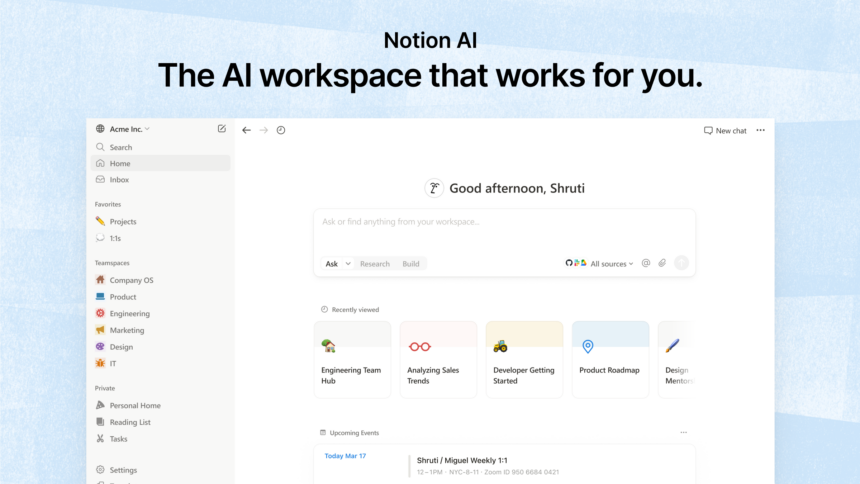
Notion is a productivity and collaboration software that combines multiple tools into a single platform. Instead of using separate apps for notes, tasks, wikis, and databases, Notion allows users to manage everything in one place.
Key Features of Notion
- Note Taking and Documentation
- Task and Project Management
- Database and Table Management
- Team Collaboration Tools
- Knowledge Base Creation
- Content Planning and Organization
- Custom Templates and Workflows
With these features, Notion can act as a personal productivity system, digital notebook, project tracker, or team collaboration platform.
Why Install Notion on Windows 11?
Although Notion works perfectly in a browser, installing the Notion desktop app for Windows 11 provides several advantages.
- Faster Performance: The desktop application is optimized for performance and loads faster compared to the browser version.
- Dedicated Workspace: Having a standalone application reduces distractions and keeps your work organized in one dedicated environment.
- Offline Access: The desktop app allows partial offline functionality so you can access previously opened pages without internet. Notion integrates well with Windows features like notifications, shortcuts, and taskbar pinning.
- Better Productivity: With quick launch access, you can open Notion instantly and manage your workflow more efficiently.
System Requirements for Notion on Windows 11
Before installing Notion, ensure your system meets the basic requirements.
Minimum Requirements
- Operating System: Windows 11 or Windows 10 (64-bit)
- Processor: Intel or AMD processor
- RAM: 4 GB or higher recommended
- Storage: Around 200 MB free disk space
- Internet Connection: Required for syncing data
Notion is a lightweight application and works smoothly on most modern computers.
How to Download Notion for Windows 11
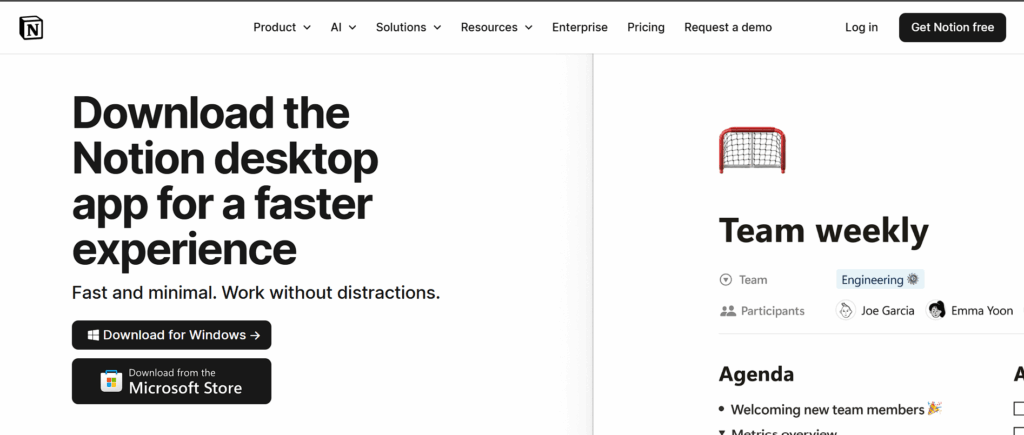
To install Notion on Windows 11, you first need to download the official installation file.
- Open your browser and go to the official Notion website.
- Search for: “Download Notion for Windows”
- You will find the official download page for the desktop application.
- On the download page, click the Download for Windows button.
- The installer file will automatically begin downloading to your computer.
- After the download is complete, locate the file in your Downloads folder. The file name usually appears as:
Notion Setup.exe
How to Install Notion on Windows 11
Follow these simple steps to install Notion on your Windows 11 computer.
- Double-click the Notion Setup.exe file to start the installation process.
- Windows may show a security prompt asking for permission.
- Click Yes to allow the installation.
Notion uses a quick installer, which means there is no complicated setup wizard. The installation will begin automatically.
Within a few seconds:
- The application files will be installed.
- Notion will launch automatically.
Once the application opens, you will see the login screen.
You can sign in using:
- Google account
- Apple account
- Email address
If you do not already have a Notion account, click Sign Up and create one.
Start Using Notion
After logging in, you can begin creating:
- Notes
- Databases
- To-do lists
- Project boards
- Knowledge bases
Your workspace will automatically sync across devices.
Setting Up Notion for the First Time
After installing Notion, it’s a good idea to configure your workspace for better productivity.
Create Your First Page
Click New Page and create your first workspace page.
You can use templates such as:
- Daily planner
- Task manager
- Personal dashboard
- Project tracker
Organize Pages with Blocks
Notion uses a block-based system where every piece of content is a block.
Examples of blocks include:
- Text
- Headings
- Images
- Tables
- Lists
- Databases
- Code blocks
This flexible system allows users to customize pages easily.
Enable Dark Mode
If you prefer dark mode on Windows 11:
- Open Settings in Notion
- Go to Appearance
- Select Dark Mode
This improves readability and reduces eye strain.
How to Pin Notion to Taskbar in Windows 11
Pinning Notion to the taskbar allows quick access.
Steps:
- Open Notion
- Right-click the Notion icon in the taskbar
- Select Pin to Taskbar
Now you can launch Notion instantly.
Updating Notion on Windows 11
Notion automatically updates itself in the background.
However, you can manually check for updates:
- Open Notion
- Click Settings
- Look for Check for Updates
Keeping the app updated ensures better performance and security.
Common Issues When Installing Notion (And Fixes)
Sometimes users may encounter problems during installation. Here are common issues and their solutions.
1. Notion Installer Not Opening
Solution:
- Right-click the installer
- Select Run as Administrator
2. Installation Failed
Solution:
- Re-download the installer from the official website
- Disable antivirus temporarily
3. Notion Not Launching
Solution:
- Restart your computer
- Reinstall the application
4. Sync Issues
Solution:
- Check internet connection
- Log out and log back in
Benefits of Using Notion Desktop App
Installing Notion on Windows 11 provides several advantages for productivity and organization.
All-in-One Workspace
Notion replaces multiple apps like:
- Note apps
- Task managers
- Documentation tools
Collaboration
Teams can collaborate in real-time by sharing pages, comments, and tasks.
Custom Workflows
Users can create:
- Personal dashboards
- Company knowledge bases
- Project tracking systems
Cross-Platform Sync
Your data automatically syncs across:
- Windows
- macOS
- Android
- iOS
- Web browser
Tips for Using Notion Efficiently
To get the most out of Notion, consider the following tips.
Use Templates
Notion offers thousands of templates for productivity, project management, and note organization.
Create a Personal Dashboard
A dashboard can include:
- Daily tasks
- Notes
- Calendar
- Goals
- Project updates
Learn Keyboard Shortcuts
Some useful shortcuts include:
- Ctrl + N → New page
- Ctrl + Shift + L → Toggle dark mode
- / command → Insert blocks
Use Databases
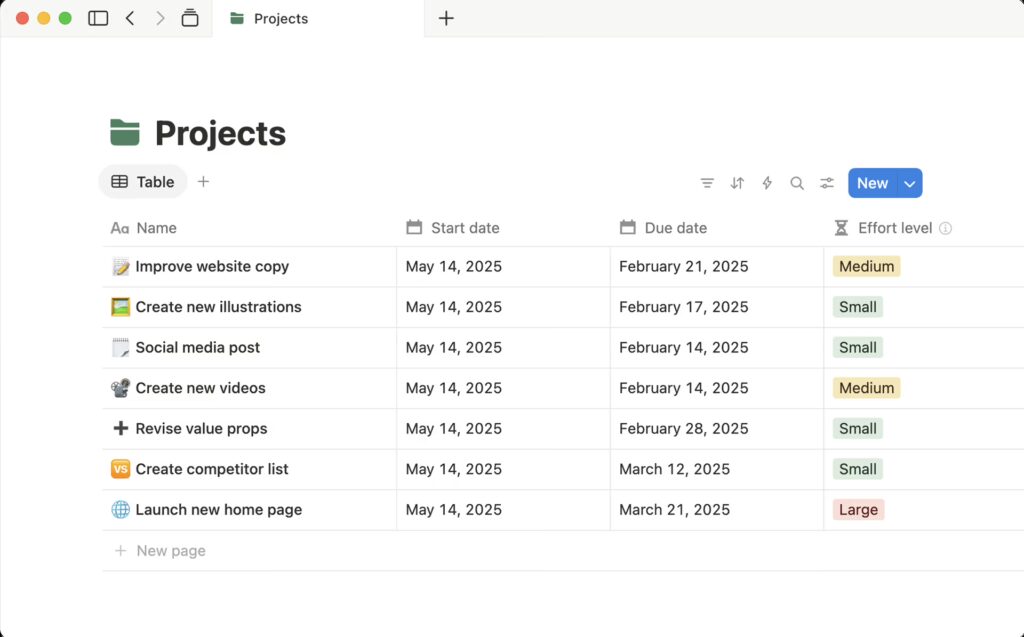
Databases are one of Notion’s most powerful features. They can manage:
- Projects
- Clients
- Tasks
- Content calendars
Alternatives to Notion
Although Notion is powerful, some users may prefer alternatives such as:
- Evernote
- Microsoft OneNote
- ClickUp
- Obsidian
- Trello
However, Notion stands out due to its flexibility and all-in-one workspace capabilities.
By following the steps in this guide, you can easily download, install, and set up Notion on your Windows 11 PC within minutes. Once installed, you can use Notion to manage tasks, take notes, collaborate with teams, and create customised workflows that suit your personal or professional needs.
- Set Live Wallpaper on Windows 11
- Disable Exploit Protection in Windows 11
- Install Windows 11 Without a Microsoft Account
- Customize Privacy settings in Windows 11