Windows 11 isn’t just a visual refresh of Microsoft’s operating system. Alongside the cleaner design, it includes several thoughtful upgrades focused on ease of use and accessibility. One of the most practical additions is Live Captions, a feature that quietly stands out as one of the most useful accessibility tools Windows has introduced in years.
Live captions are especially helpful for people with hearing impairments, as they convert spoken audio into on-screen text in real time. That said, you don’t need to have hearing difficulties to benefit from them.
They’re just as useful when you’re watching a video in a noisy environment, following along with a meeting without headphones, or trying to understand dialogue that’s unclear or spoken quickly. In short, it’s a feature that can help almost anyone.
Surprisingly, despite how useful live captions are, they’re turned off by default in Windows 11. The good news is that enabling them only takes a minute or two, and once they’re active, they can quickly become part of your everyday workflow.
What are Live Captions in Windows 11?
Live Captions-sometimes referred to as live subtitles-are a built-in Windows feature that listens to audio playing on your device and instantly displays the spoken words as text on your screen. The captions appear in a dedicated bar, making them easy to read without blocking your content.
The feature works across many types of audio, including videos, apps, and even system sounds. It’s designed to run locally on your PC, which means your audio doesn’t need to be sent online to generate captions. This keeps things faster and more private.
Even though Live Captions can make Windows significantly more accessible, Microsoft chose to keep it disabled by default. That’s why many users don’t realise it’s there at all-until they go looking for it.
How to turn on Live Captions in Windows 11
Activating live subtitles in Windows 11 is quick and straightforward. You don’t need any third-party software, and once it’s enabled, you can turn it on or off whenever you like.
Follow these steps to get started:
- Press the Windows key + I on your keyboard to open Settings
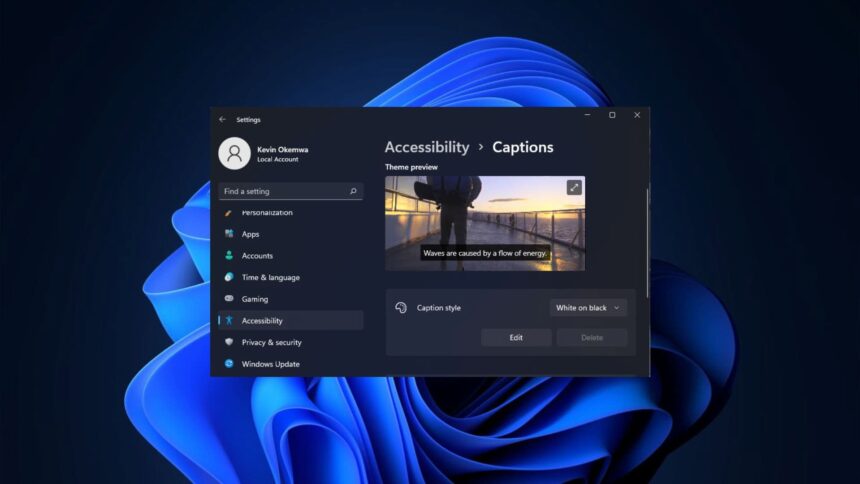
- In the left-hand menu, select Accessibility
- Scroll down to the Hearing section and click on Captions
- Here, you can adjust how captions look, including text size, font, color, and position on the screen
- Once you’re happy with the appearance, use the keyboard shortcut Windows key + Ctrl + L to turn Live Captions on
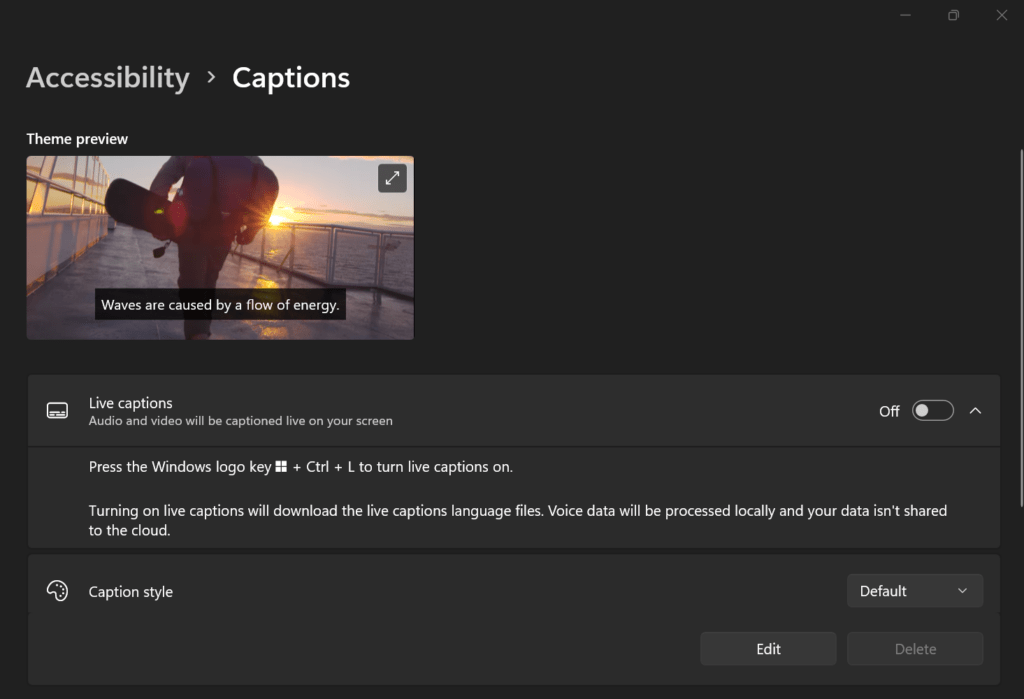
The first time you activate the feature, Windows will ask you to accept a brief notice before it starts working. If Live Captions aren’t installed yet, Windows will automatically prompt you to download the required files and guide you through the process.
After that, captions will begin appearing whenever audio is detected, making it easy to follow along without missing a word.
Why Live Captions are worth using
Live Captions aren’t just an accessibility option-they’re a practical tool for everyday situations. Whether you’re watching videos late at night, joining online meetings, learning a new language, or simply want extra clarity, on-screen captions can make a big difference.
Once enabled, the feature is easy to toggle with a keyboard shortcut, customizable to your preferences, and works quietly in the background when you need it. It’s one of those small additions that can significantly improve how you interact with your PC.
If you haven’t tried Live Captions yet, it’s well worth turning them on-even if you don’t think you need them right now.
- How to Install Fonts in Windows 11
- Add or Remove Most Used Apps From Windows 11 Start Menu
- Check If windows 11 activated
- Use Android Mobile Camera as a Webcam on Windows 11