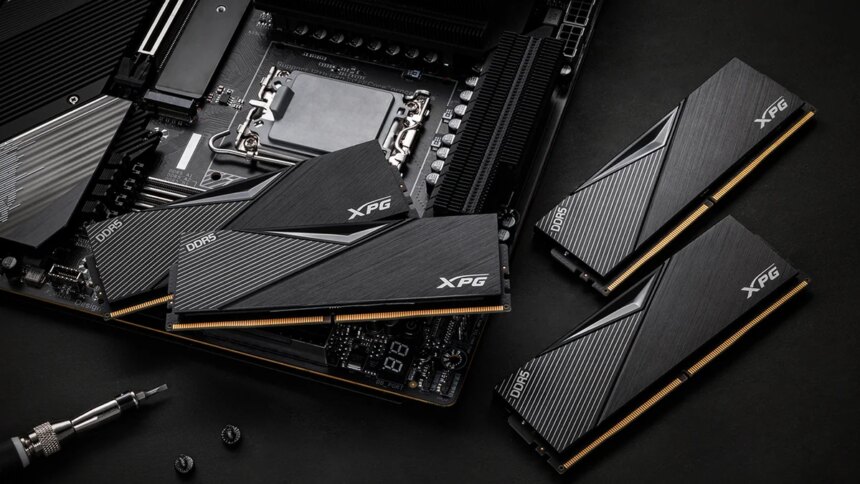
RAM plays a major role in gaming PC performance. It temporarily stores the data that games and applications need to access quickly, helping the CPU keep up with everything happening on screen. When your system runs short of available memory, gameplay can become less stable, even if your graphics card and processor are powerful enough to run the game.
The effects of insufficient RAM go beyond lower average frame rates. You may notice sudden stutters, inconsistent frame delivery, longer loading delays, or games closing unexpectedly. In more severe cases, the entire system can become unresponsive.
Understanding how memory shortages affect your PC can help you decide whether you need a RAM upgrade or simply need to reduce the number of applications running in the background.
1. Low RAM Causes Stuttering and FPS Drops
One of the most noticeable signs of insufficient RAM is stuttering. These brief freezes can occur when moving through a new area, loading additional assets, or encountering several objects and effects at once.
When physical memory becomes scarce, Windows may move some data to its paging file on an SSD or hard drive. This is known as virtual memory, and it helps the operating system continue running when RAM is under pressure.
However, storage devices cannot provide the same access speed as physical RAM. If a game needs data that has been moved to the paging file, retrieving it can take longer and interrupt the flow of gameplay.
The result may be a sudden hitch or a noticeable delay while textures and other game assets load.
Why 1% Low FPS Matters
Average FPS does not always reveal how smoothly a game runs. A system might maintain a high average frame rate but still suffer from frequent stutters.
This is where 1% low FPS becomes useful. It measures performance during some of the game’s slower frames and can help highlight inconsistent frame delivery.
When memory pressure causes delays, 1% low FPS may drop even when average FPS looks healthy. The problem can be particularly noticeable when entering new areas, loading complex environments, or fighting scenes with many characters and visual effects.
2. Insufficient RAM Can Cause Games to Crash
Windows can use virtual memory to compensate for limited physical RAM, but that does not guarantee every game will keep running when memory demand becomes excessive.
If a game or its supporting processes cannot obtain the memory they need, the application may close unexpectedly and return to the desktop. Depending on the cause, you might see an error message or no warning at all.
The paging file can help manage memory pressure, but it is not a replacement for having enough physical RAM. Heavy reliance on storage can also lead to poor responsiveness during gameplay.
Background Apps Can Make the Problem Worse
Games rarely run alone. A typical gaming session may include a web browser, Discord, music streaming software, game launchers, recording tools, and other background processes.
Each application consumes some system memory. If several are active while a demanding game is running, the amount available to the game can shrink considerably.
In severe cases, memory pressure can affect Windows itself. Applications may stop responding, keyboard and mouse input may become delayed, and the PC may require a restart to recover.
If crashes and freezes occur regularly, check memory usage before assuming that the graphics card or processor is responsible.
3. How Much RAM Do You Need for Gaming?
The right amount of RAM depends on the games you play, the resolution and settings you use, and how many other applications run alongside them.
For many modern gaming PCs, 16GB remains a practical starting point. However, some demanding games and multitasking setups can benefit from more available memory.
| RAM capacity | Best suited for |
|---|---|
| 8GB | Older or less demanding games, with limitations in newer titles |
| 16GB | Mainstream gaming, particularly when background activity is limited |
| 32GB | Demanding modern games, multitasking, streaming, and heavier workloads |
| 64GB or more | Specialised workloads such as large creative projects, advanced simulations, and other memory-intensive tasks |
For most gamers building a new PC, 32GB is a sensible target if the budget allows it. It provides more room for demanding games and background applications without requiring users to close everything before launching a title.
That does not mean every game needs 32GB. If your current setup runs smoothly and memory usage stays comfortably below its limit, upgrading may not provide a noticeable improvement.
Check actual memory usage and performance before spending money on additional RAM.
4. Dual-Channel RAM Can Improve Performance
Memory capacity is not the only factor that matters. How your RAM is installed can also affect performance.
Using two compatible memory modules in the correct motherboard slots allows a system to operate in dual-channel mode when supported. This increases the available memory bandwidth compared with a single-channel configuration.
Additional bandwidth can help the CPU access data more efficiently, particularly in games that are sensitive to memory performance. The size of the improvement depends on the processor, game, memory configuration, and other hardware.
For example, a compatible 2 x 8GB kit can provide 16GB of dual-channel memory, while a 2 x 16GB kit provides 32GB. Two modules are not automatically faster in every situation, but a properly configured dual-channel setup is generally preferable to a comparable single-channel configuration.
Check your motherboard manual to confirm the recommended slots and verify that the memory is operating in the expected mode.
5. What to Do If You Can’t Upgrade Your RAM
RAM and SSD prices can fluctuate, so an upgrade may not be worthwhile immediately. If your PC has less than 32GB of memory, there are several ways to reduce unnecessary memory usage while gaming.
Close Unnecessary Background Applications
Before launching a demanding game, close programs you do not need. Browsers with many open tabs, streaming applications, and unused launchers can consume memory that would otherwise remain available to the game.
You do not need to disable every background service. Focus on applications that use significant amounts of RAM and are not essential to your session.
Check Memory Usage in Task Manager
Press Ctrl + Shift + Esc to open Task Manager, then select the Processes tab and sort by memory usage.
This helps identify applications consuming the most RAM. If your system consistently approaches its memory limit while a game is running, reducing background activity may help.
The Performance tab also provides an overview of memory usage and available capacity.
Keep the Paging File Enabled
The Windows paging file helps the operating system manage memory when physical RAM becomes scarce. Disabling it is not a reliable way to improve gaming performance and can increase the risk of application errors under high memory demand.
Leaving Windows to manage the paging file automatically is a reasonable default for most users.
Remember that virtual memory can help prevent some memory-related problems, but it cannot deliver the same responsiveness as sufficient physical RAM.
Adjust Settings if a Game Still Stutters
If closing unnecessary applications does not help, try reducing settings that increase memory demand, where the game provides suitable options. You can also monitor RAM usage while playing to see whether the problem occurs when memory consumption approaches its limit.
Keep in mind that stuttering can have other causes, including shader compilation, storage delays, driver issues, CPU limitations, or insufficient graphics memory. Low RAM is only one possible explanation.
Insufficient RAM can affect gaming performance in several ways, from brief stutters and poor 1% low FPS to unexpected game crashes and system instability. Windows can use a paging file to manage memory pressure, but storage is much slower than physical RAM, so heavy paging can make gameplay less consistent.
For many modern gaming PCs, 16GB is a reasonable starting point, while 32GB offers more flexibility for demanding games and multitasking. A properly configured dual-channel memory setup can also improve bandwidth when the system supports it.
If upgrading is not an option right now, start by checking Task Manager and closing unnecessary background applications. That may free enough memory to improve your gaming experience without requiring new hardware.